How to rotate and save PDF pages permanently online for free
Quick summary
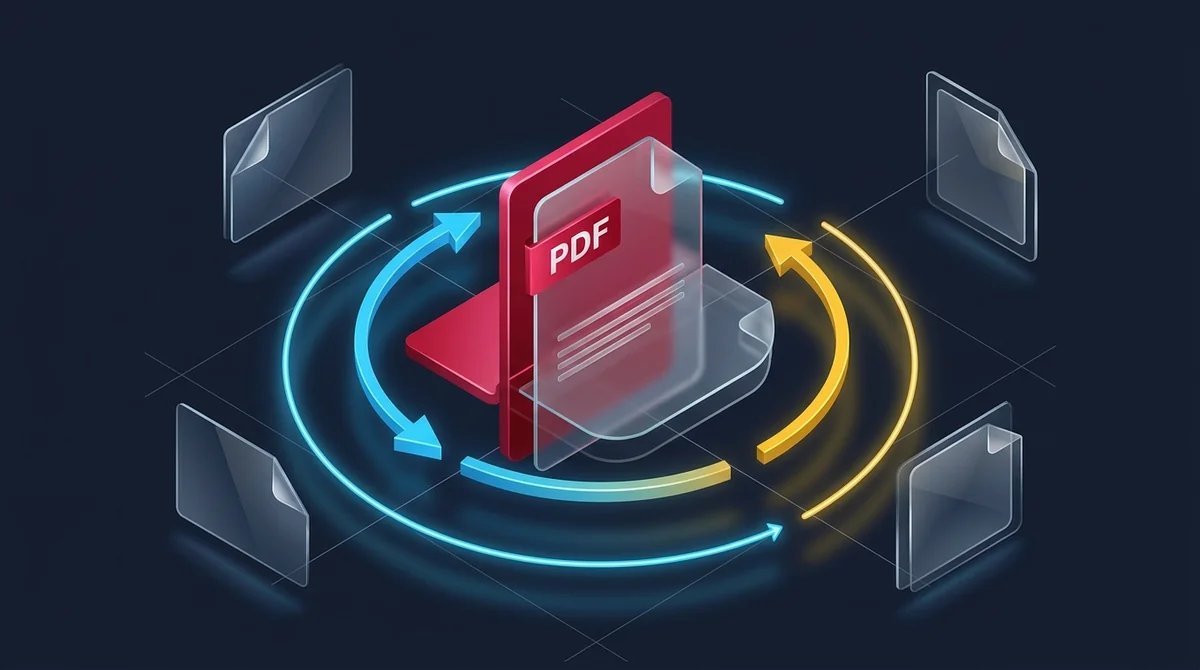
To rotate and save PDF pages permanently without Adobe Acrobat, upload your document to AZ2PDF. The free tool updates the page orientation metadata (/Rotate key) directly under ISO 32000 standards, fixing upside-down or sideways pages across individual sheets or entire documents without re-compressing raster images or compromising visual quality.
- Permanent dictionary update: Modifies the internal /Rotate dictionary key directly, ensuring pages stay permanently corrected across every PDF reader, printer, and mobile app.
- Zero quality degradation: Page rotation adjusts the coordinate matrix without recompressing underlying raster images or vector graphics, maintaining 100% visual fidelity.
- 100% free with complete privacy: No subscription fees, software installations, or account registrations required, with temporary files purged automatically within 5 minutes.
- Flexible page control: Rotate the entire document at once or adjust individual odd, even, or landscape sheets by 90, 180, or 270 degrees clockwise.
Why viewing rotation is not permanent (the viewport trap)
Almost everyone working with digital paperwork has encountered this exact irritation: you open a PDF document, notice that a scanned invoice or contract page is lying sideways or completely upside down, click the rotate button on your PDF viewer toolbar until it faces upright, read the document, and close the window. Yet the next time you open the document, email it to an executive, or send it to an office printer, the offending page flips right back to its inverted orientation.
This persistent issue is known in document engineering as the viewport rotation trap. When you click the rotate arrow inside common desktop applications or web browsers such as Google Chrome, Apple Preview, or Microsoft Edge, the software only applies a temporary visual transformation to your immediate display buffer. It turns the viewport canvas so your eyes can read the text comfortably, but it never modifies the underlying binary structure of the document.
Under the ISO 32000 standard for Portable Document Format, a PDF file is an indexed hierarchy of data objects. Each individual page object contains a dedicated dictionary entry named /Rotate that specifies the default angle at which rendering engines must display that page. Unless this specific internal dictionary value is permanently updated and written to disk, every viewing application will default back to the original orientation recorded during the initial scan or export.
Historically, saving permanent orientation changes required purchasing an expensive license for desktop software like Adobe Acrobat Pro ($239 or more per year). Fortunately, modern web engineering has eliminated this barrier. Today, you can fix and permanently save PDF page orientations directly in your web browser using free, high-speed document tools without spending a dime.
Bypass the frustrating viewport rotation trap permanently using the AZ2PDF Rotate PDF tool. Unlike basic PDF viewers that only rotate the visual display temporarily, this tool rewrites the internal page rotation matrix so pages remain oriented correctly across all devices.
Privacy first: Why ephemeral memory processing protects sensitive documents
When correcting the orientation of official records, financial statements, medical charts, or legal declarations, document privacy is the primary concern. Many legacy online file conversion websites upload your files to unknown external cloud servers, where documents may sit unencrypted in temporary storage buckets or risk exposure to data breaches.
Using AZ2PDF free online PDF tools, your document security is prioritized at the architectural level. All file operations utilize ephemeral in-memory processing buffers. When you submit a PDF to be rotated, the file is handled within an isolated temporary runtime stream without indexing, data harvesting, or tracking.
Automated cleanup daemons permanently purge all temporary runtime data within five minutes of processing. Your confidential contracts, payroll records, and personal identity documents remain strictly private, giving corporate teams and individual professionals total peace of mind without requiring user registration or credit card details.
How to rotate and save PDF pages online in 3 simple steps
Fixing stubborn upside-down or sideways pages across any document takes only a few seconds. Follow this straightforward procedure:
Step 1: Upload your PDF document
Step 2: Choose your rotation angle and target pages
Once your file is loaded, you have flexible options to orient your document precisely:
- Rotate all pages together: Select 90 degrees clockwise, 180 degrees (upside down), or 270 degrees clockwise (90 degrees counter-clockwise) to normalize the orientation of the entire document simultaneously.
- Target specific sheets: Adjust individual page thumbnails selectively if only particular sheets were fed sideways by a scanner, leaving the rest of the document untouched.
- Instant visual verification: Verify the thumbnail previews in real time to ensure every paragraph, table, and signature line is oriented upright before finalizing.
Step 3: Apply permanent rotation and download
Click the action button to process your document. The server engine updates the internal page dictionaries within milliseconds. Your corrected document downloads automatically, fully prepared for professional distribution, filing, or direct printing without reversing its position.
Once all pages are oriented upright, you can seamlessly rearrange and reorder PDF pages into your preferred sequential order.
Under the hood: How the PDF /Rotate dictionary and coordinate matrix work
To appreciate why permanent PDF rotation is both instantaneous and completely lossless, it is helpful to examine how document coordinate systems function under the hood.
In the ISO 32000 specification, every page object in a PDF hierarchy contains geometric boundaries defined in user space points (where 1 point equals 1/72 of an inch). These boundaries include:
- MediaBox: Defines the physical boundaries of the medium on which the page is intended to be displayed or printed.
- CropBox: Defines the visible region of the page displayed by viewing applications.
- Rotate: An optional integer entry specifying the number of degrees by which the page must be rotated clockwise when displayed or printed.
The PDF specification strictly mandates that the value of the /Rotate key must be a positive multiple of 90: specifically 0, 90, 180, or 270. If the key is omitted, rendering engines treat the orientation as 0 degrees by default.
When you rotate a document using a high-performance utility like AZ2PDF, the underlying engine does not unpack, decompress, or re-encode your raster images or embedded fonts. Instead, it performs a pure metadata and matrix transformation:
- The parser locates the specific page dictionary object in the document catalog cross-reference table (xref).
- It recalculates the cumulative rotation angle (for example, converting an existing 90-degree page by adding 90 degrees to make it 180 degrees).
- It rewrites the
/Rotateinteger value and updates the coordinate transformation matrix (CTM) without touching the content streams. - The output stream is linearized for fast web view, ensuring the first page renders instantly when opened across network connections.
Because the image streams (such as JPEG or FlateDecode compressed bitmaps) and vector font glyphs are never recompressed, there is zero generational quality loss. Text remains razor sharp, vector line art retains microscopic clarity, and the file size does not inflate.
After correcting sideways or inverted orientations across your document, you can conveniently trim uneven scanner margins with the crop tool to eliminate black photocopy borders and establish uniform page margins.
Rotating entire documents vs. adjusting individual pages
Document workflows present varied orientation challenges depending on how the original material was generated. Knowing when to apply global versus selective rotation saves substantial time.
Option 1: Global rotation across all pages
Global rotation is the ideal solution when an entire multi-page document was fed into a sheet-fed scanner upside down, or when a digital document was exported in landscape mode when standard portrait orientation was intended. Applying a single 90-degree or 180-degree rotation across all pages restores uniform alignment across hundreds of sheets in a single operation.
Option 2: Selective page rotation for mixed orientation files
Mixed-orientation files are extremely common in corporate, legal, and financial reporting. For instance, an eighty-page quarterly business review might consist primarily of portrait-oriented narrative text, but include three pages containing wide financial balance sheets, Gantt charts, or organizational diagrams formatted in landscape mode.
After correcting sideways or inverted orientations across your document, you can conveniently trim uneven scanner margins with the crop tool to eliminate black photocopy borders and establish uniform page margins.
Comparing your options: Free online tools vs. Adobe Acrobat vs. desktop utilities
When selecting a method to rotate and save your PDF documents, several common options exist, each with distinct trade-offs in convenience, cost, and efficiency.
In-browser tools like AZ2PDF
Modern browser-based utilities offer the optimal balance of speed, cost, and security. AZ2PDF is completely free, requires no software installation or user registration, and works seamlessly across macOS, Windows, Linux, iOS, and Android. Because rotation is executed via lightweight coordinate updates on high-speed servers, processing finishes in fractions of a second without putting strain on your local computer hardware.
Commercial desktop suites like Adobe Acrobat Pro
Adobe Acrobat Pro provides robust page organization capabilities, but it comes with a steep annual subscription cost exceeding $239 per year. For individuals, small businesses, or administrative staff who simply need to rotate, merge, or split documents periodically, paying expensive recurring software fees represents an unnecessary financial burden.
Free desktop software and operating system viewers
Built-in operating system viewers like Apple Preview on macOS allow users to rotate pages and attempt to save them via the File menu. However, differences in how Preview writes PDF dictionaries can sometimes introduce compatibility issues when the file is subsequently opened on Windows machines or submitted to government electronic filing portals. Linux and Windows native viewers frequently lack permanent save capabilities entirely, falling back into the temporary viewport trap.
Real-world use cases: Fixing scanner feeds, mobile photos, and landscape tables
Understanding where orientation errors originate helps streamline document production and document intake workflows.
Automatic document feeder (ADF) misalignment
High-volume office multifunction printers and desktop sheet-fed scanners frequently reverse document orientations. If an operator places a stack of two-sided invoices into the feeder tray facing the wrong direction, all even-numbered pages or the entire batch may be digitized upside down. Running the batch through a quick 180-degree rotation normalizes the file instantly before archiving.
Mobile document scanning and camera photos
Smartphones have become the primary scanning tool for field technicians, students, and remote workers. However, mobile cameras rely on internal gyroscopes to write orientation metadata (EXIF tags). If you capture a receipt or contract while holding the phone at a slight downward angle, the operating system can easily misinterpret the orientation, producing a PDF that displays sideways. Re-orienting the file ensures legible submission to expense management software or university portals.
Complex document assembly
When gathering materials from multiple contributors to build a single comprehensive dossier, incoming attachments often feature mismatched orientations. By you can ensure every individual annex, spreadsheet, and certificate is uniformly upright before finalizing the master dossier.
Achieve permanent visual alignment across all your documents with the AZ2PDF online document suite, delivering rapid client-side geometry transformations without cloud server dependency.
Quick fixes for stubborn PDF orientation problems
If you encounter unexpected behavior when managing PDF page orientations, consider these proven technical solutions:
- Document rotates on screen but prints upside down: This issue occurs when your printer driver has its own auto-rotate or duplex-flip setting enabled. Check your print dialog box and ensure the orientation is set to Auto or matches the physical document boundaries.
- File size increased after saving in other software: Some legacy graphic design programs convert entire PDF pages into raster bitmaps when re-saving after a rotation. Always use dedicated PDF utilities that manipulate the
/Rotatedictionary key directly to maintain original file size and vector sharpness. - Need to sign or annotate after rotating: If your document requires form filling, digital signatures, or text highlights, rotate and save the file first. Then, open the upright document in the AZ2PDF PDF Editor to complete your edits without navigating awkward angles.
- Need to reduce file size before emailing: Scanned documents with high-resolution imagery can be quite bulky. After correcting the orientation, pass the final file through the AZ2PDF Compress PDF tool to shrink the file size by up to 80% while preserving crisp readability.
Frequently asked questions
Here are clear answers to the most common questions regarding rotating and permanently saving PDF documents.
❓ Frequently asked questions
This happens when your software only applies a temporary visual rotation to the viewport canvas rather than saving the changes into the PDF file structure. To make the change permanent, the document must be processed by a dedicated utility that updates the internal /Rotate dictionary key specified by the ISO 32000 standard.
Related articles in this topic
Deep dive into related document organization and page manipulation workflows.

How to reorder and rearrange PDF pages online (free and secure)
Learn how to reorder, shuffle, and rearrange PDF pages online for free. Drag and drop thumbnails to resequence multi-page documents with complete privacy.

How to delete unwanted pages from a PDF online (free and fast)
Learn how to delete unwanted, blank, or confidential pages from a PDF online for free. Select pages visually or by range with instant browser cleanup.

How to add page numbers and Bates stamping to PDF documents
Learn how to insert page numbers, headers, footers, and legal Bates stamping to PDF files online for free. Customize font, positioning, and page offset.

How to edit a PDF online without Adobe Acrobat (free and private)
Learn how to edit PDF text, add signatures, annotate documents, and white out sensitive details online without paying for Adobe Acrobat. Fast, free, and 100% private.
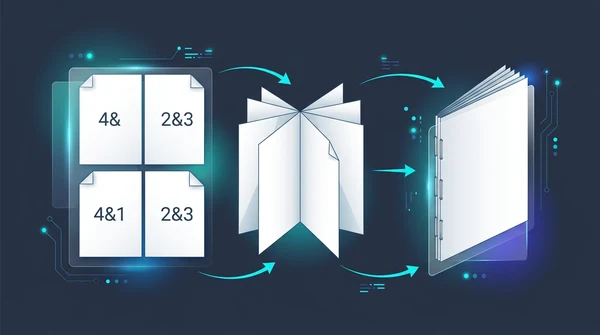
How to create a PDF booklet for printing (free double-sided imposition)
Learn how to turn any PDF into a foldable, double-sided booklet for printing. Reorder pages for saddle-stitch binding without paying for expensive software.

How to split PDF for poster printing (free online tile guide)
Learn how to split large PDF pages into printable 2x2 tiles for poster printing on regular A4 or Letter printers. 100 percent free without Adobe Acrobat.