How to convert HTML files to PDF online without losing formatting
Quick summary
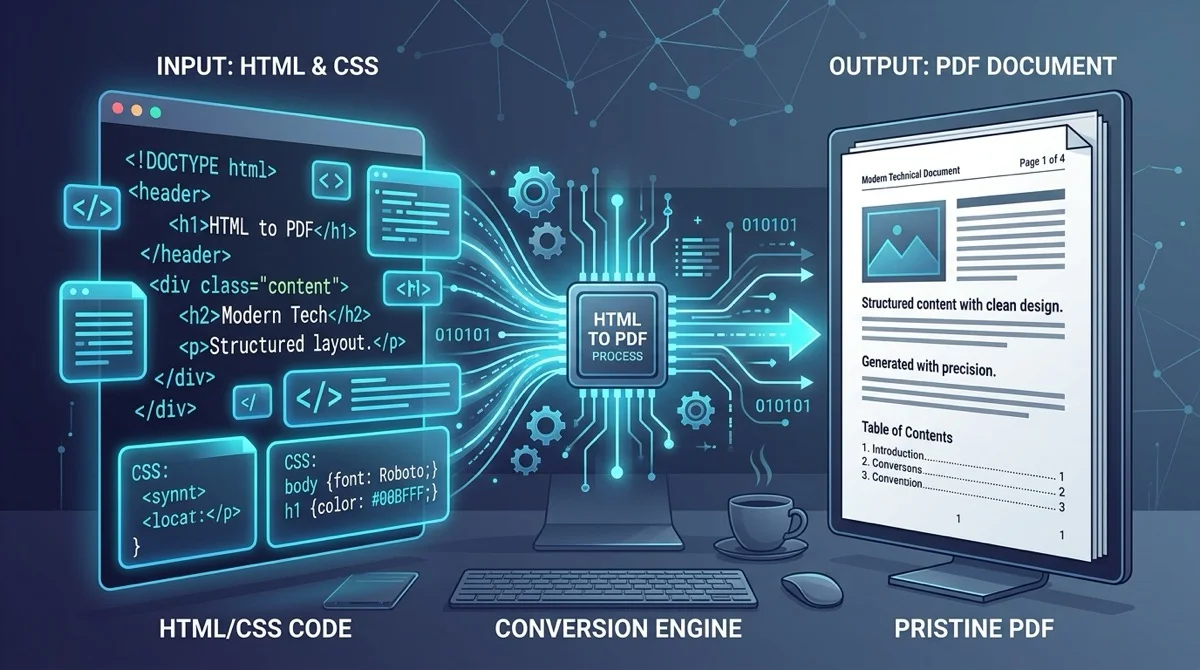
To convert HTML files to PDF online for free, upload your .html or .htm file to AZ2PDF HTML to PDF. The conversion engine compiles CSS styling, media rules, and web typography into standard paged PDF documents with crisp vector text and zero software fees or watermarks.
- Preserves print layouts: Honors W3C CSS Paged Media specifications including @page rules, custom margins, and clean page breaks.
- Crisp vector typography: Keeps text selectable and searchable without rasterizing fonts into blurry, low-resolution bitmap images.
- 100 percent free with no barriers: Enjoy unlimited conversions with no mandatory account creation, credit cards, or promotional watermarks.
- Confidential in-memory processing: Operates via ephemeral server memory with automated cleanup, ensuring your private reports stay protected.
The fundamental challenge: Why converting HTML to PDF differs from web browsing
Web developers, accountants, business owners, and students frequently find themselves needing to turn web-formatted content into downloadable documents. Whether you have generated an automated sales invoice, a weekly performance report, or an offline reference guide, HTML remains the most flexible language for laying out structured information. However, turning that code into a pristine PDF document presents a distinct engineering hurdle.
Web browsers are built for fluid, continuous viewports. On a computer monitor or smartphone screen, content can expand indefinitely downward. A visitor can simply scroll through thousands of pixels without worrying about where one sheet of paper ends and the next begins. Viewports dynamically flex to accommodate different screen resolutions, and elements adapt smoothly.
In contrast, the Portable Document Format (PDF) is governed by strict physical paper constraints. A standard PDF page adheres to rigid geometric boundaries, such as an A4 sheet (210 by 297 millimeters) or US Letter (8.5 by 11 inches). When transforming HTML into a PDF, an engine cannot merely capture a screen screenshot. It must recalculate the entire document object model (DOM), paginate flowing text blocks, enforce explicit page margins, and split content logically across sequential paper sheets.
When you rely on basic browser print dialogs, this translation often fails. Default browser printing frequently adds unwanted header URLs, clips wide tables mid-sentence, omits background colors, and creates awkward breaks through important paragraphs. Using a dedicated document conversion tool ensures your layout translates into a clean, presentation-ready publication.
Convert web layouts, CSS media queries, and formatted HTML snippets into standardized printable pages with the AZ2PDF HTML to PDF converter. It respects print stylesheets and breaks multi-page content cleanly without clipping headings.
How modern HTML to PDF engines compile markup into vector documents
To produce a publication-grade PDF from web markup, a dedicated conversion engine does much more than capture pixel snapshots. It functions as a specialized layout compiler adhering to international document standards.
When you submit an HTML document, the rendering pipeline executes several precise stages:
- DOM and CSSOM parsing: The engine parses your raw HTML markup to construct the Document Object Model while simultaneously parsing all linked or inline style declarations into a CSS Object Model.
- Paged media evaluation: Unlike a standard browser that formats for an infinite screen canvas, the engine activates W3C CSS Paged Media rules. It maps dimensions to standard physical sheets, honoring orientation specifications, outer margin boxes, and page numbering counters.
- Box generation and line breaking: The layout engine calculates font metrics, line heights, and element boundaries. It wraps text accurately and applies pagination algorithms to decide where each sheet terminates.
- Vector stream synthesis: Rather than producing a heavy, blurry bitmap image, the engine writes native PDF vector operators. Headings and paragraphs remain crisp, scalable vector outlines that can be searched with Ctrl+F and highlighted. Custom fonts are embedded as lightweight font subsets directly into the PDF binary dictionary.
The result is a compact, high-resolution document that looks identical whether printed on a high-end commercial laser printer or viewed inside a mobile PDF reader.
How to convert your HTML file to PDF online in 3 simple steps
You do not need to install complex command-line software, configure headless browser libraries, or purchase expensive desktop publishing licenses to transform your web files. You can generate clean PDF documents directly in your web browser. Here is the straightforward process:
- Select your HTML document: Drag and drop your .html or .htm file into the secure upload area, or click the selection button to choose the file from your local storage drive.
- Automatic layout compilation: The system reads your document structure and compiles your markup, CSS styles, and typography into a multi-page PDF layout.
- Download your finished PDF: Click the download button to save your formatted document immediately to your device. There are no registration prompts, watermarks, or wait queues.
If you also need to manage, compress, or reorganize other office files, you can access the full suite of AZ2PDF free online PDF tools right from your browser at any time without paying subscription fees.
Controlling print layouts: Essential CSS rules for clean page breaks and margins
If you have direct control over your HTML and CSS source code, you can leverage standard paged media properties to achieve total control over your final document. Incorporating a few simple style rules inside your style block guarantees that invoices, receipts, and multi-chapter reports render with impeccable precision.
1. Defining paper size and page margins
The CSS @page at-rule establishes the physical paper dimensions and printable boundary margins for your entire file. You can define exact sheet types and margins using standard units like millimeters or inches:
@page { size: A4 portrait; margin: 20mm 15mm 20mm 15mm; }
For wide data tables or financial spreadsheets, you can easily switch the orientation to landscape:
@page { size: A4 landscape; margin: 15mm; }
2. Preventing unwanted splits inside important content blocks
One of the most frustrating issues in automated document generation occurs when an invoice item, testimonial card, or signature block gets sliced horizontally across two sheets. You can prevent this behavior with break-inside: .signature-box, .table-row { break-inside: avoid; page-break-inside: avoid; }
Applying this rule instructs the layout engine to inspect the remaining vertical space on the current page. If the container cannot fit completely, the engine gracefully pushes the entire element to the top of the subsequent sheet.
3. Forcing deliberate page breaks between sections
When compiling multi-section documents, such as training manuals or business proposals, each major topic should begin on a fresh sheet. You can enforce this with the break-before property:
h2.chapter-title, .page-break { break-before: page; page-break-before: always; }
4. Preserving background colors and graphic accents
By default, many rendering environments suppress background colors to conserve physical printer ink. To force background shading on table headers, badges, and colored sidebars, include the print color adjustment rule:
body { -webkit-print-color-adjust: exact; print-color-adjust: exact; }
If you prefer capturing a live website or authenticated portal page directly from the internet, you can easily capture live web URLs directly to capture full-page web content in one step.
Local HTML file conversion versus live webpage URL capture: Which tool should you use?
When converting web content to PDF, users often wonder whether they should use a file converter or a URL capture tool. While both produce standard PDF files, they address distinct operational needs:
When to use the HTML to PDF tool:
- Confidential and local files: Ideal for invoices, internal payroll slips, customer receipts, and draft contracts generated on your local computer or private server that are not published on the public web.
- Custom offline templates: Perfect when testing custom print stylesheets, paged CSS designs, or automated billing templates before rolling them out to production.
- No internet hosting required: Works directly with standalone .html files saved on your hard drive, laptop, or smartphone without needing a public domain.
When to use the URL to PDF tool:
- Live public web articles: If you want to archive a live news article, online tutorial, or blog post from the web, as it fetches the remote URL directly.
- Full webpage snapshots: Captures publicly accessible websites including their remotely hosted media and styles without requiring you to manually save the HTML code first.
Troubleshooting common HTML to PDF formatting and layout errors
If your converted PDF looks different from what you see in your web browser, review these common causes and their straightforward solutions:
Missing images or broken graphic links: If your HTML file references images stored locally with relative paths (such as src="images/logo.png"), the cloud converter cannot reach those local asset folders on your private drive. To ensure your images render perfectly, convert your graphics into inline base64 data URIs directly inside your img tag (src="data:image/png;base64,...") or host the images on a reliable, publicly reachable content delivery network.
Text clipping on the right margin: Web layouts frequently define fixed container widths in pixels (for instance, width: 1200px). Because a standard A4 page width is approximately 794 pixels at 96 DPI, oversized fixed containers will overflow the paper margin. Replace fixed pixel measurements with relative widths, such as width: 100% or max-width: 100%, to allow your markup to fit naturally within the printable bounds.
Missing custom web fonts: If your document uses proprietary or locally installed fonts, the server rendering environment may substitute them with standard fallback typefaces like Helvetica or Times New Roman. To preserve brand typography, link standard web fonts via Google Fonts in your head tag or declare them using an @font-face rule with embedded base64 font data.
Large final PDF file size: When an HTML document incorporates multiple high-resolution photos or detailed vector graphics, the generated PDF may be too heavy for email attachments. You can easily pass the resulting file through the AZ2PDF Compress PDF tool to shrink the document size without sacrificing legible text quality.
Privacy and security: Why ephemeral processing keeps your data confidential
HTML files often contain highly sensitive business information, including customer names, financial transaction logs, internal company metrics, and proprietary code. Uploading these documents to public utilities requires absolute trust in the platform's data governance.
AZ2PDF is architected with a strict privacy-first foundation. When you submit your HTML file for conversion, the file is received into an isolated, ephemeral memory buffer. The rendering engine compiles the PDF in a sandboxed execution environment and transmits the completed document directly back to your browser session.
We do not maintain permanent file archives, inspect your code, or share your documents with third parties. Automated cleanup routines purge temporary data from server memory immediately after processing completes. Once your download is finished, your document leaves no lingering footprint on our infrastructure.
Transform web markups into executive-grade PDF documents securely via the free web-based PDF utility collection, ensuring rapid client-side rendering with zero server data retention.
Frequently asked questions
❓ Frequently asked questions
Yes. The converter is 100 percent free with no hidden paywalls, no monthly subscription fees, no file count restrictions, and no watermarks placed on your exported documents.
Related articles in this topic
Deep dive into related document organization and page manipulation workflows.
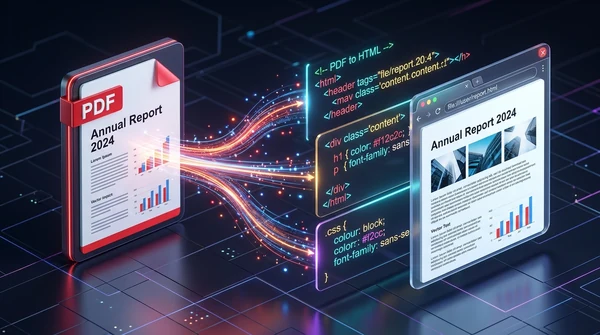
How to convert PDF to HTML online for free (clean code and layout preservation)
Learn how to convert PDF documents into clean, responsive HTML web pages online for free. Preserve fonts, text styling, and graphics without watermarks.

How to convert a website URL to PDF online (free and full-page)
Learn how to convert any webpage URL to a crisp, high-fidelity PDF online for free. Capture full layouts, backgrounds, and fonts without watermarks or software.
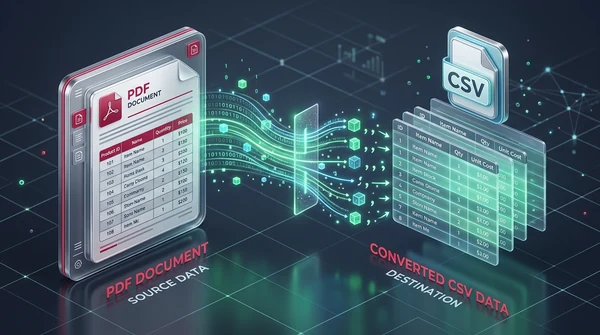
How to convert PDF to CSV online for free (clean table extraction)
Learn how to convert PDF tables into clean, structured CSV files online for free. Extract bank statements, invoices, and ledgers without broken columns or watermarks.
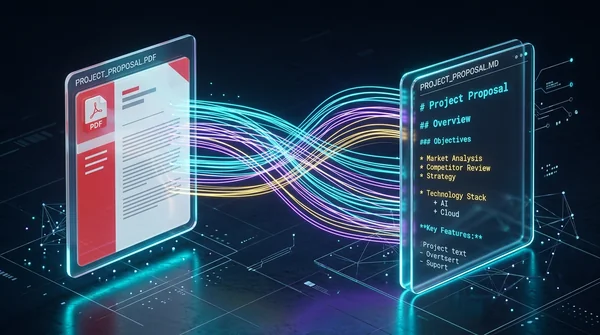
How to convert PDF to Markdown online for free (clean MD extraction)
Learn how to convert PDF documents into clean, structured Markdown (.md) files online for free. Extract headings, lists, and code blocks for LLMs, Obsidian, and web publishing.

How to decompress PDF streams online for free (unpack raw code and FlateDecode)
Learn how to decompress PDF streams online for free to inspect raw PostScript operators, unpack FlateDecode filters, and debug PDF files with zero software.

How to compress a PDF without losing quality (free and fast)
Learn how to compress PDF file sizes by up to 85% for email and web uploads without blurry text or pixelated images. Fast, free, and 100% private in your browser.