How to print multiple PDF pages on one sheet (free N-Up tool)

Quick summary
To print multiple PDF pages on one sheet, you use an N-Up imposition tool to arrange multiple source pages into a clean grid on a single carrier page. With the free in-browser tool on AZ2PDF, you can combine 2, 4, or more pages per sheet with balanced margins and proportional vector scaling, cutting paper usage by up to 75 percent without losing text sharpness or uploading files to remote servers.
- Significant paper and cost savings: Placing 2 or 4 pages on each sheet cuts physical paper and toner consumption by 50 to 75 percent.
- Lossless vector quality: The engine embeds source pages as Form XObjects, preserving sharp fonts, vector diagrams, and exact proportions at any resolution.
- Instant digital handouts: Generate a permanent multi-page PDF ready for printing, emailing to meeting attendees, or archiving in compact study binders.
- Zero installation and total privacy: The entire process runs directly in your browser memory for 100 percent free usage without subscriptions or data tracking.
Why putting multiple PDF pages on one sheet matters for efficiency and printing
Every business, university, and independent professional eventually confronts the financial and logistical headache of physical document printing. Whether you are preparing meeting packets for an executive board, distributing lecture notes to a classroom of eighty students, or printing research papers for detailed marginal review, physical printing accumulates rapid costs in paper reams, printer toner cartridges, and binder storage space.
The problem is especially pronounced with modern digital presentations. Slide creation software such as PowerPoint, Apple Keynote, and Google Slides formats slides in widescreen 16:9 aspect ratios designed for high-resolution monitors and digital projectors. When an author exports these slides to PDF and sends them directly to an office printer, the printer driver centers each slide onto an individual vertical sheet of A4 or US Letter paper. The result is a massive waste of physical space: roughly sixty-five percent of each printed page remains completely blank, while a sixty-slide presentation consumes sixty sheets of paper.
Beyond digital slide presentations, many routine business documents feature sparse typography that does not justify full-page distribution. Software release notes, lecture outlines, multi-page meeting agendas, design proofs, and legal exhibit lists often contain only a few lines or small bullet points per page. Carrying, stapling, or mailing these bloated document stacks is inconvenient and inefficient.
Arranging multiple pages onto a single physical sheet solves these challenges immediately. In the professional printing and document engineering industry, this technique is known as N-Up imposition. Placing two pages on a single sheet (2-Up) instantly reduces paper consumption by fifty percent. Placing four pages on a sheet in a balanced two-by-two grid (4-Up) cuts paper usage by seventy-five percent. When you combine four-page imposition with standard duplex (two-sided) printing, an eighty-page document requires only ten physical sheets of paper.
Cut printing costs and compile handy study handouts with the AZ2PDF N-Up PDF tool. It arranges 2, 4, 6, or more pages per sheet in an optimized grid layout with customizable sheet margins and page separators.
The mechanics of N-Up imposition: How vector scaling preserves clarity
A frequent hesitation users have when contemplating multi-page layout is the fear of visual degradation. Many people assume that shrinking pages down works like resizing a JPEG photograph, where reducing dimensions causes blurry fonts, illegible charts, and pixelated logos. Fortunately, high-grade document imposition operates under entirely different mathematical principles.
Under the international ISO 32000 standard, a native digital PDF is not an image made of fixed pixels. It is an object-oriented vector blueprint. Characters are stored as mathematical glyph outlines defined by cubic Bézier curves, while geometric illustrations, chart lines, and borders are stored as vector drawing operators. These graphic objects exist within an infinite-precision coordinate space measured in PostScript points, where seventy-two points equal exactly one inch.
When you use AZ2PDF to arrange multiple pages per sheet, our engine performs three sophisticated document transformations:
- Form XObject vector encapsulation: Rather than rasterizing pages into flattened bitmap images, the engine converts each original source page into an independent Form XObject (
/Subtype /Form). This encapsulates the complete vector stream, embedded font subsets, and graphic states into a reusable mathematical container. - 2D Affine Transformation Matrix scaling: The engine calculates the exact printable geometry of the destination carrier sheet (such as a landscape A4 sheet measuring 841.89 by 595.28 points, or a US Letter sheet measuring 792 by 612 points). It then applies a 2D transformation matrix (
[sx 0 0 sy tx ty] cm) to each page tile, shrinking vector strokes and font glyphs simultaneously and proportionally. - Gutter balancing and aspect ratio preservation: To prevent visual distortion, the engine preserves the original aspect ratio of each page, automatically centering the tiles and inserting clean gutters (the spacing between adjacent cells). It also maintains safe outer margins so that physical printer feed rollers do not clip text.
Because the underlying vector geometry remains untouched, typography stays perfectly sharp. You can inspect your imposed document on a 4K monitor at eight hundred percent magnification or print it on a commercial twelve-hundred DPI laser printer, and every letter, decimal point, and hairline schematic diagram will remain as crisp as the day it was created.
How to combine multiple PDF pages onto one sheet in 3 simple steps
Generating a polished multi-page handout takes less than thirty seconds with AZ2PDF free online PDF tools. The system requires no desktop software installation, no credit card, and zero user account sign-ups. Follow these three straightforward steps:
Step 1: Open the free Multi-Page Layout tool and upload your PDF
Navigate to the free Multi-Page Layout tool in any modern web browser on Mac, Windows, Linux, iOS, or Android. Drag and drop your PDF into the upload zone, or click the browse button to select a file from your computer or mobile storage. Your file loads instantly without queuing delays.
Step 2: Choose your grid layout and orientation
Select your desired grid arrangement based on your document type and reading needs. You can choose 2-Up (two pages placed side-by-side on a landscape sheet) for standard text documents, or 4-Up (four pages arranged in a two-by-two grid) for presentation slides and study handouts. The engine automatically handles cell distribution and margin calculations behind the scenes.
Step 3: Generate and download your imposed PDF
Click the Process button. The engine transforms the document coordinate streams directly inside your browser memory in just a few seconds. Click Download to save your finished multi-page PDF immediately to your device, one hundred percent free of promotional watermarks or page count restrictions.
Choosing the best grid layout: 2-up, 4-up, and beyond
Selecting the optimal N-Up grid configuration depends on the font size of your original content, the complexity of your graphics, and how your audience will interact with the physical printout. Here is how to evaluate the primary layout choices:
1. 2-Up layout (two pages per sheet)
In a 2-Up configuration, two portrait source pages are placed side-by-side onto a single landscape sheet. Under the international ISO 216 standard (such as placing two A5 or A4 pages onto a single sheet), each page scales down by a factor of approximately 0.7071 (a thirty percent reduction in linear dimensions).
When to use: Ideal for text-dense documents, contracts, academic journal papers, book manuscripts, and financial reports with standard ten-point or twelve-point body fonts. At this scale, paragraphs remain fully legible at natural reading distances without requiring readers to squint.
2. 4-Up layout (four pages per sheet in a 2x2 grid)
A 4-Up layout arranges four consecutive pages into two rows and two columns on a single sheet. This provides a dramatic seventy-five percent reduction in paper volume.
When to use: Perfect for presentation slide decks created in PowerPoint, Google Slides, or Keynote. Because presentation slides naturally employ large display typography (typically twenty-four to thirty-six points) and bold visual graphics, shrinking them to one-quarter size leaves text easily readable. It is also the gold standard for meeting attendee handouts and classroom lecture packets, leaving ample whitespace for handwritten margin notes.
3. 9-Up and 16-Up layouts (contact sheets and proofing)
Higher-density grids place nine or sixteen thumbnail pages on a single sheet in three-by-three or four-by-four arrangements.
When to use: Best suited for visual contact sheets, photo albums, graphic design overviews, and comprehensive publication proofing. Graphic designers and art directors use these dense overviews to audit chapter pacing, visual balance, and color palette transitions across an entire publication prior to commercial offset press runs.
N-Up layout vs booklet imposition vs page scaling: Which tool do you need?
Because document management utilities frequently employ related vocabulary, users occasionally confuse multi-page layout with booklet creation or simple page scaling. Here is a clear guide to help you choose the right tool for your project:
1. N-Up layout (grid arrangement)
What it does: Arranges consecutive document pages sequentially onto a single carrier sheet (pages 1 and 2 on the first sheet, pages 3 and 4 on the second sheet) in a grid.
Best for: Handouts, presentation packets, lecture summaries, and compact study guides that will be read as loose sheets or stapled in the corner.
2. Booklet imposition (signature binding)
What it does: Calculates mathematical folding signatures and reorders pages non-sequentially (such as placing page 16 alongside page 1 on the outer cover sheet, and page 2 alongside page 15 on the inside). When these sheets are printed double-sided and folded down the center spine, they form a paginated book.
Best for: Folded brochures, event programs, church bulletins, and self-published pamphlets.
3. Page scaling (dimension resizing)
What it does: Modifies the physical paper boundary of individual pages (such as converting a US Letter file to standard ISO A4, or shrinking an A3 architectural drawing down to A4) while keeping exactly one document page per sheet.
Best for: Resolving international paper standard mismatches and avoiding printer edge clipping.
If you need to resize paper dimensions before or after imposing pages, you can easily scale PDF page sizes online.
4. PDF merge (sequential document stitching)
What it does: Combines multiple independent PDF files into a single continuous file without altering page layouts or nesting multiple pages together.
Best for: Assembling reports from multiple departments before imposing them into handouts.
High-value everyday use cases for multi-page layouts
Multi-page imposition is an essential capability across numerous business, academic, and personal printing workflows. Here are four common scenarios where N-Up layout delivers substantial value:
1. Executive meeting packets and presentation slide decks
In corporate boardrooms, distributing fifty-page slide decks as full-size single sheets creates an unmanageable stack of paper that clutters conference tables. Imposing slides in a clean 2-Up or 4-Up grid format produces lightweight executive briefing packets that attendees can annotate during the presentation and easily slip into a briefcase.
2. Academic revision sheets and condensed study notes
University students and certification candidates frequently study hundreds of lecture slides before midterm and final examinations. Printing every slide individually is cost-prohibitive. By imposing lecture decks into 4-Up layouts, students create compact study packets that condense an entire semester of course materials into a lightweight revision guide.
3. Prepress proofing and document sequence auditing
Before committing an annual corporate report, product catalog, or trade book to commercial printing, production editors need to verify page numbering, header consistency, chapter title placements, and visual hierarchy. Printing an N-Up proof sheet allows the entire team to audit twenty to thirty pages side-by-side on a desk without flipping through dozens of separate sheets.
4. Sustainable office operations and paper reduction compliance
Modern organizations increasingly implement sustainability initiatives aimed at minimizing physical waste and carbon footprint. Encouraging staff to format internal drafts, agendas, and technical documentation with 2-Up or 4-Up imposition and duplex printing immediately lowers office paper and toner consumption by up to eighty percent.
Privacy first: Why in-browser document imposition keeps your data safe
Business presentations, academic research papers, and corporate briefing documents routinely contain highly proprietary information: unreleased product roadmaps, executive compensation reviews, proprietary engineering diagrams, and confidential market forecasts.
Many legacy web conversion utilities monetize user traffic by storing uploaded documents on permanent hard disk arrays, indexing document text for marketing profiles, or leaving files vulnerable on unsecured cloud buckets. For privacy-conscious professionals and enterprise organizations, that model introduces severe compliance risks.
AZ2PDF operates under a rigorous privacy-first architecture:
- Client-side in-browser execution: For supported operations, our imposition engine runs entirely inside your web browser sandbox using modern WebAssembly and JavaScript memory buffers. Your documents never leave your personal computer and are never transmitted over the internet to remote servers.
- Ephemeral RAM processing with automated deletion: For tasks that utilize server-side processing, files stream directly into isolated volatile server memory. A background purge daemon continuously monitors memory allocations, permanently erasing all processing remnants within five minutes.
- Zero AI training and zero indexing: Your files are never scanned, cataloged, shared with third parties, or used to train artificial intelligence models. Your intellectual property remains strictly yours.
- 100 percent free with no hidden paywalls: All tools on AZ2PDF are completely free to use. There are no surprise subscription fees, trial limits, watermarks, or forced account registrations.
Optimize physical prepress and reduce paper waste with the complete PDF processing suite at AZ2PDF, which executes sophisticated document imposition locally within your web browser.
Quick fixes for common multi-page layout and printing issues
If you encounter unexpected results when creating multi-page layouts or sending imposed files to your office printer, these straightforward solutions resolve the most common challenges:
1. Text appears too small to read comfortably
If your source document contains small 8-point or 9-point body typography, a 4-Up or 9-Up imposition may reduce text size below comfortable reading thresholds. For dense legal contracts or complex financial tables, switch to a 2-Up grid layout or print onto larger A3 or Tabloid paper to maintain clear visual legibility.
2. Margins get clipped by physical office printers
Physical desktop printers require mechanical non-printable edge margins (typically 3mm to 5mm) to feed paper through internal rollers. If source content is packed too close to page edges, outer headings or footers can get clipped. AZ2PDF automatically incorporates balanced safety margins. When printing from your desktop PDF viewer, ensure that your printer dialog is set to "Actual size" or "Fit to printable area" rather than forcing custom scale percentages.
3. The document contains mixed portrait and landscape pages
When a presentation or report mixes vertical portrait pages with wide landscape tables, placing them on a uniform grid can cause rotation discrepancies. The AZ2PDF imposition engine automatically normalizes individual page matrices, centering and fitting each sheet proportionally into its grid cell without clipping or distorted stretching.
Frequently asked questions
Is the N-Up PDF tool on AZ2PDF completely free to use?
Yes. The AZ2PDF Multi-Page Layout tool is 100 percent free with no hidden subscriptions, trial limits, watermarks, or account registration requirements. You can impose documents of any size as often as you need.
What does N-Up mean in document printing and prepress?
In printing and digital document engineering, N-Up stands for Number-Up, where N represents the number of logical document pages placed onto a single physical sheet of paper. For example, 2-Up places two pages side-by-side, while 4-Up places four pages in a two-by-two grid.
Will shrinking multiple pages onto one sheet make the text fuzzy or pixelated?
No. Digital PDFs store text and vector lines as mathematical outlines rather than raster pixels. When our engine scales down pages to fit a grid, it embeds them as vector Form XObjects, ensuring that typography and diagrams remain razor-sharp at twelve-hundred DPI laser print quality.
What is the difference between N-Up multi-page layout and booklet imposition?
N-Up layout places consecutive pages sequentially on a sheet (for example, pages 1 and 2 on the first sheet, followed by pages 3 and 4 on the second). Booklet imposition rearranges pages into folding signatures (such as placing page 16 next to page 1) so that when sheets are printed double-sided and folded down the center, they form a bound book in correct reading order.
How much paper can I save by printing 4 pages per sheet?
Printing 4 pages per sheet reduces paper consumption by 75 percent. If you combine 4-Up imposition with duplex (two-sided) printing, an 80-page presentation deck requires only 10 physical sheets of paper, saving 87.5 percent of your total paper and binder storage.
Are my uploaded presentations and confidential files saved on your servers?
No. AZ2PDF processes multi-page layouts directly inside your web browser memory using client-side WebAssembly and JavaScript. Your documents never leave your computer, are never sent across the internet, and are never saved to disk or used for machine learning models.
❓ Frequently asked questions
Yes. The AZ2PDF Multi-Page Layout tool is 100 percent free with no hidden subscriptions, trial limits, watermarks, or account registration requirements. You can impose documents of any size as often as you need.
Related articles in this topic
Deep dive into related document organization and page manipulation workflows.
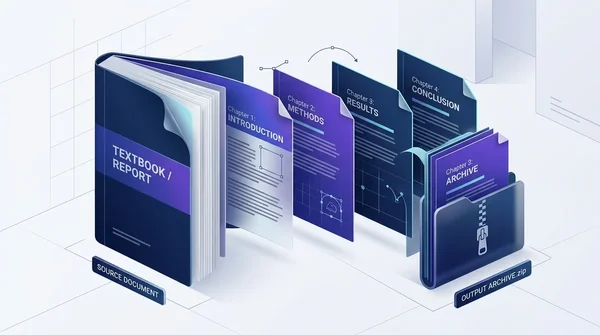
How to split a PDF by chapters online for free (clean and private)
Learn how to split large PDF books, manuals, and documents into separate chapter files online for free. Fast, private in-browser processing with organized ZIP output.
How to crop PDF margins and trim page borders online for free
Learn how to crop PDF margins and trim unwanted borders online for free. Adjust page boundaries for Kindle, shipping labels, and academic papers with zero quality loss.
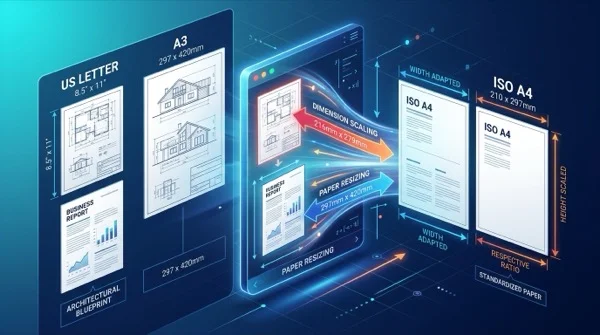
How to scale PDF pages online to standard paper sizes (free and sharp)
Learn how to scale PDF pages to standard paper sizes like A4, Letter, and A3 online for free. Fix printer margin cut-offs with 100% sharp vector typography.
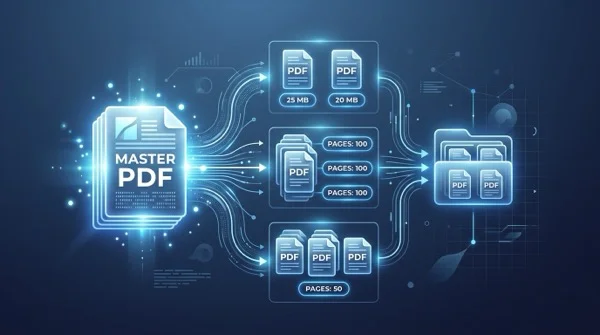
How to split a PDF by size or page count (free online)
Learn how to split large PDF files into smaller chunks by target size or page count online for free. Divide oversized documents for email and portals in seconds.

How to reorder and rearrange PDF pages online (free and secure)
Learn how to reorder, shuffle, and rearrange PDF pages online for free. Drag and drop thumbnails to resequence multi-page documents with complete privacy.
How to delete unwanted pages from a PDF online (free and fast)
Learn how to delete unwanted, blank, or confidential pages from a PDF online for free. Select pages visually or by range with instant browser cleanup.