How to delete unwanted pages from a PDF online (free and fast)
Quick summary
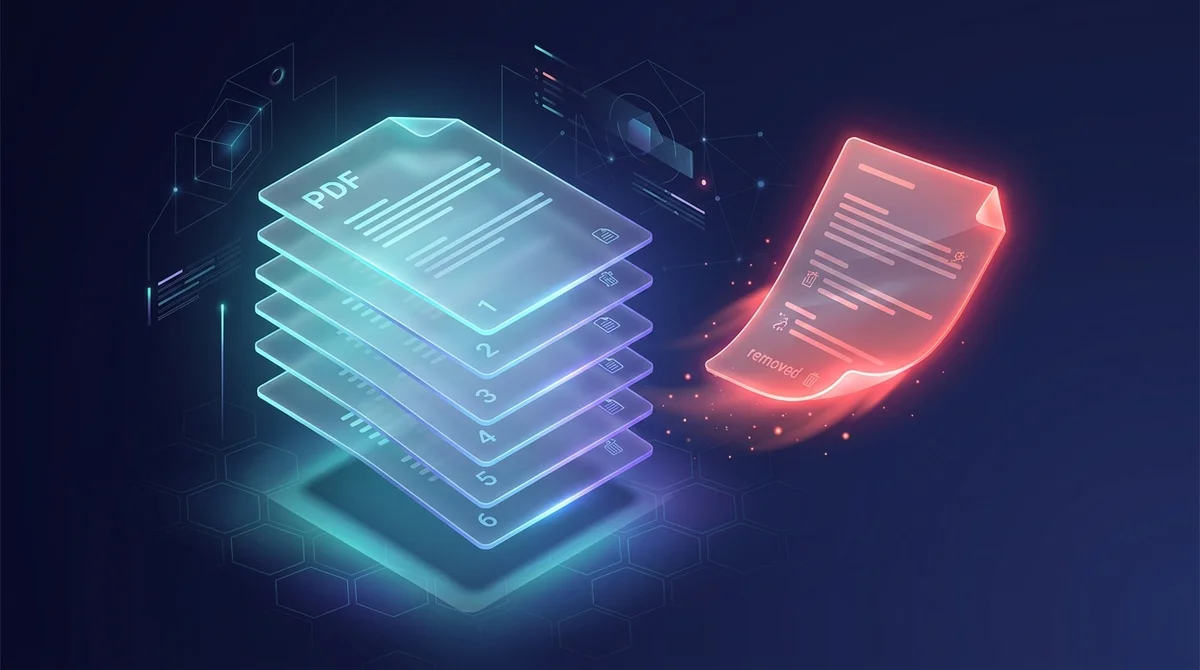
Deleting PDF pages is the selective extraction or elimination of page objects from a document catalog, preserving the exact vector fidelity of remaining pages.
- Lossless page pruning: Removing unwanted pages adjusts the document xref table without touching the content streams of preserved pages.
- Fast visual selection: Click thumbnail cards directly or enter page ranges like 1, 3-5, 8 to purge multiple sections at once.
- Privacy guaranteed: Documents are handled in temporary memory and permanently purged after processing.
- Zero cost utility: Enjoy unlimited page deletions with zero watermarks or registration barriers.
Why selective page removal is essential
Digital documents frequently accumulate redundant content: accidental blank sheets from scanner feeder jams, outdated pricing schedules, or confidential client disclosures meant only for internal review. Distributing files with unnecessary pages bloats file size and introduces compliance risks.
Trim unnecessary cover sheets, obsolete clauses, and duplicate scans with the AZ2PDF Remove Pages tool. Simply click thumbnail previews to delete unwanted leaves and generate a refined, focused document in seconds.
Technical insights: Object dereferencing in ISO 32000
Printing to PDF to remove pages is a common workaround that often introduces font corruption and image compression artifacts. In contrast, AZ2PDF performs direct structural dereferencing at the object catalog level.
When pages are targeted for removal, their entries are pruned from the document /Pages node and the xref table is restructured. The remaining content streams, interactive bookmarks, and internal hyperlinks continue functioning perfectly without generational quality degradation.
How to delete unwanted pages step-by-step
Deleting pages is simple and completely non-destructive to your remaining document:
- Upload your PDF file to the secure browser sandbox.
- Click on individual page cards to highlight them for deletion, or type custom page ranges into the removal box.
- Click Remove Pages to download the clean, optimized PDF file instantly.
After purging irrelevant pages, you can easily split the remaining document into discrete chapters if you need to distribute separate sections to different departments.
Purging confidential appendices and blank sheets
Removing obsolete sheets before emailing external partners ensures documents look professional and adhere to strict corporate governance. Legal teams regularly excise draft clauses, while accounting firms strip blank scanning pages to streamline tax filing packages.
Prune unwanted document content cleanly with the AZ2PDF free document management toolkit, where client-side memory safety ensures your deleted pages leave zero trace on external servers.
❓ Frequently asked questions
No. Remaining pages retain their exact original vector text, embedded typography, and raster graphics without recompression.
Related articles in this topic
Deep dive into related document organization and page manipulation workflows.
How to split PDF pages into separate documents (free and secure)
Learn how to split PDF files into separate documents or extract specific page ranges online without Adobe Acrobat. Fast, free, and completely private.
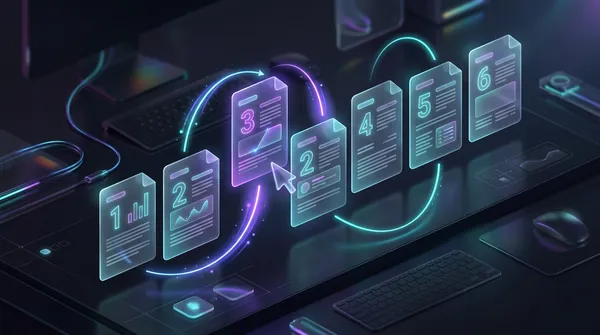
How to reorder and rearrange PDF pages online (free and secure)
Learn how to reorder, shuffle, and rearrange PDF pages online for free. Drag and drop thumbnails to resequence multi-page documents with complete privacy.
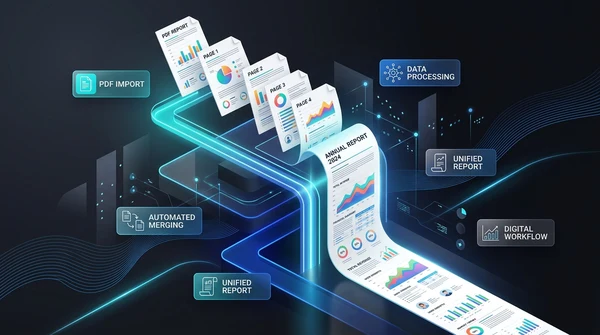
How to convert multi-page PDF to a single continuous page (free online tool)
Convert multi-page PDF documents into one continuous vertical scrolling page. Remove artificial page breaks, preserve vector text quality, and process files 100% free in your browser.
How to rotate and save PDF pages permanently online for free
Learn how to rotate sideways or upside-down PDF pages and save them permanently for free online. Fast, secure, and preserves 100% original document quality.
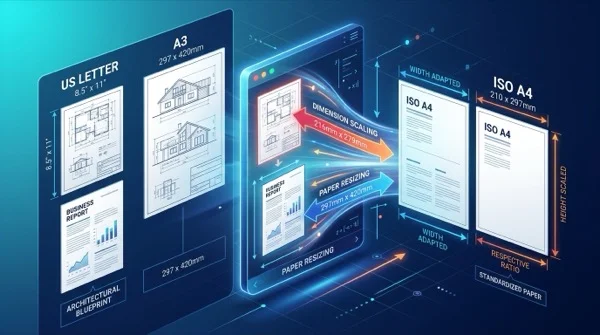
How to scale PDF pages online to standard paper sizes (free and sharp)
Learn how to scale PDF pages to standard paper sizes like A4, Letter, and A3 online for free. Fix printer margin cut-offs with 100% sharp vector typography.
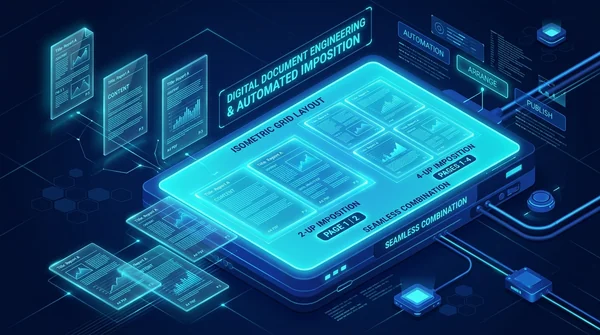
How to print multiple PDF pages on one sheet (free N-Up tool)
Learn how to combine 2, 4, or more PDF pages onto a single sheet for easy printing and handouts. Save paper, preserve vector quality, and process files 100% free and privately.