How to add page numbers and Bates stamping to PDF documents

Quick summary
Adding page numbers to PDF is the automated appending of typographic vector labels to page content streams according to ISO 32000 specifications.
- Non-destructive vector stamping: Numbers are added directly to the page content stream without rasterizing existing typography.
- Custom numbering formats: Support for standard numbers, 'Page X of Y' tokens, Bates numbering, and Roman numerals.
- Cover page handling: Easily skip title pages and start numbering from page two with custom numerical offsets.
- Free document workflows: 100% free with no account creation or watermarks on AZ2PDF.
Why formal pagination is indispensable
Unnumbered documents invite confusion during business negotiations, board meetings, and courtroom hearings. When stakeholders cite different sections of an unpaginated 80-page brief, productive dialogue grinds to a halt. Adding clear headers, footers, or Bates numbers ensures all parties reference identical materials with precision.
Ensure court-ready legal filings and formal corporate filings by using the AZ2PDF Add Page Numbers tool. It applies customizable page numbers, Bates stamping, and custom prefix notations with exact font, size, and margin placement.
Technical mechanics: Stream appending in ISO 32000
Inferior tools often convert entire PDF pages into static images to imprint page numbers, permanently destroying sharp typography and text searchability. AZ2PDF employs native stream injection according to ISO 32000 standards.
Our engine opens the page's /Contents dictionary and appends a dedicated vector drawing operator block using BT (Begin Text), font sizing, coordinate positioning, and ET (End Text) instructions. Your existing vector geometry, bookmarks, and form fields remain completely untouched while text remains 100% crisp and searchable.
Step-by-step guide to adding page numbers
Numbering multi-page PDF documents is straightforward:
- Upload your PDF file to the secure pagination utility.
- Select your preferred alignment (top, bottom, left, center, or right) and customize formatting tokens like
Page {n} of {total}. - Configure page offsets to skip cover sheets if necessary, then click Apply and download your paginated document.
Before or after stamping sequential page numbers, you can also easily reorder and organize your PDF pages to ensure all sections flow in perfect chronological order.
Bates stamping and formal litigation standards
For litigators and corporate auditors, Bates numbering assigns unique alphanumeric identifiers (such as CASE-000142) to consecutive pages. This provides an indisputable audit trail for discovery proceedings, ensuring evidentiary integrity across high-stakes corporate litigation.
Apply formal document pagination with precision using the AZ2PDF document utilities, benefiting from instant browser-native stamping with zero server processing risk.
❓ Frequently asked questions
Yes. You can configure the starting page number and offset so numbering only appears from page two or three onward.
Related articles in this topic
Deep dive into related document organization and page manipulation workflows.

How to delete unwanted pages from a PDF online (free and fast)
Learn how to delete unwanted, blank, or confidential pages from a PDF online for free. Select pages visually or by range with instant browser cleanup.

How to edit a PDF online without Adobe Acrobat (free and private)
Learn how to edit PDF text, add signatures, annotate documents, and white out sensitive details online without paying for Adobe Acrobat. Fast, free, and 100% private.

How to merge PDF files into one document online (free and secure)
Learn how to combine multiple PDF files into one organized document online without Adobe Acrobat. Fast, free, and secure with zero quality loss.

How to split PDF pages into separate documents (free and secure)
Learn how to split PDF files into separate documents or extract specific page ranges online without Adobe Acrobat. Fast, free, and completely private.
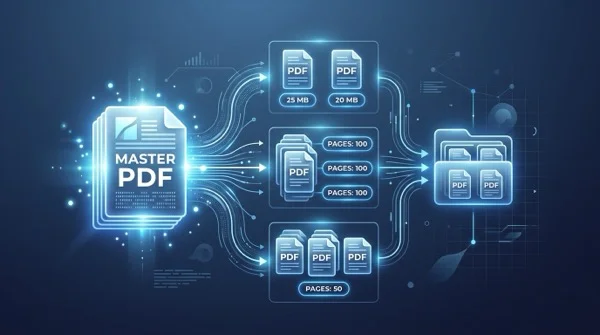
How to split a PDF by size or page count (free online)
Learn how to split large PDF files into smaller chunks by target size or page count online for free. Divide oversized documents for email and portals in seconds.

How to convert multi-page PDF to a single continuous page (free online tool)
Convert multi-page PDF documents into one continuous vertical scrolling page. Remove artificial page breaks, preserve vector text quality, and process files 100% free in your browser.