How to convert PDF to PowerPoint slides online for free (editable decks)
Quick summary
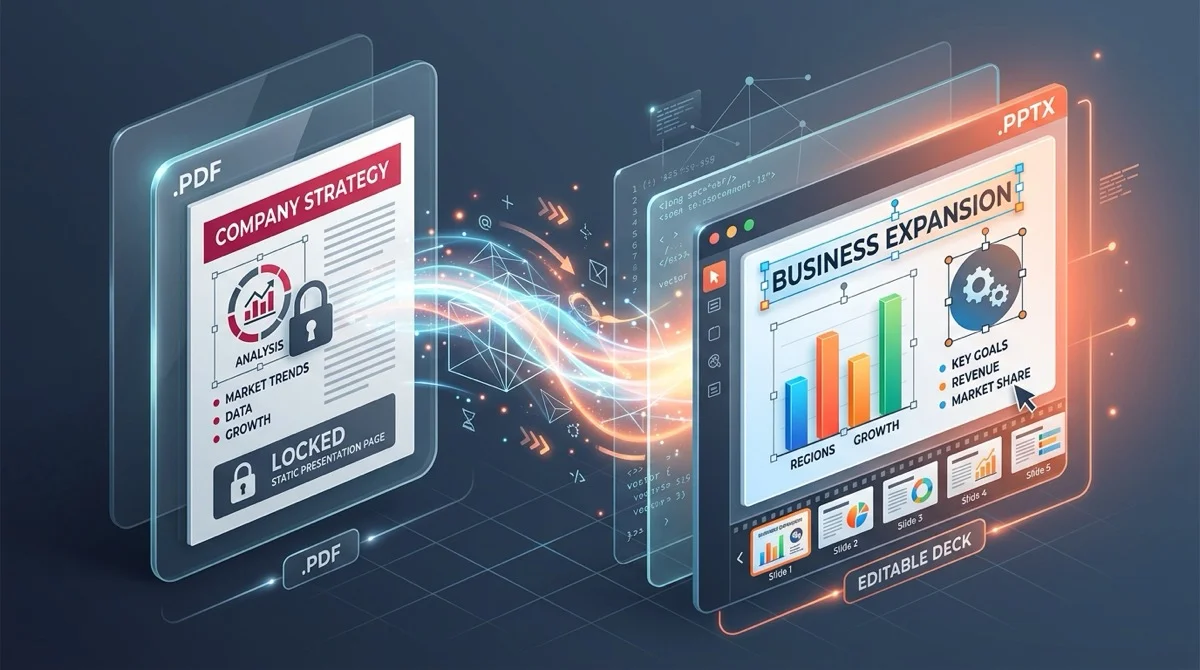
To convert a PDF to PowerPoint without losing editability, AZ2PDF PDF to PowerPoint parses PDF page geometry into native PowerPoint slides, transforming coordinate text streams into editable text boxes and vector shapes into DrawingML objects. Running entirely in secure volatile RAM, it delivers presentation-ready PPTX decks for free with zero data retention.
- Native editable text frames: High-fidelity conversion clusters glyph coordinates into editable PowerPoint text boxes, letting you change words, update numbers, and adjust typography directly.
- Preserved slide geometry and aspect ratios: Automatically detects 16:9 widescreen or 4:3 standard slide dimensions to prevent black bars, stretched images, or warped presentation layouts.
- Digital slides vs scanned handouts: Vector-based digital PDF presentations convert directly into editable elements, whereas scanned paper slides require optical character recognition (OCR) first.
- Strict ephemeral RAM privacy: Your presentations are converted in volatile memory and automatically wiped after 5 minutes by a system daemon, ensuring corporate slide decks remain completely private.
Why converting PDF slides back to PowerPoint is so challenging
Almost every professional, educator, and student has encountered this frustrating scenario: you receive a brilliant slide deck from a recent conference, webinar, or client meeting, but it was shared as a static PDF file. You need to update a few revenue figures, translate three bullet points for an international client, or extract five key diagrams for your quarterly review, but you cannot click into the slides to edit the content.
To understand why this happens, it helps to look at the fundamental difference between presentation files and PDFs. A native Microsoft PowerPoint deck (.pptx) is a structured archive of distinct, interactive objects. Every heading sits inside a movable text frame, shapes are defined by editable vector geometry, and charts are powered by underlying numerical data. When someone exports that presentation to the Portable Document Format (PDF), the software locks every visual element into fixed X and Y coordinates on a virtual printed sheet. The concept of slide masters, bullet point hierarchies, and editable boxes disappears, replaced by static print instructions.
Reversing this process requires an intelligent document conversion engine. Instead of merely printing the page, the software must read raw coordinate streams, cluster individual letters into coherent words and sentences, identify visual rectangles and arrows as vector shapes, and package everything back into a clean Office OpenXML presentation file. Many people assume they need an expensive software subscription to accomplish this, but modern document engineering now makes high-fidelity slide conversion accessible directly in your web browser for free.
Transforming static PDF slide decks back into dynamic, editable presentations is simple with the AZ2PDF PDF to PowerPoint converter. It preserves typography, slide backgrounds, and vector shapes so you can rehearse and deliver seamlessly.
How PDF to PowerPoint conversion works under the hood
A high-quality converter does not treat your PDF as a flat picture. Under the ISO 32000 standard, a PDF page consists of distinct content streams containing drawing operators, font dictionaries, and color spaces. Converting these streams into an Office OpenXML PowerPoint (.pptx) deck involves several sophisticated engineering stages:
- Coordinate mapping and glyph clustering: In a raw PDF, characters are often positioned individually with distinct horizontal offsets. The conversion engine analyzes character spacing, font metrics, and line heights to reconstruct natural sentences and bulleted paragraphs inside native PowerPoint text body elements (
p:txBody). - Vector shape recognition: Rectangles, background cards, connecting lines, and process arrows are converted into DrawingML vector shapes (
p:sp). Because these elements remain mathematical vectors rather than raster pixels, they stay razor-sharp when projected onto large 4K conference room screens. - Raster image extraction: Photos, partner logos, and product screenshots are extracted at their original dots-per-inch (DPI) resolution and embedded directly into the PPTX package media folder (
ppt/media/), preventing compression blur. - Layout and z-index ordering: The conversion pipeline preserves the exact stacking order (z-index) of layers. Background fills remain at the bottom, colored cards sit in the middle, and text labels remain cleanly positioned on top.
Editable text boxes vs. screenshot slides: The quality difference
When searching for online converters, many users end up disappointed because low-tier conversion tools take an undesirable shortcut: they render each PDF page into a static raster image (such as a JPEG or PNG) and paste that flat image onto an empty PowerPoint slide. While the resulting file technically carries a .pptx extension, it is essentially useless for presentation work:
- You cannot select, highlight, or correct typos in the text.
- You cannot change font families, text sizes, or brand colors.
- You cannot rearrange elements, move charts, or replace outdated logos.
- Projecting the slides on high-resolution displays often reveals blurry, pixelated text.
In contrast, a high-fidelity structural converter like the one powering AZ2PDF free online PDF tools performs true element reconstruction. Each text block becomes a selectable, editable box with preserved typographic weights. You can backspace, retype, format bullet points, change background colors, and customize slide elements exactly as if you had built the presentation inside PowerPoint from scratch.
Aspect ratios and slide geometry: Preventing 16:9 and 4:3 distortion
One of the most common issues during document conversion is slide distortion. If an engine forces a widescreen presentation into a square format, circular pie charts become stretched ovals and paragraphs get squeezed off the edge of the screen.
Professional slide decks generally follow one of two standard aspect ratios:
- Widescreen 16:9 (modern standard): Measuring approximately 13.333 by 7.5 inches (or 1920x1080 display equivalents), this format matches modern laptop screens, conference room TVs, and widescreen projectors.
- Standard 4:3 (traditional format): Measuring 10 by 7.5 inches, this format was standard for older cathode-ray tube monitors and legacy classroom projectors, and is still widely used for academic papers and tablet reading.
Our conversion engine inspects the exact physical boundaries (MediaBox and CropBox) defined in the PDF header. By matching the target PowerPoint canvas geometry to the source dimensions, your slides retain their intended layout without black bars on the edges or distorted visual proportions.
Privacy first: Why in-memory processing protects sensitive presentations
Presentation slide decks frequently contain high-stakes corporate data. Pitch decks include proprietary growth metrics, financial presentations reveal quarterly earnings, and lecture slides may contain unpublished academic research. Uploading these sensitive assets to untrusted internet services creates serious security risks.
Many legacy web converters store uploaded presentations on permanent hard drives, log file metadata, or share document contents with third-party analytical networks. Some even use uploaded presentations to train artificial intelligence models without user consent.
At AZ2PDF, your document privacy is guaranteed through an ephemeral architecture:
- Volatile RAM execution: Conversion pipelines run strictly inside high-speed temporary memory buffers. Your files are never written to permanent disk storage or database records.
- Automated 5-minute purge daemon: A background server daemon systematically and permanently deletes all temporary processing buffers within five minutes of completion.
- Zero data harvesting: We never inspect, index, analyze, or train algorithms on your presentations. No user account, email address, or credit card is ever required.
- 100% free with no catches: You get complete conversion capability without annoying watermarks stamped onto your slides or sudden download paywalls.
If you prefer sharing your presentation as a modern, scrollable infographic overview, you can easily combine slides into a continuous single page for effortless mobile viewing.
How to convert any PDF presentation to PowerPoint in 3 simple steps
Transforming your locked PDF slide deck into a fully editable presentation takes only a few seconds. The entire workflow is streamlined into three effortless steps:
Step 1: Upload your PDF slide deck
Open the conversion workspace in your web browser. Drag and drop your document into the conversion area, or click the selection button to choose the file from your computer, tablet, or phone. There is no software to install and no registration form to fill out.
Step 2: Let the engine reconstruct your slides
Click the convert button to begin the transformation. The system analyzes your document page geometry, isolates vector graphics, clusters text lines into editable frames, and compiles a native Microsoft PowerPoint (.pptx) file in temporary memory.
Step 3: Download and customize your presentation
Once conversion finishes, click the download button to save your new PowerPoint presentation. You can open the file immediately in Microsoft PowerPoint, Apple Keynote, Google Slides, or LibreOffice Impress to start editing text, changing graphics, and rehearsing your talk.
Scanned paper handouts vs. digital presentations: When to use OCR
To achieve the best results when converting slides, it is essential to recognize how your original PDF was created. Documents fall into two distinct categories:
1. Native digital PDF presentations
These documents were exported directly from presentation tools like PowerPoint, Keynote, Canva, or Google Slides. Because the underlying file contains digital vector font descriptions and coordinate metadata, conversion achieves near-perfect fidelity. Text boxes, bullet points, vector shapes, and background graphics translate cleanly into editable PowerPoint objects.
2. Scanned paper printouts and photocopied slides
If someone printed out slide handouts on physical paper and subsequently scanned them using a flatbed scanner or smartphone camera, the PDF contains nothing more than a photographic bitmap image. Standard vector converters cannot automatically know which pixels represent letters.
For scanned presentations, you should run your file through an optical character recognition (OCR) tool before attempting structural conversion. OCR scans the dark and light patterns of the image, recognizes individual alphanumeric characters, and embeds a machine-readable text layer behind the photograph. Once that text layer exists, the presentation converter can group words into editable boxes.
Comparing your options: AZ2PDF vs. Adobe Acrobat Pro vs. manual retyping
When faced with a locked PDF presentation, users typically consider three approaches:
Option 1: AZ2PDF free online converter
This is the fastest, most economical choice for everyday business and academic tasks. The service runs in any browser on Windows, Mac, Linux, iOS, and Android without requiring software installation. It delivers native, editable PPTX files with reconstructed text frames, maintains complete data confidentiality through ephemeral RAM processing, and costs nothing.
Option 2: Adobe Acrobat Pro desktop subscription
Adobe Acrobat Pro provides reliable conversion capabilities, but it requires installing heavyweight desktop software and paying a steep recurring subscription exceeding $239 per year. For individuals and organizations that only need to convert presentations occasionally, this ongoing expense is rarely justifiable.
Option 3: Manual retyping and recreation
Some users attempt to rebuild presentations by taking manual screenshots of each slide and retyping all bullet points by hand. For a 30-slide pitch deck or a 50-slide university lecture, this approach wastes several hours of valuable time, introduces human typos, and fails to match original font sizes and color palettes accurately.
Pro tips for fine-tuning your converted PowerPoint presentation
Once you open your newly converted .pptx file in PowerPoint or Google Slides, taking three quick minutes to inspect and polish your slides will ensure a professional finish:
- Verify system font matching: If the original PDF used a custom corporate font that is not installed on your computer, PowerPoint will substitute a standard font like Arial or Calibri. Check your slide headers to confirm line breaks look natural, or install the missing font family if needed.
- Regroup related shapes and diagram blocks: Complex diagrams (such as flowcharts, process funnels, or organizational trees) are converted as individual vector shapes. Selecting related shapes and pressing Ctrl+G (or Command+G on Mac) groups them into a single movable unit for easier resizing.
- Add native slide transitions: Because PDFs do not support PowerPoint animations, converted slides will appear statically. Open the Transitions tab in PowerPoint to apply smooth fade, push, or wipe effects between your slides before presenting.
- Compress oversized presentation decks: If the original PDF contained numerous uncompressed photographic assets, your resulting presentation file may be large. Running your finalized document through a compression tool helps ensure it attaches smoothly to emails and loads quickly in virtual meetings.
Deliver engaging keynote presentations with ease using the free web PDF toolkit on AZ2PDF, where client-side document processing keeps your commercial pitch decks 100% private.
Frequently asked questions
❓ Frequently asked questions
When converting a digital PDF with AZ2PDF, all text is extracted and grouped into real, native Microsoft PowerPoint text boxes. You can click into any paragraph to rewrite sentences, update numbers, change fonts, and adjust colors just like in any standard PPTX presentation.
Related articles in this topic
Deep dive into related document organization and page manipulation workflows.
How to convert PDF to Word without losing formatting (free and editable)
Learn how to convert PDF documents into fully editable Word DOCX files without broken fonts, shifted tables, or messy text boxes. Fast, free, and 100% private.
How to convert PDF to Excel spreadsheets free and accurately (no broken columns)
Convert PDF tables into editable Microsoft Excel spreadsheets (.xlsx) online for free. Extract financial data, bank statements, and invoices without broken columns.
How to convert PDF to JPG images online (free, high-resolution 300 DPI)
Learn how to convert PDF pages into high-resolution JPG images online for free. Extract presentation slides, certificates, and multi-page documents at 300 DPI with zero quality loss.
How to convert Word to PDF without losing formatting (free and secure)
Learn how to convert Word DOCX and DOC documents into standardized PDF files with locked fonts, intact margins, and zero layout shifts. Fast, free, and 100% private.
How to extract selectable text from scanned PDFs with OCR (free and private)
Learn how to convert scanned paper documents and photo PDFs into searchable, selectable text with free multi-language OCR. Fast, accurate, and 100% private in your browser.

How to compress a PDF without losing quality (free and fast)
Learn how to compress PDF file sizes by up to 85% for email and web uploads without blurry text or pixelated images. Fast, free, and 100% private in your browser.