How to split a PDF by size or page count (free online)
Quick summary
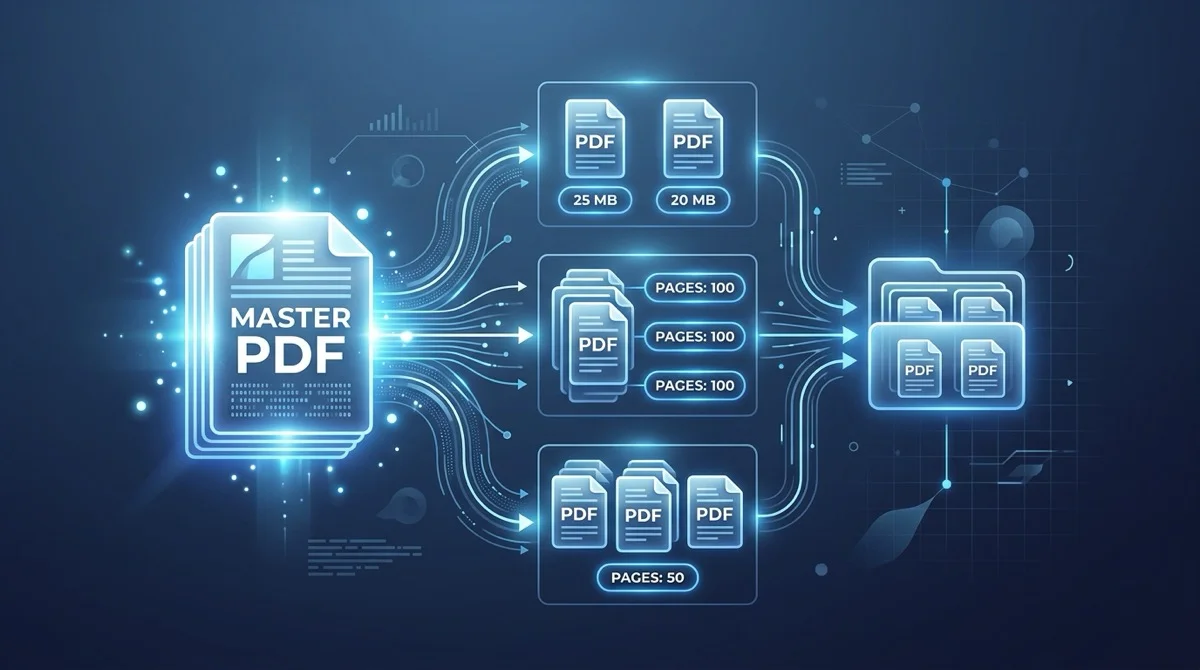
To split a PDF by size online for free, upload your document to AZ2PDF Split PDF by Size, set your desired chunk size or page threshold, and download the resulting parts in a single ZIP archive. The system divides files cleanly along native page boundaries while preserving embedded vector typography, bookmarks, and font subsets with zero software costs.
- Overcomes strict upload limits: Easily breaks 100MB documents into compact files to pass Gmail 25MB attachment limits, court e-filing rules, and student portals.
- Intact vector quality: Preserves sharp vector text, high-resolution diagrams, and page metadata without lossy image re-compression or blurred fonts.
- Clean batch output: Automatically packages all generated parts into an organized ZIP archive with sequential filenames for effortless sharing.
- 100 percent free and confidential: Operates with ephemeral memory buffers and automated file deletion, requiring no user account or subscription fees.
Why splitting large PDF files by size matters for daily workflows
Almost every professional, researcher, and student has encountered the sudden frustration of an oversized PDF document. You spend hours compiling an extensive legal brief, medical case study, corporate audit report, or construction plan set. You attach the completed file to an email and click send, only to receive an instant delivery failure notice: your file exceeds the 25MB attachment ceiling enforced by email providers like Gmail, Google Workspace, and Microsoft Outlook.
The problem extends far beyond email inboxes. Across modern public and private administration, automated upload portals enforce rigid document upload thresholds:
- Government immigration and visa portals: Systems such as USCIS and national consular portals routinely reject application packages larger than 6MB or 10MB.
- Legal court electronic filing systems: State and federal court portals (such as PACER and local county courts) enforce hard file size caps ranging between 5MB and 10MB per exhibit to prevent server saturation.
- Academic university archives: Graduate school thesis submission databases and scholarship application portals often reject master manuscripts that exceed 15MB.
- Corporate job application tracking systems: HR recruitment software frequently blocks candidate portfolios and recommendation dossiers that exceed 5MB.
Beyond file size ceilings, oversized PDF documents that span hundreds of pages create severe device usability problems. Opening a 200MB technical manual or architectural drawing set on a mobile phone or tablet can cause mobile PDF viewers to freeze, drop pages, or exhaust available system memory. Dividing that massive file into predictable, bite-sized parts restores snappy performance and enables smooth mobile reading.
you can divide any heavy document into smaller, manageable chunks in just seconds directly inside your web browser.
Comply with strict portal upload limits effortlessly using the AZ2PDF Split by Size tool. It calculates binary object weights and partitions massive PDF archives into discrete chunks that stay strictly under your specified megabyte threshold.
Comply with strict portal upload limits effortlessly using the AZ2PDF Split by Size tool. It calculates binary object weights and partitions massive PDF archives into discrete chunks that stay strictly under your specified megabyte threshold.
The mechanics of PDF splitting: Why binary cutting fails and page-aware division succeeds
When confronted with an oversized file, users who are familiar with traditional archive utilities like WinRAR or 7-Zip might wonder why they cannot simply slice a PDF into chunks using raw binary file cutters. Understanding why binary splitting fails reveals the intricate architectural brilliance of the Portable Document Format under the international ISO 32000 standard.
A PDF is not a continuous, linear stream of plain characters like a text file or an audio track. Instead, it is an object-oriented database compiled into a binary envelope. Within a single file, hundreds or thousands of distinct objects reside simultaneously:
- The document catalog: The root dictionary that defines how the document behaves when opened, including reading order, language declarations, and outline trees.
- The page tree hierarchy: A balanced tree structure of parent and child nodes that maps out page numbers, page boundaries (MediaBox and CropBox), and orientation rotations.
- Content streams: Compressed data streams containing vector drawing instructions, typography placement operators, and coordinate transformations.
- Resource dictionaries: Embedded TrueType and OpenType font subsets, color spaces, and shared raster image streams (XObjects).
- The cross-reference table (XRef table) and trailer: A byte-offset index situated at the very end of the file. When a PDF reader opens a document, it reads the trailer at the bottom first, uses the XRef table to locate every specific object within the file, and renders the requested page.
If you slice a PDF file using a raw binary cutter, you sever these internal byte-offset references. The resulting fragments lack valid trailers, severed cross-reference tables cannot resolve object addresses, and any PDF reader will immediately declare the file corrupted and unreadable.
Professional page-aware splitting operates on an entirely different level. When you process a document through AZ2PDF, our engine performs a complete structural audit of the file:
- It parses the document catalog and resolves the page tree without disturbing underlying graphic streams.
- It identifies the precise page ranges required for each chunk (for example, pages 1 through 10 in the first part, and pages 11 through 20 in the second).
- It copies only the specific content streams, font subsets, and image resources utilized by those target pages into a brand new document envelope.
- It calculates fresh, mathematically flawless cross-reference tables and trailers for every individual part file.
Because the process extracts native objects rather than rasterizing pages into pictures, your vector text stays razor-sharp, diagrams remain completely scalable, and the output files conform strictly to official ISO standards.
How to split any large PDF by size or page count in 3 simple steps
Breaking down a heavy document into clean, email-ready files takes less than thirty seconds with AZ2PDF free online PDF tools. The system requires no software installation, no credit card, and zero user account sign-ups. Follow these three straightforward steps:
Step 1: Upload your large PDF document
Open the tool in your preferred web browser on any desktop computer, laptop, tablet, or smartphone. Drag and drop your heavy PDF file directly into the upload area, or click the browse button to select it from your device storage. The file loads immediately into our high-speed processing pipeline.
Step 2: Set your chunk size or page threshold
Select your desired chunking parameter. You can choose to divide the document by a specific number of pages per part (such as every 1, 2, 5, or 10 pages) or configure a target chunk size to meet strict file weight limits. The system automatically calculates how many individual files will be created.
Step 3: Download your split PDF files in a neat ZIP package
Click the Split button. Our high-performance engine processes the page objects and packages the resulting document parts into an organized ZIP archive. Click Download to save the complete collection to your device. Each file inside the archive is sequentially labeled with clear part numbers and page ranges (such as split_part_1_1-10.pdf), ready for immediate dispatch.
Choosing the best splitting strategy: Page chunks, byte thresholds, and content density
Deciding how to divide your document depends on the nature of your content and the specific delivery constraints you face. In digital document engineering, page weight is rarely uniform across a document. Understanding content density helps you choose the right approach:
1. Uniform text documents (uniform page chunks)
Documents composed primarily of digital typography (such as legal contracts, legislative bills, financial prospectuses, and academic articles created in word processors) exhibit remarkably consistent byte distribution. A twenty-page legal contract might weigh 1MB, with each page consuming approximately 50KB.
Recommended strategy: Choose a standard page chunk (such as 5 or 10 pages per part). Because page weights are steady, dividing a 40-page contract into four 10-page parts produces four files of roughly equal size, making them easy to balance across email attachments.
2. Mixed documents with dense photographic scans (adaptive chunking)
Modern office workflows often produce hybrid documents where twenty pages of clean digital text are followed by three pages of full-color photographic receipts or high-resolution architectural blueprints. A single 300 DPI color scan can consume 8MB on its own, while the preceding twenty text pages might weigh only 500KB combined.
Recommended strategy: If an exhibit or chapter contains heavy image scans, split the document into smaller chunks (such as 2 pages per part) or separate the dense image pages into their own dedicated part. Alternatively, run the heavy file through a compression tool before splitting to normalize page sizes across the document.
3. Strict portal compliance (threshold-based splitting)
When dealing with rigid institutional upload portals that reject any file larger than 5MB or 10MB, your primary objective is ensuring that not a single part exceeds that hard threshold.
Recommended strategy: Check the total size of your source file and divide by the portal limit to calculate the minimum number of parts required. For example, if you have a 32MB document and a 10MB portal cap, divide the file into at least four parts to provide a comfortable safety buffer.
To reduce the overall number of split chunks required, consider choosing to compress document streams before splitting first so each individual section holds the maximum number of pages possible.
Split by size versus split by page range versus compression: Which tool should you use?
Because document management suites offer multiple tools for organizing and optimizing files, users often wonder when to split by size, when to split by custom page ranges, and when to compress instead. Here is a clear decision guide to help you choose the ideal workflow:
1. Split PDF by size
What it does: Automatically breaks an entire document into multiple sequential parts based on a uniform chunk size or page threshold, bundling the results into a ZIP archive.
When to use: You have a massive document (50 to 500 pages) that you need to distribute across multiple emails, upload to strict portals, or share with a team for collaborative review. You want an automated, hands-off division without manually typing page ranges.
2. Split PDF by page range (manual extraction)
What it does: Allows you to pick and extract specific isolated pages or custom ranges (such as extracting only pages 4 through 7, or page 12 alone) into separate standalone files.
When to use: You only need specific chapters, invoices, or signature pages from a larger document, while discarding the rest. For manual page selection, use the AZ2PDF Split PDF tool.
3. Compress PDF (file weight reduction)
What it does: Shrinks the total file size of your document while keeping all pages together inside a single, unified file. It achieves this by downsampling heavy images, stripping redundant metadata, and subsetting embedded fonts.
When to use: You need to keep the entire document intact as a single file, but it is just slightly too large for your recipient (for example, shrinking a 32MB file down to 8MB). For unified document shrinking, use the AZ2PDF Compress PDF tool.
4. Combine workflows for massive archives
For truly massive documents (such as a 300MB scan of an entire physical book or historical legal archive), the most effective workflow is a two-step process: first compress the file to eliminate raw scan bloat, and then split the optimized document into convenient, numbered volumes.
To reduce the overall number of split chunks required, consider choosing to compress document streams before splitting first so each individual section holds the maximum number of pages possible.
Practical everyday scenarios where splitting by size saves hours
Splitting large PDF documents by size is an essential capability across diverse corporate, legal, academic, and personal printing workflows. Here are four common scenarios where this tool delivers immense practical value:
1. Legal court filings and exhibit submission
Litigation teams frequently assemble comprehensive evidentiary dossiers containing hundreds of pages of deposition transcripts, bank statements, email records, and forensic exhibits. State and federal e-filing portals enforce rigid file size ceilings, rejecting submissions that exceed 10MB. Slicing the master filing into sequentially labeled parts (such as Exhibit Part 1, Exhibit Part 2, and Exhibit Part 3) allows paralegals to clear court filing deadlines without delay.
2. University thesis and academic dissertation archiving
Graduate dissertations often incorporate high-resolution microscope imagery, historical manuscript scans, and complex statistical data appendices that inflate the PDF past 100MB. Institutional repository systems frequently reject single uploads of that scale. Splitting the dissertation by chapter or volume creates clean, accessible archives that students can submit effortlessly.
3. Architectural schematics and construction bid sets
General contractors, civil engineers, and architects exchange extensive plan sets containing dozens of large-format sheets (such as architectural, structural, mechanical, and electrical blueprints). Sharing a 150MB plan set with multiple subcontractors via email is impossible. Splitting the document into smaller trade-specific parts ensures every subcontractor receives their relevant plans without requiring high-end file transfer subscriptions.
4. Corporate accounting and annual tax filings
Corporate financial departments prepare annual tax audit binders combining balance sheets, payroll records, and scanned expense receipts. When external auditors or tax authorities request documentation via secure upload portals with strict capacity limits, splitting the master ledger into manageable fiscal quarters ensures smooth, compliant delivery.
Privacy first: Why automated temporary processing keeps confidential documents secure
The PDF files that require splitting are rarely trivial or public documents. They frequently contain trade secrets, confidential client contracts, intellectual property, personal tax filings, and sensitive medical histories.
Many legacy web conversion utilities monetize user traffic by storing uploaded documents on permanent hard disk arrays, indexing document text for commercial marketing profiles, or leaving files vulnerable on unsecured cloud storage buckets. For privacy-conscious professionals and enterprise organizations, that model introduces severe compliance risks.
AZ2PDF operates under a rigorous privacy-first architecture:
- Ephemeral in-memory stream processing: Your files stream directly into isolated volatile server memory. They are never written to permanent disk storage, external databases, or long-term caching repositories.
- Automated five-minute purge daemon: An automated background daemon continuously monitors memory allocations, permanently erasing all processing remnants and temporary files within five minutes of completion.
- Zero AI training and zero indexing: Your files are never scanned, cataloged, shared with third parties, or used to train artificial intelligence models. Your intellectual property remains strictly yours.
- 100 percent free with no hidden paywalls: All tools on AZ2PDF are completely free to use. There are no surprise subscription fees, trial limits, watermarks, or forced account registrations.
Divide enterprise files to meet web portal specifications safely using the AZ2PDF secure PDF platform, where client-side memory controls keep your financial statements completely confidential.
Quick fixes for common PDF splitting challenges
If you encounter unexpected results when dividing your documents, these straightforward solutions resolve the most common challenges:
1. Generated parts have unequal file sizes
If part 1 is 2MB while part 2 is 18MB even though both contain exactly ten pages, the discrepancy is caused by content density variations. Part 2 likely contains high-resolution bitmap scans or unoptimized graphic charts, whereas part 1 contains only plain vector text. To balance file weights, consider splitting heavy photo sections into smaller page chunks, or run the document through our free compression tool first.
2. The tool cannot process a password-protected PDF
3. The downloaded ZIP file will not open
On modern operating systems (including Windows 11, macOS, iOS, and Android), ZIP archives open natively with a double-click or tap. If an archive fails to extract, the download may have been interrupted by an unstable internet connection. Simply return to the browser and click the Download button again to receive a fresh copy of the archive.
Frequently asked questions
Is the Split PDF by Size tool on AZ2PDF completely free to use?
Yes. The tool is 100 percent free with no hidden subscription fees, usage quotas, forced account registrations, or watermarks placed on your documents.
Why can I not split a PDF file using simple binary file splitters?
A PDF is not a plain sequential stream of bytes. It contains a complex cross-reference table and document catalog located at the end of the file. Slicing a PDF by raw byte boundaries destroys these internal index pointers and corrupts the file. A dedicated PDF splitting tool extracts complete page object trees and builds fresh, valid cross-reference tables for every generated part.
How do I send a 60MB PDF file over email with a 25MB attachment limit?
Upload your 60MB document to the AZ2PDF Split PDF by Size tool, choose a chunk size that divides the page count into three equal parts, and download the resulting ZIP archive. You can then attach each compact part to individual emails without triggering email bounce errors.
Will splitting my document decrease the resolution of images or text?
No. The splitting engine extracts original page streams without re-compressing imagery or rasterizing vector fonts. Every vector letter, mathematical diagram, and color profile remains at its exact original fidelity.
Can I split a PDF that is protected by a password?
If the document is encrypted with an open or permissions password, you must unlock it first you can divide the file into parts as needed.
Are my uploaded contracts and sensitive business records saved on your servers?
No. AZ2PDF processes your documents in temporary memory buffers. All processing remnants and temporary files are permanently erased within five minutes by an automated purge daemon, ensuring total privacy.
Divide enterprise files to meet web portal specifications safely using the AZ2PDF secure PDF platform, where client-side memory controls keep your financial statements completely confidential.
❓ Frequently asked questions
Yes. The tool is 100 percent free with no hidden subscription fees, usage quotas, forced account registrations, or watermarks placed on your documents.
Related articles in this topic
Deep dive into related document organization and page manipulation workflows.

How to print multiple PDF pages on one sheet (free N-Up tool)
Learn how to combine 2, 4, or more PDF pages onto a single sheet for easy printing and handouts. Save paper, preserve vector quality, and process files 100% free and privately.
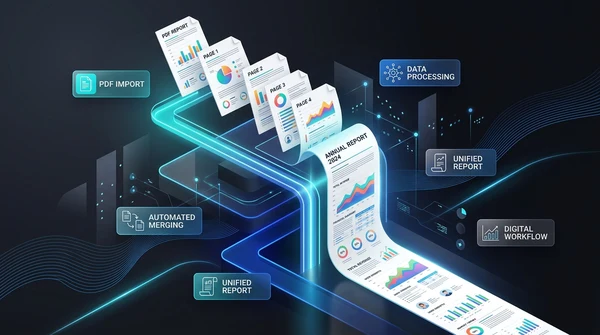
How to convert multi-page PDF to a single continuous page (free online tool)
Convert multi-page PDF documents into one continuous vertical scrolling page. Remove artificial page breaks, preserve vector text quality, and process files 100% free in your browser.
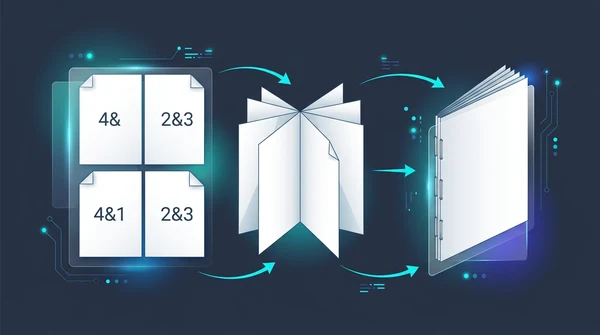
How to create a PDF booklet for printing (free double-sided imposition)
Learn how to turn any PDF into a foldable, double-sided booklet for printing. Reorder pages for saddle-stitch binding without paying for expensive software.

How to split PDF for poster printing (free online tile guide)
Learn how to split large PDF pages into printable 2x2 tiles for poster printing on regular A4 or Letter printers. 100 percent free without Adobe Acrobat.

How to add page numbers and Bates stamping to PDF documents
Learn how to insert page numbers, headers, footers, and legal Bates stamping to PDF files online for free. Customize font, positioning, and page offset.
How to rotate and save PDF pages permanently online for free
Learn how to rotate sideways or upside-down PDF pages and save them permanently for free online. Fast, secure, and preserves 100% original document quality.