How to edit a PDF online without Adobe Acrobat (free and private)
Quick summary
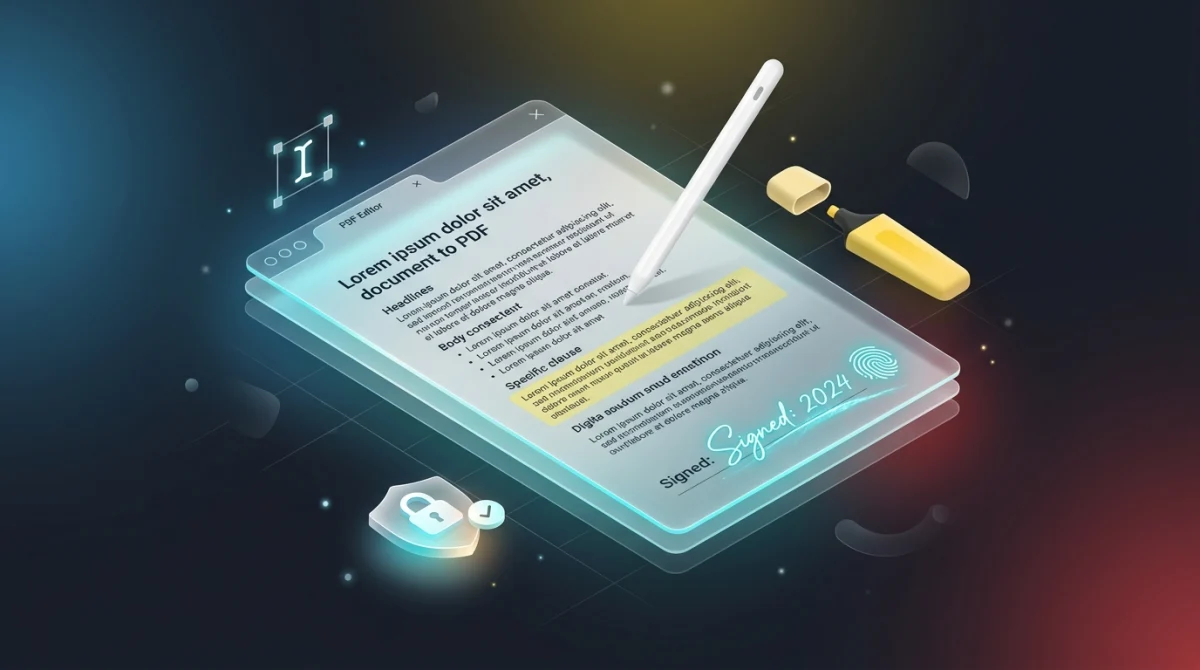
To edit a PDF online without paying for Adobe Acrobat, you can use a free in-browser editor like AZ2PDF. It runs directly inside your web browser, allowing you to update text, sign agreements, highlight clauses, and white out sensitive details, all without uploading your confidential files to remote servers.
- No expensive software: You don't need a $240/year Adobe Acrobat Pro subscription just to make quick everyday edits.
- Complete privacy: Your files stay on your device and are never sent over the internet to third-party servers.
- Essential tools included: Easily add text, draw or insert signatures, highlight notes, and mask private numbers.
- Smart workflow tip: For quick fixes, forms, and signatures, direct PDF editing is fastest. For complete multi-page rewrites, converting to Word first is recommended.
Why is editing a PDF so tricky? (And why you don't need Acrobat)
Have you ever needed to fix a simple typo on an invoice or change a date on a contract, only to find that you couldn't click into the text to edit it? You are definitely not alone.
Most of us spend our workdays typing inside programs like Microsoft Word or Google Docs, where words flow naturally from line to line. But the Portable Document Format (PDF) was designed with a completely different purpose in mind: it acts like a digital printed page. When a PDF is created, every sentence, logo, and line is locked into an exact spot on the sheet so that the document looks identical whether it is opened on a smartphone, a Mac laptop, or a desktop PC.
Unlike regular text documents, a PDF does not store continuous flowing paragraphs. Instead, it places each letter and line at a fixed position on the sheet. That is why opening a PDF often feels like opening an unchangeable picture rather than an editable document.
For years, modifying these locked pages required heavyweight software like Adobe Acrobat Pro, which carries a steep annual subscription of over $240 per year. But for everyday needs (such as filling out forms, correcting names, signing agreements, or adding notes), paying for an expensive subscription simply is not necessary. Today, modern web browsers can handle all of these edits smoothly and for free.
To overcome these structural hurdles without purchasing expensive software licenses, you can launch the AZ2PDF PDF Editor. Built entirely for in-browser productivity, it empowers you to modify text, insert annotations, draw vector shapes, and mask sensitive clauses directly on your canvas.
Privacy first: Why in-browser editing protects your data
Whether you are handling employment contracts, real estate leases, medical forms, or company tax records, the PDFs you edit almost always contain private personal details.
When you search for free PDF tools on the internet, most older websites follow a traditional cloud upload workflow:
- You drag your file into your browser window.
- Your document travels across the internet and gets stored on a remote company server.
- Their server performs the edits on their remote machine.
- The edited file is sent back to your device.
Even when websites promise to delete your files after an hour, sending confidential contracts or bank records across the web creates real privacy risks for businesses and individuals alike.
That is why AZ2PDF free online PDF tools was built around a 100% in-browser processing model. When you open your document, your web browser performs all changes directly inside your computer or phone's local memory. At no point is your document uploaded to any external server. Your private data never leaves your screen, giving you total peace of mind and complete confidentiality.
How to edit any PDF online in 3 simple steps
Editing a document takes less than a minute. The entire workflow is streamlined into three effortless steps:
Step 1: Open your PDF file instantly
Access the editor in your web browser and drag your PDF directly into the workspace. Because processing occurs locally on your device, the document renders immediately without waiting for server uploads or processing queues.
Step 2: Apply your revisions and annotations
Use the intuitive top toolbar to make your adjustments. You can click anywhere to insert new text, draw or stamp your handwritten signature, highlight critical clauses, or use the whiteout tool to mask sensitive numbers.
Step 3: Save and download your updated file
Once you are satisfied with your revisions, click the Download button. Your updated PDF is saved directly to your device with original formatting intact, with no watermarks, no account requirements, and zero delay.
What can you do in a free online PDF editor?
A good online PDF editor should cover the everyday tasks you encounter at school, work, or home. Here are the most popular ways to use it:
1. Adding, updating, and filling in text
Need to correct an address, enter an invoice number, or fill out a non-fillable application form? Simply select the Text tool, click anywhere on the page, and start typing. You can customize the font family, font size, text color, and alignment to match the look of the document seamlessly.
2. Signing contracts and agreements digitally
Printing out a document just to sign it with a pen and scan it back in is a huge waste of time and paper. With the Signature tool, you can draw your signature naturally using your mouse, trackpad, or finger on a touchscreen. You can also upload a clear image of your handwritten signature to stamp it neatly onto any sign-off line.
3. Highlighting and annotating key sections
Whether reviewing a lease agreement with a colleague or marking up study materials for an exam, visual highlights make reading effortless. Choose from standard highlighter colors to emphasize important clauses, or draw rectangles and arrows to point out critical areas.
4. Whiting out and hiding sensitive information
Before sharing a financial report, legal document, or receipt, you often need to hide confidential numbers like account details or phone numbers. The Whiteout tool allows you to draw clean, opaque blocks over sensitive text, cleanly masking it from view before you send the file.
Once your visual revisions and annotations are saved, the newly incorporated fonts and graphic overlays might increase total file size; you can quickly compress your edited PDF to ensure your document remains compact for swift email transmission.
Comparing your options: In-browser vs. cloud vs. Acrobat
When you need to make changes to a PDF, you generally have three distinct avenues. Understanding how they differ helps you choose the right approach for your privacy and budget needs:
Option 1: Modern in-browser editors (AZ2PDF)
This is the fastest and most secure route for everyday modifications. The application runs entirely within your web browser sandbox using client-side execution. Your files never leave your computer or smartphone, so confidentiality is 100% guaranteed. It is completely free, requires no user registration, and works instantly across Mac, Windows, iOS, and Android without installing software.
Option 2: Traditional cloud upload platforms
Many legacy web services require you to transmit your file to their remote servers for processing. While they work without local software installation, uploading sensitive financial, medical, or legal documents to external servers introduces data security concerns. Furthermore, many of these platforms enforce hourly limits, display intrusive ads, or lock download buttons behind sudden paywalls.
Option 3: Desktop software (Adobe Acrobat Pro)
Acrobat Pro remains the industry standard for publishing houses and graphic designers requiring prepress color separation and complex print production. However, it requires a hefty recurring subscription exceeding $239 per year and a substantial local software download. For the majority of professionals who simply need to sign, annotate, or fix text, this overhead is rarely justifiable.
When to edit directly vs. when to convert to Word
To get your work done quickly and avoid frustration, here is a practical rule of thumb that experienced office workers follow:
Edit directly as a PDF when: You need to sign an agreement, fill out form fields, correct a misspelled name or date, add page notes, or white out confidential figures. This takes only seconds, preserves every original graphic perfectly, and keeps the document layout 100% intact.
Convert to Word first when: You need to rewrite multiple paragraphs across several pages (such as deleting three paragraphs on page 1 and expecting the remaining text to automatically slide upward across subsequent pages). Because PDFs lock each line in place, large-scale rewrites can cause text to overlap. For major structural revisions, converting your PDF to Word first is much cleaner and faster.
Because every modification is computed locally within your browser sandbox, the AZ2PDF online PDF tools provides a secure, private document editing sanctuary where confidential business records never touch external cloud servers.
Quick fixes for common PDF editing problems
If you run into any trouble while trying to edit a document, here are quick solutions to the three most frequent issues:
1. You cannot select or highlight any text
If you click on words and nothing happens, your PDF was likely created by a physical paper scanner or photocopier. In this case, the document is saved as a single photograph of a page rather than real text. You can still type notes or add shapes over it, or run the document through an OCR tool to turn the image into selectable words.
2. The toolbar buttons look disabled
If tools appear grayed out or unclickable, the author who created the PDF may have locked it with a permissions password. You will need to unlock the document permissions first before making changes.
3. The new font looks slightly different
When typing new text over an existing design, choosing a universal, neutral font like Arial, Inter, or Roboto ensures your additions blend in cleanly with the existing layout.
❓ Frequently asked questions
Yes. Modern client-side tools like the AZ2PDF PDF Editor enable full text additions, annotation, whiteout masking, and electronic signing directly inside your browser completely free of charge without requiring a paid subscription or account registration.
Related articles in this topic
Deep dive into related document organization and page manipulation workflows.

How to merge PDF files into one document online (free and secure)
Learn how to combine multiple PDF files into one organized document online without Adobe Acrobat. Fast, free, and secure with zero quality loss.
How to split PDF pages into separate documents (free and secure)
Learn how to split PDF files into separate documents or extract specific page ranges online without Adobe Acrobat. Fast, free, and completely private.
How to reorder and rearrange PDF pages online (free and secure)
Learn how to reorder, shuffle, and rearrange PDF pages online for free. Drag and drop thumbnails to resequence multi-page documents with complete privacy.
How to delete unwanted pages from a PDF online (free and fast)
Learn how to delete unwanted, blank, or confidential pages from a PDF online for free. Select pages visually or by range with instant browser cleanup.
How to password protect a PDF for free (AES-256 encryption)
Learn how to password protect and encrypt PDF files online for free using military-grade AES-256 encryption. Keep confidential contracts, bank statements, and payroll files private with zero watermarks.
How to unlock a password protected PDF online (remove security permanently)
Learn how to remove passwords and permission restrictions from authorized PDF files online for free. Decrypt your documents securely with zero watermarks.