How to split PDF for poster printing (free online tile guide)

Quick summary
A PDF poster splitter is a document engineering tool that divides oversized PDF pages into a grid of printable standard sheets, such as a 2x2 layout of A4 or US Letter pages. It recalculates the PDF CropBox coordinates so that home or office printers can produce high resolution segments that assemble into large posters without requiring expensive wide format plotters or Adobe Acrobat subscriptions.
- 100 percent free: Split oversized PDFs, blueprints, and posters into printable tiles online with zero fees, no accounts, and no watermarks.
- Lossless vector precision: Uses native PDF CropBox geometry to subdivide pages without rasterizing vector drawings or blurring small CAD text.
- Quad tile layout: Divides each large page into 4 quadrant sheets (Top-Left, Top-Right, Bottom-Left, Bottom-Right) ready for standard A4 or US Letter printers.
- Critical print setting: Always select Actual Size or 100 percent scale in your printer dialog to prevent unwanted page re-scaling and distortion.
The challenge of printing large format PDFs on desktop printers
Engineers, architects, teachers, event organizers, and hobbyists frequently work with large format digital documents. Whether you are reviewing an architectural floor plan, studying an engineering schematic, printing a scientific conference poster, hanging an educational infographic in a classroom, or preparing an event banner, high resolution digital PDFs make viewing these oversized assets effortless on a computer screen.
The real trouble begins when you need a physical hard copy. Standard consumer and office equipment is built around modest media dimensions: ISO A4 paper (210 by 297 millimeters) or North American US Letter paper (8.5 by 11 inches). Commercial wide format plotters capable of printing continuous rolls of A0, A1, or Arch D sheets cost thousands of dollars and occupy significant office floor space. Sending a single file to a commercial print shop or copy center often incurs high rush fees, shipping delays, and minimum order hurdles.
When you attempt to send an oversized A2 or A1 drawing directly to a standard desktop printer, the default printer driver automatically engages a shrink to fit routine. The entire drawing is compressed onto a single 8.5 by 11 inch sheet. Fine 0.25 point CAD line weights blur together, dimension callouts shrink below legible thresholds, and complex data tables become completely unreadable. The solution to this dilemma is tile printing, also known as multi-page poster printing: dividing the oversized canvas into a clean grid of standard sheets that you can print on any everyday printer and assemble by hand.
Print giant engineering schematics, trade show banners, and classroom displays on ordinary home printers with the AZ2PDF Poster Printer tool. It tiles oversized designs across multiple standard sheets with alignment guides and overlap margins.
How PDF tile splitting works under the hood: The CropBox mechanism
Understanding how a PDF document defines page geometry is key to appreciating why native digital splitting is far superior to crude image slicing. Under the ISO 32000 specification for the Portable Document Format, a page is not a flat bitmap canvas of pixels. Instead, it is an object dictionary defined by distinct bounding boundary boxes.
The MediaBox defines the absolute physical boundaries of the medium on which the page is intended to be displayed or printed. The CropBox defines the region to which the contents of the page are to be clipped when displayed or printed. When you use inferior software tools or browser print extensions to tile a PDF, they typically rasterize the document. Rasterization converts crisp vector text, curves, and mathematical drawing paths into a fixed pixel bitmap at 72 or 150 dots per inch. When printed, this causes jagged edges, blurry letters, and bloated file sizes.
The document processing engine powering our system takes an entirely different, lossless architectural approach. The application duplicates the source page into four sequential page objects. It then calculates the horizontal and vertical midpoint coordinates based on the original MediaBox dimensions:
- Quadrant 1 (Top-Left): Clips the visible area from the left edge to the horizontal midpoint, and from the vertical midpoint to the top edge.
- Quadrant 2 (Top-Right): Clips the visible area from the horizontal midpoint to the right edge, and from the vertical midpoint to the top edge.
- Quadrant 3 (Bottom-Left): Clips the visible area from the left edge to the horizontal midpoint, and from the bottom edge to the vertical midpoint.
- Quadrant 4 (Bottom-Right): Clips the visible area from the horizontal midpoint to the right edge, and from the bottom edge to the vertical midpoint.
Because the engine updates the CropBox dictionary entries without altering the underlying content streams or rasterizing vector assets, all fonts, lines, and embedded imagery preserve one hundred percent of their original resolution. You receive a mathematically pristine vector PDF divided into four ready to print quadrants.
How to split a PDF for poster printing online in 3 simple steps
Transforming your oversized documents into manageable, printable tiles requires no software installation or complicated configuration. You can prepare your poster for printing in seconds:
- Upload your large format document: Drag and drop your oversized blueprint, architectural plan, technical diagram, educational chart, or poster PDF into the upload zone. You can also click to browse files from your desktop computer, tablet, or smartphone.
- Automatic tile calculation: The server instantly inspects the MediaBox dimensions and subdivides each page into a symmetrical 2x2 grid of four print ready sheets without re-compressing graphics or altering vector strokes.
- Download and print: Click the download button to save your multi-page poster PDF. The resulting file contains four printable pages for every single oversized source page, numbered sequentially from the top-left tile to the bottom-right tile.
The service is completely free with no registration required, no subscription paywalls, no daily file quantity limitations, and no watermarks placed on your hard work.
Essential printer settings: Why 100 percent scale and orientation matter
Once you have downloaded your split poster PDF, opening the file and clicking print requires careful attention to your printer driver dialog. Because you are assembling multiple physical sheets together, even a small dimensional scaling error can prevent adjacent lines from aligning properly.
Configure these critical print dialog settings before sending the job to your printer:
- Select Actual Size or 100 Percent Scale: Never select Fit to Printable Area or Shrink Oversized Pages. Print drivers use fit options to push content inside printer roller margins, which reduces the scale by five to eight percent. That distortion ruins the alignment between adjoining sheets. Printing at exactly 100 percent ensures that every millimeter on screen corresponds to an exact millimeter on paper.
- Confirm Page Orientation: Check the aspect ratio of each quadrant. When an oversized landscape document is split into four tiles, each individual quadrant typically adopts a portrait orientation. Ensure your print driver is set to Auto Rotate and Center or matches the specific orientation of the individual tiles.
- Select High Quality Print Mode: For drawings with small text labels or detailed color charts, switch from Draft or Normal print quality to High Quality or Best. This ensures fine vector lines maintain maximum optical density.
- Use Single-Sided Simplex Printing: Ensure your duplex or double-sided printing setting is turned off. Each tile must be printed on its own separate sheet so that the four sheets can be laid out side by side.
Before splitting your graphic into tiled segments, make sure to scale your design to large dimensions first to verify that your source typography and resolution will remain crisp at large scales.
How to assemble your printed poster tiles: Trimming and alignment tips
Virtually all home and office laser or inkjet printers have mechanical borders, typically three to five millimeters of white unprintable space along the perimeter where paper feed rollers grip the sheet. Because the image content extends all the way to the dividing lines of each quadrant, these physical printer margins create narrow blank strips that must be managed during assembly.
Here is the proven assembly method used by graphic production artists to build seamless multi-sheet posters:
- Organize the sheets on a clean, flat surface: Lay out your four printed sheets in a two by two grid. Place page 1 at the top-left, page 2 at the top-right, page 3 at the bottom-left, and page 4 at the bottom-right.
- The overlap and trim technique: Do not cut the margins off all four sides of every sheet. Instead, designate one sheet as the overlap tab. Using a utility craft knife and a rigid metal ruler on a cutting mat, trim the right white margin off page 1 and page 3. Leave the left white margin intact on page 2 and page 4 to serve as a glue tab.
- Align the vertical seam: Place the trimmed right edge of page 1 over the left margin of page 2. Carefully line up the intersecting vector lines, text baselines, or image patterns. Once aligned, secure the joint on the front with small pieces of removable drafting tape or painter tape.
- Repeat for the horizontal seam: Trim the bottom white margin off the assembled top row (pages 1 and 2). Overlap it across the top margin of the bottom row (pages 3 and 4), verifying that all vertical and horizontal cross lines intersect smoothly.
- Secure from the reverse side: Turn the entire assembled poster face down on your work table. Apply long strips of clear archival tape or standard clear packaging tape along the full length of each seam. Once the back is firmly taped, turn the poster over and peel off the temporary front drafting tape.
Poster splitting versus page scaling versus N-Up printing: Key differences
Document preparation often involves choosing between several related page geometry workflows available in AZ2PDF free online PDF tools. Depending on whether your goal is expanding oversized plans, resizing single sheets, or combining multiple pages, selecting the appropriate tool ensures optimal paper utilization and legibility.
Here is how the primary print layout operations compare:
- Poster Splitting: Takes one large format page and divides it into four printable quadrant sheets. Use this when your priority is readability and physical enlargement on standard office printers without purchasing specialized plotter hardware.
- Page Scaling: Takes an existing page and rescales its physical bounding dimensions up or down to target standard paper formats such as A4, A3, or Letter on a one to one page basis. Learn more in our guide on how to scale PDF pages.
- N-Up Multi-Page Layout: The exact inverse of poster splitting. N-Up combines two, four, or more sequential pages onto a single sheet of paper to save printing costs and create compact meeting handouts. Read our detailed guide on how to print multiple pages on one sheet.
- Booklet Imposition: Reorders sequential pages into signature spreads so that folded and stapled sheets read in natural numerical order. See our walkthrough on how to create PDF booklets.
- Margin Cropping: Trims unwanted borders, printer crop marks, or scanner artifacts from around page perimeters before sending jobs to production. Explore our tutorial on how to crop PDF margins.
Privacy first: Secure in-memory tiling with automatic data purging
Architectural blueprints, construction bid sets, proprietary product roadmaps, and academic research posters often contain confidential intellectual property. Handing your proprietary digital assets to an unverified web service introduces compliance and security risks that corporate IT policies cannot tolerate.
Our document infrastructure is built strictly on privacy-by-design principles:
- Encrypted Transport: All data transmissions between your browser and our processing nodes use modern TLS cryptographic tunnels, shielding your files from intermediate inspection or interception.
- In-Memory Ephemeral Execution: Page duplication and CropBox dictionary adjustments are computed entirely in volatile RAM without persisting files to permanent disk storage.
- Strict Automated Purging: An automated daemon continuously monitors temporary task workspaces and purges all processed files after five minutes. Your documents are permanently deleted with zero human access.
- Zero Commercial Exploitation: We never inspect, index, sell, or retain your document contents, and our platform never utilizes customer submissions for training machine learning algorithms.
Bring large-format printing capabilities to everyday office hardware via the AZ2PDF large format and printing toolkit, where client-side memory safety ensures your artwork is processed privately.
Frequently asked questions
How do I print a large PDF on multiple sheets without Adobe Acrobat?
You can use the AZ2PDF Poster Splitter online tool. Upload your large format PDF document, and the tool will automatically divide each page into a 2x2 grid of four printable standard sheets. Download the resulting multi-page PDF, open it in any standard viewer or web browser, and print each sheet on your home or office printer at 100 percent actual size.
Will splitting a PDF for poster printing reduce text or drawing quality?
No. The AZ2PDF tool adjusts the native PDF CropBox boundaries in the underlying document object tree rather than converting pages into lossy bitmap images. All vector path lines, CAD schematics, and embedded fonts retain their original high resolution vector geometry with zero quality loss.
Can I use this tool to print an A3 or A2 architectural drawing on standard A4 paper?
Yes. Dividing an A2 or A3 sheet into a 2x2 grid creates four quadrants that match standard desktop printing dimensions. When printed on four separate A4 or US Letter sheets and assembled along the seams, they form a large format poster with four times the surface area of a single desktop sheet.
Why is there a white margin around each printed tile on my home printer?
Most consumer laser and inkjet printers have mechanical feed rollers that require a physical unprintable border of 3 to 5 millimeters along the page edges. To assemble your poster seamlessly, simply use a craft knife and metal ruler to trim the unprintable white edge along one mating side before taping the tiles together.
Is the AZ2PDF Poster Splitter really free to use?
Yes, it is 100 percent free. There are no subscription fees, no credit card requirements, no account registrations, and no watermarks added to your printed documents.
❓ Frequently asked questions
You can use the AZ2PDF Poster Splitter online tool. Upload your large format PDF document, and the tool will automatically divide each page into a 2x2 grid of four printable standard sheets. Download the resulting multi-page PDF, open it in any standard viewer or web browser, and print each sheet on your home or office printer at 100 percent actual size.
Related articles in this topic
Deep dive into related document organization and page manipulation workflows.
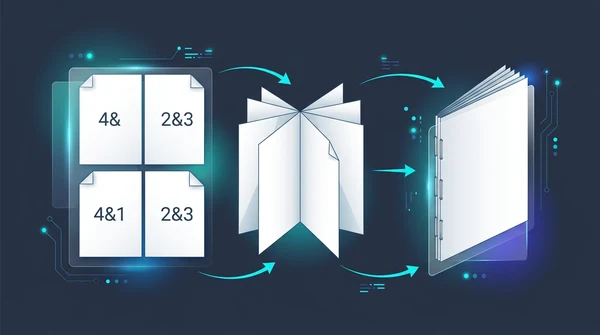
How to create a PDF booklet for printing (free double-sided imposition)
Learn how to turn any PDF into a foldable, double-sided booklet for printing. Reorder pages for saddle-stitch binding without paying for expensive software.

How to print multiple PDF pages on one sheet (free N-Up tool)
Learn how to combine 2, 4, or more PDF pages onto a single sheet for easy printing and handouts. Save paper, preserve vector quality, and process files 100% free and privately.
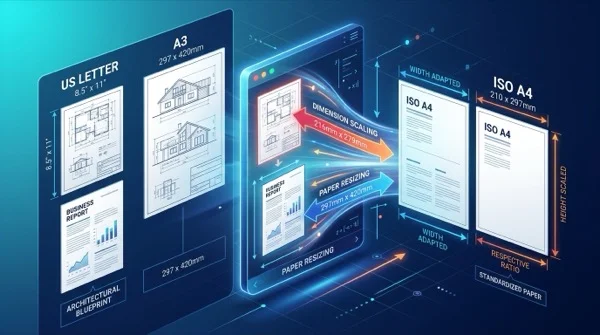
How to scale PDF pages online to standard paper sizes (free and sharp)
Learn how to scale PDF pages to standard paper sizes like A4, Letter, and A3 online for free. Fix printer margin cut-offs with 100% sharp vector typography.

How to crop PDF margins and trim page borders online for free
Learn how to crop PDF margins and trim unwanted borders online for free. Adjust page boundaries for Kindle, shipping labels, and academic papers with zero quality loss.

How to convert PDF to single continuous page online for free
Learn how to stitch multi-page PDF files into a single continuous page online for free. Eliminate page breaks with 100% sharp vector quality in your browser.
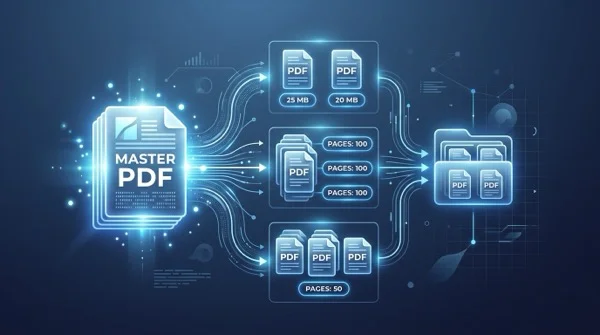
How to split PDF by size or page count online for free
Learn how to split large PDF files by MB file size or page count online for free. Divide documents for easy email sharing and portal uploads with zero data loss.