How to overlay and superimpose PDF documents online (free and secure guide)
Quick summary
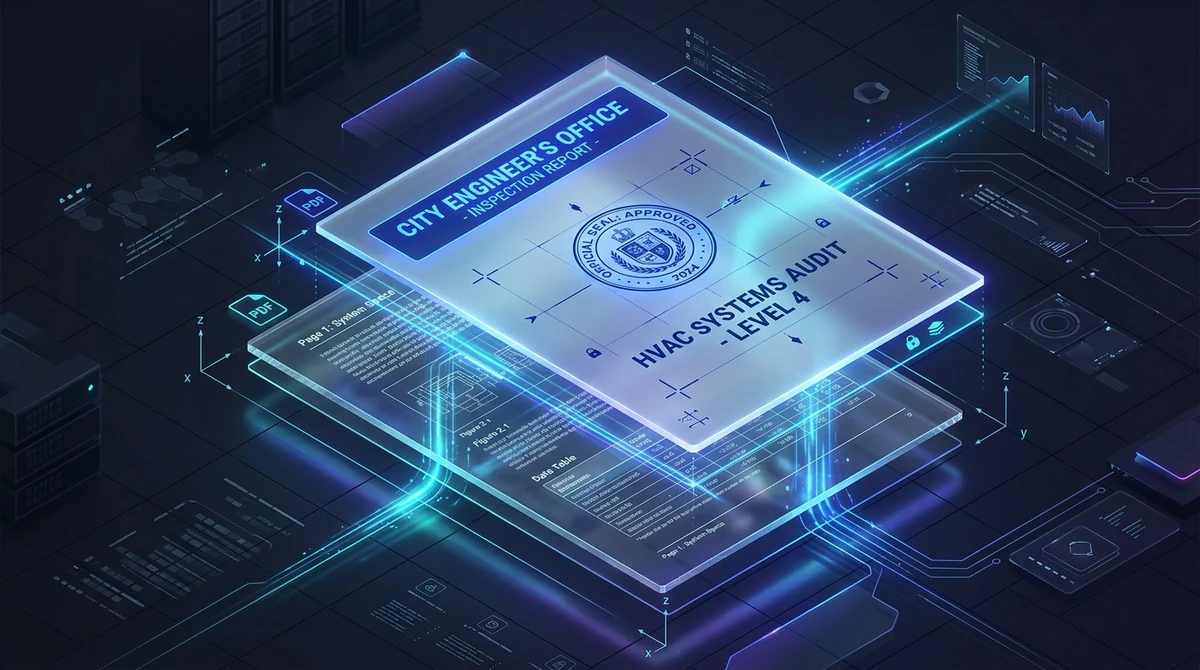
A PDF overlay tool superimposes one PDF document onto another page by page along the Z-axis, placing digital letterheads or background templates as an underlay behind base content, or applying review stamps and approval seals as a foreground overlay. This vector compositing process preserves text sharpness without rasterizing files into lossy bitmap images.
- 100 percent free and private: Superimpose letterheads, stamps, and multi-layer blueprints online with zero subscriptions, no sign-ups, and no watermarks.
- Native vector compositing: Merges underlying ISO 32000 PDF content streams directly, preserving selectable text, searchable typography, and sharp CAD vectors without image rasterization.
- Foreground vs. background placement: Choose foreground to overlay official seals and review stamps, or select background to insert company letterhead stationery behind raw reports.
- Three flexible distribution modes: Distribute overlay pages sequentially, interleaved alternately, or with fixed page repeat counts for complex multi-page document packages.
Why modern document workflows require PDF layering (and why copy-paste fails)
In everyday office administration, legal review, and technical engineering, professionals constantly handle documents that must be combined in ways that simple file merging cannot accomplish. Unlike standard sequential joining where one file follows another page by page, many high-stakes workflows require superimposing two independent visual layers directly on top of each other onto the exact same sheet of paper.
Consider three widespread real-world scenarios:
- Enterprise resource planning (ERP) and accounting reports: Cloud accounting engines, billing databases, and ERP platforms routinely generate raw transactional invoices, purchase orders, and monthly balance statements. To minimize processing overhead, these systems export unformatted black and white text on plain white sheets. Before emailing these invoices to corporate clients, accounting departments must place them onto official full-color stationery containing corporate logos, registered bank details, and branding borders.
- Architectural and MEP engineering coordination: In commercial building design, architects produce floor plans, structural engineers model load-bearing columns, and mechanical contractors map HVAC ductwork. Coordinating these disciplines requires superimposing the ventilation duct schematic directly over the architectural floor plan to check for spatial collisions and clearance issues before construction begins on site.
- Legal compliance and certified document stamping: Law firms, municipal building departments, and inspection agencies must apply official certification seals, notary stamps, or approved status badges onto completed contracts, architectural submittals, or court filings without altering the underlying verified text.
When workers attempt to solve this challenge manually by copying text and images between programs, the entire layout collapses. Because the Portable Document Format locks every character to an exact two-dimensional coordinate, copy-pasting tables breaks cell borders, misplaces signatures, and strips away embedded vector geometry. True digital document superimposition requires a dedicated layering engine that preserves coordinate precision.
With AZ2PDF free online PDF tools, you can superimpose digital stationery, engineering drawings, and approval stamps directly in your web browser, completely free of charge and with zero software installation.
Merge digital letterheads, background grids, or architectural plans onto existing documents with the AZ2PDF Overlay PDF tool. It combines two distinct PDF streams into a unified layer with precision coordinate alignment.
Merge digital letterheads, background grids, or architectural plans onto existing documents with the AZ2PDF Overlay PDF tool. It combines two distinct PDF streams into a unified layer with precision coordinate alignment.
How PDF overlaying works under the hood: Vector streams and CTM
To understand why native digital overlaying produces pristine print-ready output, it helps to examine how the ISO 32000 standard for PDF handles multi-layer document rendering.
Many low-grade online conversion utilities take a crude shortcut: they rasterize both PDF documents into low-resolution bitmap images, blend the pixel layers together using simple graphics software, and re-export the result as a new PDF. This destructive method ruins vector typography, blurs fine 0.25-point CAD schematics, removes all selectable text, destroys Ctrl+F search capabilities, and inflates file size dramatically.
The processing architecture powering AZ2PDF Overlay PDF operates at the fundamental object stream layer using lossless vector compositing:
- Content stream encapsulation: In a compliant PDF, each page object references a content stream (PDPageContentStream) containing sequential PostScript-like drawing operators. When superimposing two documents, our engine encapsulates the overlay page into a reusable Form XObject or appends its graphics instructions directly into the target page stream.
- Coordinate transformation matrix (CTM): Vector elements are positioned using an explicit transformation matrix. The overlay engine aligns the bounding boxes (MediaBox and CropBox) of both documents, ensuring that header logos, footer disclaimers, and corner boundary marks land in their exact intended mathematical positions.
- Graphic state preservation (/ExtGState): Advanced visual attributes (including transparency alpha channels, blend modes, and stroke widths) are declared in isolated extended graphic state dictionaries. This isolation guarantees that applying an overlay does not inadvertently change font weights or color values in the underlying base document.
Because no rasterization occurs, embedded fonts remain genuine vector outlines, text stays completely selectable and searchable, and technical blueprints retain infinite zoom clarity.
Foreground overlay versus background underlay: Choosing the right layer depth
One of the most critical decisions when superimposing documents is determining the Z-axis layer depth. The AZ2PDF Overlay tool gives you total control by supporting both foreground and background positioning.
1. Foreground overlay (placed on top of the base document)
In foreground mode, the secondary PDF is layered directly on top of the original base document. This is the optimal configuration for:
- Approval and audit stamps: Placing red APPROVED, CONFIDENTIAL, or DRAFT seals over contracts and agreements.
- Quality control checkmarks: Adding inspection badges, notary signatures, or verification stamps.
- Measurement grids and calibration marks: Superimposing coordinate crosshairs, scale bars, or alignment grids over technical maps and aerial photographs.
When using foreground placement, it is essential that the non-stamped areas of your overlay document are transparent. If your overlay PDF has an opaque white page background, that white sheet will sit on top of your base document and completely obscure the underlying text.
2. Background underlay (placed behind the base document)
In background mode, the secondary PDF is inserted directly beneath the primary content, acting as permanent digital stationery. This is the ideal setup for:
- Corporate letterheads: Placing full-color company letterheads with header logos, address blocks, and decorative borders behind raw invoices or business correspondence.
- Pre-printed form templates: Positioning standardized application frames or tax forms behind raw dynamic data outputs.
- Security paper and certificate backgrounds: Inserting decorative guilloche borders, watermarked security weaves, or parchment textures behind diplomas and award certificates.
For background underlay to display properly, the base document itself must have a transparent page background (which is standard for documents exported from text editors, billing systems, and spreadsheet applications).
Three distribution modes explained: Sequential, interleaved, and fixed repeat
Multi-page document packages often have diverse page structures. A single cover letter might need corporate stationery, followed by ten pages of detailed financial tables that require a subtle grid, followed by an appendix requiring a confidentiality header. AZ2PDF provides three intelligent distribution modes to accommodate any pagination pattern.
1. Sequential overlay
In sequential mode, the engine consumes pages from the first overlay PDF in numerical order until that file reaches its end, after which it automatically progresses to the second overlay file. If the total pages in the base document exceed the combined overlay pages, the cycle wraps around seamlessly.
Ideal scenario: You have a 5-page report and a 5-page stationery set where page 1 has a prominent header logo, pages 2 to 4 have simplified side rails, and page 5 has an executive footer disclaimer.
2. Interleaved overlay
In interleaved mode, the engine selects one page alternately from each uploaded overlay document in turn. For example, Base Page 1 receives Overlay A Page 1, Base Page 2 receives Overlay B Page 1, Base Page 3 receives Overlay A Page 2, and so forth.
Ideal scenario: Creating alternating double-sided publication spreads where odd-numbered right-hand pages (recto) require an outer right margin header, and even-numbered left-hand pages (verso) require an outer left margin header.
3. Fixed repeat overlay
Fixed repeat mode provides granular mathematical control. You specify an exact page count for each overlay file. The engine applies the designated number of pages from file one, then switches to file two for its specified count, continuing through your full document structure.
Ideal scenario: A 20-page comprehensive dossier where the first 2 pages are executive summaries requiring formal letterhead (Count = 2), the next 15 pages are technical data tables requiring an engineering grid underlay (Count = 15), and the final 3 pages are contract agreements requiring an attorney review watermark overlay (Count = 3).
To reinforce draft security across overlaid plans, you can also apply diagonal copyright watermarks to stamp clear confidentiality notices across every page.
How to overlay PDF documents online in 3 simple steps
Superimposing your documents takes less than thirty seconds Windows, Linux, iOS, or Android. Drag and drop your main content document into the primary upload area. Then, select one or more overlay files (such as your letterhead, stamp, or blueprint layer) in the overlay files section.
Step 2: Choose your layer position and distribution mode
Select whether the overlay should appear in the Foreground (on top of the page, ideal for stamps) or Background (behind the page, ideal for stationery). Select your preferred overlay mode: Sequential, Interleaved, or Fixed Repeat. If you select Fixed Repeat, enter the target page count for each file.
Step 3: Process and download your multi-layer PDF
Click the Overlay and Review button. The in-memory processing engine computes the page transformations, integrates the vector content streams, and generates your unified document in seconds. Click Download to save the composite PDF immediately, completely free of watermarks, account requirements, or hidden fees.
To reinforce draft security across overlaid plans, you can also apply diagonal copyright watermarks to stamp clear confidentiality notices across every page.
Overlay versus merge versus compare versus watermark: Key differences
Because document management encompasses multiple related workflows, users often wonder which specialized tool on AZ2PDF best fits their current objective. Here is a clear operational comparison:
1. Overlay PDF (Z-axis depth compositing)
What it does: Places two or more pages together onto the exact same physical sheet, either in the foreground or background.
Best for: Corporate stationery, digital letterheads, engineering blueprint coordination, and official notary approval stamps.
2. Merge PDF (sequential page collation)
What it does: Combines multiple independent documents into a continuous chronological sequence, where file two begins immediately after the last page of file one.
Best for: Binding a cover sheet, proposal chapters, and financial appendices into one continuous file. To join files sequentially, use the free AZ2PDF Merge PDF tool.
3. Compare PDF (differential visual analysis)
What it does: Analyzes two document drafts side by side, highlighting added, deleted, or shifted content in high-contrast red.
Best for: Spotting subtle contract clause modifications or drawing revisions between version drafts. To inspect revision differences, use the free AZ2PDF Compare PDFs tool.
4. Watermark PDF (repetitive security branding)
What it does: Applies a standardized text string (such as CONFIDENTIAL or COPY) or graphic logo diagonally across pages with adjustable opacity.
Best for: High-volume copyright protection and preliminary draft labeling. For repeated diagonal stamps, use the free AZ2PDF Watermark PDF tool.
5. Flatten PDF (locking composite layers)
What it does: Consolidates interactive annotations, digital form fields, and separate visual layers into a single immutable graphic stream.
Best for: Securing your document after applying an overlay so that downstream recipients cannot extract your corporate letterhead or signature graphic. To lock your layers permanently, use the free AZ2PDF Flatten PDF tool.
Privacy first: Secure in-memory compositing with automatic data purging
The files subjected to document overlaying frequently contain proprietary intellectual property: corporate billing statements, trade secret engineering plans, confidential non-disclosure agreements, and executive correspondence.
Many legacy web converters store uploaded files on unencrypted server disks, retain documents for days to build marketing profiles, or expose submitted assets to public storage buckets. For privacy-conscious businesses and engineering teams, that lack of security is unacceptable.
AZ2PDF operates under a strict privacy-by-design architecture:
- Ephemeral in-memory execution: When you upload files to our Overlay tool, your documents stream directly into isolated, volatile system RAM. Files are never persisted to permanent hard drives or database tables.
- Automated five-minute purge daemon: An automated background daemon actively monitors processing workspaces and permanently purges all temporary memory buffers within five minutes of completion.
- Zero data mining and zero AI training: Your files are never opened, inspected, indexed, or shared with third parties, and we never use customer documents to train machine learning algorithms.
- 100 percent free without restrictions: All features on AZ2PDF are completely free to use. There are no surprise paywalls, trial quotas, forced sign-ups, or watermarks placed on your documents.
Combine layered graphics and corporate stationery with the AZ2PDF document layout and overlay suite, delivering rapid client-side rendering with zero server data retention.
Quick fixes for common PDF overlaying and letterhead issues
If you encounter unexpected visual results when superimposing your documents, these straightforward solutions resolve the most common challenges:
1. The overlay covers and hides the text underneath
This is the single most frequent overlay problem. It occurs when an overlay document has an opaque solid white background instead of a transparent canvas. If you place a solid white document in the foreground, it acts like an opaque sheet of paper covering the base text. To fix this, change your overlay position setting to Background, or re-export your letterhead template with transparent background settings enabled.
2. Corner margins or logos are clipped or misaligned
If your letterhead logo looks slightly displaced, your base document and overlay document likely use different paper standards, such as combining an international ISO A4 document (210 x 297 mm) with a North American US Letter template (215.9 x 279.4 mm). Because PDF coordinates measure from the bottom-left origin (0, 0), dimensional mismatches cause misalignment along the top and right margins. Before overlaying, standardize both documents to the same page format the processing engine cannot access internal content streams. Unlock the file first the original template was built with low-resolution raster imagery. For best results, design your corporate letterhead using vector artwork (SVG or PDF vector shapes) or high-resolution graphics at 300 DPI or higher.
Frequently asked questions
Is the AZ2PDF Overlay PDF tool really free to use?
Yes, the tool is 100 percent free with no subscription fees, no credit card requirements, no account registrations, no daily usage caps, and no promotional watermarks added to your output files.
What is the difference between foreground overlay and background underlay?
Foreground overlay places the overlay file on top of the base document, making it ideal for review stamps, approval seals, signatures, and calibration marks. Background underlay places the template behind the base document, making it ideal for corporate letterheads, invoice templates, and security paper patterns.
Why does my text disappear or get covered after applying an overlay?
This happens when your overlay document has an opaque white background instead of a transparent background (alpha channel). If an opaque document is placed in the foreground, its white background blocks the base text beneath it. To fix this, create your letterhead or stamp with a transparent background, or place the template in the background underlay position.
Will overlaying two PDFs decrease print quality or rasterize my vector graphics?
No. AZ2PDF uses native ISO 32000 PDF content stream compositing. Vector lines, architectural CAD paths, typography, and high-resolution images are merged mathematically without converting pages into lossy bitmap images.
Can I overlay a single letterhead page across a multi-page document?
Yes. In sequential or fixed repeat mode, you can apply your single-page stationery template across multiple pages of your report or invoice effortlessly.
Combine layered graphics and corporate stationery with the AZ2PDF document layout and overlay suite, delivering rapid client-side rendering with zero server data retention.
❓ Frequently asked questions
Yes, the tool is 100 percent free with no subscription fees, no credit card requirements, no account registrations, no daily usage caps, and no promotional watermarks added to your output files.
Related articles in this topic
Deep dive into related document organization and page manipulation workflows.
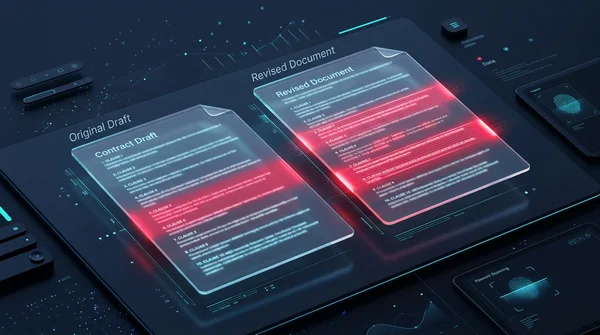
How to compare two PDF files for differences online (free and secure)
Learn how to compare two PDF documents online for free. Spot text changes, clause edits, and visual differences side by side without Adobe Acrobat.
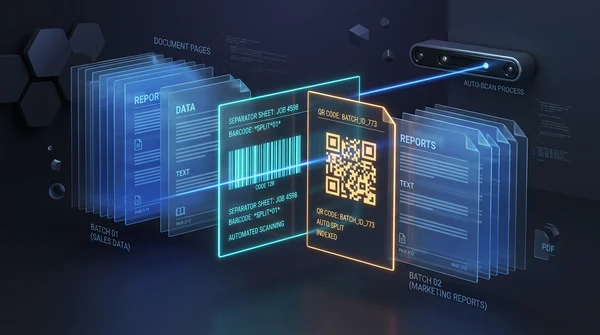
How to auto split PDF documents by barcode and QR code (free online guide)
Learn how to automatically split batch scanned PDF files using barcode and QR code divider sheets online for free. Organize high-volume scans with zero fees and full privacy.
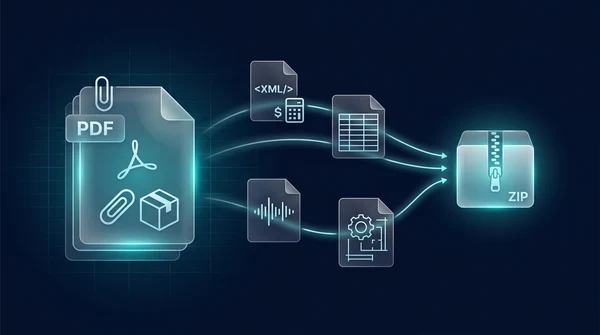
How to extract embedded file attachments from PDF (free and secure)
Learn how to extract hidden file attachments from PDF online for free. Unpack XML invoices, spreadsheets, datasets, and CAD files into a ZIP with full privacy.
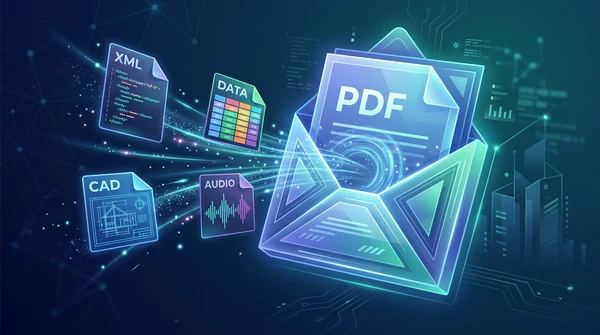
How to add file attachments to PDF online for free (step-by-step guide)
Learn how to add file attachments to PDF online for free. Embed Excel sheets, Factur-X XML invoices, CAD drawings, and audio files with full ISO 32000 privacy.
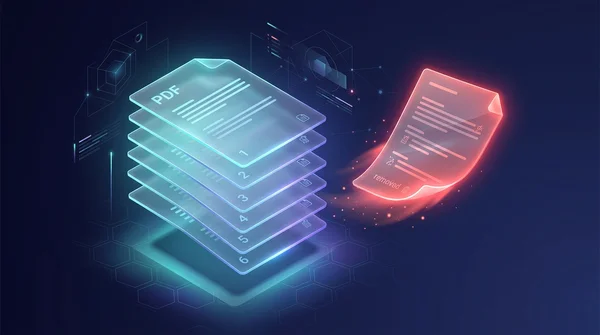
How to delete unwanted pages from a PDF online (free and fast)
Learn how to delete unwanted, blank, or confidential pages from a PDF online for free. Select pages visually or by range with instant browser cleanup.
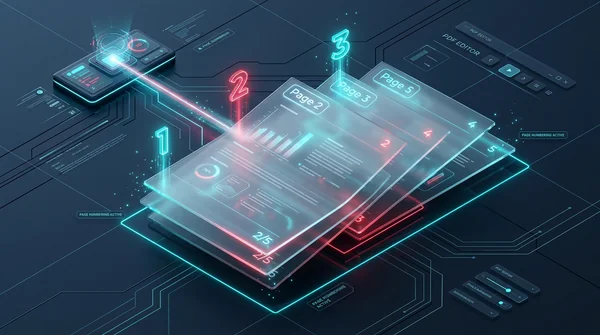
How to add page numbers and Bates stamping to PDF documents
Learn how to insert page numbers, headers, footers, and legal Bates stamping to PDF files online for free. Customize font, positioning, and page offset.