How to auto split PDF documents by barcode and QR code (free online guide)
Quick summary
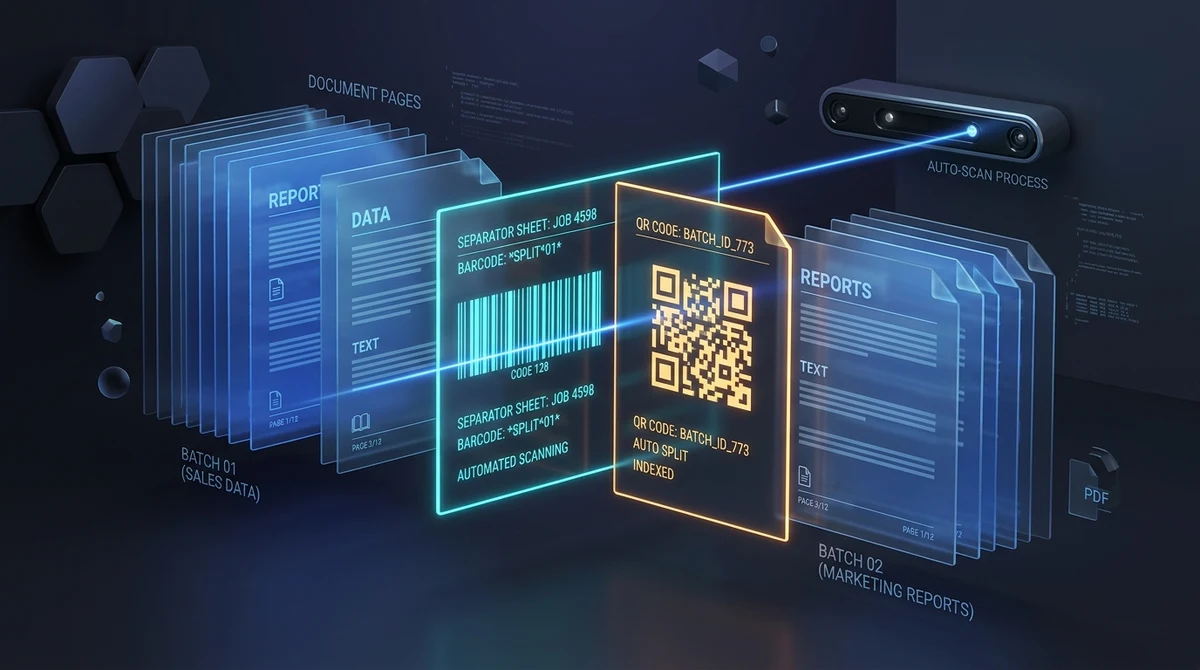
To auto split PDF documents by barcode or QR code online for free, you insert printed separator sheets between individual documents during batch scanning. Using the AZ2PDF Auto Split PDF tool, the computer vision engine scans each page for divider patterns under ISO 32000 specifications, splits the file at every boundary, automatically removes the separator sheets, and packages the individual documents into a clean ZIP archive with zero fees, no account registration, and complete in-memory privacy.
- Automated batch scanning division: Divide massive 100+ page continuous scanning spools into individual, neatly organized PDF documents automatically without manual page selection.
- Smart divider recognition: Detects standard barcode separator sheets (Code 39, Code 128, Patch Code T) and QR code divider pages using dual-pass computer vision binarization.
- Duplex scanning support: Intelligently skips both front and back sides of double-sided divider sheets to avoid leaving stray blank pages in output files.
- 100 percent free with private in-memory execution: AZ2PDF processes documents in temporary server RAM with zero subscriptions, no watermarks, and automatic data scrubbing within 5 minutes.
The batch scanning bottleneck: Why manual splitting drains productivity
In high-volume paper environments, digitizing physical files is often the most time-consuming task of the day. Corporate mailrooms, accounting departments, medical records rooms, and legal litigation offices handle hundreds of paper documents every morning. You have multiple separate documents: vendor invoices, patient intake packets, employee onboarding forms, and signed agreements. Each document may span two, three, or seven pages.
To digitize these files, operators face a painful dilemma between two inefficient approaches:
- Scanning documents individually: An employee places a single 3-page invoice onto the automatic document feeder (ADF), presses scan, waits for the job to finish, types a filename, saves it, and repeats the cycle 100 times. This tedious workflow consumes four to five hours of manual labor every single day.
- Bulk batch scanning into one giant spool: To save scanner operator time, the worker dumps a 300-page stack of documents into the scanner hopper in a single continuous scan. While the scanning takes only a few minutes, the resulting output is one monolithic 300-page PDF file that bundles fifty completely unrelated documents into a chaotic, unsearchable digital stack.
Manually untangling that 300-page PDF spool file is exhausting. A worker must open the file in a desktop viewer, slowly scroll through pages, locate where one invoice ends and the next begins, jot down page ranges on a notepad (pages 1 to 4, pages 5 to 7, pages 8 to 14), and execute manual page extractions one by one. Human error is inevitable: split at page 47 instead of 48, and confidential financial statements or private health records end up filed under the wrong customer account.
Automated document splitting solves this operational bottleneck by teaching software to recognize physical divider sheets and segment files instantly.
Automate high-volume scanning operations with the AZ2PDF Auto Split tool. It scans pages for QR codes, Code 39, and Code 128 barcodes, triggering clean document splits whenever a new barcode separator is detected.
How barcode and QR code separator sheets work under the hood
Automated PDF splitting relies on a classic document capture technique: inserting physical separator sheets between individual documents before loading them into the scanner hopper. These separator sheets act as optical bookmarks. When the scanner processes the stack, the separator pages are digitized directly into the continuous PDF stream alongside the content pages.
An intelligent processing engine analyzes the PDF stream following international document standard ISO 32000. Here is how the automated separation workflow operates under the hood:
1. Direct image XObject inspection
Rather than burning CPU cycles by rendering every page into high-resolution bitmaps, the engine first inspects the page dictionary resources. In a scanned PDF, pages frequently encapsulate their visual data inside embedded image XObjects (/Type /XObject with /Subtype /Image). If a page contains a small number of discrete images (typically one to three), the engine extracts the raw image bytes directly from memory without invoking a heavy software renderer, cutting processing time by up to 80 percent.
2. Dual-strategy computer vision binarization
To read the barcode or QR code reliably across diverse paper types and scanning conditions, the system deploys two complementary binarization algorithms via the optical ZXing computer vision framework:
- HybridBinarizer: Calculates local luminance thresholds across small pixel windows. This adaptive algorithm excels at detecting crisp barcodes on clean, digitally exported documents or scans with uneven ambient lighting across the page.
- GlobalHistogramBinarizer: Analyzes the overall pixel histogram of the entire page image. This approach proves far more resilient against mechanical scanner noise, paper texture grain, light toner dusting, and divider sheets containing logos or border lines that confuse localized thresholding.
3. Adaptive resolution rendering
If direct image inspection is inconclusive (for example, on complex vector-drawn divider pages or documents with color background filters), the engine renders the page through an adaptive resolution pipeline. It tests the page first at a lightweight 150 DPI resolution to conserve server memory and CPU cycles. If no divider is identified, it performs an automatic high-resolution retry at 300 DPI, ensuring that even compact 10mm barcodes or slightly blurred scans are deciphered accurately.
4. Structural boundary splitting and divider stripping
When a verified barcode or QR code divider pattern is detected, the engine marks a document boundary. It immediately instantiates a new PDF document container, automatically discards the separator page so it does not clutter your final files, and appends all subsequent content pages into the fresh document.
5. Lossless streaming ZIP serialization
The resulting documents are assembled losslessly using Apache PDFBox addPage() object stream re-parenting. The engine applies explicit uncompressed parameters (CompressParameters.NO_COMPRESSION), ensuring shared fonts and graphic resources imported across pages remain intact without corruption (avoiding common PDFBOX-6203 font dropping bugs). The separate documents (named filename_1.pdf, filename_2.pdf, etc.) are streamed directly into an organized ZIP archive ready for immediate download.
Standard divider formats: Patch Code T, Code 128, and QR codes
Different scanning environments use different optical marks to signal document separation. Understanding these standards helps you choose the right divider sheets for your office hardware:
1. Patch Code T (Transfer Patch)
Developed decades ago by Kodak and widely adopted by commercial scanner manufacturers like Fujitsu, Canon, and Epson, Patch Codes are standardized patterns of thick and thin parallel bars. Patch Code T (also called Patch T or Type T) is the universal industry standard for document separation. It instructs both hardware scanner sensors and downstream software pipelines that a new document begins on the very next page.
2. One-dimensional barcodes (Code 128 and Code 39)
Linear barcodes like Code 128 and Code 39 are popular because they can be generated and printed on any office printer using free barcode fonts or web generators. In addition to triggering a document split, these barcodes can encode specific routing words (such as SPLIT, DOC_START, or BATCH_BREAK). Mailrooms often print reusable laminated Code 128 divider sheets that can be recovered from the scanner output tray and reused indefinitely.
3. Two-dimensional matrices (QR codes)
QR codes offer distinct advantages over linear barcodes. Thanks to built-in Reed-Solomon error correction (Level L, M, Q, or H), a QR code can be read successfully even if up to 30 percent of the printed pattern is obscured by smudges, wrinkles, coffee stains, or hole punches. Furthermore, QR codes can store structured metadata (such as project codes or department names) alongside the split instruction.
Comparing separation methods: Online automation vs. desktop software vs. manual
When selecting a document separation workflow, organizations must evaluate software costs, hardware compatibility, and employee efficiency. Here is how modern approaches compare:
Option 1: Modern automated web utility (AZ2PDF)
The most flexible and cost-effective approach is an automated online tool like the AZ2PDF Auto Split PDF tool. It requires zero software installation, works seamlessly across Windows, macOS, Linux, and mobile devices, and handles multi-megabyte continuous scan spools effortlessly. It is 100 percent free with no subscription tiers, no usage caps, no account registration, and zero advertising watermarks stamped onto your downloaded documents.
Option 2: Commercial capture suites (Kofax, ABBYY, Adobe Acrobat Pro)
Enterprise capture platforms like Kofax TotalAgility, ABBYY FineReader Corporate, or Adobe Acrobat Pro with specialized scanning plugins provide robust automation. However, they carry steep recurring price tags, often ranging from $240 to over $1,200 annually per workstation license. For small businesses, non-profits, or departments that need automated splitting without enterprise software overhead, these commercial suites are prohibitively expensive.
Option 3: Bundled scanner vendor software
Many production scanners ship with proprietary software utilities (such as Fujitsu PaperStream or Canon CaptureOnTouch). While these tools work well, they are strictly tied to specific hardware models, often lack modern web interfaces, and cannot process PDF files sent from remote field offices or mobile camera scans.
Option 4: Manual page extraction
Relying on employees to manually read, count, and split pages in free PDF viewers costs nothing in software licenses, but it costs hundreds of dollars in wasted labor and introduces severe data handling errors. Automating the division pays for itself on day one.
To streamline all document tasks across your organization, you can explore the complete suite of AZ2PDF free online PDF tools directly in your browser.
To build an end-to-end automated document indexing pipeline, you can seamlessly auto rename partitioned files using barcode values using barcode numbers as clean file names.
How to auto split PDF documents in 3 simple steps
Automating your high-volume scanning workflow does not require expensive capture hardware or complex IT configurations. Follow these straightforward steps to split your files in seconds:
Step 1: Prepare your paper stack and scan into a single PDF
Print standard separator sheets featuring a supported barcode (such as Code 128 or Patch Code T) or a clean QR code. Insert one separator sheet before the first page of every separate document in your paper stack. Load the entire stack into your scanner ADF and scan everything into a single continuous PDF document.
Step 2: Upload your continuous PDF to AZ2PDF
Open the free AZ2PDF Auto Split PDF tool in your web browser. Drag and drop your scanned spool PDF into the upload area. If you scanned your documents using double-sided (duplex) mode, check the Duplex Mode option to ensure the blank reverse side of each separator sheet is also skipped.
Step 3: Download your segmented ZIP package
Click the split button. The high-speed engine scans every page, detects each divider sheet, extracts the content documents, and strips out the separator pages. In seconds, your browser downloads an organized ZIP archive containing every individual document cleanly separated and ready for filing.
To build an end-to-end automated document indexing pipeline, you can seamlessly auto rename partitioned files using barcode values using barcode numbers as clean file names.
Handling duplex scanning: How to avoid stray blank divider pages
A frequent frustration during automated batch scanning is the duplex scanning trap. Modern office scanners typically operate in duplex mode, meaning the scanner optics capture both the front and the back side of every sheet of paper feeding through the hopper.
When you use single-sided separator sheets in a duplex scanning run, the scanner captures two pages for each separator:
- Front page: Contains the printed barcode or QR code.
- Back page: An entirely blank sheet of paper.
If your splitting software only recognizes the front barcode page and splits immediately, the next document in sequence will start with an unwanted blank page (the back of the separator sheet). An employee would then have to open each split document and manually delete that initial blank page.
The AZ2PDF Auto Split PDF tool solves this dilemma with its built-in Duplex Mode toggle. When enabled, the parser increments the page index by two whenever a divider code is detected (page++). This skips both the printed barcode face and the trailing blank back side, ensuring your output files begin cleanly on the true first page of actual content.
Real-world workflows: Mailrooms, accounts payable, medical, and legal records
Automated divider splitting delivers immediate efficiency gains across diverse document-heavy industries:
1. Accounts payable and vendor invoice processing
Accounting clerks often receive dozens of physical invoices daily from different suppliers. By inserting reusable barcode divider sheets between each vendor packet, the entire morning mail can be scanned in one continuous pass. The split files are automatically named and routed to accounts payable folders for payment reconciliation.
2. Centralized mailroom intake
Corporate mailrooms process hundreds of letters, notices, and legal summonses every morning. Scanning mail in 100-page batches separated by departmental barcode sheets allows mailroom staff to digitize the daily correspondence in minutes and distribute clean PDF packages to appropriate internal teams.
3. Medical, dental, and hospital clinic records
Healthcare facilities digitizing legacy paper charts must keep patient confidentiality paramount. Medical record specialists place patient ID barcode sheets between patient charts. The automated tool segments the continuous scan into individual patient files without risk of interleaving sensitive medical histories between different patients.
4. Legal litigation discovery and court exhibits
Litigation teams review thousands of discovery pages, contracts, and deposition transcripts. Using barcode divider sheets allows paralegals to scan large binder archives and automatically segment them into distinct evidentiary exhibits without purchasing costly legal capture software.
Streamline mailroom scanning and automated archiving with the AZ2PDF automated document splitting and batch processing platform, where local image parsing guarantees complete privacy for corporate documents.
Best practices for print quality, scanner resolution, and troubleshooting
To ensure 100 percent detection accuracy across all your automated scanning batches, follow these practical recommendations:
- Maintain clean print contrast: Print divider sheets using solid black toner on standard bright white paper. Avoid faint grayscale prints, low-toner draft modes, or colored paper, which can reduce optical contrast during computer vision binarization.
- Leave adequate quiet zones and margins: Barcode decoders require a clean white margin (known as the quiet zone) around the barcode. Keep barcodes centered on the page and at least one inch (25mm) away from paper edges to prevent scanner roller cut-offs.
- Scan at optimal optical resolution (200 to 300 DPI): 200 to 300 DPI is the sweet spot for document capture. Scanning at 72 or 100 DPI can blur fine barcode lines, while scanning at 600 DPI wastes processing memory without improving barcode decoding rates.
- Keep divider sheets unwrinkled: If you reuse divider sheets, discard pages that become heavily creased, dog-eared, or torn. If sheets must be reused frequently in high-wear environments, consider printing QR codes, which tolerate up to 30 percent physical damage through Reed-Solomon error correction.
Frequently asked questions
Find answers to common questions about automated PDF document splitting, separator barcodes, duplex scanning, and online data privacy.
Streamline mailroom scanning and automated archiving with the AZ2PDF automated document splitting and batch processing platform, where local image parsing guarantees complete privacy for corporate documents.
❓ Frequently asked questions
Yes. The Auto Split PDF tool is 100 percent free with unlimited document processing. There are no subscription fees, no credit card requirements, no account registrations, and no advertising watermarks stamped onto your split files.
Related articles in this topic
Deep dive into related document organization and page manipulation workflows.
How to compare two PDF files for differences online (free and secure)
Learn how to compare two PDF documents online for free. Spot text changes, clause edits, and visual differences side by side without Adobe Acrobat.
How to overlay and superimpose PDF documents online (free and secure guide)
Learn how to overlay PDF pages, add digital letterheads, stamp approval seals, and superimpose blueprint drawings online for free. Fast, secure, and private.
How to extract embedded file attachments from PDF (free and secure)
Learn how to extract hidden file attachments from PDF online for free. Unpack XML invoices, spreadsheets, datasets, and CAD files into a ZIP with full privacy.
How to add file attachments to PDF online for free (step-by-step guide)
Learn how to add file attachments to PDF online for free. Embed Excel sheets, Factur-X XML invoices, CAD drawings, and audio files with full ISO 32000 privacy.

How to reorder and rearrange PDF pages online (free and secure)
Learn how to reorder, shuffle, and rearrange PDF pages online for free. Drag and drop thumbnails to resequence multi-page documents with complete privacy.

How to delete unwanted pages from a PDF online (free and fast)
Learn how to delete unwanted, blank, or confidential pages from a PDF online for free. Select pages visually or by range with instant browser cleanup.