How to compare two PDF files for differences online (free and secure)
Quick summary
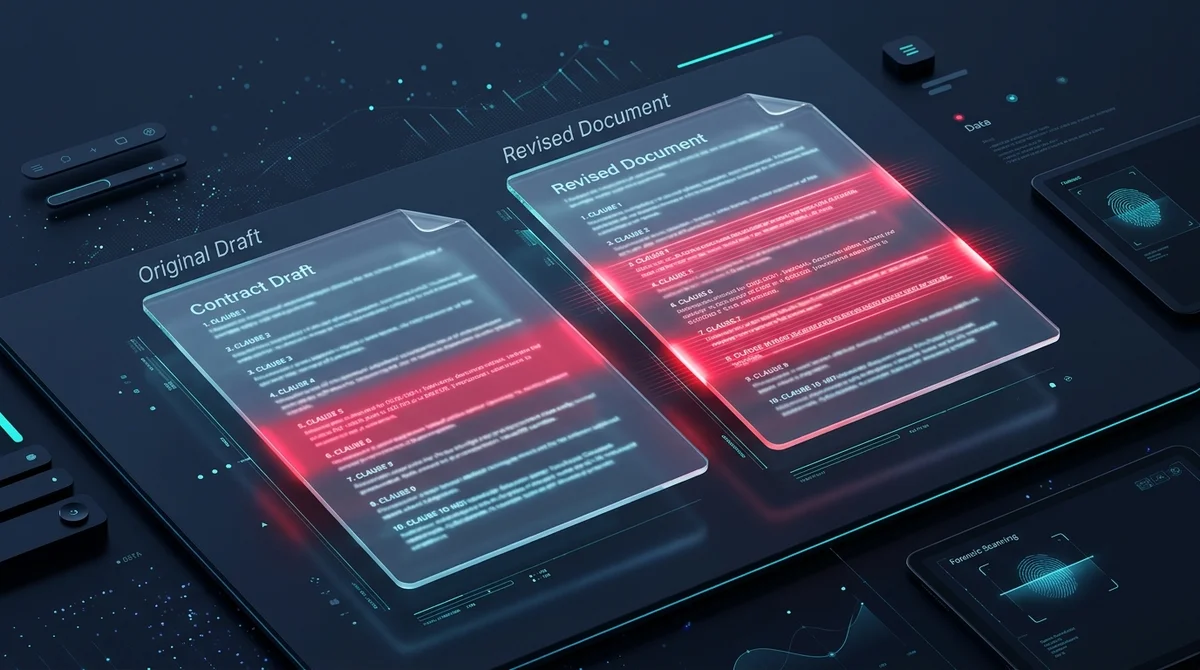
To compare two PDF files for differences online for free without paid software, you can use AZ2PDF Compare PDFs. It performs automated pixel-by-pixel differential rendering directly in your browser, highlighting text additions, deletions, modified numbers, and shifted layouts in contrasting red without uploading private documents to external servers.
- Zero software cost: You do not need expensive desktop licenses like Adobe Acrobat Pro just to inspect differences between two document drafts.
- Complete local privacy: Comparison runs client-side inside your browser sandbox, ensuring confidential contracts and financial records never leave your machine.
- Pixel-level accuracy: Visual diffing detects missing clauses, swapped digits, shifted signatures, and modified stamps that text-only comparison tools miss.
- Automated visual report: Generates a ready-to-download PDF highlighting all modified areas in high-contrast red for rapid auditing.
Why comparing PDF files is technically challenging
Software developers take code diffing for granted. With a single terminal command like git diff, text files are compared line by line in milliseconds. However, attempting to run traditional text comparison algorithms directly on PDF files produces misleading or unusable results.
The Portable Document Format (governed by the international ISO 32000 standard) was intentionally engineered as a digital printing blueprint rather than a sequential text document. In a word processor like Microsoft Word or Google Docs, sentences flow continuously from one paragraph to the next. In contrast, a PDF specifies exact geometric coordinates on a two-dimensional Cartesian plane for every single character glyph, vector path, and embedded bitmap image.
When an author edits a contract in a desktop application and re-exports it to PDF, the internal byte offsets, indirect object dictionaries, and cross-reference tables are completely rebuilt. Even if only one word was changed, the underlying binary code of the file might show thousand-byte discrepancies across every page stream. A raw byte comparison or basic text scraper cannot discern whether a difference represents a genuine legal modification or merely an invisible structural refactor.
Solving this challenge requires specialized comparison technology that bridges document structure analysis with visual differential rendering.
Privacy first: Why in-browser comparison protects your contracts
When working under strict deadlines, many professionals impulsively search online for free comparison tools and upload sensitive files to unfamiliar third-party websites. This practice poses severe data confidentiality hazards for commercial enterprises, legal practices, and public institutions.
Draft contracts, mergers and acquisitions agreements, non-disclosure covenants, intellectual property disclosures, and employee payroll sheets contain trade secrets and legally protected personal identifiers. Transmitting these documents to remote cloud processing queues exposes your proprietary data to server caching, cloud database breaches, and unauthorized data scraping.
To eliminate these security exposures, AZ2PDF free online PDF tools was built around an uncompromising client-side architectural paradigm. When you compare two documents, the entire differential rendering pipeline executes locally within your web browser sandbox using hardware-accelerated HTML5 Canvas and WebAssembly. At no stage are your files transmitted across the internet or stored on external cloud infrastructure. Your business records remain completely confidential on your machine.
Furthermore, this capability is 100% free for everyone. There are no credit card prompts, no usage meters, no software installations, and no watermarks branded onto your output files.
How to compare two PDF files online in 3 simple steps
Auditing two versions of a document takes less than a minute directly in your browser:
Step 1: Select and open your two PDF files
Open the comparison tool and select both the original document and your revised draft. Because processing occurs entirely client-side, the files open instantly without the latency of uploading large attachments.
Step 2: Let the comparison engine detect differences
Click the compare button to initiate the automated differential engine. The system renders each page at high resolution (1.5x display scale) and executes a pixel-level differential calculation across the red, green, and blue color channels. Every altered character, inserted paragraph, deleted date, or shifted diagram is automatically isolated and highlighted in vivid contrasting red.
Step 3: Download and review your visual diff PDF report
Once the analysis finishes, download your visual diff PDF document. Each page clearly showcases the modifications in high contrast, allowing legal teams, project managers, and clients to pinpoint changes in seconds rather than reading dozens of pages manually.
For engineering blueprints or architectural revisions, you can also overlay two versions to inspect visual changes to visually illuminate alignment shifts and vector differences using color-coded semi-transparent layers.
Visual pixel diffing vs text extraction: Which approach is superior?
When evaluating comparison technologies, understanding the fundamental differences between text extraction diffing and visual differential rendering is essential for selecting the correct tool for your workflow.
Method 1: Plain text extraction diffing
Text extraction tools attempt to scrape character streams from both PDF files, discard all layout coordinates, and compare the extracted words line by line. While this method can quickly highlight inserted or deleted sentences in clean digital documents, it suffers from critical blind spots. Text extraction is completely blind to altered images, substituted corporate logos, modified engineering schematics, shifted authorization signatures, and formatting alterations. Furthermore, if a document originates from a paper scanner without embedded optical character recognition, text extraction tools fail entirely because no digital text stream exists.
Method 2: Pixel-by-pixel visual differential rendering
Visual differential rendering (the technology powering AZ2PDF) treats each page as an exact visual artifact. By rendering both versions onto matching high-resolution graphics buffers and calculating numerical differences across pixel matrices, visual diffing catches every category of modification. If a partner subtly alters a clause, swaps a digit in an account number, repositions an approval stamp, or replaces an architectural drawing element, the modification is immediately illuminated in contrasting red. This comprehensive coverage makes visual diffing the gold standard for high-stakes auditing, prepress quality assurance, and legal compliance.
Real world situations where visual PDF comparison is essential
Automated document comparison delivers immediate peace of mind across diverse commercial and technical disciplines:
1. Commercial contracting and legal negotiation
During complex commercial negotiations, contracts frequently cycle through numerous iterations involving multiple law firms and stakeholder committees. Visual comparison empowers legal counsel to verify final execution copies against signed drafts, ensuring no unauthorized language or modified liability caps were introduced prior to formal execution.
2. Prepress, packaging, and graphic design proofing
In graphic arts and commercial packaging, an unintended typographic shift or missing barcode element can ruin an entire production run costing tens of thousands of dollars. Print production teams utilize visual diffing to cross-check client-approved digital proofs against prepress raster files, ensuring that color plates, nutrition facts, and legal disclaimers match specifications perfectly.
3. Architectural blueprints and engineering schematics
Engineering drawings and architectural plans frequently undergo revisions to accommodate structural calculations, zoning restrictions, and client change orders. Visual diffing enables engineers to instantly detect shifted plumbing routes, altered beam dimensions, and updated electrical schematics across massive multi-layer PDF blueprints.
4. Financial accounting and audit verification
Accountants and auditors routinely verify balance sheets, cash flow models, and statutory filings across fiscal quarters. Automated visual comparison highlights updated line items and recalculated figures between initial audit drafts and published annual reports, accelerating reconciliation workflows.
Professional tips for accurate PDF document comparison
To achieve the cleanest comparison results and avoid false positives, keep these practical operational guidelines in mind:
Align matching page sequences: The visual comparison engine evaluates corresponding physical pages (page 1 against page 1, page 2 against page 2). If a colleague inserted a new executive summary or cover sheet on page 1 of the revised draft, all subsequent pages will experience an offset shift. To resolve this, use a page split or page reordering tool beforehand to extract or align corresponding chapters prior to running your comparison.
Standardize page orientation: If one of your documents was scanned in landscape orientation while the revised version is oriented in portrait, rotate the pages to a uniform orientation so the graphics buffers align accurately.
Handle paper scan variations: When comparing physical paper sheets scanned on different multi-function copiers, minor optical skewing or scanner glass dust can trigger minor pixel noise. For scanned contracts, ensure pages are straightened before comparison, or utilize optical character recognition tools to generate clean digital layouts.
Spot critical contract revisions with total confidence using the AZ2PDF document analysis suite, where in-browser comparison engines protect your sensitive drafts from third-party interception.
❓ Frequently asked questions
Yes. The comparison tool on AZ2PDF is 100% free with no hidden charges, no mandatory user registrations, and no watermarks placed on your generated diff reports.
Related articles in this topic
Deep dive into related document organization and page manipulation workflows.
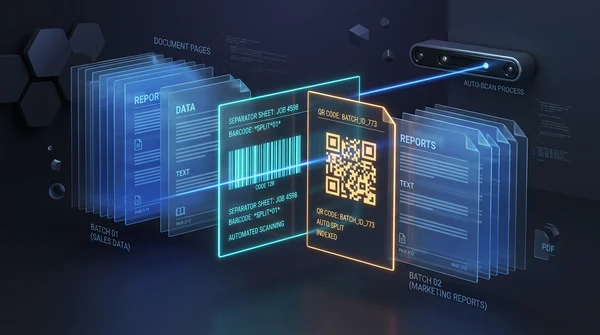
How to auto split PDF documents by barcode and QR code (free online guide)
Learn how to automatically split batch scanned PDF files using barcode and QR code divider sheets online for free. Organize high-volume scans with zero fees and full privacy.
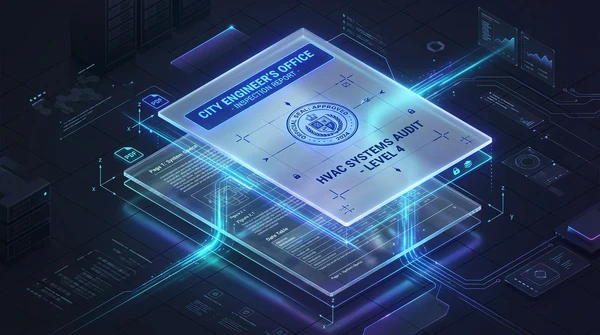
How to overlay and superimpose PDF documents online (free and secure guide)
Learn how to overlay PDF pages, add digital letterheads, stamp approval seals, and superimpose blueprint drawings online for free. Fast, secure, and private.
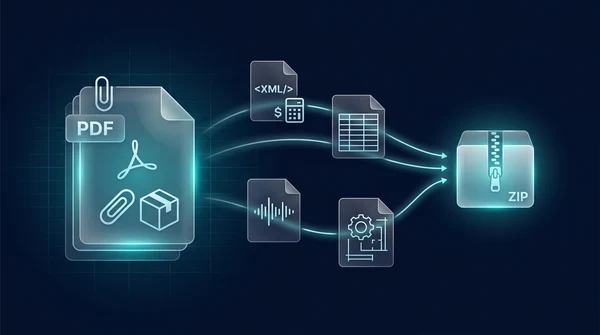
How to extract embedded file attachments from PDF (free and secure)
Learn how to extract hidden file attachments from PDF online for free. Unpack XML invoices, spreadsheets, datasets, and CAD files into a ZIP with full privacy.
How to add file attachments to PDF online for free (step-by-step guide)
Learn how to add file attachments to PDF online for free. Embed Excel sheets, Factur-X XML invoices, CAD drawings, and audio files with full ISO 32000 privacy.

How to split PDF pages into separate documents (free and secure)
Learn how to split PDF files into separate documents or extract specific page ranges online without Adobe Acrobat. Fast, free, and completely private.

How to reorder and rearrange PDF pages online (free and secure)
Learn how to reorder, shuffle, and rearrange PDF pages online for free. Drag and drop thumbnails to resequence multi-page documents with complete privacy.