How to flatten a PDF form and annotations permanently
Quick summary
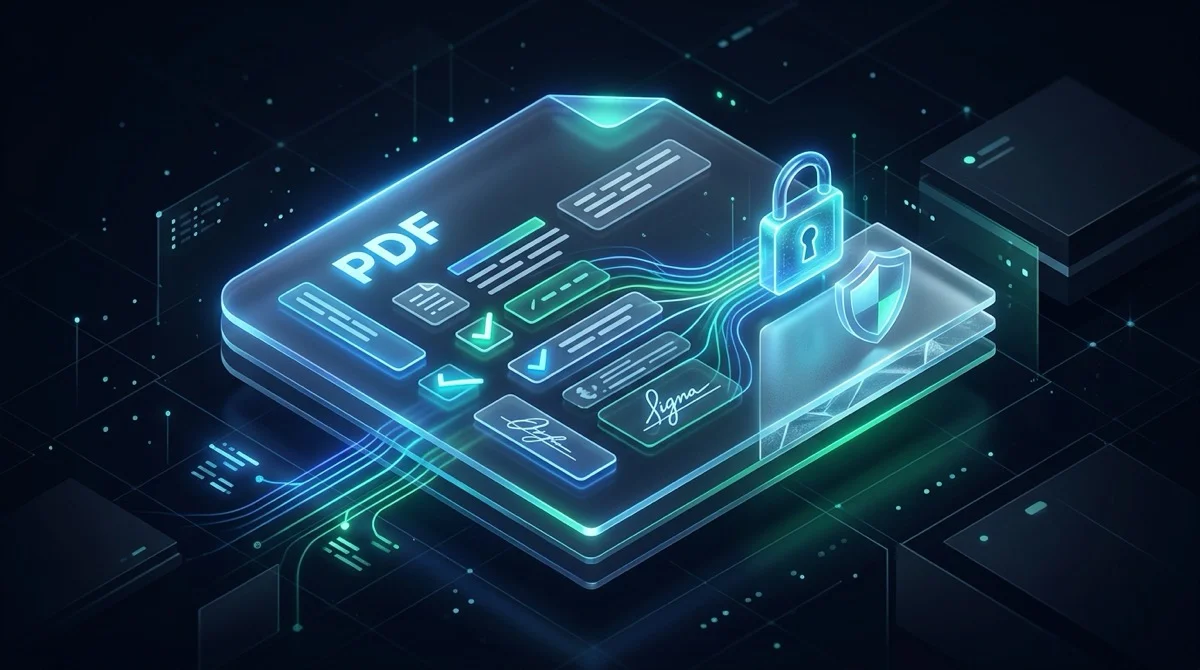
To flatten a PDF means merging interactive elements like fillable form fields, checkmarks, electronic signatures, and comment annotations directly into the document static background stream. Under ISO 32000, this permanently locks all values, prevents unauthorized alterations, fixes missing text in mobile viewers, and renders the document identical across all devices and printers.
- Permanent form locking: Transforms editable text boxes, checkboxes, and signatures into static vector graphics so values cannot be altered or accidentally reset.
- Universal rendering: Eliminates glitches where filled data or signatures appear blank on smartphone viewers, browser tabs, or office printers.
- Vector fidelity preserved: Modern flattening keeps typography sharp and searchable with Ctrl+F without blurry image rasterization.
- 100% free and private: AZ2PDF processes documents in volatile RAM with automatic 5-minute memory purging, zero account signups, and zero watermarks.
Why do fillable PDF forms remain vulnerable after you hit save?
You have likely experienced this situation: you carefully fill out an employment agreement, an insurance claim, or a real estate disclosure form. You type in your personal address, check the confirmation boxes, insert your electronic signature, and click save. To your eyes on your screen, the paperwork looks finished and sealed. You attach the document to an email and send it off to a client, an employer, or a government office.
What many professionals do not realize is that simply saving a fillable PDF does not lock the information. Under the hood, an interactive PDF form consists of floating data layers hovering above a background sheet. Any recipient who opens the file in a standard browser or PDF reader can easily click inside the text fields, change bank account numbers, modify agreed prices, uncheck consent boxes, or even delete your signature with a single press of the backspace key.
Beyond security vulnerabilities, interactive form layers frequently malfunction across different software environments. When someone opens an interactive PDF on an iPhone or an Android tablet, the built-in mobile viewer often fails to render the form widgets properly. Checkmarks disappear, typed responses show up as empty white boxes, and digital signature stamps fail to display. The recipient may assume you sent an incomplete form, causing unnecessary delays. Flattening your PDF solves both challenges permanently by fusing all interactive elements into the static page structure.
How PDF flattening works under the ISO 32000 standard
To understand why flattening is so effective, it helps to examine how the Portable Document Format is constructed under the official ISO 32000 document standard. A PDF is not a flat canvas like a photograph. Instead, it is an object-oriented document architecture divided into distinct, overlapping layers:
- The static page content stream (/Contents): This is the foundation of every PDF page. It contains the core vector graphics, line art, company logos, background borders, and fixed paragraph typography that cannot be edited through regular cursor clicks.
- The interactive annotation array (/Annots): Interactive features do not live in the page stream. Instead, they reside in a separate metadata dictionary known as the annotation array. This includes AcroForm widgets, text entry boxes, radio buttons, dropdown menus, sticky notes, visual highlight markups, and electronic signature objects.
- The document catalog (/AcroForm): The root catalog dictionary maintains an index of all interactive field definitions, font resources, and dynamic calculation scripts (such as Acrobat JavaScript formulas that calculate sales tax totals).
When you fill out a form on your screen, the software only updates the value tag (/V) inside the widget annotation. The underlying page canvas remains completely blank underneath that box.
When you run a document through the flattening process, the engine executes a comprehensive structural conversion. It parses every widget in the /Annots array, captures its visual appearance stream (/AP), and translates the typed letters, blue checkmarks, and pen strokes into raw vector drawing operators (such as path descriptions and glyph coordinates). These operators are injected directly into the page /Contents stream. Once the graphic representation is baked into the base layer, the engine purges the /Annots array and disconnects the /AcroForm dictionary. The interactive fields cease to exist as independent widgets, while the visual appearance remains 100% intact.
Flattening vs rasterizing: Why vector preservation matters
A frequent misconception in digital document handling is confusing true PDF flattening with rasterization. Some low-quality online utilities take a crude shortcut: when asked to flatten a file, they take a digital snapshot of each page, convert the entire document into low-resolution JPEG images, and repackage those images into a new PDF wrapper. While this technically makes the form uneditable, it introduces severe compromises:
- Loss of typographic sharpness: Rasterizing converts smooth mathematical letter curves into fixed pixel grids. When you zoom in on a computer screen or print the document on an office laser printer, text edges appear blurry, fuzzy, and surrounded by JPEG compression halos.
- Destruction of text searchability (Ctrl+F): Because the words have been converted into raw pixels, the document text layer vanishes. You and your recipients can no longer search for keywords, copy contract clauses to the clipboard, or use screen readers for accessibility.
- Massive file size inflation: Turning 10 pages of crisp vector text into full-page photographs often causes file sizes to explode from 200 kilobytes to 25 megabytes, easily exceeding standard email attachment limits.
In contrast, high-grade vector flattening preserves native typographic streams. The characters you typed into form boxes remain crisp vector glyphs, and the background remains mathematically defined. Your document stays lightweight, razor-sharp at 800% zoom, and fully selectable for everyday search and archiving.
Privacy first: Why volatile memory processing protects sensitive documents
The PDF documents that require flattening are virtually always your most confidential files: filled tax declarations containing Social Security numbers, mortgage loan applications, employee onboarding records, medical history forms, and multi-million dollar business contracts. Transmitting these documents across the internet demands ironclad security guarantees.
Many legacy web converters store uploaded user files on permanent disk drives, maintain historical archives for days, or require you to provide an email address to receive your download link. That approach introduces unacceptable compliance risks under modern data privacy frameworks like GDPR and CCPA.
That is why AZ2PDF free online PDF tools was designed with a strict zero-retention, privacy-by-design infrastructure:
- Isolated in-memory RAM processing: Uploaded files are streamed directly into volatile system RAM and processed in milliseconds. Your documents are never saved to permanent hard drives, database clusters, or secondary storage arrays.
- Automated 5-minute memory purge daemon: An active server daemon continually monitors volatile buffers and permanently purges all temporary memory streams within 5 minutes of execution. No lingering residual copies remain on the infrastructure.
- Zero data harvesting or AI inspection: Your documents are never opened, read, indexed, or utilized for training artificial intelligence models. Your corporate and personal data remains exclusively yours.
- 100% free with no commercial catches: All tools on AZ2PDF are completely free to use without creating an account, entering payment cards, or dealing with watermark stamps plastered across your documents.
How to flatten a PDF form online in 3 simple steps
Locking your form fields and annotations into permanent, tamper-resistant print layers takes less than ten seconds using the free AZ2PDF Flatten PDF tool. Here is the straightforward process:
Step 1: Upload your filled PDF document
Open the Flatten PDF tool in any modern web browser on your Mac, Windows PC, Linux machine, iPhone, iPad, or Android phone. Drag and drop your completed PDF form directly into the upload area, or click the file picker button to select the document from your local storage. The file streams into the high-speed processing environment instantly.
Step 2: Click flatten to bake interactive elements
Click the Flatten PDF button to execute the task. The engine parses the /AcroForm catalog, evaluates the visual appearance streams of all active form fields, checkmarks, and annotations, and translates them into permanent vector content streams within milliseconds.
Step 3: Download your tamper-resistant PDF
Click Download to save your finalized, flattened PDF to your device. When you open the downloaded file, all form fields are locked permanently into the page canvas. You can now distribute the document by email or upload it to formal portals with complete confidence that your responses cannot be altered.
Real-world scenarios: When flattening your PDF is critical
Flattening is not an obscure technical procedure; it is a foundational best practice across dozens of everyday business, legal, and administrative workflows:
1. Signed contracts and mutual non-disclosure agreements
When parties sign a contract electronically, the signatures and filled date fields often sit as interactive annotations. If you email an unflattened PDF to an external party, anyone with basic PDF viewing software can move your signature block, change payment terms, or delete critical clauses. Flattening locks the signature directly into the contract text, creating a reliable, tamper-evident document record.
2. Government tax filings and official administrative submissions
Standard tax forms (such as IRS W-9, 1099, or international tax residency declarations) contain dozens of interactive boxes. Government filing portals and accounting audit systems frequently reject files that contain active form dictionaries or embedded JavaScript. Flattening the form ensures that official assessors see your exact figures without technical validation errors.
3. Eliminating missing checkmarks on mobile devices
Have you ever sent a filled form to a manager or client who reviewed it on their smartphone, only to have them ask why you left all the checkboxes empty? Standard mobile PDF engines (including Apple Quick Look and Android mobile viewers) regularly fail to decode unflattened checkmark glyphs. Fusing the marks into the page content stream guarantees that every mobile recipient sees precisely what you see on your desktop screen.
4. Preventing form field name collisions during PDF merging
If you need to assemble several independent PDF application forms into a single unified master file (for example, combining three different vendor onboarding applications), unflattened forms create a notorious technical issue called field collision. If two forms contain an input box with the identical internal identifier (such as "CustomerName"), merging them causes the second form to automatically overwrite the value on the first form. Flattening each form prior to merging converts those inputs into static text, preventing any name collisions.
5. Preparing documents for commercial high-speed printing
Professional print shops and commercial raster image processors (RIPs) are designed to process static vector paths and high-resolution imagery. When a commercial printing press encounters an unflattened PDF with interactive widget overlays, the printer may skip the annotation layer entirely, printing blank forms with missing customer responses. Flattening ensures 100% print reliability.
Comparing your options: Free online flattening vs Acrobat vs Print-to-PDF
When you need to lock a PDF form, you generally have three primary paths. Understanding the strengths and pitfalls of each helps you choose the most reliable workflow:
Option 1: Modern in-memory web platforms (AZ2PDF)
This method provides the perfect balance of zero cost, immediate convenience, and mathematical accuracy. It requires no software downloads, works on any desktop or mobile operating system, processes files strictly in temporary memory buffers, and completes the flattening task in under two seconds. Furthermore, it preserves true vector typography, ensuring that your text stays crisp and searchable without inflating file size.
Option 2: Commercial desktop software (Adobe Acrobat Pro)
Adobe Acrobat Pro includes a dedicated Preflight flattening tool and PDF optimizer. It handles complex print production workflows with precision. However, Acrobat Pro requires a costly recurring subscription of over $240 per year, occupies gigabytes of local drive storage, and involves navigating complex nested dialog menus. For standard office forms and contracts, paying for a heavy desktop suite is unnecessary for most professionals.
Option 3: Operating system virtual printing (Print-to-PDF)
Many users attempt to flatten documents by opening their PDF in a browser and selecting File > Print > Save as PDF. While this workaround is widely known, it introduces several significant drawbacks:
- Loss of embedded hyperlinks: Virtual printer drivers strip out all active URL links, email anchors, and internal table-of-contents bookmarks.
- Color space distortions: Print drivers often convert clean RGB screen colors into CMYK profiles or apply unintended halftoning, making subtle background tints look muddy.
- Page geometry shifting: Virtual printers frequently apply automatic margins (such as "Fit to Printable Area"), shrinking your document by 4% to 8% and clipping border elements.
- Loss of document metadata: Document title tags, author credits, and creation dates are discarded during the print emulation process.
Important distinction: PDF flattening vs true redaction
One of the most dangerous mistakes in digital document management is using flattening as a makeshift replacement for true redaction. It is vital to understand the difference between locking a visible form and removing private information:
If you have a document containing sensitive data (such as a customer credit card number, a bank balance, or a patient medical diagnosis) and you draw a solid black rectangle over the text using an annotation highlighter or shape tool, flattening will not make that data safe.
When you flatten that file, the software simply bakes the black visual rectangle into the graphic layer above the text. However, the sensitive text underneath that rectangle still exists in the document binary stream! Anyone who selects the area with their cursor or runs an automated text extractor can copy the hidden numbers out from beneath the black box.
To safely obscure confidential records, you must use true permanent redaction, which completely scrubs the underlying character bytes and vector paths from the file. For a complete security workflow, follow this recommended sequence:
- Sanitize and redact any confidential numbers or names using a dedicated redaction tool.
- Add a protective watermark (such as CONFIDENTIAL or COPY) across the pages.
- Flatten the document with the AZ2PDF Flatten PDF tool to lock all signatures, form fields, and watermark stamps into the static canvas.
- Apply military-grade AES-256 encryption using the AZ2PDF Protect PDF tool to secure the file against unauthorized opening.
Connected workflows: What to do before and after flattening
Flattening is a pivotal step in document lifecycle management. Integrating it with other specialized tools in the AZ2PDF document suite allows you to build streamlined, end-to-end workflows:
- Keep an editable original backup: Because flattening is a permanent, one-way conversion, always save an untouched copy of your interactive form before flattening. If you later need to update an address or revise a date, you can edit the backup and flatten it afresh.
- Compress heavy files after flattening: If your original form contained scanned attachments, high-resolution logos, or detailed photo evidence, pass the flattened file through the AZ2PDF Compress PDF tool to shrink the byte size by up to 80% without sacrificing text readability.
- Reorder or remove surplus pages: If your completed submission includes blank instructional sheets or extra terms that are no longer required, use the AZ2PDF Remove Pages tool to extract unwanted sheets before distribution.
- Merge multiple completed forms: Once you have flattened multiple individual intake forms or agreements, you can safely combine them using the AZ2PDF Merge PDF tool without worrying about form field name collisions.
Quick fixes for common PDF flattening problems
If you encounter unexpected results while preparing or locking your interactive documents, these practical solutions resolve the vast majority of scenarios:
1. Interactive calculation buttons disappeared
This is expected behavior. When you flatten a PDF, dynamic calculation scripts and clickable form action buttons (such as "Submit by Email" or "Reset Form") are removed because interactive widgets no longer exist. If you need recipients to click a submit button, the document must remain an active interactive form.
2. Flattening fails with a password or permission error
If your source form is protected by strong AES encryption or has strict owner permission locks that prohibit content modifications, flattening engines cannot parse and rewrite the internal object dictionaries. Use the AZ2PDF Unlock PDF tool to clear the permission restrictions first, and then flatten the file.
3. The file was flattened but you made a typo
Because genuine flattening converts form inputs into immutable background graphics, you cannot double-click the text to edit it again. If you did not keep an editable backup copy, open the flattened document inside the AZ2PDF PDF Editor to white out the mistake and type the correct information on top.
To discover more browser-based document utilities, visit the AZ2PDF home page for our full suite of free tools.
Frequently asked questions
❓ Frequently asked questions
Yes. AZ2PDF Flatten PDF is 100 percent free with no account registration, no credit card requirements, no file size caps, and zero watermarks stamped on your processed documents.
Related articles in this topic
Deep dive into related document organization and page manipulation workflows.
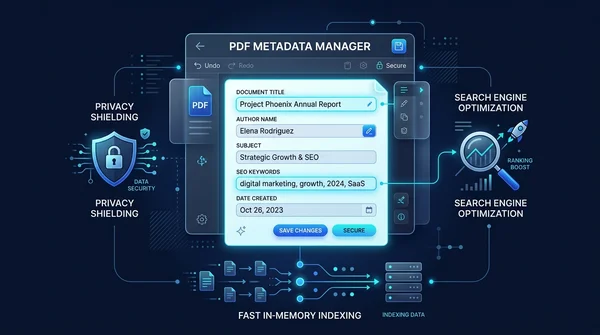
How to edit PDF metadata online for free (change title, author, and properties)
Learn how to edit PDF metadata online for free. Update document title, author, subject, and search keywords to improve SEO, professional branding, and privacy.
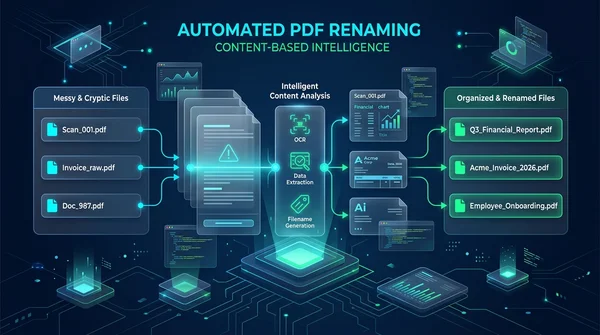
How to auto rename PDF files online for free (based on content)
Learn how to auto rename PDF files online for free based on document content and title tags. Organize cryptic scanner files and invoices with zero quality loss.

How to decompress PDF streams online for free (unpack raw code and FlateDecode)
Learn how to decompress PDF streams online for free to inspect raw PostScript operators, unpack FlateDecode filters, and debug PDF files with zero software.

How to compress a PDF without losing quality (free and fast)
Learn how to compress PDF file sizes by up to 85% for email and web uploads without blurry text or pixelated images. Fast, free, and 100% private in your browser.

How to add confidential and copyright watermarks to PDF online
Learn how to add custom text and transparent PNG logo watermarks to PDF files online for free. Configure opacity, angle, and position across all pages.

How to permanently redact sensitive information from a PDF for free
Learn how to permanently redact sensitive text, SSNs, and financial data from PDF files online for free. Expunge confidential bytes with zero traces and no Adobe Acrobat.