How to compress a PDF without losing quality (free and fast)

Quick summary
To compress a PDF without losing quality, you optimize internal data streams, downsample high-resolution raster images to an optimal 150 DPI, and subset embedded fonts while preserving original vector typography. Using AZ2PDF Compress PDF, this optimization runs entirely in your web browser, shrinking file sizes by 50% to 85% with zero quality loss and complete document privacy.
- Vector text stays 100% sharp: Compression targets heavy raster images and redundant document metadata, leaving fonts, vector lines, and typography completely untouched.
- Solves email and portal limits: Easily reduces 40MB files down to under 10MB or 5MB to pass Gmail, Outlook, court filings, and university portal upload thresholds.
- Complete in-browser privacy: Files are processed on your local device without uploading sensitive financial records or confidential contracts to external cloud servers.
- Smart workflow tip: For scanned color documents, convert to grayscale first to strip RGB color data, slashing file size by an extra 50% to 70% before compression.
Why do PDF files get so large in the first place?
You have probably experienced this frustrating moment: you prepare a 10-page contract, report, or scanned invoice, attach it to an email, and hit send, only to receive a bounce notification stating that your email exceeds the 25MB attachment limit. How can a brief digital document take up so much storage space?
To understand file size bloat, it helps to look under the hood of the Portable Document Format (PDF). Unlike simple text files, a PDF is an intricate container that packages together vector layout instructions, fonts, color profiles, structural metadata, and graphics into a single binary envelope. Several common factors cause these files to balloon dramatically in weight:
- Uncompressed, high-DPI raster scans: Modern desktop scanners and smartphone scanner apps default to scanning at 300 or even 600 DPI (dots per inch) in 24-bit RGB color. A single letter-sized sheet scanned at 300 DPI contains roughly 8.4 million individual pixels. Stored as raw bitmaps or unoptimized image streams, a 10-page scan can easily swell past 80 megabytes.
- Entire font libraries embedded into the file: When an author creates a document, the software often embeds entire TrueType or OpenType font files. If the author used a comprehensive font like Arial Unicode or Noto Sans, the PDF might embed the complete library of over 60,000 glyphs for multiple global alphabets, even though the text only uses 45 distinct English letters.
- Duplicate objects and incremental save history: Many desktop PDF editors preserve revision history by appending modifications to the end of the file rather than rebuilding the file structure. Over time, deleted photos, obsolete layers, and orphan objects remain hidden inside the file.
- Uncompressed content streams and thumbnail caches: Layout coordinates, graphic drawing paths, and internal object tables are often stored in raw ASCII format rather than compressed Flate dictionaries, adding unnecessary kilobyte overhead to every page.
When large attachments bounce back from mail servers or fail upload validation, the AZ2PDF Compress PDF tool resolves file bloat immediately. By stripping redundant dictionary items and recompressing embedded raster assets, it slashes file weight while keeping typography razor sharp.
How compression reduces file size without losing quality
The most common fear people have when compressing documents is loss of clarity. Nobody wants their contract clauses to look fuzzy, their invoice numbers to become unreadable, or their charts to blur. Fortunately, intelligent PDF compression does not degrade text quality at all.
High-efficiency compression works by targeting hidden redundancies while leaving readable content untouched. Here is how modern document optimization achieves dramatic reductions of 50% to 85% without sacrificing readability:
1. Preserving mathematical vector typography
Real text in a PDF is stored as mathematical vector glyphs, not as pixelated pictures. Vector outlines are defined by precise geometric coordinates (Bézier curves). When you compress a PDF using a modern engine, these vector instructions are kept intact. Whether you view the document on a smartphone screen or zoom in to 800% on a 4K desktop monitor, letters and numbers remain razor-sharp.
2. Intelligent image downsampling to optimal screen DPI
Standard desktop monitors, laptop screens, and mobile phones display images at 72 to 150 DPI. Storing a 400 DPI or 600 DPI graphic inside a PDF that will only ever be viewed on screens or printed on standard office printers is completely wasteful. Downsampling recalculates high-resolution images to an optimal 150 DPI using bicubic interpolation. This cuts image pixel volume by more than 70% while remaining visually indistinguishable to the human eye.
3. Font subsetting
Instead of storing full font packages containing thousands of unused symbols, font subsetting inspects the document and extracts only the specific glyphs actually used in your text. If your document only uses 52 Latin letters, numerals, and standard punctuation, the remaining 60,000 glyphs are stripped away, reducing embedded font footprints from 15MB down to less than 40KB.
4. Flate stream compression and object compaction
Internal content streams, vector lines, and cross-reference dictionaries are compressed using FlateDecode (the Deflate algorithm). This is completely lossless compression, similar to placing files inside a ZIP archive. Every single comma, bracket, and alignment coordinate is preserved with mathematical precision.
5. Linearization for fast web viewing
Proper compression linearizes the document structure. Instead of forcing a recipient or web browser to download the entire 30MB file before opening page 1, a linearized PDF allows the first page to render instantly while subsequent pages load quietly in the background.
Privacy first: Why client-side compression protects your data
The PDF files that need compression are often your most sensitive documents: personal income tax returns, monthly bank statements, real estate purchase contracts, employment agreements, and medical intake forms.
Most conventional online compressor websites require you to upload your confidential files to their remote cloud servers. Once transmitted, your document sits on third-party computers, where it is queued and processed. Even if those websites promise to delete your files after an hour, transmitting sensitive records across the public internet always carries data leak and compliance risks.
That is why AZ2PDF free online PDF tools was built from the ground up on a 100% in-browser processing architecture. When you select a document, your browser executes the compression algorithms directly inside your computer or phone local memory using client-side JavaScript, WebAssembly, and HTML5 Canvas. Your confidential files never touch an external server, never traverse the internet, and remain strictly on your own device.
How to compress any PDF in 3 simple steps
Step 1: Select your PDF document
Open the compression tool in any modern web browser on Mac, Windows, iOS, or Android. Drag and drop your heavy PDF file directly into the workspace. Because the file is processed locally, it loads instantly without waiting for slow server uploads.
Step 2: Choose your desired compression level
Select the profile that best fits your immediate goal. You can choose Recommended (balanced 50% to 85% size reduction with sharp visuals), Extreme (maximum shrinking for tight portal limits), or Light (gentle compression for high-end print jobs).
Step 3: Download your lightweight document
Click the Compress button. The tool analyzes your file, optimizes the image streams, subsets fonts, and presents your exact byte savings on screen. Click Download to save your compact PDF, ready for effortless emailing or uploading.
If your optimized document contains complex fillable forms or dynamic stamps, choosing to locks all interactive layers into permanent page content, preventing rendering anomalies on mobile devices.
Choosing the right profile: Recommended vs. Extreme vs. Light
Different tasks have different fidelity and file size requirements. AZ2PDF provides three tailored compression modes to give you total control over the balance between file size and graphic clarity:
1. Recommended profile (Balanced for everyday use)
This is the ideal setting for more than 90% of office documents, homework submissions, and business reports. It targets an average 50% to 85% file size reduction. Embedded imagery is resampled to 150 DPI, font subsets are trimmed, and vector typography is kept 100% untouched. Your resulting PDF will effortlessly clear email attachment limits (like Gmail 25MB or Outlook 20MB caps) while looking crisp on any device.
2. Extreme profile (Maximum byte savings)
Choose this mode when you are up against strict upload caps on government portals, university application databases, or court filing systems, which frequently enforce rigid limits of 2MB, 3MB, or 5MB. In this mode, raster images are downsampled to 72 to 96 DPI and higher DCT compression is applied. Text stays completely legible, making it ideal for contracts, forms, and scanned receipts where passing the upload threshold is the top priority.
3. Light profile (Print-ready preservation)
When you are preparing presentation decks, architectural portfolios, or brochures that may be printed physically on high-resolution color laser printers, the Light profile is your best option. It maintains imagery at 200 to 240 DPI, eliminates duplicate object dictionaries and metadata bloat, and provides a 20% to 40% size reduction with zero visual compromise.
Pro tips: Slash even more file size with companion tools
If you have an unusually stubborn document that is still slightly too large for your recipient, combining compression with other document optimization techniques can unlock massive additional savings:
1. Convert color scans to monochrome grayscale
Full-color document scans needlessly allocate three separate RGB color channels. Utilizing the convert PDF to grayscale tool prior to compression eliminates unnecessary color data, slicing image volume by an additional 50% to 70% while keeping monochrome typography perfectly legible.
2. Flatten interactive forms and annotations
Fillable PDF forms carry dynamic AcroForm fields, JavaScript calculation scripts, and interactive widgets that add significant kilobyte weight. slimming down internal file complexity.
3. Split massive archives by size
When you need to send a 200-page historical legal archive or a multi-chapter technical manual that simply cannot be reduced below a 10MB limit without damaging technical schematics, use the to divide the document into two or three convenient, numbered parts.
Quick fixes for common PDF compression problems
If you encounter unexpected results when optimizing your documents, here are practical solutions to the three most frequent issues:
1. The file size barely changed (only 2% to 5% reduction)
If a document only shrinks by a few kilobytes, it usually means the PDF is already composed almost entirely of plain vector text with no embedded images, or the author already compressed the images before exporting. Compression engines cannot invent savings out of thin air if a file is already at its mathematical minimum. If you need to shrink it further, try removing unnecessary pages or converting color pages to grayscale.
2. Text looked blurry after using other online services
Some low-quality websites take a shortcut: instead of selectively optimizing raster images, they convert entire PDF pages into low-resolution JPG pictures. This ruins vector typography and makes fine print unreadable. AZ2PDF preserves native vector text streams, guaranteeing that your text remains clean and sharp at every zoom level.
3. Compression fails with a password or permission error
If a PDF is protected with strong 128-bit or 256-bit AES encryption, compression engines cannot access or rewrite the internal stream dictionaries without the valid password. Use the first, then apply compression.
From fast size reduction to complete document prepress, relying on the free browser-based PDF suite on AZ2PDF guarantees private, local file execution without mandatory registrations or restrictive usage meters.
❓ Frequently asked questions
No. Modern compression tools like AZ2PDF separate vector text from raster graphics. Mathematical vector font outlines remain 100% crisp at any zoom level, while only heavy embedded images and redundant metadata streams are optimized.
Related articles in this topic
Deep dive into related document organization and page manipulation workflows.
How to make a PDF look scanned online for free (realistic paper effect)
Learn how to make digital PDFs look like physically scanned paper documents online for free. Add subtle tilt, paper grain, and grayscale contrast without a printer.
How to convert color PDF documents to grayscale black and white (free online)
Convert color PDF files to monochrome grayscale black and white online for free. Save printer ink, cut file size by up to 70%, and ensure compliance with zero cost.
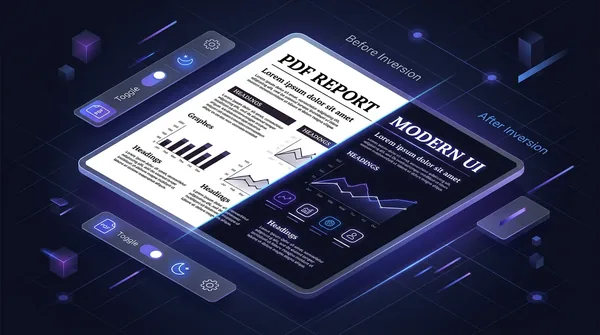
How to invert PDF colors for dark mode online (free and eye friendly)
Learn how to invert PDF colors to high-contrast dark mode online for free. Eliminate eye strain, save OLED battery, and keep vector text 100% sharp and searchable.

How to remove all images from a PDF file online for free (pure text and vectors)
Learn how to strip embedded raster images, photos, and backgrounds from PDF files online for free. Keep sharp vector text, save printer ink, and slash file sizes.
How to password protect a PDF for free (AES-256 encryption)
Learn how to password protect and encrypt PDF files online for free using military-grade AES-256 encryption. Keep confidential contracts, bank statements, and payroll files private with zero watermarks.
How to unlock a password protected PDF online (remove security permanently)
Learn how to remove passwords and permission restrictions from authorized PDF files online for free. Decrypt your documents securely with zero watermarks.