How to convert PNG to PDF online for free (lossless and sharp)
Quick summary
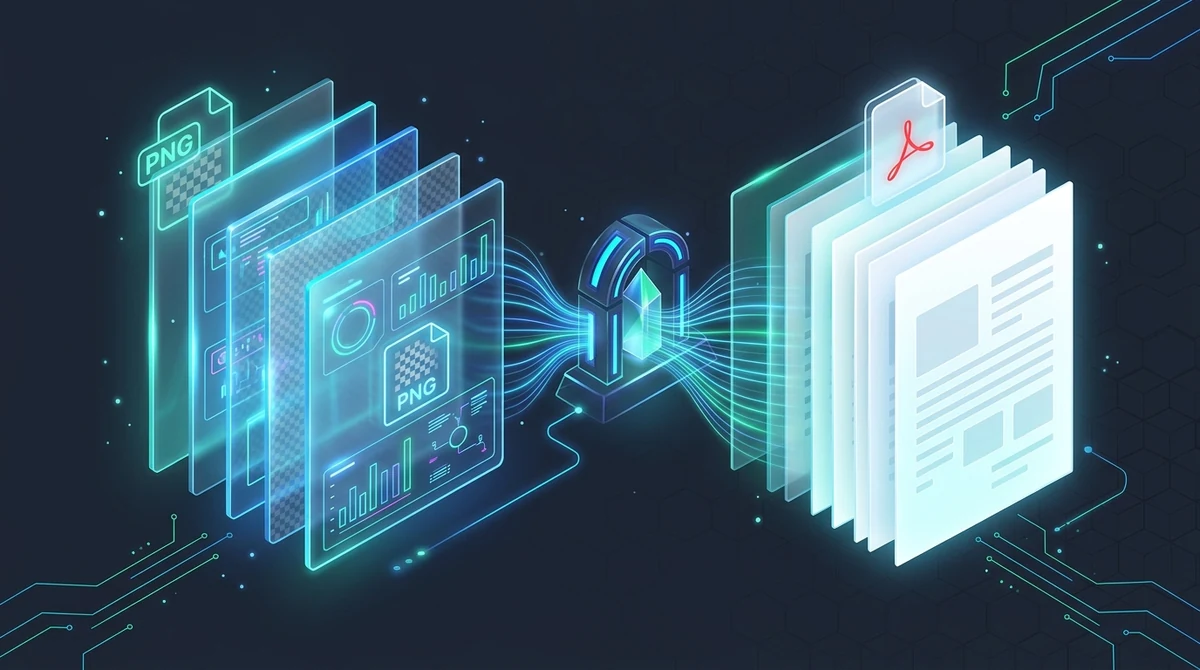
To convert PNG images to PDF online for free, upload your PNG files or screenshots to the AZ2PDF PNG to PDF converter. The engine encapsulates each lossless raster image into standard PDF pages matching original dimensions, preserving alpha transparency and pixel sharpness with zero watermarks and automated five-minute memory purging.
- 100 percent free with no watermarks: Convert unlimited PNG images, UI mockups, and charts without subscriptions, hidden fees, or branded stamps.
- Lossless compression preserved: Graphics use Deflate zlib streams inside PDF containers, preventing the blurry halos and color artifacts typical of JPEG conversions.
- Alpha transparency handling: Transparent PNG backgrounds blend cleanly into standardized white document sheets without unsightly black box glitches.
- Ephemeral memory security: Documents process in isolated RAM memory buffers and are permanently purged within five minutes for complete data privacy.
Why convert PNG images and screenshots to PDF?
In modern digital workplaces, the Portable Network Graphics (PNG) format is the undisputed champion of visual communication. Whether you are capturing software interface bugs on macOS or Windows, exporting analytics dashboards from business intelligence tools, saving high-resolution vector diagrams from Figma, or digitizing company stamps with transparent backgrounds, PNG is the format of choice because it never blurs fine details.
However, sharing dozens of loose PNG files creates immediate friction during real-world business collaboration. Sending multiple individual image files via email leads to cluttered inboxes, disordered attachments, and awkward viewing experiences on mobile screens. More importantly, corporate legal teams, government immigration portals, academic admissions offices, and enterprise archival systems almost universally reject raw image files. They demand structured, standardized PDF documents.
Converting your PNG images into a cohesive PDF document solves critical document distribution hurdles:
- Guaranteed chronological reading order: Loose PNG files sort unpredictably across different operating systems, email clients, and file managers. Assembling your images into a single PDF binds them in your exact intended sequence, guaranteeing that introductory slides or initial dashboard overviews always appear first.
- Universal cross-device layout consistency: Governed by the international ISO 32000 standard, a PDF renders identically across iPhones, iPads, Android smartphones, Mac workstations, and Windows PCs. You never have to worry about whether a client or hiring manager possesses specialized image preview software.
- Predictable paper printing: Printing loose PNG screenshots often results in unpredictable scaling, clipped borders, or images floating awkwardly in the corner of a sheet. A PDF defines fixed physical page dimensions like A4 or US Letter, guaranteeing razor-sharp, predictable printouts every time.
- Single-file compliance: Compiling bug reports, design specifications, or financial expense receipts into a single PDF dossier satisfies enterprise and regulatory compliance guidelines immediately.
Preserving transparent alpha channels and crisp vector rasterization is effortless with the AZ2PDF PNG to PDF converter. It embeds PNG graphics into standardized PDF containers without introducing messy background artifacts or edge halos.
Preserving transparent alpha channels and crisp vector rasterization is effortless with the AZ2PDF PNG to PDF converter. It embeds PNG graphics into standardized PDF containers without introducing messy background artifacts or edge halos.
The science of PNG: Lossless compression and the transparency puzzle
To understand why PNG images look so stunning inside a PDF, it helps to explore the engineering differences between PNG raster graphics and traditional photographic formats like JPEG:
- Lossless Deflate compression: Unlike JPEG, which uses lossy Discrete Cosine Transform (DCT) compression that permanently discards color frequencies, PNG uses the lossless Deflate (zlib) compression algorithm. Deflate searches for repeating byte patterns across pixel rows, shrinking file sizes without discarding a single pixel of visual information. This makes PNG the gold standard for high-contrast graphics, crisp typography, technical diagrams, and software screenshots.
- Zero compression artifacts: When you convert a diagram containing text or sharp geometric lines using a poor converter, you often notice fuzzy, muddy halos around letters (often called ringing artifacts or mosquito noise). Because AZ2PDF encapsulates raw PNG pixel data using native PDF FlateDecode streams, every line, border, and character maintains its exact original sharpness.
- The alpha transparency challenge: Many PNG images feature an alpha transparency channel (RGBA 32-bit color), allowing logos, transparent signatures, and isolated product photos to sit seamlessly on any background. However, the basic PDF rendering specification traditionally expects opaque color spaces (DeviceRGB).
A common flaw with inferior online conversion utilities is the dreaded black background glitch: when they encounter an alpha transparency channel, they fail to resolve the mask, converting every transparent pixel into solid pitch black. This ruins company logos, makes digital signatures unreadable, and wastes printer ink.
AZ2PDF solves this puzzle through intelligent raster compositing. The conversion engine blends the alpha channel smoothly against an opaque, pristine white background canvas. Your transparent logos, vector diagrams, and signature stamps appear clean, natural, and perfectly legible across all standard PDF readers and physical printers.
Managing screen captures, high-DPI displays, and page scaling
One of the most frequent challenges when compiling PNG images into a PDF involves managing disparate screen resolutions and pixel densities. Desktop computer monitors and mobile devices operate at vastly different pixel ratios:
- Standard screen density (72 to 96 DPI): Traditional desktop monitors display images at standard densities. A full-screen browser capture might measure 1920 by 1080 pixels.
- High-density Retina and 4K displays (144 to 288 DPI): Modern Apple MacBooks, iPads, and high-end Windows laptops use 2x or 3x pixel scaling. A window screenshot can easily measure 3840 by 2160 pixels or higher, packing immense visual clarity into compact visual dimensions.
When compiling these diverse images into a PDF, understanding your target presentation format ensures professional presentation:
1. Fit to Image (1:1 coordinate bounding box)
In Fit to Image mode, the PDF page dimensions (MediaBox) are constructed to match the exact pixel dimensions of your PNG file. If your application screenshot is 2560 by 1440 pixels, the resulting PDF page adopts that exact coordinate box. There is zero cropping, zero white margins, and zero scaling distortion. This is the optimal configuration for sharing software UI specifications, UX wireframes, architectural CAD captures, and digital design mockups that will be reviewed primarily on computer monitors.
2. Fit to Page with clean margins (A4 and US Letter)
When compiling receipts, signed memos, or compliance records that need to be filed in physical binders or printed for meetings, selecting a standard paper template like A4 or US Letter is the ideal approach. The conversion pipeline proportionally scales your high-resolution PNG to fit within standard printable margins. This prevents important software menus or timestamps at the edge of your screen capture from being cut off by office printers or hole punches.
How to convert PNG to PDF online in 3 simple steps
Transforming your collection of PNG images into a clean, professional document takes only seconds tablet, or smartphone. Drag and drop your PNG images or screenshots directly into the workspace, or click the file picker button to select files from your local storage. Thumbnails appear immediately. You can easily drag and reorder thumbnails to establish your exact intended page sequence.
Step 2: Choose page layout and orientation
Select your preferred page configuration. Set orientation to Auto to allow each page to adapt dynamically to landscape or portrait images, or standardize all pages to a consistent orientation. Choose Fit to Image for zero-margin pixel-perfect captures, or select standard A4 or US Letter page templates with neat margins for office paperwork.
Step 3: Download your consolidated PDF
Click the Convert button. The native processing engine compiles your PNG images into a structured PDF document in milliseconds. Click Download to save your finalized document directly to your device, 100 percent free of watermarks, subscription prompts, or advertising banners.
If your project involves a mix of PNG logos and JPEG background captures, you can conveniently combine multiple graphic formats into one PDF to harmonize different aspect ratios within a single binder.
Common use cases: When PNG to PDF delivers the best results
While generic image converters treat all pictures alike, choosing PNG to PDF is specifically advantageous in several professional scenarios:
1. Software QA bug reports and development documentation
Software developers, QA testers, and product managers capture dozens of screenshots illustrating user interface bugs, system error codes, and workflow progressions. Compiling these screenshots into a single multi-page PDF document ensures that engineering teams receive an orderly, chronological case history that can be permanently attached to Jira tickets or GitHub pull requests without missing context.
2. Executive dashboards and financial infographics
Analytics dashboards from tools like Tableau, Power BI, Google Looker Studio, and Stripe contain intricate bar charts, pie charts, and data tables. Exporting them as PNG preserves razor-sharp text and grid lines. Converting those PNG snapshots into a consolidated PDF portfolio allows financial analysts and department heads to deliver polished monthly performance reviews to leadership.
3. Architectural blueprints and CAD schematics
Technical drawings, electrical schematics, and architectural layouts feature hair-thin vector lines and tiny callout notes. Lossy formats like JPEG degrade these fine lines into muddy smears. By converting high-resolution PNG exports to PDF, architects and engineers ensure that intricate blueprints remain crisp and measurable on tablet screens or plotters.
4. Digitized signatures and corporate stamps
When signing digital contracts or stamping purchase orders, users frequently employ transparent PNG graphic files of their handwritten signature or company seal. Converting or incorporating these transparent assets into a standardized PDF guarantees that the signature sits cleanly over the document background without artificial white or black halos.
If your project involves a mix of PNG logos and JPEG background captures, you can conveniently combine multiple graphic formats into one PDF to harmonize different aspect ratios within a single binder.
Privacy first: Why ephemeral in-memory processing protects your data
The screenshots and graphics people convert to PDF frequently contain confidential data: internal company sales statistics, proprietary software code, patient health portal screenshots, or confidential legal signatures.
Many legacy web conversion sites monetize user uploads by storing files on permanent server hard drives, logging IP addresses, or sharing uploaded documents with third-party analytical networks. Some services even scrape uploaded images to train commercial computer vision models. Uploading sensitive corporate screenshots or identity documents to unvetted cloud utilities poses severe data leakage and compliance hazards.
At AZ2PDF free online PDF tools, privacy and security are fundamental design principles:
- Ephemeral in-memory execution: Uploaded images are held strictly within volatile RAM memory buffers on high-speed NVMe storage during the conversion process. Files are never written to permanent disks, databases, or public storage buckets.
- Automated five-minute purge daemon: An automated background daemon continuously scans and wipes all temporary memory allocations within five minutes of conversion completion.
- Zero data indexing and zero AI model training: We never inspect, index, analyze, or retain your images, nor do we use your documents to train machine learning algorithms. Your visual assets remain strictly your private property.
- 100 percent free accessibility: Every conversion tool on AZ2PDF is completely free to use without requiring user account registrations, credit cards, or premium software upgrades.
Connected workflows for your converted PDF documents
Once you have converted your PNG images into a cohesive PDF document, you can take advantage of other free tools within the AZ2PDF document processing suite:
- Compress high-resolution graphic PDFs: Compiling multiple high-density Retina screenshots or uncompressed PNG graphics can produce a PDF that is tens of megabytes in size. Use the AZ2PDF Compress PDF tool to optimize internal streams and reduce file size by up to 75 percent without compromising visual legibility.
- Annotate and sign pages directly: Need to add arrows, callout boxes, or additional notes to your newly converted screenshots? Open your file in the AZ2PDF PDF Editor to highlight critical areas, type comments, or add digital signatures directly inside your browser.
- Merge with existing project proposals: If your PNG screenshots represent visual proof or design appendices for an existing written report, use the AZ2PDF Merge PDF tool to attach them cleanly to the end of your master document.
- Combine multiple mixed formats: If you have a mixture of JPG camera photos and PNG screenshots, you can convert them all together into a unified document the AZ2PDF PDF to JPG tool handles the reverse transformation in seconds.
Maintain pixel-perfect transparency and sharp typography with the AZ2PDF graphic document conversion tools, providing zero-latency conversions directly inside your web browser.
Quick fixes for common PNG to PDF conversion issues
If your converted document requires a quick touch of refinement, here are straightforward solutions to the three most frequent situations:
1. Transparent backgrounds appear as black boxes in older viewers
If you open your converted PDF in an obsolete standalone PDF viewer and notice black backgrounds behind transparent logos, the viewer likely lacks modern transparency group support. Converting your file with AZ2PDF automatically applies a clean white compositing canvas, preventing this issue across all standard desktop and mobile readers.
2. The resulting PDF file size is unexpectedly large
Unlike JPEG, which compresses aggressively, lossless PNG stores every detail of intricate graphic art. When you compile twenty large PNG screenshots into a PDF, the resulting file can be 30MB or larger. If you need to send the file via email, simply run it through our free compression tool to optimize the document stream while preserving razor-sharp text.
3. Screenshots appear tiny in the corner of an A4 page
If you take a small window capture (such as 600 by 400 pixels) and place it on a full A4 sheet with fixed page dimensions, the image will occupy only a fraction of the sheet. To solve this, select Fit to Image in the tool settings so the PDF page scales directly to match your screenshot dimensions.
Frequently asked questions
Maintain pixel-perfect transparency and sharp typography with the AZ2PDF graphic document conversion tools, providing zero-latency conversions directly inside your web browser.
❓ Frequently asked questions
Yes. The tool is 100 percent free to use with no account registration, no credit card requirements, no daily conversion limits, and zero watermarks added to your downloaded PDF files.
Related articles in this topic
Deep dive into related document organization and page manipulation workflows.
How to extract images from PDF online for free (lossless quality)
Learn how to extract embedded images from PDF online for free without quality loss. Retrieve original JPG and PNG photos with transparent alpha channels in a clean ZIP.
How to convert SVG to PDF online without losing vector quality
Learn how to convert SVG graphics to crisp vector PDF documents online for free. Keep Bézier curves, text fonts, and transparency without Adobe Illustrator.
How to convert PDF to JPG images online (free, high-resolution 300 DPI)
Learn how to convert PDF pages into high-resolution JPG images online for free. Extract presentation slides, certificates, and multi-page documents at 300 DPI with zero quality loss.
How to convert images to PDF online for free (fast and secure)
Combine JPG, PNG, and WebP photos into one organized PDF document online for free. Keep original photo quality with zero watermark and complete privacy.
How to split PDF for poster printing (free online tile guide)
Learn how to split large PDF pages into printable 2x2 tiles for poster printing on regular A4 or Letter printers. 100 percent free without Adobe Acrobat.
How to split a PDF by chapters online for free (clean and private)
Learn how to split large PDF books, manuals, and documents into separate chapter files online for free. Fast, private in-browser processing with organized ZIP output.