How to convert images to PDF online for free (fast and secure)
Quick summary
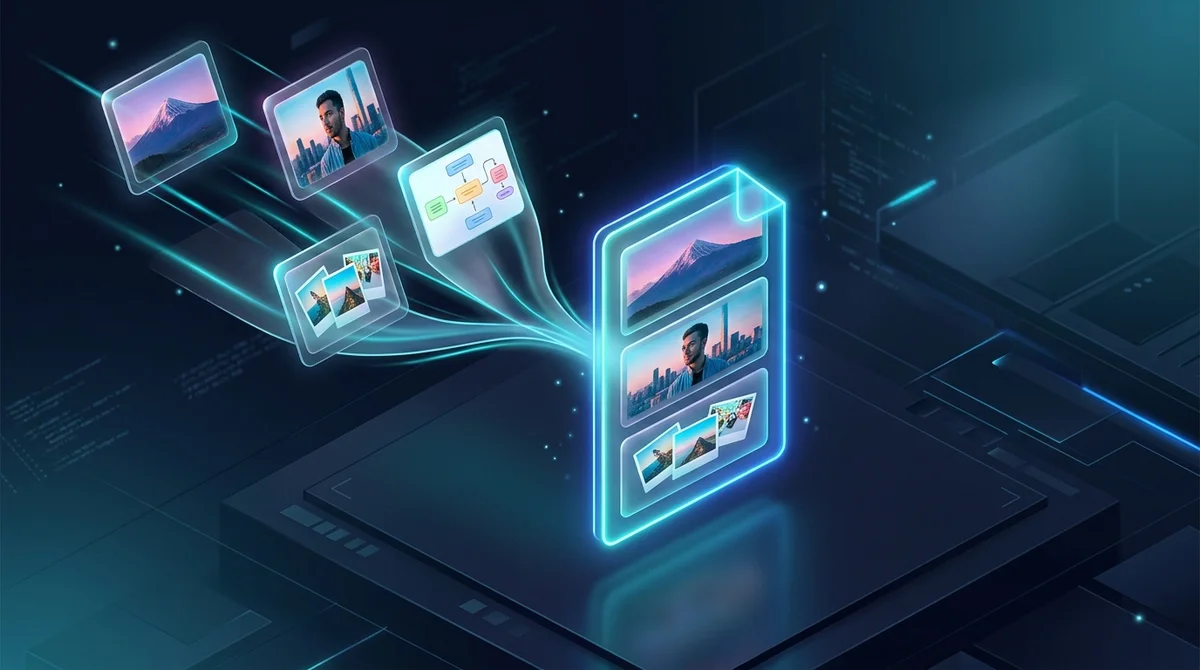
To convert images to PDF online for free, upload your JPG, PNG, or WebP files to AZ2PDF Images to PDF. The tool arranges your photos into a single multi-page document, adjusts margins and page orientation, and compiles them in volatile memory with zero watermarks and automated 5-minute file deletion.
- Universal format support: Combines JPG, PNG, WebP, BMP, and TIFF files into one clean document.
- Free with zero watermarks: 100% free to use with no account creation, subscription paywalls, or branded stamps.
- Automatic orientation and fit: Adapts each page between portrait and landscape to match your photos without distortion.
- Complete privacy protection: Files are processed in ephemeral memory buffers and automatically purged within five minutes.
Why combine loose images into a single PDF document?
Almost everyone has experienced the frustration of juggling dozens of loose photo files. Whether you snap smartphone pictures of multi-page paper agreements, take screenshots of research slides, or photograph business receipts for reimbursement, sharing those images as individual files creates immediate headaches.
Sending ten separate JPG attachments clutters email inboxes, risks files arriving in random sequence, and often triggers email spam filters. More critically, official web portals across government agencies, university admissions, legal court registries, and corporate HR departments almost never accept loose photo uploads. Instead, they strictly require a single, standardized PDF document.
Converting your images into a structured PDF document delivers tangible advantages:
- Guaranteed page order: Unlike loose image files that sort unpredictably by camera timestamp or filename, a PDF locks your pages in the exact chronological sequence you choose.
- Universal cross-device viewing: Under the ISO 32000 standard, a PDF appears identical whether opened on an iPhone, Android device, Windows PC, or Mac. It never depends on whether the recipient has specific photo viewing apps.
- Professional presentation: Presenting five receipt photos inside one clean PDF file looks polished and organized, dramatically speeding up approvals for expense claims and visa filings.
- Print-ready formatting: Standard image files often stretch or clip unexpectedly when sent to an office printer. A PDF standardizes page dimensions to standard paper formats like A4 or US Letter, ensuring predictable, clean printouts.
Whether consolidating phone photos, scanned receipt snapshots, or graphic designs, the AZ2PDF Images to PDF converter combines multiple image formats into a single, standardized PDF document with uniform page sizing and lossless clarity.
Whether consolidating phone photos, scanned receipt snapshots, or graphic designs, the AZ2PDF Images to PDF converter combines multiple image formats into a single, standardized PDF document with uniform page sizing and lossless clarity.
Understanding image formats: JPG, PNG, and WebP
Modern digital cameras, smartphones, and design applications produce images in several distinct formats. Knowing how each format behaves inside a PDF helps you achieve the best balance between visual clarity and file size:
JPG (Joint Photographic Experts Group)
JPG is the most common image format produced by smartphones and digital cameras. It uses lossy compression that excels at capturing continuous tone color gradations in real-world photography. When embedded inside a PDF, JPG streams remain compact, making them ideal for multi-page documents like photographed book pages, signed letters, and receipt bundles.
PNG (Portable Network Graphics)
PNG utilizes lossless compression, meaning no image data is discarded during encoding. This makes PNG the superior choice for screenshots, digital signatures, line drawings, and software interface mockups where text edges must remain razor-sharp. Because PNG files do not create blurry compression artifacts around high-contrast typography, they render small footnote text with exceptional fidelity.
WebP (Modern Web Picture Format)
Developed by Google, WebP delivers both lossy and lossless compression with file sizes roughly 25 to 35 percent smaller than equivalent JPG or PNG files. As more web platforms and mobile browsers adopt WebP by default, having an image to PDF compiler that natively understands WebP eliminates the need for annoying pre-conversion steps.
With AZ2PDF free online PDF tools, you do not need to convert your files beforehand. The engine accepts mixed batches of JPG, PNG, WebP, BMP, and TIFF files simultaneously, decoding each source file into standardized PDF graphic streams automatically.
Aspect ratios, page orientation, and margin settings
A frequent mistake when compiling photos into a PDF is ignoring page dimensions. Unlike standard document sheets that strictly conform to A4 (8.27 x 11.69 inches) or US Letter (8.5 x 11 inches), digital photos come in diverse aspect ratios:
- 4:3 aspect ratio: Standard format for most smartphone cameras and tablet snapshots.
- 16:9 aspect ratio: Common for panoramic photos, landscape monitors, and widescreen presentation slides.
- 1:1 aspect ratio: Square photos popular on social media and portfolio profiles.
If you force a wide 16:9 landscape photo onto a vertical portrait page without proper scaling, large empty borders appear above and below, or worse, the sides get clipped off. A thoughtful conversion tool handles these geometry challenges through three essential settings:
1. Automatic orientation detection
Instead of forcing every sheet into a uniform vertical direction, intelligent orientation switches each PDF page dynamically. Portrait photos generate tall portrait pages, while landscape charts produce wide landscape pages. This keeps your photos prominent and legible without requiring manual rotation before uploading.
2. Fit to page vs original size
Choosing "Fit to Page" scales each photo proportionally so it fills the available printable area of the sheet without distorting the width-to-height ratio. The original aspect ratio is preserved, preventing circles from turning into ovals or text from stretching unnaturally.
3. Margin control
Depending on how your PDF will be consumed, margins make a major difference. For photo lookbooks and art portfolios, select zero margins for a borderless, full-bleed visual impact. For contracts, invoices, and study materials that will be physically printed or placed in three-ring binders, adding clean standard margins ensures content is never obscured by hole punches or printer paper feed rollers.
Privacy first: Why in-memory processing protects sensitive documents
The photos people convert to PDF are rarely trivial. They frequently include sensitive identity cards, passport copies for travel visas, bank statements, medical records, or proprietary corporate receipts.
Many legacy web converters store uploaded images on unencrypted server hard drives for hours or even days. Some questionable platforms even harvest uploaded photos to train commercial machine learning models or display user files to third-party ad networks. Uploading confidential records to such services creates severe compliance and identity theft vulnerabilities.
AZ2PDF operates under a privacy-first engineering philosophy:
- Ephemeral in-memory streams: Your images are processed directly inside volatile server memory buffers. They are never written to permanent disk storage, external databases, or long-term caching storage.
- Automated five-minute purge daemon: An automated background daemon cleans and wipes all temporary memory allocations within five minutes of processing.
- Zero data retention and zero AI training: We never inspect, index, or retain your documents, nor do we feed user content into AI training algorithms. Your personal files remain entirely your private property.
- 100 percent free accessibility: All image conversion capabilities are accessible without mandatory account registration, paid subscriptions, or watermarks stamped onto your output.
Because high-megapixel camera snapshots can quickly inflate overall file weight, you can easily compress high-resolution image PDFs to downsample photo streams for effortless email transmission.
How to convert images to PDF online in 3 simple steps
Turning a collection of photos into a polished document takes less than a minute tablet, or phone. Click the upload button or drag and drop your photo files directly into the workspace. Thumbnail previews appear instantly. You can easily drag individual thumbnails to reorder pages so your document follows the exact sequence you want.
Step 2: Adjust page layout, orientation, and margins
Choose your preferred page configuration. Set page orientation to Auto to match each photo naturally, or lock all pages to Portrait or Landscape. Select your desired margin style (no margins for borderless photos, or standard margins for formal paperwork).
Step 3: Generate and download your consolidated PDF
Click the Convert button. The high-speed processing engine packages your images into a standardized PDF document in seconds. Click Download to save your finished file directly to your device, completely free of watermarks or advertising banners.
Because high-megapixel camera snapshots can quickly inflate overall file weight, you can easily compress high-resolution image PDFs to downsample photo streams for effortless email transmission.
Practical everyday use cases for image to PDF conversion
Consolidating loose image files into organized PDF documents solves everyday workflow bottlenecks across diverse fields:
- Visa and immigration applications: Government immigration portals (such as USCIS, Schengen visa systems, or UK Visas) routinely require applicants to upload identity proofs, birth certificates, and flight itineraries as a single PDF rather than multiple detached photos.
- Expense reimbursement and tax accounting: Finance departments and accounting software (like Expensify or Concur) prefer a unified multi-page expense PDF containing all trip receipts, hotel folios, and meal invoices over twenty loose camera snapshots.
- Student homework and handwritten exam submissions: Remote learners frequently photograph multiple pages of handwritten mathematics homework or lab notes. Combining them into one PDF allows teachers to grade assignments smoothly in learning management platforms like Google Classroom, Canvas, or Blackboard.
- Creative design portfolios and client lookbooks: Photographers, architects, and graphic designers can combine separate high-resolution project renders into an elegant, shareable digital portfolio that renders consistently across all operating systems.
- Real estate documentation: Property managers and realtors can assemble property photos, floor plans, and tenant lease agreements into an organized presentation package for prospective buyers.
Smart companion workflows for your new PDF document
Once you have compiled your pictures into a cohesive PDF document, you can leverage additional free tools within the AZ2PDF ecosystem to prepare your file for delivery:
- Shrink file sizes for email delivery: High-resolution photos from modern 48-megapixel phone cameras can result in a PDF that exceeds 30MB or 40MB. Run your newly created file through the AZ2PDF Compress PDF tool to shrink the file size by up to 80 percent without sacrificing visual sharpness.
- Sign and annotate pages: If your photo PDF represents a contract or formal application requiring a signature or date stamp, open it in the AZ2PDF PDF Editor to draw your digital signature, add typed notes, or highlight important clauses.
- Merge with existing documents: If you need to attach your newly created photo pages to an existing report or legal brief, use the AZ2PDF Merge PDF tool to combine multiple documents into one seamless master file.
- Extract pages back to images: If you ever need to extract individual visual pages back into high-resolution JPG images for social media or web publishing, the AZ2PDF PDF to JPG tool handles the reverse transformation in seconds.
Consolidate your photography and digital artwork securely using the AZ2PDF document conversion suite, where client-side memory pipelines ensure complete data sovereignty and fast execution.
Quick fixes for common image conversion issues
If your converted document does not look quite right on the first try, here are simple solutions to the three most common problems:
1. Converted PDF file size is too large to email
Modern smartphones capture photos at 12 to 48 megapixels, each taking 3MB to 8MB of storage. Compiling ten such images directly can easily produce a 50MB PDF that gets rejected by Gmail or Outlook 25MB attachment caps. Passing the final PDF through our compression tool optimizes the internal image streams, bringing the total size down to just 3MB to 5MB while preserving crisp legibility.
2. Photos appear rotated sideways or upside down
Smartphones often record image orientation inside hidden EXIF metadata tags instead of physically rotating the pixel grid. If a photo appears sideways in the preview, simply use the rotate icon on the thumbnail to re-orient the page correctly before hitting Convert.
3. Text on photographed documents looks blurry or hard to read
When photographing paper documents with your phone, ensure adequate lighting and avoid casting hand shadows across the sheet. Lay the paper on a flat, contrasting surface and hold the phone parallel to the page to prevent keystoning or perspective distortion.
Consolidate your photography and digital artwork securely using the AZ2PDF document conversion suite, where client-side memory pipelines ensure complete data sovereignty and fast execution.
❓ Frequently asked questions
Yes. The image to PDF tool on AZ2PDF is 100% free to use with no hidden fees, no subscriptions, no forced account registrations, and zero watermarks stamped on your documents.
Related articles in this topic
Deep dive into related document organization and page manipulation workflows.
How to convert PDF to JPG images online (free, high-resolution 300 DPI)
Learn how to convert PDF pages into high-resolution JPG images online for free. Extract presentation slides, certificates, and multi-page documents at 300 DPI with zero quality loss.
How to extract images from PDF online for free (lossless quality)
Learn how to extract embedded images from PDF online for free without quality loss. Retrieve original JPG and PNG photos with transparent alpha channels in a clean ZIP.
How to convert SVG to PDF online without losing vector quality
Learn how to convert SVG graphics to crisp vector PDF documents online for free. Keep Bézier curves, text fonts, and transparency without Adobe Illustrator.

How to convert JPG to PDF online for free (fast and private)
Convert JPG and JPEG images to clean, multi-page PDF documents online for free. Keep original photo quality with zero generational loss and complete privacy.
How to print multiple PDF pages on one sheet (free N-Up tool)
Learn how to combine 2, 4, or more PDF pages onto a single sheet for easy printing and handouts. Save paper, preserve vector quality, and process files 100% free and privately.
How to split a PDF by size or page count (free online)
Learn how to split large PDF files into smaller chunks by target size or page count online for free. Divide oversized documents for email and portals in seconds.