How to convert SVG to PDF online without losing vector quality
Quick summary
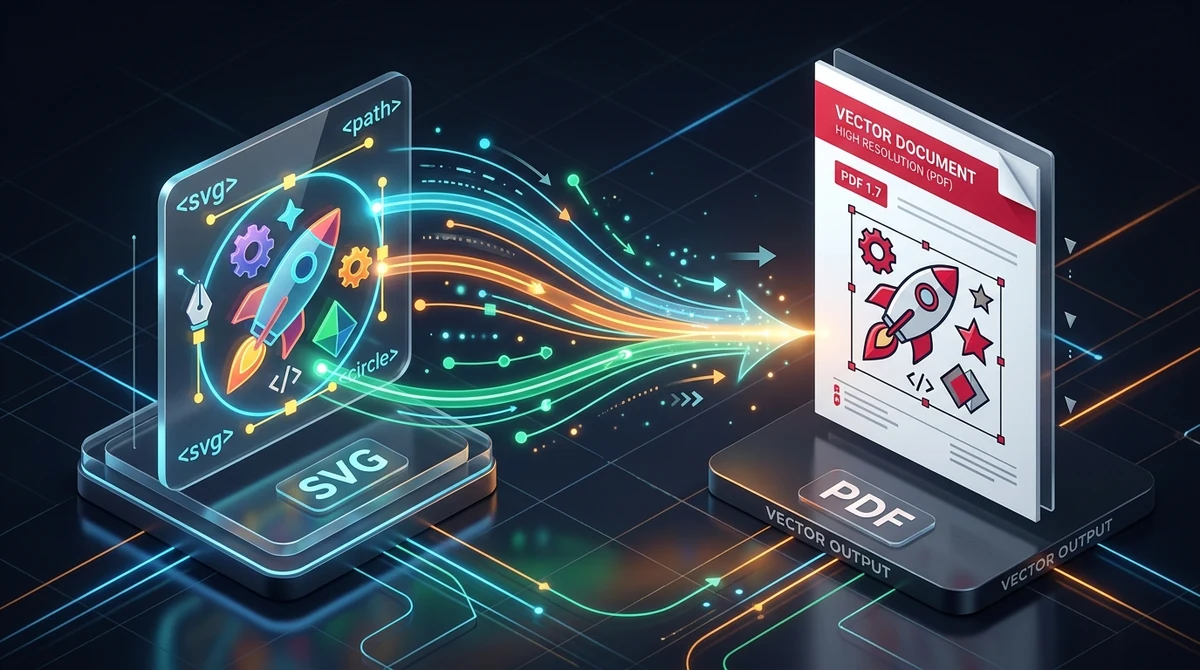
To convert an SVG to PDF online without losing vector quality, use the free AZ2PDF SVG to PDF converter. The tool translates XML vector paths, Bézier curves, and color gradients directly into native ISO 32000 PDF vector operators in system RAM, preserving infinite scalability for commercial printing without raster pixelation or watermarks.
- Lossless vector fidelity: Preserves exact mathematical Bézier curves, strokes, clip paths, and text typography instead of converting them into blurry raster pixels.
- Infinite print scalability: Renders razor-sharp lines and vivid gradients at any magnification, suitable for business stationery, architectural blueprints, and billboard printing.
- No costly software required: Convert files directly in your web browser for free without purchasing a recurring Adobe Illustrator or Acrobat Pro subscription.
- Zero-retention privacy: Vector files process in temporary RAM memory and are permanently removed after 5 minutes by an automated background purge daemon.
Vector vs. raster: Why converting SVG to PDF preserves infinite quality
If you have ever prepared a corporate logo, an architectural blueprint, or an infographic for commercial printing, you have probably run into the frustrating problem of blurry edges. When graphic designers export assets as standard image files like PNG or JPG, those files are composed of a fixed grid of colored pixels. Zooming in or enlarging a 500-pixel graphic to fit a presentation slide or an exhibition banner quickly reveals jagged stairs, fuzzy outlines, and muddy text.
To eliminate pixelation, modern digital design relies heavily on Scalable Vector Graphics (SVG). Developed and standardized by the World Wide Web Consortium (W3C), SVG is an open, XML-based vector format. Instead of recording fixed colored dots, an SVG file stores mathematical formulas: precise coordinate points, straight line segments, cubic and quadratic Bézier curves, fill rules, and stroke properties.
Similarly, the Portable Document Format (PDF), standardized internationally under ISO 32000, is fundamentally an advanced vector container. When a vector SVG is converted into a vector PDF, the mathematical geometries are preserved intact. The resulting document does not possess a fixed dots-per-inch (DPI) ceiling. It scales effortlessly from a 2-inch business card to a 20-foot outdoor billboard with razor-sharp clarity.
Unfortunately, many generic online conversion websites take a clumsy shortcut: they rasterize incoming SVG files into low-resolution bitmap pictures before saving them into a PDF wrapper. This destroys the mathematical curves and introduces pixelation. True vector-to-vector conversion requires translating SVG geometric nodes directly into native PDF vector graphic operators, guaranteeing absolute fidelity and zero quality loss.
Preserve infinite vector scalability and crisp geometric lines by processing illustrations through the AZ2PDF SVG to PDF converter. It converts XML vector paths, gradients, and font glyphs into standard PDF vector operators.
How SVG to PDF conversion works: From XML nodes to ISO 32000 vector operators
Understanding what happens during a high-fidelity vector conversion reveals why dedicated conversion engines are necessary for professional publishing. Behind the scenes, an SVG file is structured as an XML tree of nested tags, while a PDF is an object-oriented binary document container. The conversion pipeline executes four critical translation steps in isolated memory:
1. Parsing the XML document object model
The conversion engine parses the root <svg> element, extracting critical viewport metrics such as viewBox, width, and height. It scans container groups (<g>), clip definitions (<clipPath>), reusable asset blocks (<defs>), and shape primitives, creating an in-memory structural tree of the graphic layout.
2. Translating geometric path syntax into PDF stream operators
The core geometry in SVG files is stored within <path> elements via the d attribute string, containing commands like M (moveto), L (lineto), C (cubic Bézier curve), and Z (closepath). The converter maps each SVG instruction into its direct ISO 32000 PDF equivalent:
- SVG
M x ybecomes the PDF operatorx y m, establishing a new subpath starting point. - SVG
L x ybecomes the PDF operatorx y l, drawing a straight line segment. - SVG cubic Bézier curves (
C x1 y1, x2 y2, x y) become the PDFcoperator (x1 y1 x2 y2 x y c), matching the exact mathematical curvature without sampling intermediate pixel points. - SVG
Zmaps directly to the PDFhoperator, closing the current path.
3. Mapping coordinate transformation matrices
SVG and PDF utilize different coordinate spaces. SVG places the origin point (0, 0) at the top-left corner with positive Y coordinates extending downward. In contrast, standard PDF user space places the origin at the bottom-left corner with Y values increasing upward. The converter applies a coordinate transformation matrix (CTM) to invert the Y-axis and align visual elements precisely without shifting coordinates or distorting proportions.
4. Compiling graphic states, fills, and strokes
Visual styling attributes, including stroke width, miter limits, line caps, and fill winding rules, are written into the PDF graphic state dictionary. SVG fills are compiled into PDF f (non-zero winding rule) or f* (even-odd rule) operators, ensuring complex intersecting polygons and donut shapes render cleanly.
Why use a free online converter instead of costly desktop design suites
Historically, converting SVG graphics into print-ready PDF files required installing bulky desktop design packages such as Adobe Illustrator, CorelDraw, or Adobe Acrobat Pro. While these applications are capable, relying on them for routine document conversion introduces significant drawbacks:
- Expensive subscription overhead: Commercial design suites require recurring monthly or annual subscriptions that can exceed $240 to $600 per year per user. Paying steep license fees simply to export vector files is an unnecessary financial drain for office workers, students, and small business owners.
- Heavy system footprint: Desktop suites demand gigabytes of disk storage, consume substantial CPU and RAM resources, and frequently take several minutes to launch and load fonts.
- Cross-device friction: When you need to quickly review a graphic on a smartphone, tablet, or client laptop that lacks specialized design software, opening or converting raw SVG files can be difficult.
That is why modern cloud-native tools like AZ2PDF free online PDF tools offer a vastly superior alternative. The conversion engine runs instantly across any modern web browser on Mac, Windows, Linux, iOS, and Android. It requires no software downloads, no account registrations, and charges zero fees. You get publisher-grade vector compilation in seconds without costly licenses or intrusive watermarks.
How to convert SVG to vector PDF in 3 simple steps
Converting your vector artwork into a clean, infinitely scalable PDF document takes less than thirty seconds with AZ2PDF. The platform is completely free, supports large vector files up to 30MB in high-speed RAM, and imposes no daily conversion quotas.
Step 1: Upload your SVG vector graphic
Open the AZ2PDF SVG to PDF converter in your browser. Drag and drop your .svg file into the upload zone, or click the browse button to select a file from your computer or phone.
Step 2: Instant in-memory vector compilation
Once selected, the engine parses the XML path elements and compiles them into an ISO 32000 vector PDF byte stream inside volatile memory. The process happens almost instantaneously, preserving every mathematical curve, gradient, and layer boundary without any lossy rasterization.
Step 3: Download your print-ready PDF file
Click the Download button to save your converted vector PDF directly to your device storage. You can immediately open the file in any standard PDF reader, send it to a commercial print shop for high-resolution output, or integrate it into client presentation decks.
If your vector artwork represents an intricate architectural flowchart or schematic, you can also merge vector sheets into an infinite continuous canvas to showcase the artwork without arbitrary page margins.
Technical considerations: Fonts, gradients, and alpha transparency
While basic vector geometric shapes convert seamlessly, sophisticated graphic illustrations often incorporate advanced visual styling. Paying attention to three technical elements ensures flawless conversion results:
1. Font typography and text elements
SVG files often contain live text inside <text> tags linked to Google Fonts or local desktop font files. If a remote printer or client computer does not have that exact font family installed, the PDF reader may substitute a fallback typeface, altering line wrapping and spacing. To ensure 100% typographic consistency, experienced designers convert text to outlines or vector paths in Figma, Illustrator, or Inkscape prior to exporting the final SVG.
2. Soft masks and alpha transparency channels
Modern branding frequently uses translucent layers, drop shadows, and subtle highlights. Standard raster formats like JPG do not support transparency, forcing transparent backgrounds into solid white or black boxes. In contrast, AZ2PDF maps SVG opacity attributes and alpha channels into PDF Extended Graphic State dictionaries (/ExtGState) with soft masks (/SMask), retaining complete background transparency for clean document overlays.
3. Linear, radial, and mesh gradients
In poor-quality converters, smooth color gradients often degrade into visible bands of stepped color. AZ2PDF compiles SVG <linearGradient> and <radialGradient> definitions into native PDF Type 2 (axial) and Type 3 (radial) shading dictionaries, calculating smooth mathematical color transitions that render seamlessly on both digital screens and high-resolution prepress plates.
Top practical use cases: Branding, CAD blueprints, and academic charts
Vector conversion plays a pivotal role across numerous creative, technical, and corporate disciplines. Here are four common scenarios where converting SVG to PDF is essential:
- Corporate brand identity and logo packages: Design agencies deliver logo assets in vector formats. Exporting vector PDFs allows corporate clients to preview branding in standard document readers without accidentally altering vector anchor points, while providing print vendors with flawless assets for merchandise, uniforms, and signage.
- Architectural drawings and engineering schematics: CAD and BIM applications like AutoCAD, Revit, and SketchUp often export floor plans and electrical diagrams as SVG. Converting them into vector PDF enables contractors and inspectors on job sites to zoom into minute pipe fittings and wall measurements without losing line precision.
- Scientific publications and data visualizations: Researchers creating charts and scatter plots with libraries like matplotlib, Seaborn, ggplot2, or D3.js export vector figures to satisfy strict academic journal submission criteria, where high-magnification figure clarity is mandatory.
- UI and UX design presentation decks: Product designers exporting SVG wireframes, icon libraries, and mobile screens from Figma or Sketch can compile them into clean PDF documents for stakeholder reviews and client approvals.
Quick fixes for common SVG conversion issues
If your converted PDF looks unexpected or fails to display certain elements, here are proven solutions to four frequent vector challenges:
1. The artwork appears cropped or truncated
If parts of your graphic appear sliced off along the margins, the source SVG likely lacks an explicit viewBox attribute or has mismatched width and height declarations. Open your SVG in a code editor and verify that the viewBox="0 0 width height" coordinates accurately encompass all drawn shapes.
2. Interactive animations or hover states do not work
SVG files on the web often include CSS animations or SMIL timeline transitions. Because standard PDF is a static document format, the converter captures the graphic's initial state at timestamp zero. For animated SVGs, ensure key visual elements are fully rendered in the default baseline layout.
3. Linked external images are missing
If your SVG contains an <image> tag referencing an external web URL or local hard drive path, that asset may fail to render if the file path is broken. To prevent missing images, embed the bitmap data directly into the SVG as a base64 encoded data URI before converting.
4. File size is surprisingly large
While pure vector paths are lightweight, an SVG containing embedded high-resolution photographic textures can inflate file size significantly. If you need to send the resulting PDF via email under strict attachment size caps, run the document through the AZ2PDF Compress PDF utility to downsample raster imagery without compromising crisp vector lines.
Privacy and security: Zero data retention for proprietary artwork
Vector graphics frequently represent an organization's most valuable intellectual property: unreleased product logos, patented engineering schematics, trade secret manufacturing layouts, and confidential research data.
Many third-party online converters upload user files to remote cloud storage buckets, where unencrypted corporate files may linger on external servers for hours or days. Transmitting proprietary design assets across unmonitored networks creates unacceptable security risks for creative agencies and enterprises.
AZ2PDF solves this with a strict Zero Data Retention security model:
- Volatile in-memory execution: Files are loaded and processed strictly inside temporary system RAM buffers. At no stage is your raw vector artwork written to permanent disk storage or database records.
- Automated 5-minute memory purge: A dedicated background daemon continuously monitors active buffers, permanently purging all temporary session files within 5 minutes of conversion, or immediately upon successful download.
- Zero data harvesting: AZ2PDF never inspects, indexes, or shares your intellectual property, and your graphics are never used to train machine learning models.
Achieve print-ready vector accuracy with the AZ2PDF vector graphics document platform, where browser-native rendering preserves line art sharpness while maintaining total data privacy.
❓ Frequently asked questions
Yes, AZ2PDF SVG to PDF is 100% free with no hidden paywalls, no file conversion limits, no account registration requirements, and zero watermarks stamped on your converted PDF files.
Related articles in this topic
Deep dive into related document organization and page manipulation workflows.

How to convert PNG to PDF online for free (lossless and sharp)
Convert PNG images and screenshots to clean, multi-page PDF documents online for free. Keep sharp line art, alpha transparency, and full privacy in your browser.

How to convert WebP to PDF online for free (lossless and fast)
Learn how to convert WebP images into high-quality PDF documents online for free. Combine multiple photos into one clean PDF without blur, watermarks, or data risks.

How to convert JPG to PDF online for free (fast and private)
Convert JPG and JPEG images to clean, multi-page PDF documents online for free. Keep original photo quality with zero generational loss and complete privacy.
How to convert images to PDF online for free (fast and secure)
Combine JPG, PNG, and WebP photos into one organized PDF document online for free. Keep original photo quality with zero watermark and complete privacy.

How to extract images from PDF online for free (lossless quality)
Learn how to extract embedded images from PDF online for free without quality loss. Retrieve original JPG and PNG photos with transparent alpha channels in a clean ZIP.
How to convert PDF to JPG images online (free, high-resolution 300 DPI)
Learn how to convert PDF pages into high-resolution JPG images online for free. Extract presentation slides, certificates, and multi-page documents at 300 DPI with zero quality loss.