How to convert PDF to JPG images online (free, high-resolution 300 DPI)
Quick summary
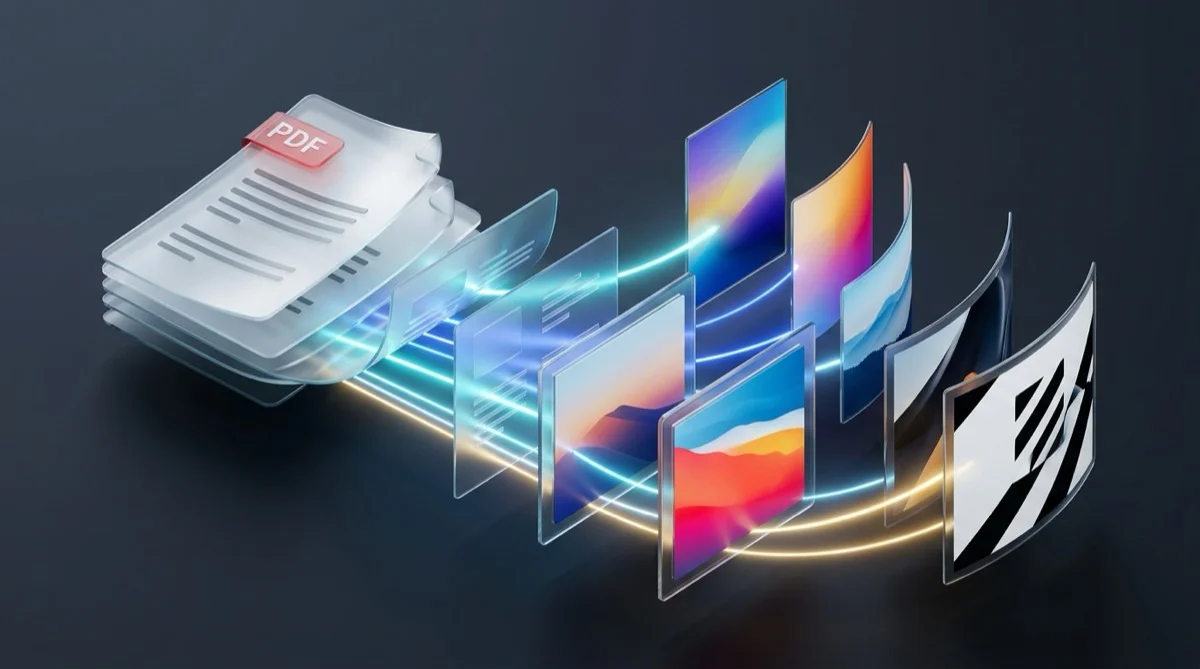
To convert PDF pages into high-resolution JPG images without software installation, use AZ2PDF PDF to JPG to rasterize vector coordinates and embedded graphics into crisp 300 DPI image files. Running securely in ephemeral volatile memory, it converts all pages simultaneously and delivers a clean ZIP archive with zero permanent server storage.
- Vector-to-raster precision: Rasterization renders mathematical vector fonts and layout geometries into high-density pixel grids at 150 or 300 DPI without blurry edges.
- Automated batch ZIP packaging: Multi-page PDFs are converted page-by-page into numbered image files and compressed into a single ZIP archive for instant one-click download.
- JPG vs PNG selection: Choose JPG for photography-rich documents and lightweight file sizes, or PNG for technical schematics, crisp line art, and transparent backgrounds.
- Ephemeral zero-retention security: Documents process inside isolated in-memory streams and are purged immediately after download, ensuring strict confidential data protection.
Why convert PDF pages into high-resolution JPG images?
The Portable Document Format (PDF) is the undisputed global standard for distributing electronic documents with layout integrity. However, its rigidity becomes a major obstacle when you need to share document content across modern web platforms, mobile chat applications, and multimedia presentations.
Converting PDF documents into individual JPG images solves several ubiquitous workflow challenges:
- Universal social media sharing: Major social and professional platforms like LinkedIn, Facebook, Instagram, and X (formerly Twitter) do not support inline interactive multi-page PDF rendering in posts. Converting document pages into clean JPG images enables you to showcase reports, event flyers, certificates, and portfolio samples directly in user feeds.
- Web and email newsletter embedding: Most email clients block or fail to render embedded PDF documents within the body of an email. Converting presentation slides or executive summaries into JPG format allows seamless embedding inside newsletters, promotional emails, and blog articles.
- Instant mobile communication: Sending a multi-megabyte PDF over messaging platforms like WhatsApp, Slack, Telegram, or Microsoft Teams forces recipients to download a document reader. A high-resolution JPG image previews instantly on any smartphone screen without third-party software.
- Slide deck and document authoring: When compiling PowerPoint or Keynote presentations, inserting a crisp page snapshot as a JPG image is far faster and cleaner than attempting to embed an interactive PDF object.
Many users resort to taking manual desktop screenshots, but that shortcut introduces severe drawbacks: images are restricted to display screen resolution (often only 72 to 96 DPI), document edges are uneven, and mouse cursors or browser scrollbars accidentally contaminate the final output. A dedicated PDF to image engine eliminates these flaws by rendering pure, edge-to-edge pixel perfection directly from the underlying document code.
For presentations, web publishing, or social media previews, the AZ2PDF PDF to JPG converter transforms complex document pages into crisp, high-resolution JPEG imagery with customizable DPI and accurate color reproduction.
For presentations, web publishing, or social media previews, the AZ2PDF PDF to JPG converter transforms complex document pages into crisp, high-resolution JPEG imagery with customizable DPI and accurate color reproduction.
Understanding rasterization: How vector PDF becomes pixel-perfect JPG
To appreciate how a high-quality converter works, it helps to understand the fundamental architectural difference between PDF and JPG file formats:
- PDF is a mathematical vector blueprint: Under the ISO 32000 standard, a digital PDF is not an image. It is a structured coordinate system containing mathematical formulas for Bezier curves, line vectors, character glyph codes, embedded font tables, and color space definitions. A PDF can be scaled up infinitely on a 4K display without losing sharpness because lines are redrawn dynamically using mathematical equations.
- JPG is a fixed raster pixel bitmap: In contrast, the Joint Photographic Experts Group (JPEG/JPG) format is a grid of discrete pixels (picture elements). Each pixel possesses a fixed color value. When you zoom in past 100 percent, individual square pixels become visible.
- The rasterization pipeline: Converting a vector PDF into a JPG is an engineering process known as rasterization. The rendering engine parses the PDF object tree, resolves font glyphs and vector coordinates, applies sub-pixel anti-aliasing to smooth curved character boundaries, and projects the entire document layout onto a dense grid of color pixels.
AZ2PDF utilizes a high-performance Poppler-based graphics pipeline running on an asynchronous Rust sidecar. This guarantees that small body text, subtle gradients, and complex vector illustrations render with pristine clarity, free of jagged edges or color distortion.
How to convert PDF to JPG online in 3 simple steps
Transforming complex multi-page PDF documents into crisp image files takes only moments Windows, Linux, iOS, or Android. Drag and drop your PDF file directly into the upload zone, or click the file picker button to select a document from your local drive. Your file loads instantly without waiting queues.
Step 2: Choose your image format and resolution
Customize the output parameters according to your specific project needs:
- Format selection: Select standard JPG for photos and optimized file sizes, or choose lossless PNG if your pages contain fine technical schematics and small typography.
- Resolution selection: Choose 150 DPI for standard web sharing, email attachments, and social media posts, or select ultra-sharp 300 DPI for commercial printing and high-density 4K displays.
Step 3: Download your packaged image archive
Click the Convert button. The engine processes each page sequentially, generating individual numbered image files (such as page-1.jpg, page-2.jpg). All files are automatically packaged into a convenient ZIP archive. Click Download to save the complete set in a single, organized archive, 100 percent free of watermarks or promotional logos.
150 DPI vs 300 DPI: Choosing the right resolution for your workflow
Dots Per Inch (DPI) refers to the number of individual pixel dots rendered along one physical inch of document space. Choosing the appropriate DPI setting is the most critical decision when converting documents to images:
72 DPI: Legacy screen resolution
Historical computer monitors operated at 72 DPI. For an A4 document (8.27 x 11.69 inches), 72 DPI produces an image of roughly 595 x 842 pixels. While lightweight, this resolution causes fine text and intricate charts to appear fuzzy or pixelated on modern high-density Retina and smartphone displays. AZ2PDF does not recommend 72 DPI for professional deliverables.
150 DPI: Optimal balance for web, email, and social media
At 150 DPI, an A4 page renders at approximately 1240 x 1754 pixels (about 2.1 megapixels). This resolution delivers crisp, easily readable text on standard desktop monitors and mobile devices while keeping image file sizes compact (typically 200 KB to 500 KB per page). It is the ideal configuration for social media carousels, blog illustrations, and email newsletters.
300 DPI: Commercial print and high-fidelity archival standard
At 300 DPI, an A4 page yields a substantial 2480 x 3508 pixels (over 8.7 megapixels per page). Vector curves, tiny footnote fonts, barcode labels, and detailed diagrams appear razor-sharp even when printed on glossy brochure paper or projected onto massive 4K conference room screens. If your goal is commercial reproduction or legal archiving, 300 DPI is the essential standard.
JPG vs PNG: Which image format should you choose?
The AZ2PDF image conversion engine supports both JPG and PNG output formats. Selecting the correct format depends on the graphic composition of your source PDF:
Choose JPG when:
Your document features full-color photography and rich backgrounds: JPG utilizes a lossy Discrete Cosine Transform (DCT) compression algorithm designed specifically for continuous-tone photographic imagery. It compresses smooth color variations efficiently, reducing file size by 70 to 80 percent compared to uncompressed formats while maintaining pleasing visual fidelity. It is the best choice for marketing brochures, photo portfolios, real estate listings, and multi-page magazines.
Choose PNG when:
Your document features sharp line art, text documents, or transparent elements: PNG uses lossless DEFLATE compression. It does not introduce compression artifacts (faint color halos or mosquito noise) around high-contrast edges. If your PDF contains technical CAD drawings, software interface mockups, financial balance sheets, or brand logos, PNG preserves pristine edge sharpness. Furthermore, PNG supports an alpha transparency channel if you need to overlay graphic assets on colored web backgrounds.
If your document contains high-fidelity figures rather than full-page compositions, you can also extract embedded original photographs to retrieve original uncompressed photographic assets without page rasterization.
If your document contains high-fidelity figures rather than full-page compositions, you can also extract embedded original photographs to retrieve original uncompressed photographic assets without page rasterization.
Converting full pages vs extracting embedded images: Key differences
A frequent point of confusion among professionals is the difference between converting full PDF pages to images and extracting embedded images from within a document:
- Full page conversion (PDF to JPG): This operation treats each page as an entire canvas. It rasterizes everything visible on the sheet, including paragraphs of text, headers, footers, background colors, vector borders, and photos, merging them into a unified snapshot of the complete page.
- Embedded image extraction: If an author inserted five individual JPEG photos into a corporate report alongside written paragraphs, an extraction tool pulls out those five raw photo files in their original resolution, ignoring all surrounding page text and formatting.
If you only need the original photograph files that were placed inside a document, use the specialized AZ2PDF Extract Images tool. If your goal is to present the complete document page layout as an image, the PDF to JPG tool is the exact solution.
Privacy first: Why ephemeral memory processing protects your data
PDF documents frequently contain highly sensitive personal and commercial data: tax filings, bank transaction statements, employment agreements, medical diagnostics, and confidential business plans.
Many online utilities monetize user files by storing them on persistent disk drives or harvesting document contents for advertising algorithms. That practice presents severe data leakage and compliance vulnerabilities for individuals and enterprises alike.
At AZ2PDF free online PDF tools, privacy is built directly into our infrastructure:
- Ephemeral in-memory streams: Uploaded documents process inside isolated, volatile server memory buffers. Files are never written to permanent disk storage, external databases, or long-term caching arrays.
- Automated five-minute purge daemon: A background server cleanup process automatically clears temporary memory allocations within five minutes of processing.
- Zero data retention and zero AI training: Your files are never inspected, shared with third parties, or used to train artificial intelligence models. Your confidential records remain entirely your property.
- 100 percent free accessibility: All conversion features operate without subscription paywalls, daily page limits, or forced registration forms.
Connected workflows: What to do after converting your images
Once you have converted your PDF pages into high-resolution JPG images, you can combine them into a variety of productive downstream document workflows:
- Reassemble edited images into a PDF: If you edited individual page images in photo editing software or added graphic overlays, you can convert them back into a cohesive, organized PDF document pass the document through the AZ2PDF Compress PDF tool to shrink file sizes while keeping visuals crisp.
- Direct PDF markup: If you simply need to correct a date, sign an agreement, or add review annotations before converting pages, make those modifications first these straightforward solutions resolve the most frequent scenarios:
1. Text appears blurry or pixelated when zoomed in
If you converted your file at standard 150 DPI and need to zoom into small footnote text or intricate line diagrams, re-run the conversion and select 300 DPI. This quadruples the total pixel count across the page, ensuring crisp rendering even under high magnification.
2. File download is blocked or fails to start
Some aggressive browser security extensions or pop-up blockers restrict automatic ZIP file downloads. Ensure pop-ups are permitted for AZ2PDF, or click the direct download link displayed in the conversion workspace.
3. Password-protected documents cannot be converted
If a PDF is encrypted with an open or permissions password that prevents content extraction, rendering engines cannot parse the internal vector streams. Enter the authorized password to unlock the document permissions before initiating image conversion.
Transforming documents into flexible visual media is instantaneous with the free PDF converter and editor on AZ2PDF, featuring browser-native rendering that protects your data privacy from start to finish.
Transforming documents into flexible visual media is instantaneous with the free PDF converter and editor on AZ2PDF, featuring browser-native rendering that protects your data privacy from start to finish.
❓ Frequently asked questions
Not when rendered at appropriate resolution. While PDF uses infinite vector scaling and JPG is a fixed pixel grid, selecting 300 DPI rasterizes vector paths at commercial print resolution (roughly 2480 x 3508 pixels for A4), rendering text, charts, and logos with crisp, razor-sharp clarity.
Related articles in this topic
Deep dive into related document organization and page manipulation workflows.
How to convert images to PDF online for free (fast and secure)
Combine JPG, PNG, and WebP photos into one organized PDF document online for free. Keep original photo quality with zero watermark and complete privacy.
How to convert JPG to PDF online for free (fast and private)
Convert JPG and JPEG images to clean, multi-page PDF documents online for free. Keep original photo quality with zero generational loss and complete privacy.
How to convert PNG to PDF online for free (lossless and sharp)
Convert PNG images and screenshots to clean, multi-page PDF documents online for free. Keep sharp line art, alpha transparency, and full privacy in your browser.
How to convert WebP to PDF online for free (lossless and fast)
Learn how to convert WebP images into high-quality PDF documents online for free. Combine multiple photos into one clean PDF without blur, watermarks, or data risks.
How to crop PDF margins and trim page borders online for free
Learn how to crop PDF margins and trim unwanted borders online for free. Adjust page boundaries for Kindle, shipping labels, and academic papers with zero quality loss.
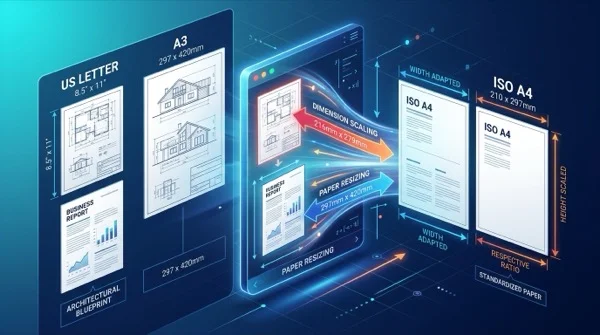
How to scale PDF pages online to standard paper sizes (free and sharp)
Learn how to scale PDF pages to standard paper sizes like A4, Letter, and A3 online for free. Fix printer margin cut-offs with 100% sharp vector typography.