How to convert PDF to Excel spreadsheets free and accurately (no broken columns)
Quick summary
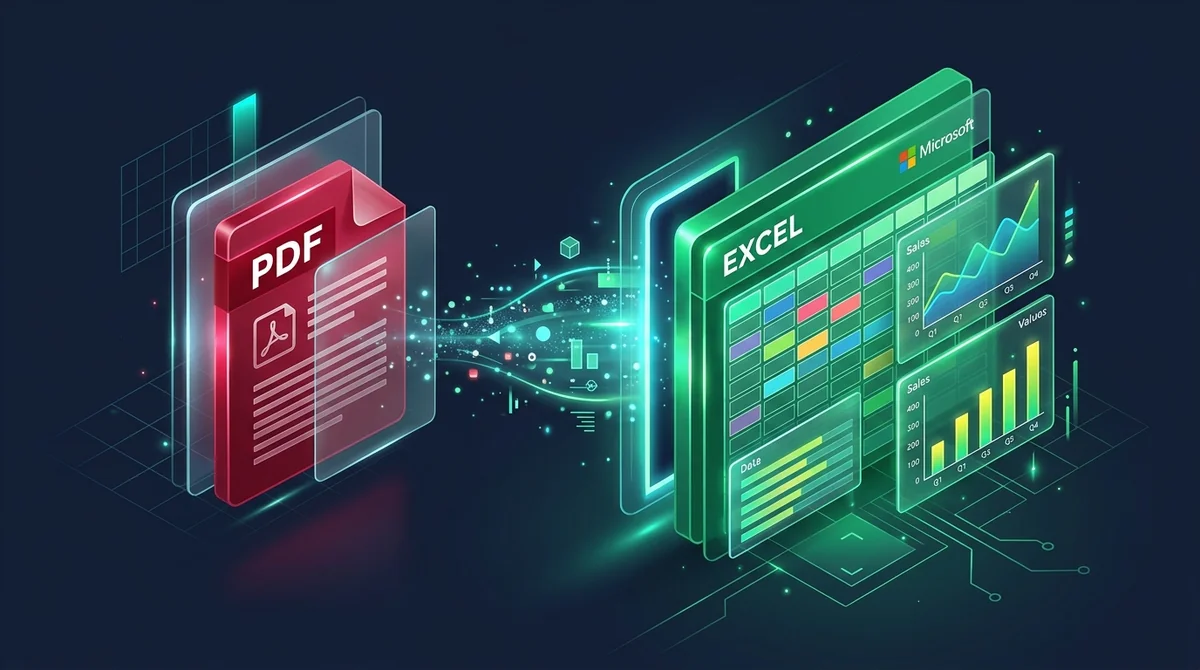
To convert a PDF table into an editable Excel spreadsheet without broken columns, upload your document to AZ2PDF. The free tool analyzes geometric cell coordinates, extracts tabular rows into native .xlsx format, and processes files in ephemeral memory with zero data retention, letting you run formulas immediately.
- Accurate column alignment: Spatial grid parsing maps horizontal rows and vertical boundaries cleanly into individual Excel cells without column collisions.
- Formula-ready numerical output: Extracted figures are converted into real numeric values, allowing instant calculation with SUM, AVERAGE, and VLOOKUP functions.
- 100% free with zero software installation: Convert bank statements, invoices, and accounting ledgers directly in your browser without paying for Adobe Acrobat Pro.
- Strict financial privacy: Files are processed through ephemeral in-memory buffers and wiped automatically, ensuring payroll figures and account numbers remain confidential.
Why copying tables from PDF to Excel fails (and the science of spatial layout)
Anyone who has ever tried to copy a financial balance sheet, monthly bank statement, or sales inventory table from a PDF into Microsoft Excel has experienced the exact same frustrating moment: you highlight the table, press Copy, switch over to Excel, hit Paste, and watch in disbelief as every single column collapses into column A. Numbers merge with product descriptions, transaction dates end up stranded on blank lines, and hours of tedious manual retyping suddenly seem unavoidable.
To understand why this happens, it helps to explore how the Portable Document Format (PDF) works under the hood. Unlike spreadsheet applications like Microsoft Excel, Google Sheets, or Apple Numbers, which store data inside structured rows, columns, and addressable cells (like A1 or C14), a PDF has zero concept of a table. In fact, a PDF does not even understand what a paragraph is.
Instead, a PDF functions like a digital canvas. When an invoice or report is exported to PDF, every number, word, and horizontal rule is placed at an absolute geometric coordinate (X and Y positions measured in points from the bottom-left corner of the page). When you select text with your mouse, your operating system clipboard simply grabs those characters in the raw sequence they were written into the file stream. The visual table you see on your screen is an illusion created by your eyes grouping aligned text items together.
How modern PDF to Excel extraction works under the hood
Building calculation-ready spreadsheets requires sophisticated spatial parsing rather than simple optical character recognition. Modern table reconstruction engines follow a multi-stage analytical pipeline:
1. Vector line and border detection
First, the parser scans the document for vector graphic strokes (the horizontal and vertical lines used for table borders and cell dividers). By calculating the intersection points of these vector coordinates, the engine maps out explicit table boundaries with mathematical precision.
2. Spatial gutter and whitespace analysis
Many modern financial statements, such as credit card summaries and software invoices, use borderless tables where columns are separated purely by empty whitespace. In these cases, the engine analyzes horizontal text distribution across the page, identifying continuous vertical gaps (called whitespace gutters) that separate distinct data columns.
3. Row clustering and baseline alignment
Next, the engine groups individual words and numerical values that share the same vertical baseline (Y-coordinate). This ensures that multi-line cell entries (such as a two-line item description) remain grouped together rather than spilling over into adjacent rows.
4. Cell data type inference
Raw text in a PDF is always stored as character strings. A dedicated spreadsheet converter analyzes the content of each reconstructed cell, identifying real numbers, currency amounts, dates, and text strings. It encodes them with appropriate data types so that Microsoft Excel immediately recognizes numbers as values you can calculate, rather than dead text.
5. Compilation into native OpenXML (.xlsx)
Finally, the parsed matrix of rows, columns, and data types is compiled directly into a genuine Microsoft Office OpenXML workbook (.xlsx). The resulting file is fully compatible with Excel, Google Sheets, LibreOffice Calc, and mobile spreadsheet viewers.
Say goodbye to manual copy-pasting of financial tables. The AZ2PDF PDF to Excel converter recognizes row delimiters, numerical columns, and tabular headers to export clean, fully functional Microsoft Excel (.xlsx) workbooks.
How to convert PDF to Excel online in 3 simple steps
Step 1: Upload your PDF document
Open the tool in your favorite web browser on any computer, tablet, or phone. Drag and drop your PDF file containing data tables directly into the workspace. The tool accepts digital PDF exports from accounting software, billing portals, and database systems with no account registration or software downloads required.
Step 2: Let the engine reconstruct your spreadsheet grid
The converter immediately examines the spatial layout of your document, detecting column boundaries and organizing rows into native spreadsheet cells. Because the engine processes files rapidly in temporary memory, complex multi-page statements are parsed within seconds.
Step 3: Download your editable Excel workbook
Click the Download button to save your formatted Microsoft Excel (.xlsx) file directly to your device. Open the spreadsheet in Excel or Google Sheets to immediately start sorting, filtering, and running mathematical calculations across your data.
Handling complex financial layouts: Multi-page statements, invoices, and ledgers
Real-world financial documents rarely look like simple textbook tables. They frequently feature nested headers, sub-totals, multi-page page breaks, and irregular column widths. Knowing how to handle these specific document types ensures flawless results:
1. Bank statements and credit card folios
Monthly bank statements usually repeat account headers and opening balance figures on every page before listing individual transactions (Date, Description, Withdrawal, Deposit, Running Balance). When converted, each page is neatly mapped into your workbook, allowing you to use Excel filters to isolate specific payees or verify total monthly expenditures in seconds.
2. Commercial invoices and purchase orders
Invoices typically combine an unbordered header block (vendor address, customer tax ID, invoice number) with a bordered line-item table below. A high-quality extraction engine segregates these two distinct structural zones, ensuring the header metadata sits neatly above your line items without distorting table column widths.
3. Multi-page accounting ledgers and balance sheets
When financial reports span dozens of pages, standard export tools often split table headers across sheets awkwardly. An intelligent converter preserves consistent column widths across consecutive pages so that copying columns across tabs or combining rows into a master pivot table is seamless.
4. Handling scanned paper receipts and photocopies
If your document was created by a physical office flatbed scanner or a mobile camera app, it contains an image of numbers rather than digital vector text. For these files, run the document through an optical character recognition tool first to generate a digital text layer before extracting spreadsheet cells.
Preserving data integrity: Numbers, formulas, currencies, and decimal separators
In finance and accounting, a misplaced decimal point or a number misclassified as text can invalidate an entire audit model. Maintaining data integrity during conversion involves several critical factors:
1. Numbers stored as values vs text
When you paste text into Excel manually, numbers often appear with a small green triangle in the corner indicating "Number stored as text". In this state, functions like =SUM(A1:A20) will return 0 because Excel ignores text cells during calculation. The AZ2PDF conversion pipeline strips non-numeric formatting noise from numerical cells, ensuring Excel recognizes them as genuine floating-point or integer values ready for instant calculation.
2. Decimal and thousand separator standards
Different global regions use contrasting conventions for numerical separators. In the United States and United Kingdom, one thousand two hundred and fifty dollars is written as $1,250.50 (comma for thousands, period for decimals). In many European and Latin American countries, that same figure is written as 1.250,50 (period for thousands, comma for decimals). If your currency figures appear with reversed punctuation, you can quickly adjust Excel default separator settings under File Options Advanced to match your source document.
3. Preserving negative numbers and accounting parentheses
Financial accounting reports frequently represent negative numbers using parentheses, such as (4,500.00), rather than a minus sign -4,500.00. The extraction parser identifies accounting parenthesis notation and preserves it properly, preventing negative cash flow figures from turning into positive revenues.
When preparing data feeds for automated database ingestion or SQL pipelines, you can alternatively choose to export structured tables directly to CSV for lightweight, comma-separated parsing.
Privacy first: Why in-memory processing protects sensitive financial data
The PDF documents you need to convert into Excel are almost always confidential. They contain employee compensation figures, banking account balances, vendor payment details, tax identification numbers, or proprietary product margins.
Many legacy web converter websites upload your files to permanent server databases, where they remain stored for days or weeks. Some services even share uploaded data with third-party analytical platforms or use private documents to train commercial machine learning models. Transmitting sensitive corporate accounting records to questionable servers exposes organizations to severe security breaches and regulatory fines.
That is why AZ2PDF free online PDF tools is engineered around a strict privacy-first foundation:
- Ephemeral in-memory processing: Documents uploaded for conversion are processed entirely within temporary memory scratch buffers. They are never written to permanent hard drives or persistent databases.
- Automated memory purge: Temporary scratch files are automatically deleted by a continuous background daemon within five minutes of conversion completion.
- Zero data indexing or AI training: We never inspect, index, or retain your financial figures, nor do we feed customer records into generative AI models. Your confidential spreadsheets remain strictly your private property.
- 100% free accessibility: All conversion features are available completely free without requiring user accounts, paid subscriptions, or credit cards.
When preparing data feeds for automated database ingestion or SQL pipelines, you can alternatively choose to export structured tables directly to CSV for lightweight, comma-separated parsing.
Reverse workflow: When to convert your spreadsheet back to PDF
Working with spreadsheets and PDFs is an ongoing two-way cycle in modern office workflows. Knowing when to use which format ensures efficiency and professionalism:
Convert PDF to Excel when: You receive an uneditable report, invoice, or bank statement and need to audit the figures, filter transactions, build financial models, or recalculate line items using formulas. Converting to Excel unlocks the raw data for active analysis.
Convert Excel back to PDF when: Your financial modeling is complete and you need to distribute the final quarterly budget, executive summary, or client invoice to external stakeholders. Exporting your finished workbook prevents accidental edits, hides confidential calculation sheets, and guarantees that wide tables render cleanly in Landscape orientation without cut-off columns.
Streamline corporate financial audits with the AZ2PDF financial and spreadsheet document tools, ensuring that your proprietary fiscal records and customer ledgers remain strictly confidential within your local machine.
Quick fixes for common PDF to Excel conversion problems
If your converted workbook requires a touch of polish upon opening, here are simple solutions to the three most frequent issues:
1. Merged cells preventing column sorting
If wide header banners or sub-total rows created merged cells across columns A through D, Excel will prevent you from sorting individual data columns. To fix this, select the entire worksheet (Ctrl+A), navigate to the Home tab, and click the Merge & Center dropdown to select Unmerge Cells. Your table grid will instantly become cleanly sortable.
2. Numbers displaying as raw text
If a column of numbers is aligned to the left of the cell and formulas do not compute, the values may be formatted as text. Simply highlight the column, open the Data tab, click Text to Columns, and press Finish. Excel will instantly re-evaluate every cell as a live number.
3. Scanned pages producing empty spreadsheets
If your converted file opens with blank sheets or random scrambled characters, your PDF was created by a paper scanner rather than an accounting program export. Run the document through an OCR PDF tool first to convert the visual image of text into machine-readable characters, then convert to Excel.
Frequently asked questions
Streamline corporate financial audits with the AZ2PDF financial and spreadsheet document tools, ensuring that your proprietary fiscal records and customer ledgers remain strictly confidential within your local machine.
❓ Frequently asked questions
Yes. Modern spatial parsing calculates horizontal coordinate spacing to reconstruct genuine cell boundaries, preventing numbers and descriptions from collapsing into a single merged column.
Related articles in this topic
Deep dive into related document organization and page manipulation workflows.

How to extract selectable text from scanned PDFs with OCR (free and private)
Learn how to convert scanned paper documents and photo PDFs into searchable, selectable text with free multi-language OCR. Fast, accurate, and 100% private in your browser.

How to convert PDF to text online for free (clean TXT extraction)
Learn how to extract unformatted plain text from PDF documents online for free. Convert multi-column pages into clean UTF-8 TXT files for AI, coding, and fast copying.
How to convert PDF to Word without losing formatting (free and editable)
Learn how to convert PDF documents into fully editable Word DOCX files without broken fonts, shifted tables, or messy text boxes. Fast, free, and 100% private.
How to convert Word to PDF without losing formatting (free and secure)
Learn how to convert Word DOCX and DOC documents into standardized PDF files with locked fonts, intact margins, and zero layout shifts. Fast, free, and 100% private.

How to convert EPUB to PDF online for free (clean pages and table of contents)
Learn how to convert EPUB ebooks to clean, printable PDF documents online for free. Preserve chapter navigation, cover art, and typography with zero software.
How to convert PDF to EPUB online for free (reflowable text for e-readers)
Learn how to convert PDF documents to reflowable EPUB ebooks online for free. Read comfortably on Kindle, Kobo, and Apple Books without pinch-to-zoom fatigue.