How to convert PDF to Word without losing formatting (free and editable)
Quick summary
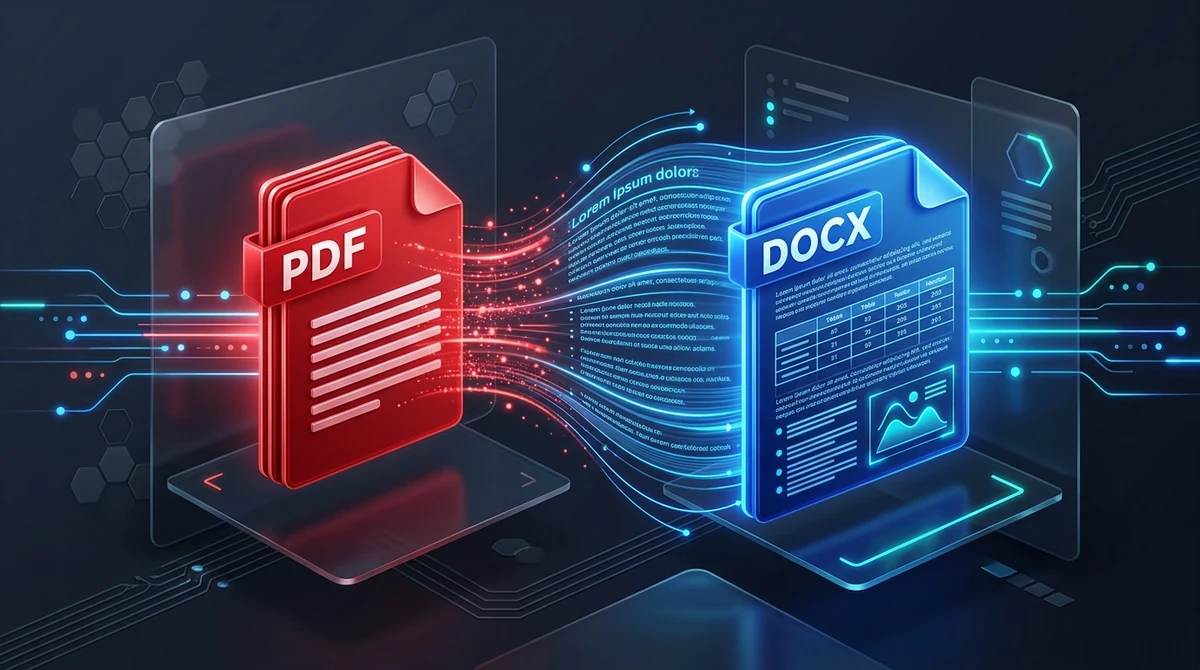
To convert a PDF to Word without losing formatting, use AZ2PDF PDF to Word to reconstruct vector text streams, table boundaries, and typography into flowing Microsoft Word paragraphs. Running securely in high-speed volatile memory, it preserves original document geometry while delivering a clean, fully editable DOCX document with zero server retention.
- Flowing text vs. text boxes: Quality conversion transforms static coordinate-based PDF text into natural, flowing Word paragraphs rather than trapping sentences in uneditable floating boxes.
- Native table and grid reconstruction: Tabular data inside the PDF is parsed into real Microsoft Word table cells, allowing you to edit numbers, add rows, and recalculate formulas.
- Scanned PDFs require OCR: If your PDF was created by a physical paper scanner or camera, run OCR PDF first to convert pixel bitmaps into recognized vector text streams before exporting to Word.
- 100% confidential processing: Your files are processed securely in temporary volatile RAM and permanently erased after 5 minutes by an automated cleanup daemon, ensuring total document privacy.
Why do converted Word documents lose their formatting?
Almost everyone who works with digital documents has faced this irritating scenario: you receive an important PDF report or contract, convert it to a Microsoft Word document to make edits, and open the resulting file only to find a complete visual disaster. Columns are misaligned, table borders have vanished, headings are displaced, and sentences break awkwardly into separate lines.
To understand why this happens, you have to look at the fundamental architectural clash between the Portable Document Format (PDF) and word processing formats like Microsoft Word (DOCX):
- PDF is a digital printout with absolute coordinates: Developed originally from PostScript, a PDF does not store concepts like sentences, paragraphs, margins, or wrapping lines. Instead, every character, line, and image is stamped at a rigid mathematical coordinate (X and Y coordinates on a 2D plane). A PDF simply tells the screen: "Draw letter 'A' at position X=120, Y=450." It does not know that letter 'A' is part of a larger paragraph or table.
- Word is a dynamic fluid layout engine: In contrast, Microsoft Word operates on an Office Open XML document model designed for reflowable content. In Word, sentences belong to paragraphs, paragraphs belong to sections, and text automatically flows from line to line, adapting whenever you resize fonts, adjust page margins, or add new sentences.
- The conversion challenge: Converting a PDF into Word is not a simple file renaming or 1-to-1 data dump. The conversion software must act like an artificial intelligence detective: it must inspect thousands of disconnected letters scattered across a 2D page, reverse-engineer the original author's intent, and reconstruct coherent flowing paragraphs, table grids, headers, and bulleted lists.
To bridge the divide between fixed-layout vectors and editable paragraphs, the AZ2PDF PDF to Word converter intelligently analyzes typography, multi-column grids, and table borders. It reconstructs native Word (.docx) elements so you can edit content smoothly without layout collapse.
Flowing text vs. floating text boxes: The key to real editability
When you use a generic or low-quality conversion utility, the software takes a lazy shortcut: instead of reconstructing true flowing paragraphs, it wraps every single line or sentence in an absolute floating text box. While the document might look visually similar to the original at first glance, trying to edit it is an exercise in pure frustration.
Here is why floating text boxes ruin your document workflow:
The text box trap: If you delete two words inside a floating text box on line 1, the text on line 2 will not slide upward to fill the empty space. Even worse, if you add a new sentence, the text box expands and overlaps the line below it, creating an unreadable jumble of intersecting letters. To make real edits, you would have to manually resize and reposition dozens of tiny boxes across every single page.
The flowing paragraph advantage: High-fidelity conversion engines, such as the one powering the AZ2PDF PDF to Word converter, take a far more sophisticated approach. Our layout analysis engine calculates baseline alignments, character spacing, line heights, and margin gutters. It groups adjacent character streams into natural, continuous paragraphs. When you press Enter or type new text in Word, paragraphs wrap naturally and push the following text down smoothly, exactly like a native document created from scratch in Word.
How to convert any PDF to Word in 3 simple steps
Transforming your locked PDF files into clean, editable Microsoft Word files takes only seconds. Here is the straightforward process:
Step 1: Choose your PDF document
Open the conversion workspace in any modern web browser on Mac, Windows, Linux, iOS, or Android. Drag and drop your PDF file directly into the upload area, or click the selection button to pick a file from your device or cloud storage.
Step 2: Let the reconstruction engine process your layout
Once selected, the converter instantly parses your document. It detects vector typography, table boundaries, graphics, and multi-column divisions, translating them into standard Microsoft Word XML elements.
Step 3: Download and edit your clean DOCX file
Click the Download button to save your formatted .docx file. You can open and edit it immediately in Microsoft Word, Google Docs, LibreOffice Writer, or Apple Pages with no watermarks, no registration hurdles, and zero quality loss. Once your revisions and formatting adjustments are complete, you can effortlessly use the AZ2PDF Word to PDF converter to lock in your final layout before emailing or printing.
Native vector PDFs vs. scanned documents: When do you need OCR?
One of the most frequent points of confusion among office workers is why some PDFs convert into editable text instantly, while others result in Word documents where text cannot be selected or edited at all. The answer lies in the origin of your PDF file.
Scenario 1: Native digital vector PDFs
A native digital PDF was generated directly from a computer application, such as exporting from Microsoft Word, Google Docs, Canva, InDesign, or a web browser. In these files, characters exist as real digital code points and vector glyphs. The conversion engine can easily read, parse, and export these characters into Word paragraphs with flawless typography preservation.
Scenario 2: Scanned paper documents and photocopies
If your PDF was created by feeding paper pages through an office photocopier, flatbed scanner, or smartphone camera app, the file contains zero digital text. Instead, the PDF is simply a container holding full-page photographs of paper. When you convert this type of file directly into Word, Word simply receives a large image placed onto the page. You cannot highlight individual words, correct typos, or search for phrases.
To turn a scanned document into editable text, you must first run the file through optical character recognition (OCR). OCR scans the shapes of the printed ink, identifies letters and punctuation, and rebuilds genuine digital text streams before generating your editable Word document.
Privacy first: Why volatile RAM processing protects your data
PDF documents converted to Word frequently contain an organization's or family's most sensitive data: confidential employment contracts, executive resumes, non-disclosure agreements, legal filings, and financial audit reports.
Many web conversion services follow a risky business model: they upload your files to remote storage disks, keep them for hours or days, and some even monetize user documents to train machine learning models. Uploading sensitive corporate intellectual property or client records to these platforms presents serious data compliance and privacy risks.
That is why AZ2PDF free online PDF tools was engineered with a strict privacy architecture. All conversion tasks execute securely inside volatile, high-speed RAM memory. Your files are never written to permanent disk storage, are never shared with third parties, and are permanently erased after 5 minutes by an automated background cleanup daemon. You get enterprise-grade document conversion speed with uncompromising data confidentiality.
3 quick adjustments to make in Word after conversion
Even with advanced conversion algorithms, differences between PDF rendering rules and Microsoft Word styling can occasionally introduce slight visual quirks. Making these three quick checks inside Microsoft Word ensures your converted file looks 100% polished:
1. Check for font substitution
When authors export a PDF, they frequently embed subset versions of uncommon or proprietary fonts. If your computer does not have that exact font family installed, Microsoft Word will substitute it with a default system typeface (such as Calibri, Aptos, or Arial). Because different fonts have slightly different character widths, this substitution can cause lines to wrap earlier or later than in the original PDF. Selecting the text and assigning a standard font like Arial or Times New Roman quickly restores uniform spacing.
2. Inspect table cell padding and column widths
PDF tables often use tight, millimeter-precise boundaries. When translated into native Word tables, default cell margins in Word can occasionally cause long numbers or dates to wrap into two lines. To fix this, click inside the table, go to the Table Layout tab in Word, and slightly expand the column width or adjust the cell margins.
3. Verify header and footer positioning
In a PDF, page numbers and running headers are simply static text elements sitting at the top and bottom of each page. Good converters map these into Word headers and footers, but it is always wise to double-check that your first page (such as a cover page) does not display an unwanted page number.
When to convert to Word vs. when to use an online PDF editor
Before converting every document to DOCX, consider whether a full conversion is truly necessary for your immediate task. Choosing the right tool saves significant time and effort:
Convert to Word when: You need to rewrite substantial portions of a multi-page document, delete whole paragraphs, reorganize chapters, add new tables, translate entire documents into another language, or collaborate with colleagues using Word's Track Changes review features.
Edit directly as PDF when: You need to make quick modifications such as fixing a typo, updating a date, inserting your electronic signature, filling in form fields, or whiting out a private phone number. For these everyday modifications, opening the AZ2PDF PDF Editor directly in your browser takes only a few seconds and keeps 100% of the original graphic styling completely untouched.
By processing conversions entirely client-side, the AZ2PDF document processing hub eliminates server upload latency and guarantees that your proprietary contracts and intellectual property remain strictly confidential.
Quick fixes for common PDF to Word conversion issues
If you encounter unexpected layout results when converting your documents, here are rapid solutions to the three most frequent problems:
1. Text appears as uneditable pictures in Word
This confirms that your original PDF is a scanned image rather than a digital document. Word cannot edit text stored as a photograph. Use an OCR tool to extract character data, or request a native digital export from the original document author.
2. Conversion fails or displays a permission error
If a PDF is locked with an owner permissions password that restricts content copying or extraction, conversion software cannot read internal text streams. You must enter the authorized password or unlock the document permissions before initiating conversion.
3. Columns appear merged or misaligned
In documents with complex newspaper-style multi-column layouts, overlapping graphical lines can occasionally confuse paragraph detection algorithms. In Microsoft Word, simply click inside the section, open the Layout menu, and set the Columns count to match your original document structure.
❓ Frequently asked questions
This happens when low-tier conversion tools use absolute coordinate positioning, wrapping every sentence in an independent text frame. AZ2PDF uses heuristic layout reconstruction, identifying baseline alignments and spatial margins to group lines into continuous, flowing Word paragraphs.
Related articles in this topic
Deep dive into related document organization and page manipulation workflows.
How to convert Word to PDF without losing formatting (free and secure)
Learn how to convert Word DOCX and DOC documents into standardized PDF files with locked fonts, intact margins, and zero layout shifts. Fast, free, and 100% private.

How to convert Excel to PDF online for free (clean layout and no cut-off columns)
Convert Excel spreadsheets (.xlsx, .xls, .csv) into clean PDF documents online for free. Fix cut-off columns, choose landscape layout, and protect formulas.
How to convert PDF to Excel spreadsheets free and accurately (no broken columns)
Convert PDF tables into editable Microsoft Excel spreadsheets (.xlsx) online for free. Extract financial data, bank statements, and invoices without broken columns.

How to convert PDF to PowerPoint slides online for free (editable decks)
Convert PDF slides into editable Microsoft PowerPoint PPTX decks online for free. Reconstruct vector text, shapes, and images without lost layouts or software fees.
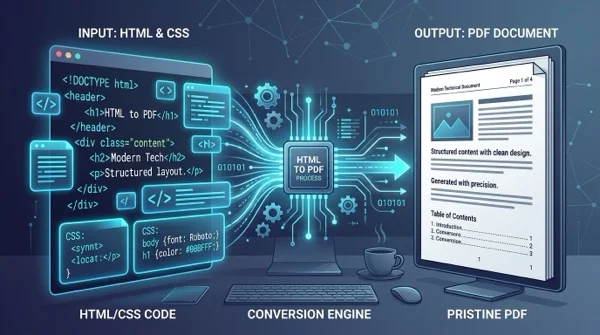
How to convert HTML files to PDF online without losing formatting
Learn how to convert HTML files and CSS styles into print-ready PDF documents online for free. Maintain exact fonts, page breaks, and layout without watermarks.

How to convert PDF to HTML online for free (clean code and layout preservation)
Learn how to convert PDF documents into clean, responsive HTML web pages online for free. Preserve fonts, text styling, and graphics without watermarks.