How to extract selectable text from scanned PDFs with OCR (free and private)
Quick summary
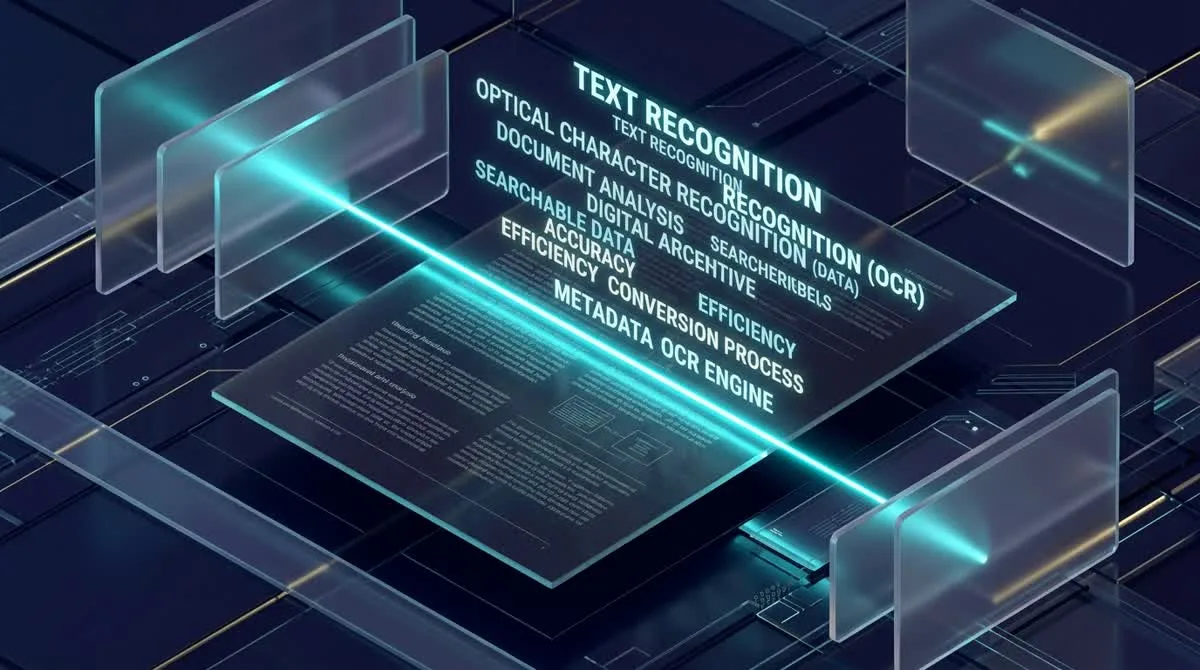
To extract text from a scanned PDF or photo document, Optical Character Recognition (OCR) analyzes the visual bitmap shapes, recognizes character glyphs across multiple languages, and injects an invisible vector text layer beneath the image. Using AZ2PDF OCR PDF, this creates a searchable sandwich PDF directly in your browser with zero server data retention and 100% privacy.
- Unlocks locked text: Transforms flat scanned images and photocopies into selectable, searchable documents with full Ctrl+F support.
- Preserves visual authenticity: Creates a sandwich PDF that retains original signatures, stamps, and paper layout while adding a hidden digital text layer.
- Multi-language precision: Recognizes character shapes, accents, and diacritics across more than 100 international languages.
- Complete in-browser confidentiality: Processes your sensitive contracts, medical bills, and legal files locally or in ephemeral RAM with an automatic five-minute purge daemon.
Why scanned PDFs trap your text (and what OCR really does)
Everyone who works with digital documents has encountered this frustrating roadblock: you receive an important contract, historical archive, court filing, or expense receipt in PDF format, and you press Ctrl+F or Command+F to search for a specific clause or amount. Nothing happens. You try to drag your mouse cursor over a paragraph to copy the text into an email, but the cursor acts like a clumsy hand sliding across glass. You cannot highlight a single word.
To understand why this happens, it is helpful to look at how different PDF documents are created:
- Native digital vector PDFs: When you export a document from Microsoft Word, Google Docs, Apple Pages, or InDesign directly into PDF format, the software embeds actual alphanumeric character codes (Unicode code points) and vector font glyphs. The PDF reader knows that letter H is followed by letter E and letter L, making the text instantly searchable and selectable.
- Scanned bitmap PDFs: When paper is processed through a desktop flatbed scanner, an office multifunction copier, or a mobile scanning app, the device does not understand language. Instead, optical sensors simply record a two-dimensional grid of colored dots (a raster bitmap photograph). Even though your human eyes immediately recognize sentences and tables, the PDF file contains nothing more than an unsearchable picture of a sheet of paper.
This is where Optical Character Recognition (OCR) becomes essential. OCR is an advanced document engineering technology that analyzes the visual geometry of dark and light pixel patterns, recognizes the distinct shapes of letterforms across alphabets and scripts, and translates those visual clusters into genuine digital text streams.
Unlock inaccessible content locked inside flat image scans using the AZ2PDF OCR PDF engine. Its neural recognition algorithms detect multilingual typography, generating an invisible, searchable text layer precisely aligned with the underlying bitmap.
The sandwich PDF architecture: How invisible text layers work
When people hear about converting a scanned PDF into text, they often worry that the process will disrupt the original formatting, misplace official company logos, or discard legal signatures. Modern PDF engineering solves this challenge through a elegant architectural standard known as the sandwich PDF (or searchable image PDF).
A sandwich PDF is constructed using two perfectly synchronized, stacked visual layers:
- The top layer (original high-resolution raster image): The visual scan remains completely untouched on the front layer. All legal signatures, physical ink stamps, embossed seals, letterhead graphics, and authentic paper textures remain exactly where the scanner captured them.
- The bottom layer (invisible vector text): Directly beneath the scanned image, the OCR engine generates an invisible, mathematically aligned text stream. In the ISO 32000 PDF specification, this text is rendered with text rendering mode 3 (neither filled nor stroked), rendering it 100 percent transparent to the human eye.
Because the invisible text characters are calculated to mirror the exact coordinates (X and Y positions, baseline angles, and font sizes) of the visible letters on the scan above them, user interaction feels completely natural. When you drag your mouse across a line of scanned text, you are actually highlighting the invisible text layer sitting underneath. When you press Ctrl+C, the computer copies the underlying text string to your clipboard. When you search with Ctrl+F, the PDF reader locates and illuminates the exact matching words seamlessly.
Why optical character recognition needs high resolution (DPI and lighting)
The accuracy of an OCR engine depends directly on the optical quality of the input image. Just as humans struggle to read smudged or blurry writing, computer vision algorithms require sufficient pixel contrast to distinguish similar characters:
- The 300 DPI sweet spot: For standard office documents, scanning at 300 dots per inch (DPI) produces the optimal balance between character recognition accuracy and file size. At 300 DPI, lowercase letters like 'e', 'c', and 'o' possess clear open loops, preventing the engine from confusing an 'e' with a 'c'.
- The low-resolution danger (under 150 DPI): Documents scanned at 72 to 100 DPI or heavily compressed with JPEG artifacts frequently lead to character substitution errors. Distinct letter pairs like 'rn' can easily merge into an 'm', 'cl' can turn into a 'd', and the number '1' can be mistaken for a lowercase 'l' or uppercase 'I'.
- Orientation and skew angle: If a paper page is fed crookedly into a scanner, text lines tilt diagonally. High-grade OCR engines automatically detect the baseline angle and apply digital deskewing algorithms to straighten the text before recognition begins.
- Even lighting for mobile captures: If you photograph a receipt or legal document using a smartphone, avoid harsh overhead casting shadows or glare from glossy paper. Consistent diffuse lighting ensures sharp character edge boundaries.
How to OCR a scanned PDF in 3 simple steps
Transforming your unsearchable scanned documents into fully selectable, searchable PDFs takes only seconds on your desktop computer, tablet, or smartphone:
Step 1: Upload your scanned PDF file
Drag and drop your scanned PDF file directly into the workspace, or click the selection button to choose a file from your local storage. The tool accepts multi-page scanned books, contracts, court exhibits, and single-page invoice receipts.
Step 2: Choose the document language
Select the primary language of your document. AZ2PDF supports multi-language recognition across more than 100 international languages, including English, Spanish, German, French, Vietnamese, Chinese, Japanese, and Arabic. Specifying the correct language allows the engine to activate specialized vocabulary dictionaries and diacritical recognition models, ensuring flawless detection of accented characters like é, ü, or ơ.
Step 3: Download your enhanced, searchable PDF
Click the Process button. The OCR engine analyzes each page, aligns the invisible text layer, and outputs a standardized searchable sandwich PDF. Click Download to save your enhanced document directly to your device. The document is 100 percent free of watermarks, requires no email registration, and is immediately ready for keyword searching and text copying.
Once your document is indexed with searchable text, you can also extract raw textual content directly to dump pure ASCII or UTF-8 streams for text-mining and natural language workflows.
Real-world use cases: When OCR saves hours of manual retyping
While basic PDF viewers treat scanned pages like inert pictures, running your files through OCR unlocks enormous productivity and compliance advantages across diverse professional fields:
1. Legal discovery and court record management
Law firms, paralegals, and court clerks frequently handle hundreds of pages of scanned depositions, discovery filings, and historical deeds. Without OCR, finding a specific date, witness name, or case citation requires manually skimming through hundreds of pages. An OCR-processed document enables instant full-text search across entire case archives, reducing hours of tedious manual reading to a five-second Ctrl+F query.
2. Financial accounting, invoice processing, and tax audits
Finance departments and bookkeepers receive stacks of paper invoices, utility bills, and vendor receipts. Running these scanned documents through OCR makes account numbers, line-item totals, and tax identification figures copyable. This eliminates human data entry errors when transferring numbers into ERP systems or spreadsheets.
3. Academic research and library book digitization
Scholars, university students, and librarians digitizing rare manuscripts, out-of-print reference books, and journal articles need more than just picture scans. OCR allows researchers to extract quotes directly into bibliographies, annotate key paragraphs, and index vast digital libraries for future research.
4. Digital accessibility and screen reader compliance
Under accessibility guidelines like the Americans with Disabilities Act (ADA), Section 508, and WCAG standards, organizations are legally required to provide accessible digital documentation for visually impaired users. Standard scanned image PDFs are completely inaccessible to screen reading software. Generating an underlying text layer through OCR enables screen readers like NVDA, JAWS, or Apple VoiceOver to read scanned documents aloud to users.
Privacy first: Why ephemeral in-memory processing protects sensitive documents
Scanned documents subjected to OCR often represent an individual or enterprise's most confidential paperwork: government identification cards, passports, tax filings, proprietary intellectual property, employee contracts, and personal medical history records.
Many online OCR websites monetize their services by saving uploaded documents to permanent storage disks, analyzing private records, or utilizing user uploads to train commercial computer vision algorithms. Transmitting confidential legal contracts or client records to untrusted third-party cloud servers poses severe data compliance and confidentiality risks.
At AZ2PDF free online PDF tools, privacy and security are built into the core architecture:
- Ephemeral in-memory execution: Your scanned files are processed in volatile, ephemeral RAM buffers on high-speed NVMe storage. Files are never written to permanent database records or public cloud buckets.
- Automated five-minute purge daemon: A dedicated background daemon automatically sweeps and erases all temporary files within five minutes of processing completion.
- Zero AI training and zero data harvesting: We never inspect, index, analyze, or retain your documents, nor do we use your uploaded text to train machine learning models. Your content remains strictly your private property.
- 100 percent free and unrestricted: All features on AZ2PDF are completely free to use without requiring paid software subscriptions, credit card details, or account registration.
Connected workflows: What to do after your PDF is searchable
Once you have converted your flat scanned pages into a fully searchable PDF, you can seamlessly connect it with other specialized tools in the AZ2PDF document processing ecosystem:
- Convert searchable PDF to editable Microsoft Word: Need to rewrite paragraphs, modify table layouts, or draft an updated version of a scanned agreement? Now that your document contains real character data, use the AZ2PDF PDF to Word converter to generate an editable DOCX file with flowing paragraphs.
- Extract tabular data into spreadsheets: If your scanned PDF contains financial statements, expense logs, or price sheets, use the AZ2PDF PDF to Excel converter to transform the recognized columns and rows into functional XLSX spreadsheets.
- Compress heavy scanner files: High-resolution 300 DPI scans can easily create files that exceed 30MB or 50MB, making them too large to attach to emails or submit through web portals. Run your searchable file through the AZ2PDF Compress PDF tool to shrink file sizes by up to 75 percent while preserving crisp visual sharpness.
- Add notes, highlights, and digital signatures: Open your newly searchable document in the AZ2PDF PDF Editor to highlight important sentences, insert sticky notes, or draw electronic signatures directly in your browser.
Empower your archival research with the AZ2PDF document intelligence and OCR suite, providing state-of-the-art optical recognition while guaranteeing that private scanned contracts never leave your workstation.
Quick fixes for common OCR scanning problems
If you encounter unexpected recognition results when processing your documents, here are straightforward solutions to the three most frequent situations:
1. Characters in non-English languages are misrecognized
If words containing special accents or non-Latin alphabets display as garbled symbols, verify that you selected the matching document language in the tool settings before clicking Process. Selecting the proper language activates the correct character dictionary, ensuring accurate recognition of accents and diacritics.
2. Words appear joined together or broken by extra spaces
If words run together without spaces, the original paper scan was likely captured at very low resolution (below 150 DPI) or with severe lens blur, causing adjacent character boundaries to touch. Rescanning the original paper at 300 DPI with sharp focus resolves word spacing issues immediately.
3. Handwritten notes are not converted accurately
Standard OCR algorithms are specialized for machine-printed typography (such as serif and sans-serif book fonts, typewriter lettering, and laser-printed text). While printed text achieves 99 percent accuracy, freeform handwritten cursive notes or scribbled signatures remain as visual graphics in the top layer. For handwritten forms, high-resolution scans still allow you to read the original handwriting visually while indexing any printed form labels.
Frequently asked questions
Empower your archival research with the AZ2PDF document intelligence and OCR suite, providing state-of-the-art optical recognition while guaranteeing that private scanned contracts never leave your workstation.
❓ Frequently asked questions
A regular scanned PDF is simply a digital container holding a full-page photo bitmap. It has zero digital text, so you cannot search keywords with Ctrl+F or highlight sentences. An OCR-processed PDF (often called a sandwich PDF) embeds an invisible vector text layer behind the original image, making every word fully selectable, copyable, and searchable without altering the original visual layout.
Related articles in this topic
Deep dive into related document organization and page manipulation workflows.
How to convert PDF to PowerPoint slides online for free (editable decks)
Convert PDF slides into editable Microsoft PowerPoint PPTX decks online for free. Reconstruct vector text, shapes, and images without lost layouts or software fees.
How to convert PDF to Word without losing formatting (free and editable)
Learn how to convert PDF documents into fully editable Word DOCX files without broken fonts, shifted tables, or messy text boxes. Fast, free, and 100% private.
How to convert Word to PDF without losing formatting (free and secure)
Learn how to convert Word DOCX and DOC documents into standardized PDF files with locked fonts, intact margins, and zero layout shifts. Fast, free, and 100% private.
How to convert Excel to PDF online for free (clean layout and no cut-off columns)
Convert Excel spreadsheets (.xlsx, .xls, .csv) into clean PDF documents online for free. Fix cut-off columns, choose landscape layout, and protect formulas.
How to flatten a PDF form and annotations permanently
Learn how to flatten PDF form fields, checkmarks, signatures, and annotations into permanent print layers. Prevent tampering and ensure 100% print accuracy for free.

How to repair corrupted PDF files online (free and secure)
Learn how to fix damaged or unreadable PDF files online for free. Rebuild broken xref tables, recover truncated content streams, and restore document access securely.