How to convert Word to PDF without losing formatting (free and secure)
Quick summary
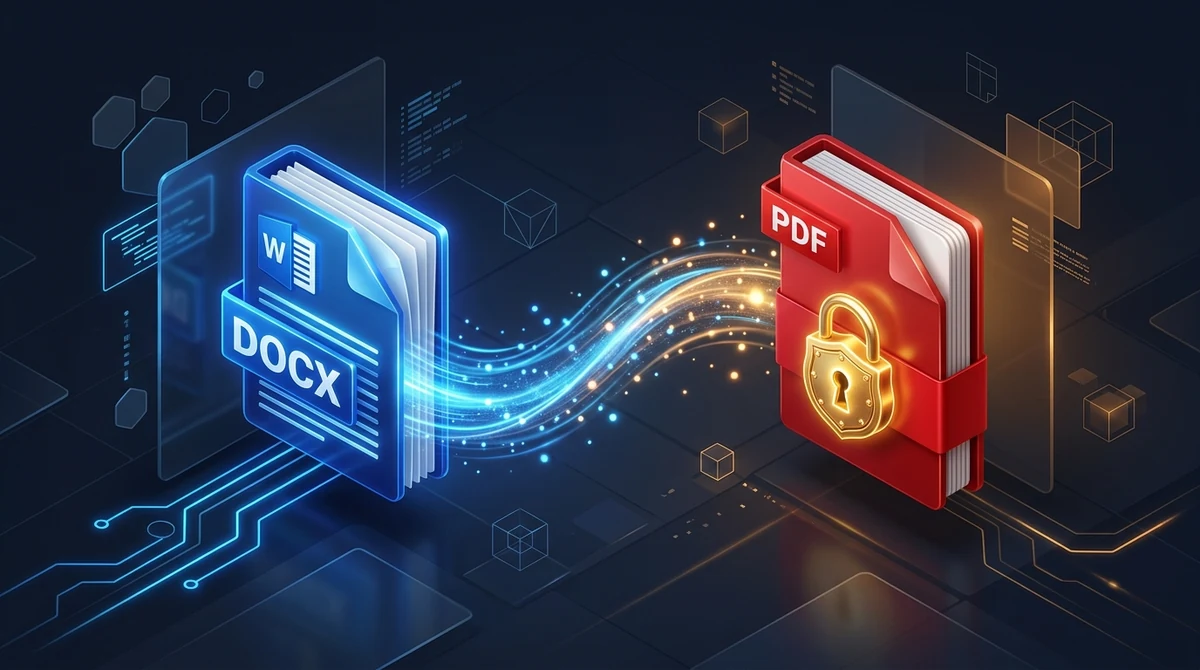
To convert Word to PDF without losing formatting, an in-memory document engine translates reflowable Office Open XML elements into fixed-coordinate vector pages (ISO 32000-1). Using the AZ2PDF Word to PDF converter, your fonts, margins, tables, and page breaks are locked permanently in your browser, processed in volatile RAM with automatic 5-minute file deletion for total privacy.
- Layout locked permanently: Freezes fonts, margins, bulleted lists, and tables so your document appears identical on every screen and operating system.
- Professional security: Prevents accidental text edits, hides sensitive revision history and Track Changes, and meets strict portal filing requirements.
- In-memory RAM privacy: Documents are processed securely in volatile memory and purged permanently after 5 minutes with zero server retention.
- Zero software overhead: Converts DOCX, DOC, ODT, and RTF directly in your browser without requiring a paid Microsoft 365 or Adobe Acrobat license.
Why does Word document formatting shift on other devices?
You have probably spent hours perfecting a project proposal, client invoice, or employment resume in Microsoft Word. Every heading is aligned, margins are balanced, and your signature sits neatly at the bottom of page one. But when your client or hiring manager opens the file on their computer, disaster strikes: text pushes onto an awkward second page, bullet points are misaligned, and fonts are replaced with generic typefaces.
Why does this happen so consistently? The issue lies in the fundamental difference between reflowable word processing formats and static print formats:
- Reflowable Office Open XML architecture: A Microsoft Word document (.docx) does not store fixed visual pages. Under the hood, a DOCX file is a compressed package of XML markup (primarily document.xml) containing text runs and styling rules. Instead of locking each word to an exact millimeter coordinate, Word calculates page layouts dynamically each time the document opens.
- Dependency on local printer drivers: Word relies directly on the active default printer driver installed on the user computer to compute margin boundaries and text wrapping metrics. A document composed on a computer connected to an HP LaserJet calculates font metrics differently than a computer set to a virtual PDF driver, shifting lines just enough to push content onto another page.
- System font availability: If you design a presentation or report using a premium typeface (such as Aptos, Segoe UI, or a custom corporate font) and the recipient device lacks that typeface, the operating system substitutes it with an alternative font like Arial or Times New Roman. Because character widths and kerning pairs differ across font families, substituted fonts alter line lengths and break carefully measured table cells.
Converting your document into a standardized PDF completely eliminates these discrepancies by replacing reflowable markup with immutable, fixed coordinates.
When sharing reports across different operating systems, relying on the AZ2PDF Word to PDF converter guarantees visual immutability. It embeds typefaces, aligns complex tables, and preserves exact margin boundaries so your recipients see identical formatting on any screen.
Why converting Word to PDF protects your professional documents
Beyond preserving visual fidelity, converting your files into the Portable Document Format (PDF) delivers vital legal, administrative, and security benefits:
1. Tamper resistance and visual integrity
When you email a Word document, any recipient can inadvertently modify contract clauses, delete line items, or adjust pricing figures. While PDFs can be annotated, the underlying page stream is tamper evident and preserves your original terms as an authoritative record.
2. Elimination of hidden revision history and metadata
Word files often retain hidden revision tracks, deleted paragraphs, author initials, internal comments, and total editing time through Track Changes and embedded metadata. Sending a raw DOCX file to an opposing legal party or client risks leaking proprietary negotiation history. Converting to PDF strips these background working caches, presenting only the finalized, approved text.
3. Universal compliance with portals and ATS systems
Applicant Tracking Systems (ATS) used by major employers and online portals operated by courts, universities, and government agencies overwhelmingly mandate PDF submissions. PDFs prevent automated parser crashes caused by corrupted Word macro files (.docm) or outdated file formats (.doc).
How to convert Word to PDF online in 3 simple steps
Step 1: Select your Word or office document
Open the conversion workspace in your web browser. Drag and drop your .docx, .doc, .rtf, or .odt file directly into the designated drop zone, or browse files on your desktop or smartphone. Files up to 30MB are accepted for instant in-memory processing.
Step 2: Let the in-memory engine render the layout
Our document conversion engine parses the Office Open XML package, calculates geometric coordinates, resolves vector outlines, subsets embedded fonts, and compiles the layout into an ISO-standard PDF stream.
Step 3: Download your print-ready PDF file
Click the Download button to save your locked document immediately. The resulting file maintains exact line breaks, table boundaries, and image clarity, with zero added watermarks and no registration requirements.
Key formatting elements preserved during Word to PDF conversion
A high-grade conversion engine does not merely take a screenshot of your text; it preserves every structural element as native vector primitives:
1. Exact page margins and section breaks
Whether your document uses standard Letter, A4, custom landscape orientations, or complex section breaks with alternating headers, the conversion process maps dimensions precisely to PDF media boxes without clipping text.
2. Complex table structures and cell alignment
Tables with merged cells, shaded headers, nested rows, and explicit column widths remain mathematically aligned. Text inside cells wraps at identical character boundaries, preventing numbers from wrapping onto unwanted second lines.
3. Embedded vector diagrams, shapes, and images
Logos, SmartArt diagrams, and corporate letterheads maintain their native vector crispness. Photographs and raster scans retain their original resolution without aggressive blur or downsampling artifacts.
4. Active hyperlinks, bookmarks, and document structure
Web links, email addresses, and heading bookmarks built into Word are translated into clickable PDF annotations, allowing recipients to navigate multi-page reports with ease.
Should your team later require extensive textual adjustments after the document has been distributed, you can effortlessly convert PDF back to Word DOCX to resume editing inside your favorite office productivity software.
Comparing your conversion options: Built-in export vs. cloud uploads vs. in-memory processing
Depending on your current software environment and security needs, you have three primary ways to turn Word documents into PDFs:
Option 1: Modern in-memory web converters (AZ2PDF)
This approach combines maximum accessibility with strict data confidentiality. You do not need Microsoft Office installed on your device, making it ideal for Chromebooks, Linux machines, public workstations, and mobile phones. Files are processed entirely inside volatile RAM memory and automatically erased after 5 minutes. The service is completely free, does not require an account, and never adds watermarks.
Option 2: Native Microsoft Office export
If you subscribe to Microsoft 365 and have the desktop Word application installed, you can click File > Export > Create PDF/XPS. This produces high-quality output and works offline. However, it requires a paid software subscription (costing $70 to $100+ annually) and is not available if you are working from a device without Office installed.
Option 3: Legacy cloud upload utilities
Many traditional conversion websites require you to upload documents to external file servers. These platforms often store your files on persistent disks for hours or days, enforce restrictive hourly quotas, and display aggressive banner advertising. For confidential business or personal documents, transferring raw files to unverified servers poses serious privacy risks.
Privacy first: Why volatile RAM processing protects sensitive records
Word documents converted to PDF routinely contain confidential data: executive employment agreements, intellectual property proposals, financial projections, tax forms, and medical records.
When using online utilities, document privacy must never be an afterthought. That is why AZ2PDF free online PDF tools was engineered with an ephemeral in-memory processing pipeline:
- Zero persistent disk storage: Your document is read, converted, and delivered strictly through high-speed volatile RAM. It is never written to hard disks or permanent database storage.
- Automated 5-minute purge daemon: A background daemon immediately and permanently purges all processing buffers within 5 minutes of execution.
- No third-party data sharing or AI training: Your files are never inspected, never monetized, and never used to train machine learning models. Your content remains 100% confidential.
Enjoy rapid, unrestricted file transformations on the AZ2PDF cloudless document tools, where client-side WebAssembly ensures zero storage retention and instantaneous turnaround for all your daily office paperwork.
Quick fixes for common Word to PDF conversion problems
If you encounter unexpected formatting shifts or conversion hiccups, here are proven remedies for the three most common situations:
1. An extra blank page appears at the end of the PDF
This is almost always caused by an invisible trailing paragraph return at the end of your Word file. In Microsoft Word, enable the Show/Hide Paragraph Marks button (the pilcrow symbol ¶), scroll to the very last page, select the empty paragraph symbol, and press Delete before converting.
2. The resulting PDF file size is unexpectedly large
3. Minor typos discovered after converting to PDF
4. Need to make major structural rewrites later
❓ Frequently asked questions
Yes. Microsoft Word uses a reflowable layout that adapts to local printer drivers and installed system fonts, often causing lines and page breaks to move on different computers. Converting to standard PDF (ISO 32000-1) freezes every letter, margin, and graphic into exact mathematical coordinates, ensuring identical visual rendering across Mac, Windows, iOS, and Android.
Related articles in this topic
Deep dive into related document organization and page manipulation workflows.
How to convert PDF to Word without losing formatting (free and editable)
Learn how to convert PDF documents into fully editable Word DOCX files without broken fonts, shifted tables, or messy text boxes. Fast, free, and 100% private.

How to extract selectable text from scanned PDFs with OCR (free and private)
Learn how to convert scanned paper documents and photo PDFs into searchable, selectable text with free multi-language OCR. Fast, accurate, and 100% private in your browser.
How to convert PDF to text online for free (clean TXT extraction)
Learn how to extract unformatted plain text from PDF documents online for free. Convert multi-column pages into clean UTF-8 TXT files for AI, coding, and fast copying.

How to convert Excel to PDF online for free (clean layout and no cut-off columns)
Convert Excel spreadsheets (.xlsx, .xls, .csv) into clean PDF documents online for free. Fix cut-off columns, choose landscape layout, and protect formulas.

How to convert a website URL to PDF online (free and full-page)
Learn how to convert any webpage URL to a crisp, high-fidelity PDF online for free. Capture full layouts, backgrounds, and fonts without watermarks or software.
How to convert PDF to CSV online for free (clean table extraction)
Learn how to convert PDF tables into clean, structured CSV files online for free. Extract bank statements, invoices, and ledgers without broken columns or watermarks.