How to convert PDF to text online for free (clean TXT extraction)
Quick summary
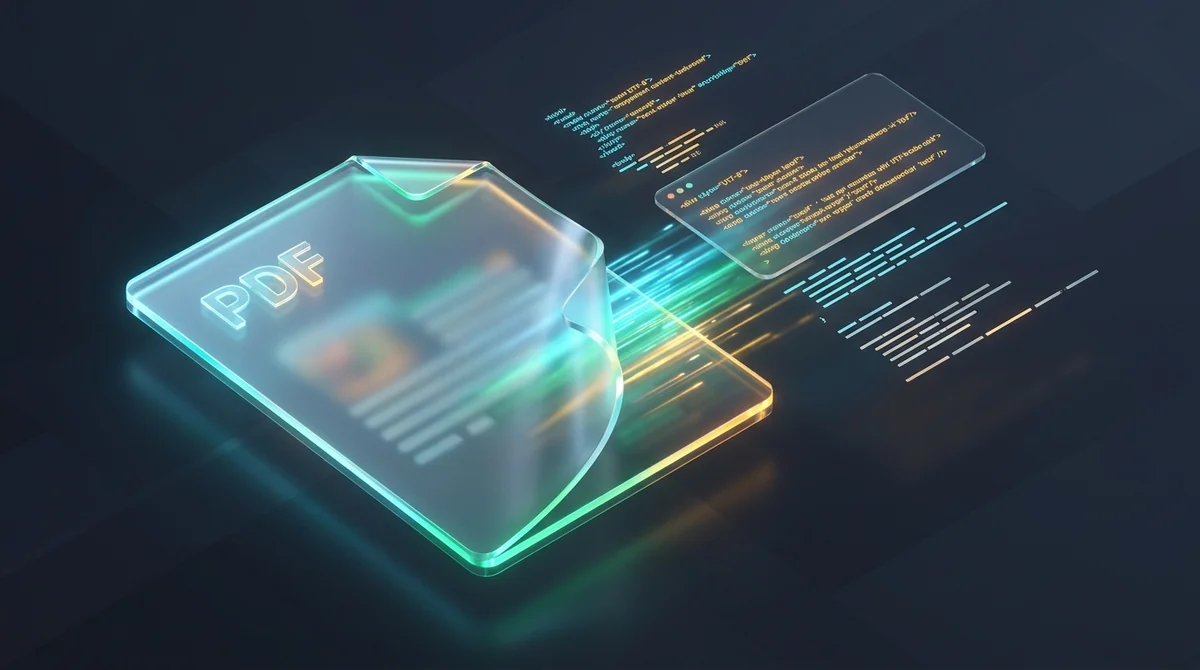
To convert a PDF to text online for free, use a dedicated text extraction tool like AZ2PDF. The engine strips styling, graphic layers, and background images, parses the underlying character codes into logical reading order, and produces a clean, unformatted UTF-8 plain text file without requiring software installation, paid subscriptions, or account registration.
- Clean unformatted output: Strips complex formatting, embedded fonts, and decorative styling to deliver clean plain text ready for coding, database ingestion, or AI analysis.
- Logical reading order reconstruction: Intelligently navigates multi-column articles, footnotes, and sidebars without scrambling sentences or mashing columns together.
- 100 percent free with zero watermarks: Enjoy unlimited document conversions without subscriptions, credit cards, file caps, or promotional stamps.
- Ephemeral RAM data security: Files are processed strictly in volatile memory and permanently wiped within 5 minutes by an automated background purge daemon.
Why copying text directly from a PDF viewer fails
Almost everyone who works with digital documents has experienced this annoyance: you open a PDF contract, research report, or invoice in your web browser, highlight several paragraphs with your mouse, press copy, and paste the content into your text editor or email. Instead of clean, continuous prose, you end up with an unreadable mess.
Sentences are abruptly chopped into three-word fragments because of hard line breaks. Hyphenated words across line boundaries remain split in half. Two-column articles paste together horizontally, mixing lines from the left column with the right column into complete nonsense. In addition, invisible ligature characters like "fi", "fl", and "ffi" either disappear entirely or turn into strange question marks and square boxes.
To understand why this happens, you have to understand how the Portable Document Format (PDF) works under the international ISO 32000 standard. Unlike word processor documents or HTML web pages, a PDF is not a stream of flowing text. It is a digital instruction manual for drawing ink on paper. When a document author exports a file to PDF, the application calculates exact coordinates on a two-dimensional canvas for every single character glyph.
When you use a basic viewer to copy text, the viewer merely guesses where words begin and end based on physical proximity. A dedicated converter like the AZ2PDF PDF to Text tool solves this fundamental problem. It analyzes character spacing, bounding boxes, and font mapping dictionaries, reconstructing the true reading flow into a clean, unformatted UTF-8 plain text file.
Native digital PDFs vs scanned bitmaps: When to use text extraction vs OCR
Before converting any document, it is crucial to recognize the two fundamentally different types of PDF files. Choosing the right tool depends entirely on whether your document contains real digital characters or merely pictures of paper.
1. Native digital PDF files: These documents are generated directly by software such as Microsoft Word, Google Docs, LaTeX, Adobe InDesign, or web print engines. Inside the file structure, the text exists as actual character codes mapped to font glyphs. When you zoom in to 800 percent magnification, the text remains razor-sharp with no fuzzy edges. For these documents, direct plain text extraction is instantaneous, 100 percent accurate, and requires zero guesswork.
2. Scanned raster bitmaps: These documents are created by hardware photocopiers, flatbed scanners, or mobile camera apps. Even though the file extension is .pdf, the document actually contains large raster images (JPEG or TIFF bitmaps) glued onto digital pages. The file has no underlying character codes, no font dictionaries, and zero digital words. If you zoom in close, you will see jagged pixel clusters and paper texture.
If you run a scanned bitmap through a standard text extraction engine, your resulting text file will be completely empty. In such situations, you need Optical Character Recognition (OCR), which visually inspects ink patterns and translates pixel shapes into digital letters. If your file is a scanned document, you should use the AZ2PDF OCR PDF tool instead. For all native digital files, our free text extraction engine delivers instant results.
How to convert any PDF to plain text online in 3 simple steps
Converting complex PDF files into clean, unformatted plain text on AZ2PDF takes only a few seconds. The entire process requires no software downloads, no registration, and zero technical experience.
Step 1: Upload your PDF document
Open the free PDF to Text converter in any modern desktop or mobile web browser. Drag and drop your file directly onto the upload zone, or click the browse button to select a document from your computer, tablet, or smartphone. The tool accepts documents of any page count without charging fees or demanding credit card details.
Step 2: Automated layout and character stream parsing
Once selected, the extraction engine immediately parses the file structure in secure memory. It identifies individual text blocks, removes background imagery, strips decorative borders, and normalizes hyphenated words and whitespace across all pages.
Step 3: Download your clean TXT file
Click the download button to save your converted document as a standard UTF-8 plain text file (.txt). You can now open the file in Notepad, VS Code, TextEdit, or command-line terminals, or copy the entire text into your preferred AI prompts and database scripts without dealing with weird formatting artifacts.
Behind the scenes: How layout engines reconstruct reading order under ISO 32000
To appreciate why automated text extraction produces far superior results compared to manual copy-paste, let us look at the technical mechanics under the hood of the ISO 32000 PDF standard.
Inside a PDF content stream, text is enclosed between the Begin Text operator (BT) and End Text operator (ET). Within these blocks, text characters are positioned on the page using transformation matrices (Tm) and operators like Tj (which shows a single string) and TJ (which shows strings with individual character spacing adjustments). Crucially, these drawing operators do not have to be recorded in visual reading order. An application might draw the footer first, then the right sidebar, then the header, and finally the main paragraph.
A sophisticated extraction engine performs four rigorous computational phases to rebuild natural reading order:
- Character matrix sorting: The engine inspects the X and Y coordinates of every glyph on the page canvas, grouping characters that share a common baseline into coherent lines of text.
- Layout and column detection: By measuring horizontal gaps between character clusters, the engine determines whether a page has a single text column or multiple columns. It processes each column sequentially from top to bottom, preventing the dreaded cross-column sentence interleaving.
- Unicode character mapping (ToUnicode CMap): Many professional PDFs embed custom font subsets where internal character IDs do not match standard ASCII values. The extraction engine parses the
/ToUnicodemapping dictionary embedded in the font resource, translating private character indices back into standard UTF-8 code points. - Ligature decomposition and de-hyphenation: Typographic ligatures like the single glyph for "fi" (Unicode U+FB01) are automatically decomposed into separate "f" and "i" characters, and words split across line breaks with hyphens are joined seamlessly.
High-value use cases: Why clean plain text powers modern technical workflows
While rich visual formatting is desirable for reading on screen, raw unformatted text is the preferred format for automated data processing, artificial intelligence, and software engineering. Here are the primary scenarios where plain text extraction excels:
1. Artificial intelligence, LLM prompts, and RAG pipelines
Large Language Models like ChatGPT, Claude, and Gemini process information as tokens. Feeding raw binary PDF files or poorly extracted text into an AI model wastes expensive token context on formatting syntax, broken line tags, and graphic metadata. A clean UTF-8 text file provides pure semantic content, allowing Retrieval-Augmented Generation (RAG) vector embeddings to index your knowledge base with maximum accuracy and minimum token cost.
2. Programming, regex pattern matching, and data science
Data engineers and software developers frequently need to extract specific records, such as financial transactions, email addresses, phone numbers, or invoice IDs from hundreds of PDF reports. Running regular expressions (regex) or Python scripts against binary PDF files requires heavy third-party libraries. Converting documents to plain text allows engineers to use native command-line tools like grep, sed, and awk, speeding up data ingestion pipelines significantly.
3. Academic research and literature reviews
Researchers gathering source material from scientific journals often need to quote methodology sections or compare findings across multiple papers. Extracting text to TXT files removes stubborn double-column journal formatting, footnote interruptions, and page header clutter, making it effortless to paste quotes into reference managers like Zotero or Obsidian.
4. Document comparison and version control diffs
Tracking subtle contractual changes between two versions of a 50-page agreement is virtually impossible when comparing visual PDF layouts. By converting both documents into plain text, legal teams can run standard diff utilities to instantly highlight every inserted, deleted, or altered word without being distracted by shifted margins or font changes.
Comparing your options: In-memory web tools vs command-line utilities vs office suites
When you need to extract text from a PDF, several approaches are available depending on your technical requirements and environment.
Option 1: Modern in-memory web converters
Tools like AZ2PDF provide the ideal balance of speed, accessibility, and precision. You do not need to install Python, Poppler, or Adobe Acrobat Pro on your machine. Everything runs directly through your web browser with a clean interface, zero financial cost, and complete privacy protection through automated memory purging.
Option 2: Command-line utilities
For Linux system administrators and automation engineers, command-line packages like Poppler utilities (pdftotext) or Python libraries (pypdf, pdfplumber) offer powerful local batch processing capabilities. While highly effective, they require terminal knowledge, software installation, dependency management, and ongoing maintenance.
Option 3: Office word processors
Opening a PDF inside Microsoft Word or Google Docs forces the application to reconstruct full document styling, including paragraph margins, heading styles, and table borders. While helpful if you intend to rewrite the entire document, it is excessively slow for simple text extraction and frequently injects unwanted XML formatting bloat into your clipboard.
Privacy first: Why volatile memory processing protects sensitive data
Many users hesitate to upload confidential contracts, financial balance sheets, and personal identity documents to online file conversion websites, and for good reason. Poorly designed web platforms often store uploaded files on permanent hard disks, create unencrypted temporary directories, or retain user data indefinitely for advertising profiling.
AZ2PDF operates under a strict privacy-first engineering standard. When you upload a document to our PDF to Text converter, the file is loaded directly into volatile system memory (RAM). The layout engine parses the character streams in memory and outputs the text file on the fly. No user documents are ever written to permanent storage drives, databases, or public cloud storage buckets.
Furthermore, an automated background system daemon continually monitors active memory threads, permanently purging all session artifacts within 5 minutes of completion. Your private files cannot be accessed by search engine web crawlers, third-party trackers, or unauthorized personnel.
Connected workflows: Next steps to transform and organize your documents
Text extraction is frequently just one step in a larger document management pipeline. Depending on your project goals, AZ2PDF provides a complete suite of interconnected document tools to streamline your productivity:
- Working with scanned paperwork: If your document turned out to be an image scan, run it through our OCR PDF tool to recognize characters and generate a searchable document.
- Preserving rich document styling: If you need to retain bullet points, tables, and typography for editing in Microsoft Office, convert your document using our PDF to Word tool.
- Extracting financial spreadsheets: If your PDF contains structured data tables, balance sheets, or tax ledgers, use the PDF to Excel converter to export native XLSX spreadsheets without misaligned columns.
- Securing cleaned documents: Before emailing sensitive files to clients or business partners, lock them with military-grade 256-bit encryption using our Protect PDF tool.
Extract plain text quickly and securely using the free browser document processing suite on AZ2PDF, where client-side memory execution ensures your code scripts and confidential records remain completely protected.
Frequently asked questions
Is this online PDF to text conversion completely free to use?
Yes. The AZ2PDF PDF to Text tool is 100 percent free with no hidden charges, trial periods, subscription fees, or page count limits. You do not need to create an account or provide an email address, and your exported TXT files will never contain watermarks or promotional headers.
Why did my converted text file come out empty or blank?
If your exported TXT file is empty, your source PDF is almost certainly a scanned document or a series of flat images rather than a native digital file. Scanned PDFs contain pixel bitmaps instead of character codes. To extract text from scanned files, run your document through the AZ2PDF OCR tool, which recognizes optical shapes and generates digital text.
Will text extraction preserve tables, bold fonts, and layout grids?
No. Plain text (.txt) format by definition strips all visual styling, font weights, colors, margins, and geometric tables to provide pure, unformatted Unicode characters. If you need to keep spreadsheet formulas and table columns intact, use the AZ2PDF PDF to Excel tool. If you need formatted headings and bold text, use the PDF to Word converter.
Can I extract text from a password-protected PDF document?
If the document has an open password (User Password) that encrypts the binary file contents, you must first decrypt it using the AZ2PDF Unlock PDF tool before extracting text. Once the password lock is removed, the text extraction engine can freely parse all characters across every page.
Are my confidential files and company data safe when converting online?
Yes. AZ2PDF uses an ephemeral in-memory processing architecture. Uploaded files exist only in volatile server RAM while the extraction script runs. No files are written to permanent storage or indexed by search engines, and a background system purge daemon permanently removes all data remnants within 5 minutes of completion.
❓ Frequently asked questions
Yes. The AZ2PDF PDF to Text tool is 100 percent free with no hidden charges, trial periods, subscription fees, or page count limits. You do not need to create an account or provide an email address, and your exported TXT files will never contain watermarks or promotional headers.
Related articles in this topic
Deep dive into related document organization and page manipulation workflows.
How to extract selectable text from scanned PDFs with OCR (free and private)
Learn how to convert scanned paper documents and photo PDFs into searchable, selectable text with free multi-language OCR. Fast, accurate, and 100% private in your browser.
How to convert PDF to Word without losing formatting (free and editable)
Learn how to convert PDF documents into fully editable Word DOCX files without broken fonts, shifted tables, or messy text boxes. Fast, free, and 100% private.
How to convert PDF to Excel spreadsheets free and accurately (no broken columns)
Convert PDF tables into editable Microsoft Excel spreadsheets (.xlsx) online for free. Extract financial data, bank statements, and invoices without broken columns.
How to convert PDF to PowerPoint slides online for free (editable decks)
Convert PDF slides into editable Microsoft PowerPoint PPTX decks online for free. Reconstruct vector text, shapes, and images without lost layouts or software fees.
How to convert Word to PDF without losing formatting (free and secure)
Learn how to convert Word DOCX and DOC documents into standardized PDF files with locked fonts, intact margins, and zero layout shifts. Fast, free, and 100% private.

How to compress a PDF without losing quality (free and fast)
Learn how to compress PDF file sizes by up to 85% for email and web uploads without blurry text or pixelated images. Fast, free, and 100% private in your browser.