How to convert Markdown to PDF online for free (clean print typography)
Quick summary
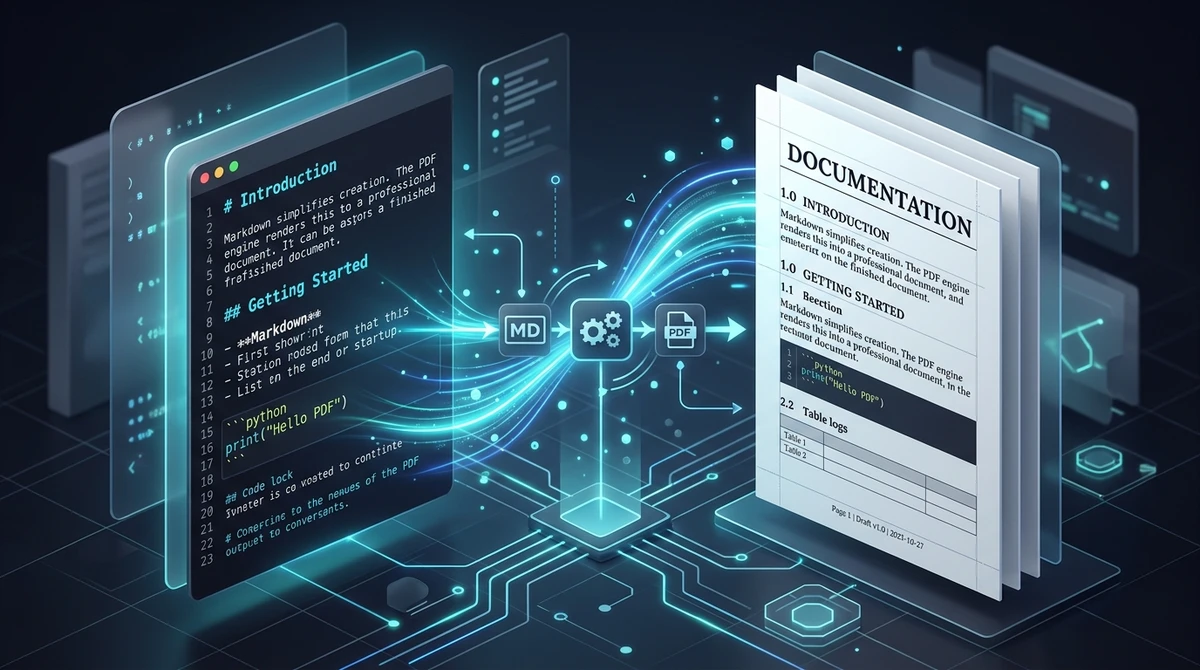
To convert Markdown to PDF online, you compile plain Markdown (.md) text into a typeset PDF document using an engine that parses CommonMark syntax and applies CSS Paged Media rules. AZ2PDF Markdown to PDF converts your files directly in your web browser with zero server data retention, preserving heading hierarchy, code syntax blocks, tables, and lists completely free with no watermarks.
- Typeset print-ready output: Automatically converts CommonMark markup into clean vector PDF pages with standard margins, proper line spacing, and balanced pagination.
- Code block formatting: Preserves monospaced fonts and syntax structure for technical documentation, README files, and developer specifications.
- 100% free with no limits: Convert unlimited Markdown documents to PDF without software fees, credit cards, account signups, or intrusive branding.
- Ephemeral privacy: Your files are processed in isolated temporary memory buffers and automatically cleared after conversion with zero data retention.
Why converting Markdown to PDF requires specialized typesetting
Software engineers, technical writers, students, and digital creators love Markdown for its elegance and speed. Created by John Gruber in 2004, Markdown allows anyone to draft structured documents using simple punctuation characters: hashes for headings, asterisks for emphasis, hyphens for lists, and backticks for code snippets. It keeps your hands on the keyboard and your words free from proprietary software lock-in.
However, an inherent tension exists between Markdown and physical documents. Markdown is designed for continuous, flowing screens. In a web browser or text editor, text can stretch indefinitely downward. Viewports adjust automatically to different monitor sizes, and there is no concept of a page edge, a sheet margin, or a physical page break.
The Portable Document Format (PDF), governed by the ISO 32000 international standard, operates on completely opposite principles. A PDF represents a fixed physical sheet of paper, typically an A4 sheet measuring 210 by 297 millimeters or a US Letter sheet measuring 8.5 by 11 inches. Every line of text, heading, and diagram inside a PDF is locked into absolute two-dimensional coordinate positions.
When you attempt to transform a Markdown file (.md) into a PDF using basic text viewers or standard browser print dialogs, the result is often disappointing. Headings get orphaned at the bottom of pages, long code blocks get sliced awkwardly in half across page boundaries, table borders misalign, and font scaling looks inconsistent. Producing a publication-grade document requires an automated layout engine that applies professional typography rules and paged media geometry.
Render README files, developer wikis, and technical notes into elegant PDF booklets using the AZ2PDF Markdown to PDF converter. It supports GitHub-flavored syntax, LaTeX mathematical formulas, and syntax-highlighted code blocks.
How modern engines compile CommonMark into vector PDF documents
Generating a polished PDF from a lightweight text file involves a sophisticated multi-stage compilation pipeline. Dedicated tools do not simply take a screenshot of rendered HTML; they parse and typeset the content directly into vector instructions.
Here is what happens under the hood when your document is compiled:
- Abstract syntax tree parsing: The system parses your raw Markdown text according to strict CommonMark and GitHub Flavored Markdown (GFM) specifications. It builds an in-memory Abstract Syntax Tree (AST), identifying structural elements such as headings, list items, fenced code blocks, blockquotes, and inline emphasis.
- Semantic markup generation: The AST nodes are transformed into semantic HTML5 elements. Unlike messy word-processor exports, this output produces clean structural tags: h1 through h6 tags for heading hierarchies, pre and code tags for code snippets, and blockquote tags for callouts.
- CSS paged media styling: The semantic markup is linked to a specialized print stylesheet adhering to W3C CSS Paged Media standards. The rules define page geometry, such as 20mm outer margins, base font sizes, line heights, and elegant borders. Specialized page-break rules (such as break-inside: avoid) are applied to code blocks, tables, and blockquotes to ensure they do not split awkwardly across sheets.
- Vector PDF rendering: A specialized layout engine compiles the styled markup into native PDF vector operators. Fonts are embedded directly into the PDF binary dictionary, ensuring crisp readability on any screen or paper printout without pixelation. Text remains fully selectable, searchable via Ctrl+F, and compliant with modern document standards.
The resulting document looks like it was typeset by a professional desktop publishing suite, while taking only seconds to create from plain text.
How to convert Markdown to PDF online in 3 simple steps
You do not need to install command-line compilers like Pandoc, set up heavy Node.js libraries, or pay for expensive word processors just to print your notes. you can transform your documents directly inside your web browser. The entire process takes less than a minute:
- Upload your Markdown file: Drag and drop your .md or .markdown file into the upload zone, or click to select the file from your local hard drive or smartphone storage.
- Automatic typesetting and compilation: The engine instantly parses your CommonMark syntax, formats typography, highlights code blocks, and lays out pages according to standard margins.
- Download your typeset PDF: Click the download button to save your finished document. Your file is ready for printing, email distribution, or archiving, with zero watermarks, no account requirements, and no hidden subscriptions.
If you also need to manage, compress, or reorganize other documents across your workflow, you can explore the complete catalog of AZ2PDF free online PDF tools right from your browser at any time without paying fees.
Essential Markdown styling practices for professional documents
To produce the cleanest, most professional PDF documents, formatting your source Markdown with care makes a dramatic difference. Following these simple authoring guidelines guarantees predictable and beautiful output:
1. Maintain a strict heading hierarchy
Always use a single top-level heading (#) for your document title, followed by level-two headings (##) for main sections, and level-three headings (###) for subsections. Skipping levels (for example, jumping directly from # to ###) can disrupt document outline generation and visual hierarchy in the generated PDF.
2. Specify language tags for fenced code blocks
When including programming code, configuration files, or command-line scripts, always declare the language identifier immediately after the opening triple backticks (for example, ```python, ```bash, or ```json). This allows the rendering engine to apply appropriate syntax rules, monospaced typography, and line wrapping, preventing code from overflowing into the margin.
3. Format tables with consistent pipes and hyphens
While some Markdown editors tolerate loose table syntax, strict print compilers expect standard pipe-delimited tables. Include a complete header row, a delimiter row with hyphens, and clear column dividers. Keep table cell content concise to avoid excessively wide columns that might get squished on standard A4 or Letter sheets.
4. Use blockquotes for callouts and notes
Whenever you need to highlight warnings, tips, or quotes, prefix the lines with the greater-than character (>). The typesetting engine renders blockquotes with a subtle left accent bar and italicized styling, creating distinct visual separation from your main body paragraphs.
If you ever receive an annotated PDF manual and need to sync changes back to your Git repository, you can easily extract raw Markdown back from formatted PDFs to recover structured markdown source files.
Why dedicated web conversion beats command-line tools and desktop editors
When technical professionals need to convert Markdown to PDF, they often choose between three primary approaches. Comparing them reveals why an optimized web tool offers the ideal balance of speed, convenience, and formatting quality:
1. Dedicated online converters (AZ2PDF)
Online conversion through AZ2PDF requires zero software installation, zero dependencies, and zero setup time. It runs immediately on Mac, Windows, Linux, Chromebooks, and mobile phones. The typography is pre-tuned for clean paper margins and readable code blocks. The tool is 100% free, imposes no daily quotas, adds no watermarks, and respects your privacy by processing files in ephemeral memory.
2. Command-line compilers (Pandoc, wkhtmltopdf, LaTeX)
Power users often turn to Pandoc paired with pdfLaTeX, XeLaTeX, or wkhtmltopdf. While command-line pipelines offer immense customization, they come with substantial drawbacks. Installing a complete TeX Live distribution requires four to six gigabytes of disk space and complex font configurations. Updating packages or debugging obscure syntax errors can cost hours of engineering time just to print a short document.
3. Desktop editor exports (VS Code, Typora, Obsidian)
Exporting from local editors using built-in print dialogs is convenient, but the underlying Chromium print engines frequently struggle with paged media. Default exports often include header and footer timestamps, omit syntax background colors, and suffer from awkward page splits across long code blocks. Using a dedicated converter ensures that styling is tuned specifically for publication standards.
Quick fixes for broken links, syntax blocks, and page splits
If your converted PDF document does not look quite as expected, review these common formatting challenges and their straightforward solutions:
Missing local images: A frequent issue occurs when your Markdown file references local images stored on your computer (such as ). Because an online compiler runs in an isolated browser environment, it cannot access files stored on your private drive. To resolve this, upload your image to a secure image host and reference the full HTTPS web link, or convert the image into an inline Base64 data string directly inside your image tag.
Awkward page splits inside code snippets: If an extensive block of code begins near the bottom of a page, it might get sliced in two. While the AZ2PDF engine uses intelligent break-avoidance rules, you can also manually divide massive code snippets into smaller, focused blocks separated by descriptive text.
Overly wide data tables: Markdown tables with many columns or lengthy text entries can exceed the printable width of a portrait sheet. If your table looks cramped, consider simplifying the column headers, shortening cell values, or converting the table data to a dedicated spreadsheet.
Privacy and security: Why ephemeral processing keeps your documentation confidential
Markdown files often contain proprietary information, including internal engineering specifications, application architecture blueprints, draft blog posts, API keys, and personal journal notes. Uploading these documents to public utilities requires absolute trust in the platform data practices.
AZ2PDF is engineered with a strict privacy-first foundation. When you submit your Markdown file for conversion, the document is processed inside an isolated, ephemeral memory buffer. The typesetting engine compiles the vector PDF directly and streams the result back to your browser session.
We do not store your files on permanent hard disks, review your text, or share your data with third parties. An automated background cleanup daemon permanently clears all temporary buffers within 5 minutes. Once your download is complete and your session ends, no trace of your document remains on our infrastructure.
Bridge source code documentation and printable publications smoothly via the AZ2PDF browser-native document tools, ensuring rapid conversions without remote server dependencies.
❓ Frequently asked questions
Yes. The AZ2PDF Markdown to PDF tool runs entirely online in your web browser completely free of charge. You do not need to install Node.js, Python, Pandoc, or LaTeX, and there are no subscription fees, file size paywalls, or watermarks.
Related articles in this topic
Deep dive into related document organization and page manipulation workflows.

How to convert a website URL to PDF online (free and full-page)
Learn how to convert any webpage URL to a crisp, high-fidelity PDF online for free. Capture full layouts, backgrounds, and fonts without watermarks or software.
How to convert PDF to CSV online for free (clean table extraction)
Learn how to convert PDF tables into clean, structured CSV files online for free. Extract bank statements, invoices, and ledgers without broken columns or watermarks.
How to convert PDF to Markdown online for free (clean MD extraction)
Learn how to convert PDF documents into clean, structured Markdown (.md) files online for free. Extract headings, lists, and code blocks for LLMs, Obsidian, and web publishing.
How to convert EPUB to PDF online for free (clean pages and table of contents)
Learn how to convert EPUB ebooks to clean, printable PDF documents online for free. Preserve chapter navigation, cover art, and typography with zero software.
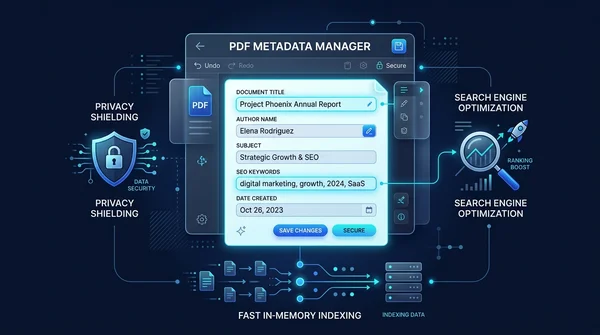
How to edit PDF metadata online for free (change title, author, and properties)
Learn how to edit PDF metadata online for free. Update document title, author, subject, and search keywords to improve SEO, professional branding, and privacy.
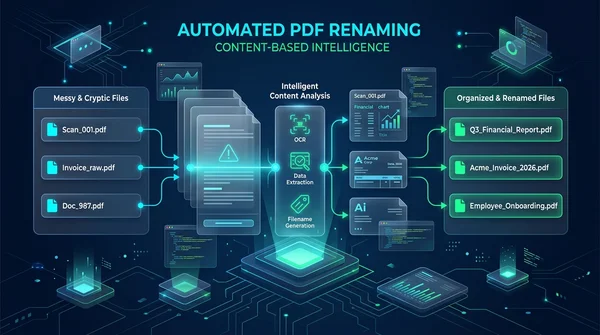
How to auto rename PDF files online for free (based on content)
Learn how to auto rename PDF files online for free based on document content and title tags. Organize cryptic scanner files and invoices with zero quality loss.