How to convert PDF to Markdown online for free (clean MD extraction)
Quick summary
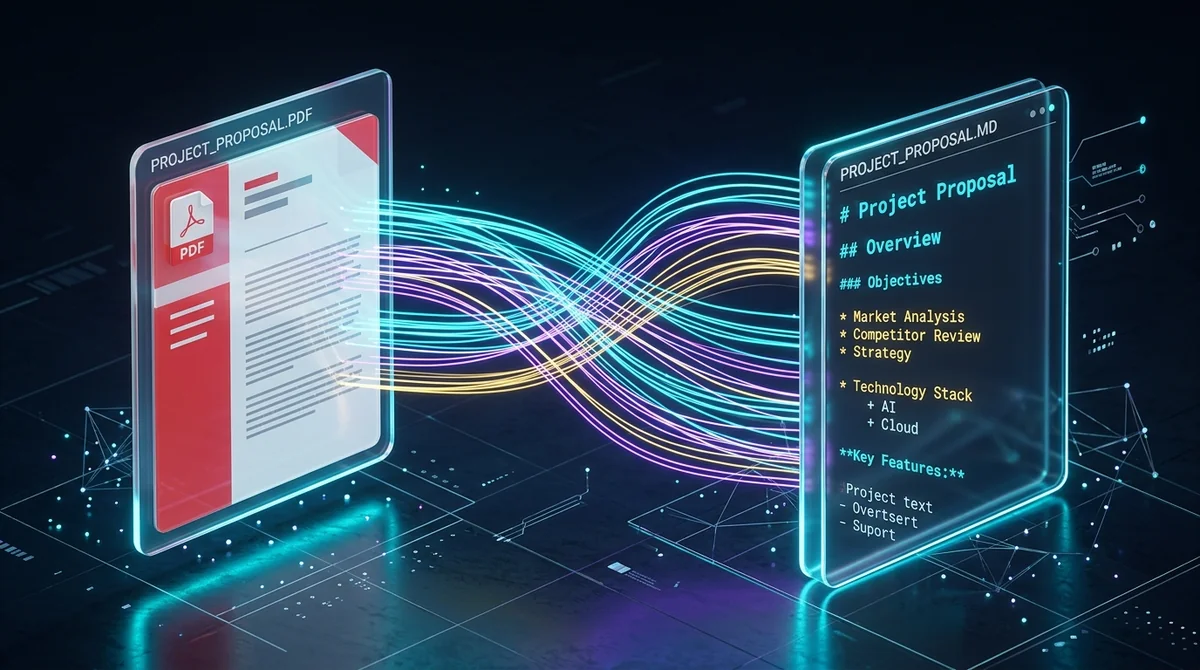
To convert a PDF to Markdown online, you extract the underlying text stream, detect typographic hierarchy (such as font scale, line breaks, and list markers), and map them into standard GitHub-flavored Markdown syntax (# for headings, * for lists, and code blocks). Using AZ2PDF PDF to Markdown, this conversion executes entirely free in your browser with zero data retention, producing clean .md files ready for LLMs, Obsidian, and static site generators.
- Streamlined AI and LLM context: Markdown eliminates visual styling and page margins, saving up to 70% in token consumption compared to feeding raw PDFs into AI prompts.
- Preserved structural hierarchy: Automatically reconstructs headings, ordered and unordered lists, blockquotes, and code snippets into standard GitHub-flavored Markdown syntax.
- Complete data confidentiality: Document processing takes place in isolated, ephemeral memory buffers with automatic purging, ensuring your private documentation never leaks.
- 100% free with no limits: Convert unlimited PDF documents to Markdown without account registration, daily file quotas, or intrusive watermarks.
Why converting PDF to Markdown is more complex than copying text
Software developers, artificial intelligence researchers, technical writers, and knowledge workers frequently encounter a stubborn barrier when working with documentation: the Portable Document Format (PDF). Whether you are analyzing academic research papers, corporate annual reports, technical whitepapers, or API specifications, PDF remains the worldwide standard for document distribution. Yet, the moment you attempt to extract that text into an editable, modern format like Markdown (.md), standard tools crumble.
To understand why turning a PDF into clean Markdown is so challenging, you have to look beneath the surface at how PDF files work. Under the international ISO 32000 standard, a PDF is not a flowing text document like a Google Doc or Microsoft Word file. Instead, it is essentially a two-dimensional visual canvas defined by absolute PostScript coordinate geometry. The file contains precise mathematical instructions telling a rendering engine where to place individual glyphs on a fixed paper sheet: text positioning operators like BT (Begin Text), ET (End Text), and coordinate transformation matrices (Tm).
Because the PDF format prioritizes visual placement over semantic meaning, it has no native concept of a paragraph, an H1 or H2 heading, a bullet list, or a blockquote. Words on the same visible line might be stored in reverse order in the underlying binary stream. Line wraps that were created solely to prevent text from falling off the edge of an A4 page are encoded as hard line breaks. When you highlight and copy text using a basic PDF viewer, you end up with fragmented sentences, arbitrary line breaks mid-thought, hyphenated word fragments (such as "docu- ment"), and a total loss of structural hierarchy.
Markdown, by contrast, is an inherently semantic and structured format. In Markdown, text flows continuously, and structural elements are denoted by clean, lightweight syntax: hashes (#) for headings, asterisks (*) for unordered bullet lists, numbered prefixes for sequential steps, and backticks for code blocks. Converting a PDF to Markdown requires an intelligent extraction pipeline that reconstructs reading order, measures font sizes to deduce heading levels, strips away physical page margins, and converts visual layout into clean markup.
Transform complex technical documentation and whitepapers into developer-friendly Markdown with the AZ2PDF PDF to Markdown converter. It parses heading hierarchies, fenced code blocks, and lists into clean CommonMark syntax.
Why Markdown is the ultimate format for LLMs, RAG, and note-taking vaults
Over the past few years, the demand for high-fidelity PDF to Markdown conversion has exploded. What was once a niche convenience for programmers has become a foundational workflow for modern software development, artificial intelligence, and personal knowledge management.
1. Massive token savings and cleaner context for AI models
When feeding documents into Large Language Models (LLMs) such as GPT-4, Claude 3.5, Gemini 1.5, or local open-weight models via Ollama, token efficiency directly dictates operating costs, context window limits, and response quality. Feeding raw PDF text into an LLM wastes thousands of precious tokens on irrelevant page geometry, header repetitions, footer page numbers, and binary font markers. In contrast, clean Markdown strips out the noise while preserving the logical structure, reducing token consumption by 50% to 75% without losing a single piece of meaningful context.
2. Superior dense vector retrieval in RAG pipelines
Retrieval-Augmented Generation (RAG) systems rely on semantic vector embeddings to search through enterprise knowledge bases. When documents are chunked into vector databases (such as Pinecone, Qdrant, Milvus, or Chroma), embedding raw PDF text produces noisy vector representations due to broken lines and disconnected sentences. Markdown provides natural structural delimiters: chunking by H2 (##) or H3 (###) headings allows vector search engines to isolate complete, coherent topic sections, resulting in significantly higher retrieval accuracy and fewer AI hallucinations.
3. Seamless integration with Obsidian, Notion, and Logseq
Knowledge workers using Personal Knowledge Management (PKM) systems like Obsidian, Logseq, Foam, or Notion rely heavily on local Markdown files. Storing research papers, book notes, and meeting summaries as Markdown allows users to create bidirectional links ([[wiki-links]]), tag topics, and maintain a permanent, future-proof second brain that is not locked inside proprietary binary formats.
4. Painless version control and Git diffs for documentation
Engineering teams frequently need to migrate legacy PDF product manuals and system architectures into modern static site documentation frameworks, such as Docusaurus, VitePress, Hugo, Astro, or MkDocs. You cannot track changes or review pull requests on binary PDF files. Once converted to Markdown, every paragraph, code example, and parameter can be tracked line by line with standard Git commits and diffs.
How to convert PDF to Markdown online in 3 simple steps
You do not need to install complex Python libraries, configure command-line utilities, or pay for expensive enterprise document software to turn your PDFs into clean Markdown. you can process documents in seconds directly in your web browser. Here is the straightforward process:
Step 1: Upload your PDF document
Navigate to the converter in your web browser. Drag and drop your PDF file directly into the designated upload area, or click the browse button to select a file from your computer or mobile device. Because the tool runs as an optimized web utility, file loading begins immediately.
Step 2: Automated structural extraction
Once your file is loaded, our extraction engine analyzes the text stream. It detects typographic characteristics across your document: large bold fonts are classified into appropriate heading tags (#, ##, ###), bulleted points are aligned into standard Markdown lists, and paragraphs are normalized with clean line spacing.
Step 3: Download your clean Markdown (.md) file
When the extraction completes, click the download button to save your formatted .md file directly to your local storage drive. Your file is ready to be opened in Obsidian, pushed to a GitHub repository, or passed directly into an AI prompt. The entire service is 100% free with no account registration, no file size paywalls, and no watermarks added to your content.
If you also need to organize, merge, or compress other office files, you can access the full suite of AZ2PDF free online PDF tools at any time without paying recurring subscription fees.
Markdown vs plain text vs HTML: Choosing the right conversion output
When you need to extract content from a PDF document, multiple formats are available. Understanding the operational differences between Markdown, plain text, and HTML ensures you select the optimal output for your specific workflow:
Option 1: Markdown (.md) - Ideal for AI, note-taking, and developer wikis
Markdown strikes the perfect balance between human readability and machine structure. It provides clear semantic markers for headings, lists, blockquotes, and code snippets while remaining pure plain text. Choose Markdown when your destination is an AI model, a GitHub README, an Obsidian vault, or a static documentation site.
Option 2: Plain text (.txt) - Ideal for raw data processing and terminal scripts
If you only need unformatted words and do not care about headings, bold styling, or list markers, converting to plain text is the lightest option. giving you pure UTF-8 characters that are perfect for regex parsing, bash CLI tools like grep or awk, and word-count verification.
Option 3: Web HTML (.html) - Ideal for publishing responsive web pages
Option 4: Editable Word (.docx) - Ideal for office contracts and team redlining
After refining your technical documentation inside your favorite code editor, you can seamlessly render updated Markdown notes back into styled PDF to generate executive-ready documentation for non-technical teams.
Native digital PDFs versus scanned images: Why OCR makes the difference
One of the most common surprises users experience when converting documents is discovering that certain PDF files yield empty or scrambled Markdown. To avoid this frustration, it is essential to understand the difference between native digital PDFs and scanned image PDFs.
Native digital PDFs: Instant and flawless extraction
A native digital PDF is generated directly from software: exported from Microsoft Word, compiled from LaTeX, saved from Google Docs, or printed to PDF from a web browser. These documents contain true vector character codes and embedded font dictionaries (including /ToUnicode mapping tables). The converter reads the binary glyph codes directly, yielding flawless text accuracy, complete character preservation, and instant conversion speeds.
Scanned PDFs: Flat raster images requiring optical character recognition
A scanned PDF is created when physical paper is fed through a desktop scanner, office photocopier, or captured with a smartphone camera. To the computer, this document contains no text whatsoever. It is simply a container holding large bitmap photographs (encoded under /XObject /Subtype /Image) of printed paper.
If you upload a scanned image PDF directly into a standard text-based converter, the engine will find no digital text streams to extract. To turn a scanned paper document into Markdown, you must first process the document through an Optical Character Recognition engine. By running your scanned document through the AZ2PDF OCR PDF tool, the optical engine inspects the raster pixels, recognizes letter shapes across multiple languages, and synthesizes a dual-layer searchable PDF. Once OCR is applied, the resulting file can be converted into clean Markdown seamlessly.
Best practices for clean Markdown and troubleshooting common formatting issues
To ensure your converted Markdown files require minimal manual cleanup, keep these practical engineering guidelines in mind:
1. Managing multi-column layouts and sidebars
Academic papers and magazine articles frequently use two-column or three-column grid layouts. A common issue with basic extraction scripts is reading across the page horizontally, interleaving words from column one into column two. Modern conversion engines evaluate vertical column gutters and process the left column completely before proceeding to the right column. However, decorative sidebars or callout boxes may occasionally appear slightly out of sequence in the final Markdown file. A quick manual pass to verify section order is good practice for complex multi-column publications.
2. Handling complex data tables
Standard Markdown tables require a rigid pipe-and-hyphen syntax (| Header | Header |). If your PDF contains dense financial balance sheets, multi-line table cells, or merged header spans, converting them directly into standard Markdown can lead to misaligned columns. For complex tabular data, a more reliable workflow is to extract the tables into a spreadsheet first and then copy the clean tabular data into your Markdown editor.
3. Preserving code blocks and mathematical notation
Technical papers containing software source code or mathematical equations represent a unique challenge. In pure PDF, code snippets are usually rendered in a monospace font (such as Courier or Consolas) but without explicit language tags. When converting to Markdown, check that indentation is preserved and wrap code snippets in triple backticks (```) with your preferred language identifier (such as python or javascript) for syntax highlighting.
4. Cleaning up hyphenated words at line ends
In printed books and formal reports, long words are frequently split across lines with a hyphen (for example, "implemen-" on line one and "tation" on line two). Advanced extraction algorithms automatically detect soft hyphens followed by a line break and reconnect the word. If your source document used non-standard typography, running a quick search-and-replace for trailing hyphens ensures seamless text flow.
Privacy and data confidentiality: Why ephemeral in-memory processing matters
Technical specifications, internal company roadmaps, patent filings, legal briefs, and proprietary research are among the most common documents converted into Markdown for internal wikis and AI knowledge bases. For organizations and independent researchers, uploading confidential documents to third-party web tools introduces real data governance risks.
Many online utilities store uploaded files indefinitely, sell user data, or even feed customer documents into third-party AI training sets. AZ2PDF is built from the ground up on a strict privacy-first foundation. When you convert a document using our platform, your file is loaded into an isolated, temporary in-memory execution buffer. The text extraction engine processes your file and immediately delivers the generated Markdown directly back to your browser session.
We do not maintain permanent file archives, inspect your document contents, or retain your data. An automated background system daemon permanently purges temporary memory buffers within 5 minutes. Once you download your Markdown file and close your browser, your data is gone forever.
Furthermore, if you handle large research papers or confidential archives that require additional security before distribution, you can combine our tools for an end-to-end workflow: compress oversized files using AZ2PDF Compress PDF, protect sensitive documents with military-grade AES-256 encryption via AZ2PDF Protect PDF, or merge multiple chapters together using AZ2PDF Merge PDF. Every tool is 100% free, private, and accessible on any device without software downloads.
Empower your developer workflows with the AZ2PDF document formatting platform, providing zero-latency text parsing backed by strict client-side data isolation.
❓ Frequently asked questions
Yes. The AZ2PDF PDF to Markdown tool is 100% free with no account registration, subscriptions, daily file caps, or watermarks. You can upload and convert your documents directly in your web browser.
Related articles in this topic
Deep dive into related document organization and page manipulation workflows.
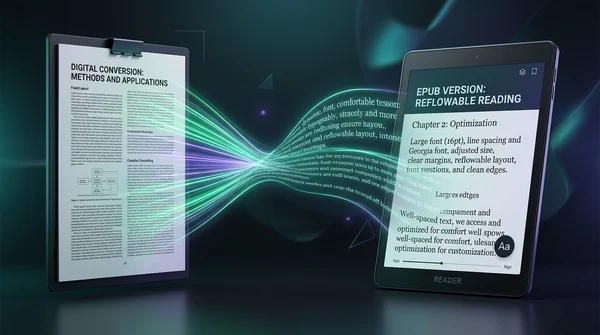
How to convert PDF to EPUB online for free (reflowable text for e-readers)
Learn how to convert PDF documents to reflowable EPUB ebooks online for free. Read comfortably on Kindle, Kobo, and Apple Books without pinch-to-zoom fatigue.
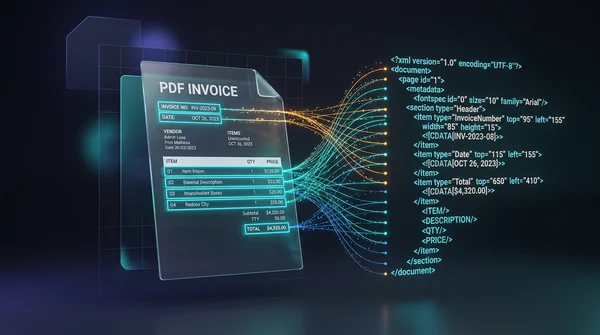
How to convert PDF to XML online for free (structured data with coordinates)
Learn how to convert PDF documents to structured XML online for free. Extract bounding box coordinates, font styles, and text nodes with zero software.
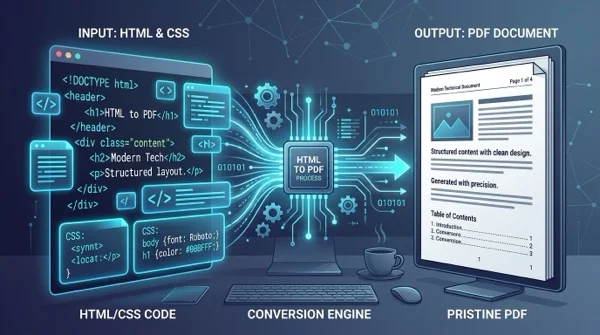
How to convert HTML files to PDF online without losing formatting
Learn how to convert HTML files and CSS styles into print-ready PDF documents online for free. Maintain exact fonts, page breaks, and layout without watermarks.
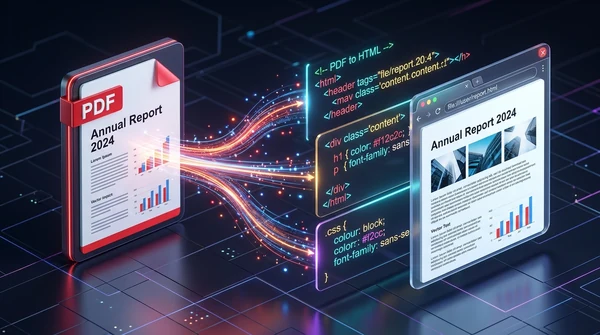
How to convert PDF to HTML online for free (clean code and layout preservation)
Learn how to convert PDF documents into clean, responsive HTML web pages online for free. Preserve fonts, text styling, and graphics without watermarks.
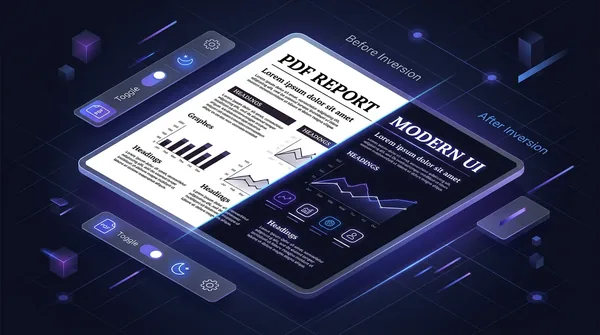
How to invert PDF colors for dark mode online (free and eye friendly)
Learn how to invert PDF colors to high-contrast dark mode online for free. Eliminate eye strain, save OLED battery, and keep vector text 100% sharp and searchable.
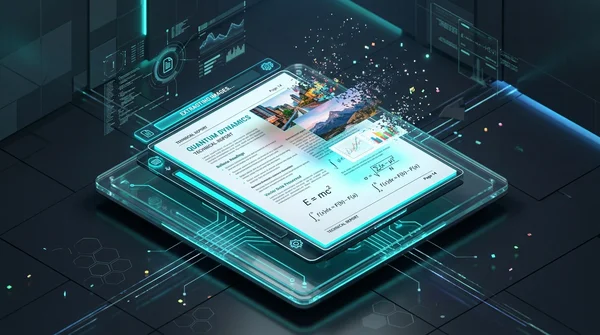
How to remove all images from a PDF file online for free (pure text and vectors)
Learn how to strip embedded raster images, photos, and backgrounds from PDF files online for free. Keep sharp vector text, save printer ink, and slash file sizes.