How to password protect a PDF for free (AES-256 encryption)
Quick summary
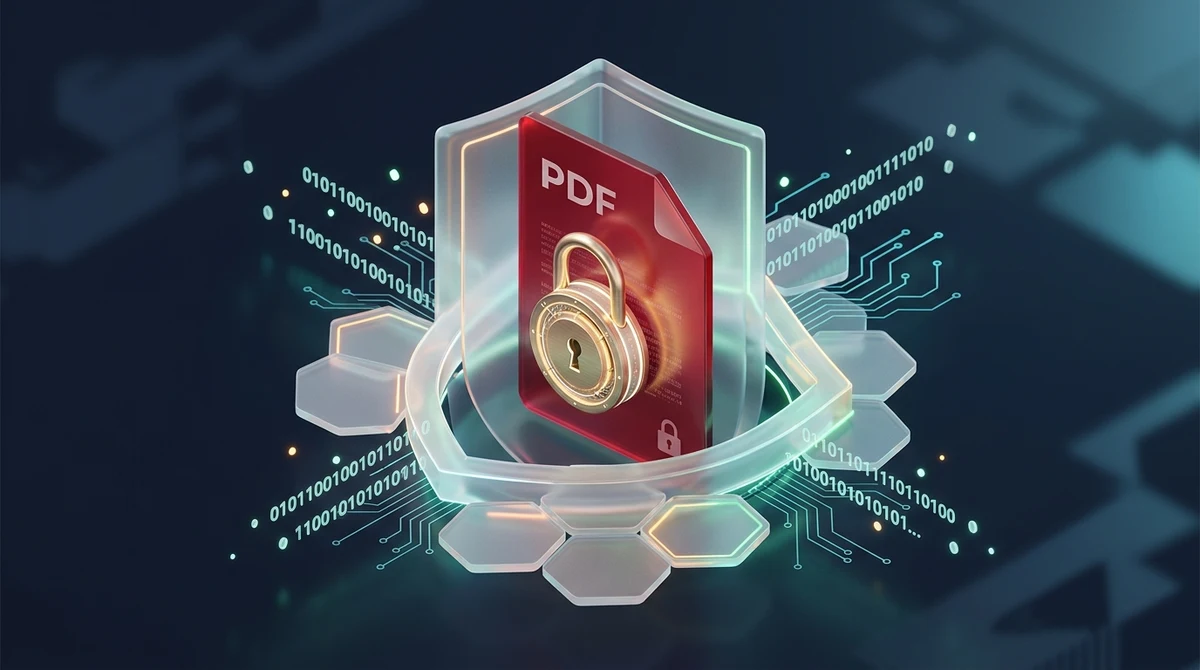
To password protect a PDF for free, upload your document to AZ2PDF Protect PDF, enter a strong password, and download the encrypted file. The system applies military-grade AES-256 encryption to lock the document against unauthorized viewing and tampering, operating with zero watermarks, no account signup, and automatic 5-minute memory purging for complete data confidentiality.
- Military-grade AES-256 standard: Applies 256-bit cryptographic keys trusted by banking and defense institutions, ensuring unauthorized access is mathematically impossible.
- Zero software cost: Protect unlimited PDF documents without expensive software subscriptions like Adobe Acrobat Pro or complex command-line utilities.
- In-memory data protection: Files process in isolated temporary memory buffers and are permanently purged within 5 minutes, leaving zero trace on external servers.
- No backdoor recovery: Strong cryptographic encryption cannot be bypassed without the correct password, making secure password management critical before distribution.
Why password protecting your PDF files matters in today's digital landscape
Every day, millions of confidential documents travel across the internet through email attachments, messaging apps, and cloud drives. These files often contain our most sensitive personal and commercial records: employment contracts, monthly payroll summaries, medical histories, tax returns, banking statements, and corporate trade secrets.
When you send an unencrypted PDF, the file acts like an open postcard. Anyone who intercepts the transmission, gains access to an email inbox, or accesses an unmonitored shared folder can immediately read every figure and personal identifier on the page. Even worse, modern automated bots regularly scan cloud repositories looking for unencrypted documents containing credit card numbers or Social Security information.
Password protecting your PDF files transforms that open postcard into a locked, impenetrable safe. By applying cryptographic encryption, the contents are scrambled into unreadable binary cipher text that can only be unlocked with the authorized passkey. Whether you are an HR manager delivering annual compensation letters, an attorney sending litigation discovery briefs, or an individual submitting loan applications, securing your PDF documents is an essential digital hygiene practice.
Safeguard confidential contracts, payroll records, and intellectual property by deploying the AZ2PDF Protect PDF tool. It applies industry-standard AES-256 encryption with customizable permissions for printing, copying, and content editing.
Safeguard confidential contracts, payroll records, and intellectual property by deploying the AZ2PDF Protect PDF tool. It applies industry-standard AES-256 encryption with customizable permissions for printing, copying, and content editing.
Understanding AES-256: The gold standard of document encryption
Not all password protection methods offer the same level of security. Older software systems from the 1990s and early 2000s relied on 40-bit or 128-bit RC4 encryption. Today, modern graphics cards and consumer laptops can crack 40-bit RC4 encryption keys in just a few minutes using brute-force dictionary tools.
The global security benchmark for document protection is AES-256 (Advanced Encryption Standard with a 256-bit key length). Recognized by the National Institute of Standards and Technology (NIST) and utilized by defense organizations and international banks, AES-256 uses a symmetric block cipher that operates on 128-bit data blocks through 14 rounds of mathematical substitution, permutation, and mixing transformations.
To grasp the strength of a 256-bit key, consider the math: there are 2 to the power of 256 possible key combinations. This number is roughly 1.15 times 10 to the 77th power, which is comparable to the estimated number of atoms in the observable universe. Even if a supercomputer could test one billion billion combinations every single second, it would still take trillions of years to guess the correct cryptographic key. When you lock a document using AES-256, your information remains genuinely secure against brute-force attacks.
Open password vs permissions password: What is the difference?
When securing PDF documents under the official ISO 32000 standard, two distinct password layers exist. Understanding their roles helps you choose the right barrier for your documents:
1. User password (document open password)
A User Password, also known as an Open Password, creates a total viewing barrier. When a recipient opens the file in Adobe Acrobat, Apple Preview, Google Chrome, or a mobile PDF viewer, a prompt immediately appears demanding the key. Without entering the exact password, the reader cannot view a single page, cannot see thumbnail previews, and cannot read search metadata. This is the primary defense required for payroll records, bank statements, and medical evaluations.
2. Owner password (permissions and restriction password)
An Owner Password allows recipients to open and read the document freely, but restricts what actions they can take once inside. For example, an author can configure permissions to prevent recipients from printing the document, disable text copying to prevent plagiarism, or block form field modifications. However, because some third-party open-source PDF viewers do not strictly enforce permission flags, relying solely on an Owner Password does not provide complete data secrecy. For genuine confidentiality, an Open Password is always the recommended approach.
How to password protect a PDF for free in 3 simple steps
Securing your files takes less than twenty seconds no account registration, and no payment details:
Step 1: Upload your PDF document
Open the tool in your favorite web browser on desktop or mobile. Drag and drop your file into the designated upload area or click to browse your local device storage. The file loads smoothly into the secure processing pipeline.
Step 2: Enter your strong password
Type your desired password into the security input box. You can click the eye icon to verify that you typed the characters correctly, or click the copy icon to instantly save the password to your clipboard. This ensures you never lock a file with an unintended typing mistake.
Step 3: Encrypt and download your secured file
Click the Protect PDF button. The engine applies 256-bit AES encryption to every data stream inside the PDF container. Within seconds, your secured file is ready for download. Save it directly to your device and distribute it with confidence.
Should you or an authorized colleague ever need to strip security layers for bulk processing or archiving, you can quickly unlock password-protected files when authorized using your valid master credentials.
Best practices: Crafting uncrackable passwords for confidential files
Even the most powerful AES-256 encryption engine is only as strong as the password chosen to seal it. If an author uses common words like "password123" or their company name, automated dictionary scripts can discover the key in seconds regardless of the underlying algorithm. Follow these practical guidelines to ensure maximum protection:
- Use multi-word passphrases instead of single words: Modern security guidance recommends combining four or five unrelated words into a phrase, such as "velvet-copper-harbor-orbit". Passphrases provide astronomical character length that resists automated cracking, while remaining easy for human memory to retain.
- Incorporate diverse character types: Blend uppercase letters, lowercase letters, numbers, and symbols to maximize character entropy. A 16-character mixed passphrase is virtually impossible to crack with modern consumer hardware.
- Never send the password in the same email as the file: Sending an encrypted attachment and writing the password in the same email message completely undermines the protection. If an attacker intercepts the email, they have both the safe and the key. Instead, deliver the password via a separate communication channel, such as an encrypted SMS, a phone call, or a secure messenger like Signal.
- Store passwords in a dedicated manager: Never write sensitive passwords on physical sticky notes or in unencrypted text files on your desktop. Utilize an established password manager like Bitwarden, 1Password, or Apple Keychain.
Should you or an authorized colleague ever need to strip security layers for bulk processing or archiving, you can quickly unlock password-protected files when authorized using your valid master credentials.
Privacy first: Why in-memory processing beats traditional cloud storage
When searching for free online document utilities, users are often rightfully suspicious about data safety. Many legacy online tools upload your files to permanent web server hard drives, storing them in long-term databases for analytical profiling, automated content scraping, or targeted advertising. For lawyers, medical practitioners, and financial analysts, uploading private records to uncontrolled cloud disks represents an unacceptable compliance violation under GDPR and HIPAA.
At AZ2PDF free online PDF tools, document confidentiality is engineered directly into the infrastructure. When you submit a document for password protection, it is processed inside isolated, ephemeral RAM memory buffers. An automated system daemon monitors all active operations and permanently cleanses all temporary files from memory within 5 minutes of processing. Your files are never cached on permanent disk arrays, never analyzed by third-party tracking scripts, and never viewed by human operators.
Connected security workflows: Redact, sanitize, and watermark before locking
Password protection is the final lock on the front door, but comprehensive document security often requires preparing the content before applying encryption. Here are three recommended preparation steps available across the AZ2PDF ecosystem:
1. Permanent redaction for sensitive details
If your document contains tax identification numbers, banking routing figures, or private home addresses that the recipient does not need to see, draw blacked-out redaction boxes over them first. Proper redaction removes the underlying text stream permanently rather than simply placing a colored box over it.
2. Metadata sanitization
PDF documents often carry hidden metadata tags, including the original author name, operating system version, computer file paths, and editing history. Running your file through metadata removal utilities strips these silent digital fingerprints before you lock the document.
3. Visual security watermarks
Adding a semi-transparent watermark across every page reading "CONFIDENTIAL" or "INTERNAL USE ONLY" discourages authorized recipients from taking photos of their screen or re-sharing printouts without permission.
Protect your most sensitive documents against unauthorized access using the AZ2PDF secure PDF suite, featuring bank-grade encryption executed entirely within your browser's private memory.
Quick fixes for common PDF password and encryption questions
Here are clear answers and solutions to the most frequent issues users encounter when working with encrypted PDF files:
1. What happens if I forget the password I set?
Because genuine AES-256 encryption operates without administrative backdoors or master override keys, there is no mathematical shortcut to recover the file if the password is lost. Neither AZ2PDF nor any software engineer can restore an encrypted document without the valid passphrase. Always retain your password in a safe location before closing your session.
2. Why does my phone ask for a password twice?
Certain mobile browsers and preview utilities trigger two separate background requests: one to render the thumbnail icon on your home screen and another to open the full viewport reader. Simply enter your password into the prompt to view the full document.
3. How can I remove the password in the future?
If you no longer need the document locked (for example, after a public financial report has been officially released), you can easily decrypt it. Enter the authorized password into the Unlock PDF tool on AZ2PDF, and the system will generate an unrestricted version that opens instantly without password prompts.
Protect your most sensitive documents against unauthorized access using the AZ2PDF secure PDF suite, featuring bank-grade encryption executed entirely within your browser's private memory.
❓ Frequently asked questions
Yes. AZ2PDF Protect PDF is 100 percent free with no account registration, no credit card requirements, no file size caps, and zero watermarks stamped on your protected documents.
Related articles in this topic
Deep dive into related document organization and page manipulation workflows.

How to add confidential and copyright watermarks to PDF online
Learn how to add custom text and transparent PNG logo watermarks to PDF files online for free. Configure opacity, angle, and position across all pages.

How to permanently redact sensitive information from a PDF for free
Learn how to permanently redact sensitive text, SSNs, and financial data from PDF files online for free. Expunge confidential bytes with zero traces and no Adobe Acrobat.

How to auto-redact sensitive data in a PDF for free (PII sanitization)
Learn how to automatically redact sensitive PII, credit card numbers, SSNs, and emails from PDF documents for free. Fast pattern detection with zero data leaks.
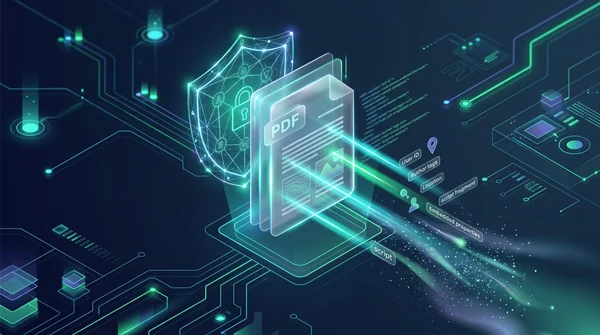
How to sanitize PDF files and wipe hidden author metadata (free and secure)
Learn how to sanitize PDF files by removing invisible author metadata, revision history, GPS tags, and dangerous JavaScript macros online. 100% free and private.
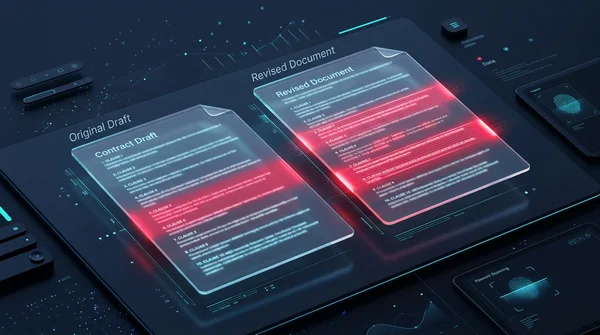
How to compare two PDF files for differences online (free and secure)
Learn how to compare two PDF documents online for free. Spot text changes, clause edits, and visual differences side by side without Adobe Acrobat.

How to overlay and superimpose PDF documents online (free and secure guide)
Learn how to overlay PDF pages, add digital letterheads, stamp approval seals, and superimpose blueprint drawings online for free. Fast, secure, and private.