How to convert PDF to HTML online for free (clean code and layout preservation)
Quick summary
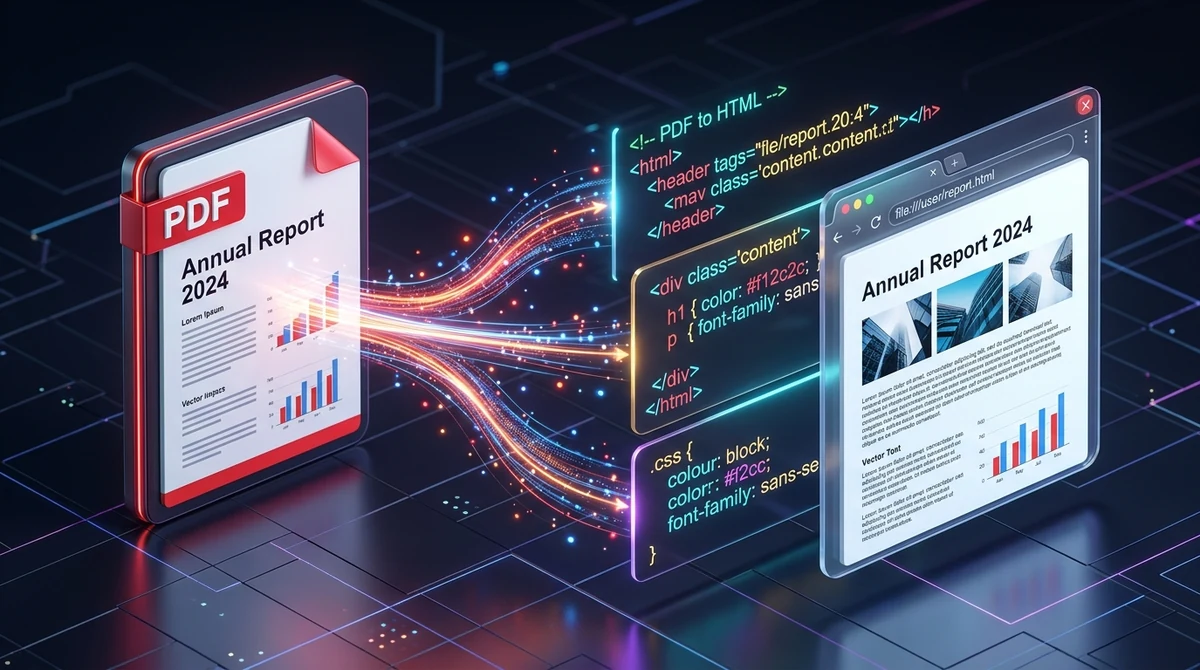
To convert a PDF to HTML online for free, upload your document to AZ2PDF PDF to HTML. The conversion engine compiles vector coordinates, typographic fonts, and image streams into standard HTML5 and CSS web pages, delivering accessible, search-engine indexable markup with zero cost, no software downloads, and no watermarks.
- Zero cost and no watermarks: Enjoy completely free, unlimited conversions without paid subscriptions, registration requirements, or promotional stamps.
- Precision layout preservation: Reconstructs exact visual hierarchies, font styling, and graphics coordinates without turning pages into blurry image screenshots.
- Web-native accessibility: Transforms static print pages into searchable DOM elements, selectable text, and responsive web building blocks.
- Ephemeral memory privacy: Operates in isolated server buffers that automatically purge documents immediately after download completes.
The friction between fixed print pages and the modern web
For more than three decades, the Portable Document Format (PDF) has served as the undisputed global standard for final document exchange. Governed by the ISO 32000 specification, a PDF is engineered to behave like digital paper. Whether a recipient opens an agreement on a high-end desktop workstation, an Android phone, or a Linux laptop, every margin, typographic glyph, header rule, and vector graphic appears in the exact physical millimeter where its creator intended.
However, this rigid strength becomes a major obstacle the moment you attempt to bring document contents into the modern web ecosystem. Modern websites are built on the Document Object Model (DOM) and flexible CSS layout engines. Web pages are inherently fluid: they stretch to fit ultrawide monitors, stack into vertical reading columns on smartphones, support instant text selection, integrate with screen readers for accessibility, and allow search engines like Google and Bing to crawl and index every sentence effortlessly.
When organizations attempt to display raw PDF documents directly inside web browsers, user friction quickly mounts. Traditional methods rely on embedded viewer plugins or standard HTML iframe tags. On desktop devices, these embedded viewers often introduce jarring double-scrollbar interfaces that disrupt site navigation. On mobile browsers, particularly mobile Safari on iOS, embedded PDF frames frequently refuse to zoom smoothly, cut off wide margins, or force users to download the entire multi-megabyte file to their local downloads folder before viewing a single line of text.
Furthermore, search crawlers often treat embedded PDF binary files as secondary attachments rather than core web pages. This reduces search discoverability and hurts overall organic traffic. Converting your PDF documents into clean, semantic HTML5 and CSS solves this challenge at its root. By translating locked vector pages into native web markup, you transform static print publications into responsive, interactive, and search-friendly web content.
Publishing document text directly to web browsers without relying on heavy PDF plugins is seamless with the AZ2PDF PDF to HTML converter. It extracts typography, CSS styling, and image assets into semantic, responsive HTML5 code.
How the conversion engine translates PDF streams into HTML and CSS
Transforming a compiled binary PDF into structured web markup requires far more than extracting raw text strings. A high-fidelity converter acts as a reverse layout compiler, mapping internal PostScript vector operations into standard web styling.
At its core, the conversion engine operates through several coordinated technical stages:
- Binary parsing and object tree traversal: The engine inspects the PDF header, resolves the cross-reference table (xref), and navigates the document catalog tree to locate each page object and its associated resource dictionaries.
- Vector coordinate mapping: In a PDF, element placements are calculated using a bottom-left Cartesian coordinate system measured in 72 points per inch. The engine translates these measurements into top-left web coordinates, generating absolute CSS positioning rules (such as position: absolute; left: 42px; top: 118px;) that mirror the original visual layout.
- Typography and glyph reconstruction: Rather than rasterizing paragraphs into fuzzy bitmap graphics, the engine analyzes font dictionaries. It extracts character codes, applies mapping tables (ToUnicode CMap), and assigns matching CSS font families, weights, and point sizes. This keeps text fully selectable and searchable.
- Image extraction and stream separation: Embedded photographs and raster illustrations stored in XObject dictionaries (using DCTDecode for JPEG or FlateDecode for PNG) are extracted and saved as web-compatible image assets referenced directly by standard img tags.
- Clean single-document compilation: The engine executes Poppler pdftohtml with dedicated flags (-s -c -noframes). The -s flag compiles all pages into a unified, scrollable document flow rather than fragmented sub-pages. The -c flag enables complex layout mode for pixel-perfect typographic fidelity. The -noframes flag ensures no legacy HTML frameset structures are generated, producing a modern, standalone HTML5 document.
The resulting HTML file can be opened immediately in any browser, uploaded to a web server, or integrated into a content management system without requiring external reader software or proprietary plugins.
How to convert any PDF to HTML online in 3 simple steps
Step 1: Upload your PDF document
Navigate to the converter in your web browser. Drag and drop your PDF file directly into the secure upload area, or click the selection button to choose the document from your local computer, tablet, or smartphone. The tool accepts files of all lengths, from single-page flyers to multi-chapter technical manuals.
Step 2: Automated layout and code compilation
Once your file is received, the high-performance processing engine automatically analyzes page geometry, extracts embedded graphics, and compiles the document into an integrated HTML5 document. The conversion completes in just a few seconds using high-speed in-memory computing.
Step 3: Download and use your HTML webpage
Click the download button to save your finished HTML file directly to your device. The generated file is completely free of watermarks, requires no user registration or email verification, and is immediately ready to view in any browser or edit in your favorite code editor.
If your daily workflow also involves compressing large files, reorganizing page sequences, or securing sensitive agreements, you can explore the complete suite of AZ2PDF free online PDF tools at any time with zero subscription fees.
Practical use cases: Why teams convert PDF documents to web pages
Converting PDF files to web markup provides strategic advantages across various business departments, academic institutions, and independent development projects:
1. Publishing technical documentation and user manuals
Product handbooks, API guides, and equipment manuals are frequently drafted in desktop publishing programs and distributed as heavy PDF downloads. Converting these assets into HTML allows customer support teams to host them as searchable knowledge base articles, enabling customers to find answers instantly using site search or standard search engines.
2. Maximizing SEO rankings and organic discoverability
Search engines can index plain HTML pages far more efficiently than binary PDF files. By converting whitepapers, research reports, and case studies into web pages, every headline, paragraph, and keyword becomes part of your primary website DOM, boosting topical authority and organic rankings.
3. Streamlining email newsletters and marketing collateral
Marketing teams often receive brochure layouts or sales one-pagers from graphic designers in PDF format. Converting these assets into HTML provides ready-to-use markup that can be adapted for HTML email templates, landing pages, or digital press releases without retyping text manually.
4. Migrating legacy corporate archives to modern CMS platforms
When migrating historical files from legacy file servers to modern content platforms like WordPress, Webflow, Ghost, or internal intranets, converting PDFs to HTML eliminates manual copy-pasting. Content editors can extract clean text and styled layouts in bulk, saving dozens of manual labor hours.
Once your web development team polishes layout styles in your CMS, you can also re-export modified HTML back into PDF format whenever you need to verify print fidelity and preserve clean pagination.
How to publish and embed converted HTML on your website or CMS
Once you download your converted HTML file, you have several flexible methods to present the content to your audience:
Method 1: Direct copy and paste into content management systems
Open the converted HTML file in a code editor like VS Code, Sublime Text, or Notepad. Copy the content inside the body tags and paste it directly into the custom HTML or code block of your CMS (such as WordPress, Drupal, or Webflow). You can easily adjust colors, fonts, or margins to harmonize with your existing website theme.
Method 2: Seamless iframe embedding with modern responsive CSS
If you prefer to host the converted file as a standalone page while displaying it within an existing article, upload the HTML file to your server or media library and embed it using an iframe with modern CSS styling:
<iframe src="/docs/annual-report.html" title="Annual Report" style="width: 100%; min-height: 800px; border: none; overflow: auto;"></iframe>
Unlike raw PDF embeds, an HTML iframe renders instantly on mobile devices, scrolls smoothly without plugins, and allows visitors to copy text effortlessly.
Method 3: Integration into static documentation sites
If you build sites using static site generators like Astro, Hugo, Next.js, or Nuxt, you can drop the generated HTML into your public folder or convert sections into reusable components. This workflow makes it simple to integrate legacy whitepapers into modern Jamstack architectures.
Digital text versus scanned paper: When to use OCR first
When converting documents to HTML, understanding the underlying structure of your PDF file is critical to achieving the best possible outcome.
Native digital PDFs
Native digital PDFs are documents created directly from digital authoring software, such as Microsoft Word, Google Docs, Figma, InDesign, or Canva. These files contain real vector text fonts and mathematical glyph paths. When converted, the engine extracts every word, style, and font metric cleanly, producing selectable HTML text that can be highlighted, copied, and indexed.
Scanned photocopies and mobile photos
In contrast, a scanned PDF created by a physical paper scanner or mobile camera contains no underlying vector text. Instead, each page is essentially a giant photographic image (a raster bitmap of pixels) wrapped inside a PDF container. If you run a purely scanned document through a standard PDF to HTML converter, the output will simply be an HTML page displaying large image tags (such as <img src="page1.png" />) with no selectable text or editable paragraphs.
The solution: If your document originates from a paper scan, run it through the AZ2PDF OCR PDF tool first. Optical Character Recognition scans the pixel patterns, recognizes characters across over 100 languages, and injects a hidden, searchable Unicode text layer underneath the image. Once your scanned PDF has been processed with OCR, converting it to HTML will successfully yield genuine, selectable web text.
Troubleshooting layout differences, web fonts, and asset links
While the conversion engine strives for maximum fidelity, moving from fixed print dimensions to dynamic web screens can occasionally present minor display quirks. Here are straightforward solutions to the most common issues:
1. Text overlapping on narrow mobile screens
Because the complex layout mode uses absolute CSS positioning to ensure that text lines up exactly with original print margins, viewing the raw output on a narrow smartphone screen may cause text blocks to extend beyond the screen width. To optimize for mobile devices, you can adjust the container CSS from fixed pixel widths to relative units (such as max-width: 100%; height: auto;) or convert the file to plain text when pure editorial prose is preferred over strict pixel positioning.
2. Missing proprietary desktop fonts
When a PDF references proprietary desktop fonts that are not installed on standard operating systems, the browser may substitute standard system fonts like Arial or Times New Roman. To restore exact typography, you can edit the HTML file header and link the equivalent web font from Google Fonts or declare an @font-face rule with embedded web fonts.
3. Heavy file size due to high-resolution photography
PDF documents containing high-resolution print photographs produce large HTML packages because every image stream is extracted at full quality. If your converted page loads slowly on mobile networks, you can batch compress the extracted JPEG and PNG images using an online image compressor or apply the loading="lazy" attribute to secondary img tags.
4. Reversing the workflow: Converting HTML back to PDF
If your team edits the generated HTML code, adds new clauses, and later needs to produce an official, locked document for contract signing or archiving, you can easily reverse the workflow to compile your updated markup into a standardized, print-ready PDF document.
Privacy first: Why ephemeral in-memory processing protects your data
PDF documents frequently hold confidential company secrets, employee compensation sheets, patient healthcare records, and binding commercial agreements. When evaluating online file utilities, protecting your proprietary data against leaks, unauthorized access, and permanent retention is paramount.
AZ2PDF is engineered with a strict privacy-by-design architecture. When you upload a document to the conversion pipeline, processing takes place exclusively within isolated, ephemeral server memory buffers. The Poppler conversion engine parses the file in a restricted sandbox, generates the web code, and streams the finished file directly back to your browser session.
We enforce zero permanent data retention. Temporary files are automatically unlinked and wiped from system memory immediately upon completion of your download. We never harvest your content, inspect document text, train machine learning models on your files, or share your proprietary data with advertising networks.
You can convert sensitive proposals, academic dissertations, and financial statements with absolute peace of mind, knowing that your documents leave no lasting trace on external servers.
Streamline your digital publishing pipelines with the AZ2PDF browser PDF editor and converter, ensuring high fidelity conversions with zero telemetry and complete browser-level data isolation.
Frequently asked questions
Is the PDF to HTML converter on AZ2PDF completely free?
Yes. The tool is 100 percent free to use with no hidden fees, paid subscriptions, daily usage restrictions, or promotional watermarks stamped onto your code.
Will the converted HTML maintain the exact fonts and colors of my PDF?
Yes. The conversion engine extracts typographic metrics, font faces, hex color codes, and absolute coordinate positions, translating them into standard CSS rules so your web page matches the visual design of the original document.
Can I edit the converted HTML code in a code editor like VS Code or Notepad?
Yes. The exported file is standard, human-readable HTML5 markup. You can open it in any text editor, adjust text, update style rules, remove unnecessary sections, or paste snippets directly into your website template.
What happens if my PDF is a scanned photocopy or photograph?
If your PDF consists of scanned raster images without a digital text layer, converting it directly will generate an HTML page containing full-page images rather than editable text. To extract real selectable words, run the file through the AZ2PDF OCR PDF tool before converting to HTML.
Are my uploaded PDF files stored permanently or shared with third parties?
No. AZ2PDF processes all documents inside temporary in-memory buffers. Files are automatically deleted from server memory immediately after processing, ensuring complete confidentiality for contracts, financial reports, and proprietary documentation.
❓ Frequently asked questions
Yes. The tool is 100 percent free to use with no hidden fees, paid subscriptions, daily usage restrictions, or promotional watermarks stamped onto your code.
Related articles in this topic
Deep dive into related document organization and page manipulation workflows.
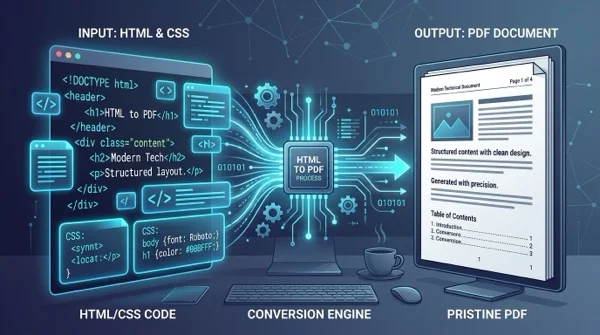
How to convert HTML files to PDF online without losing formatting
Learn how to convert HTML files and CSS styles into print-ready PDF documents online for free. Maintain exact fonts, page breaks, and layout without watermarks.
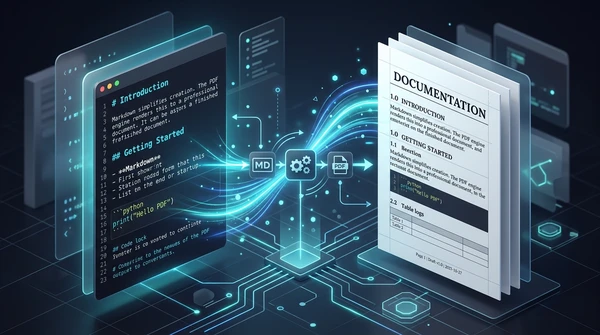
How to convert Markdown to PDF online for free (clean print typography)
Learn how to convert Markdown (.md) documents into clean, print-ready PDF files online for free. Keep headings, code blocks, lists, and full privacy in your browser.
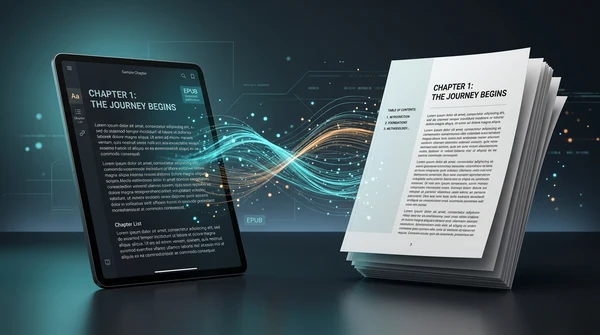
How to convert EPUB to PDF online for free (clean pages and table of contents)
Learn how to convert EPUB ebooks to clean, printable PDF documents online for free. Preserve chapter navigation, cover art, and typography with zero software.
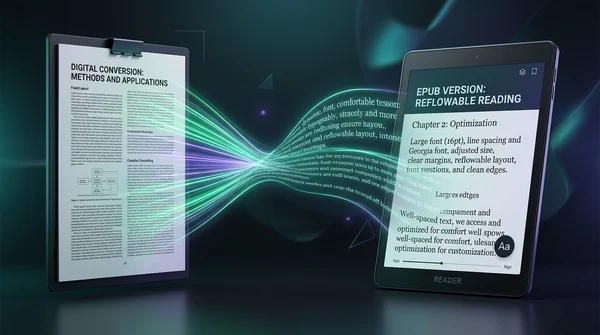
How to convert PDF to EPUB online for free (reflowable text for e-readers)
Learn how to convert PDF documents to reflowable EPUB ebooks online for free. Read comfortably on Kindle, Kobo, and Apple Books without pinch-to-zoom fatigue.
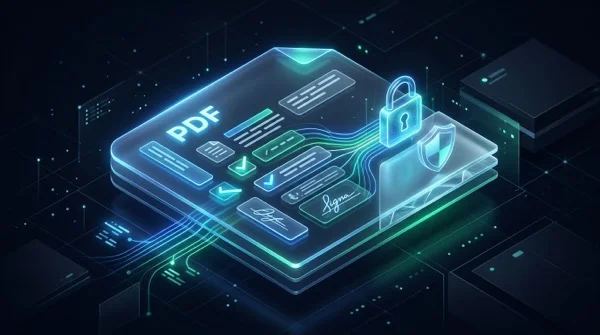
How to flatten a PDF form and annotations permanently
Learn how to flatten PDF form fields, checkmarks, signatures, and annotations into permanent print layers. Prevent tampering and ensure 100% print accuracy for free.

How to repair corrupted PDF files online (free and secure)
Learn how to fix damaged or unreadable PDF files online for free. Rebuild broken xref tables, recover truncated content streams, and restore document access securely.