How to convert multi-page PDF to a single continuous page (free online tool)
Quick summary
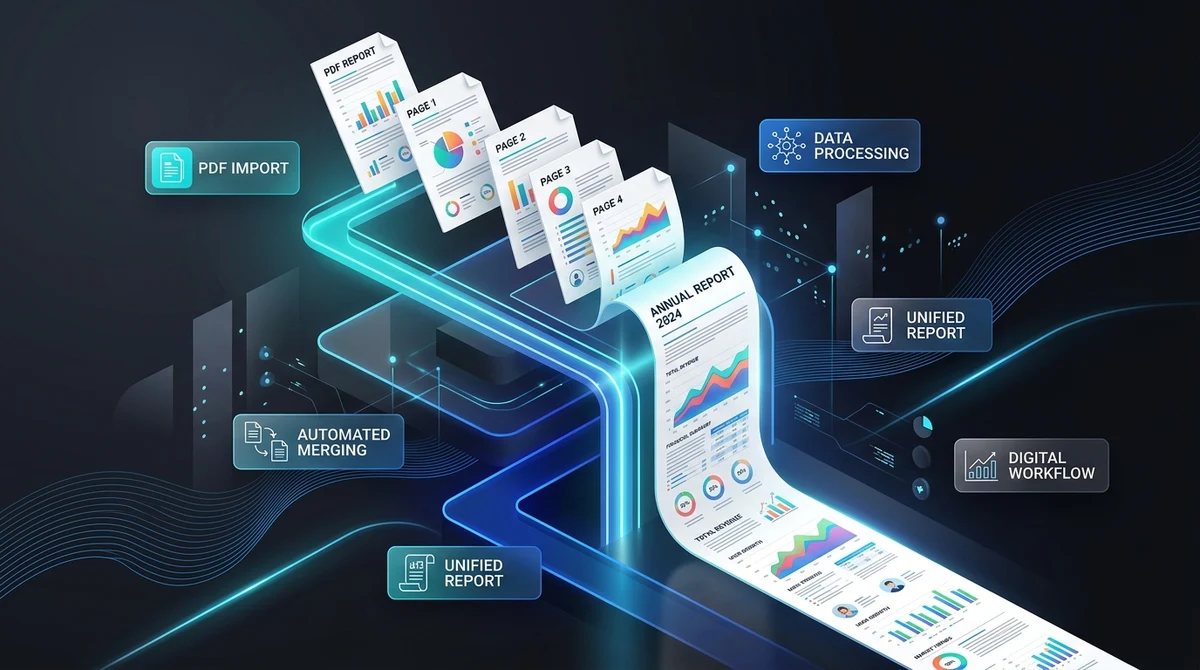
To convert a multi-page PDF to a single continuous page, you combine all sequential pages into one long, uninterrupted vertical sheet. With the free in-browser PDF to Single Page tool on AZ2PDF, multiple page heights are stacked into a unified canvas using ISO 32000 vector Form XObjects, preserving sharp typography and eliminating page breaks without uploading files to remote servers.
- Uninterrupted vertical reading: Eliminates awkward horizontal page breaks across tables, receipts, infographics, and mobile document flows.
- Lossless vector fidelity: Form XObject page embedding preserves original TrueType and OpenType fonts, vector lines, and high-resolution images without lossy rasterization.
- Zero installation and 100% free: Works entirely in your web browser with no account registration, monthly subscriptions, daily processing quotas, or watermarks.
- Client-side privacy: Documents are processed locally in your browser memory via WebAssembly and JavaScript, ensuring confidential files never leave your computer.
Why convert a multi-page PDF to a single continuous page?
The Portable Document Format was originally invented in the early 1990s as a digital mirror for the physical desktop printer. Under this classic desktop publishing paradigm, content was strictly segmented into discrete rectangular paper boundaries, such as standard US Letter or A4 sheets. Every time content exceeded the height of a sheet, a rigid horizontal boundary cut through the material, regardless of whether a paragraph was split in half, a data table lost its header row, or an architectural flowchart was severed across two disconnected pages.
While physical paper boundaries remain necessary for office laser printing and ring binders, modern digital consumption has evolved in the opposite direction. Over 65 percent of document reading now happens on touchscreens, smartphones, widescreen monitors, and mobile tablets. On these devices, reading behavior is dominated by fluid vertical scrolling rather than artificial horizontal page flipping.
Converting a multi-page PDF into a single continuous long sheet solves the core limitations of traditional pagination:
- Unbroken reading flow: Eliminates the jarring visual jump between consecutive pages, allowing readers to absorb lengthy reports, technical documentation, and customer receipts as one seamless stream.
- Preserved data tables and charts: Financial statements, balance sheets, and project timelines remain intact on a single unified canvas rather than having columns and rows chopped across page splits.
- Optimized mobile and web display: A continuous vertical canvas mirrors modern mobile web browsing, turning multi-page documents into natural web-style articles without requiring complex custom PDF viewer plugins.
- Clean digital signage and presentations: Deliver uninterrupted graphics for commercial display kiosks, interactive trade show monitors, and vertical dashboard monitors.
By leveraging AZ2PDF free online PDF tools, you can remove these arbitrary paper breaks in seconds, transforming fragmented multi-sheet documents into modern, continuous digital canvases directly within your browser.
Eliminate artificial page breaks for infographics and web presentations using the AZ2PDF Single Page PDF tool. It stitches consecutive pages into a continuous, seamless vertical canvas perfect for mobile scrolling.
The mechanics of vector page embedding under ISO 32000
When searching for ways to combine PDF pages into one long sheet, many users encounter low-quality web converters or screenshot scripts that use raster stitching. These primitive utilities render each PDF page into a lossy JPEG or PNG image, paste the images vertically into an HTML5 canvas, and re-export the result as a massive bitmap PDF. This crude approach introduces severe drawbacks:
- Text becomes unselectable and unsearchable: Because the text is flattened into raster pixel grids, pressing Ctrl+F or Command+F no longer works, and users cannot highlight or copy sentences to the clipboard.
- Severe blurriness and pixelation on zoom: When a user zooms in to inspect small numbers or footnotes, typography turns into blurry, jagged blocks of pixels.
- Massive file size inflation: Converting vector text and compressed fonts into uncompressed bitmap images frequently inflates file sizes by 500 to 1000 percent, making documents impractical to email or host online.
Under the international ISO 32000 specification for PDF architecture, professional document manipulation takes a completely different path: lossless vector Form XObject embedding.
In the PDF object hierarchy, a Form XObject (marked with the dictionary key /Subtype /Form) is a self-contained, reusable sequence of graphic content streams. A Form XObject encapsulates all text glyphs, font dictionaries, vector paths, color profiles, and image streams of an entire original page into an isolated sub-program. When creating a single continuous page, the document engine performs four precise architectural steps:
- Dimension discovery and envelope calculation: The engine traverses the source document page tree (
/Pages), querying the MediaBox and CropBox of every sheet. It calculates the maximum page width across all sheets (maxWidth) and sums their heights to compute the exact overall height (totalHeight). - Instantiating the carrier canvas: The engine creates a brand-new PDF document with a single root page initialized to the exact dimensions of
[maxWidth, totalHeight]in default user coordinate space (where 72 points equal 1 physical inch). - Affine coordinate transformation: Operating from top to bottom, the engine embeds each original page as a Form XObject. Because the PDF coordinate origin sits at the bottom-left corner, the vertical placement offset decrements progressively (
currentY -= pageHeight). For sheets narrower than the maximum canvas width, the engine applies an affine transformation matrix to symmetrically center the content horizontally. - Stream assembly with shared resource dictionaries: The carrier page references each embedded page without re-encoding or compressing font data. Vector bezier curves, TrueType typography, and high-resolution photos retain their original mathematical precision and lossless clarity.
The resulting document opens instantly in standard PDF readers, retains full text searchability, and maintains pin-sharp rendering at 100 percent, 400 percent, or 1000 percent magnification.
How to convert multi-page PDF to a single continuous page in 3 simple steps
Stacking your document pages into one continuous vertical scroll takes only a few seconds with zero software installations, account signups, or subscription fees:
Step 1: Upload your multi-page PDF document
Navigate to the tool in your preferred web browser on any desktop computer, laptop, tablet, or smartphone. Drag and drop your multi-page PDF file directly into the designated upload area, or click the file picker button to select a document from your local drive, iCloud, or Google Drive. The document loads instantly into the local browser environment without waiting in server processing queues.
Step 2: Stack pages into a continuous vertical stream
Click the Process button to initiate the conversion. The engine reads your source page tree, calculates cumulative canvas dimensions, embeds each sheet as a vector object, and stitches them seamlessly into one continuous vertical roll. For documents of 5 to 30 pages, processing finishes almost instantaneously, usually in under two seconds.
Step 3: Download your continuous single-page PDF
Click Download to save your newly constructed single-page PDF file directly to your device storage. Open the document in your preferred viewer, such as Google Chrome, Apple Preview, Adobe Acrobat, or mobile Safari. You will experience smooth, continuous vertical scrolling without artificial page margins or broken paragraphs, completely free of commercial watermarks.
Handling mixed page orientations and variable widths
Real-world multi-page PDF files are rarely uniform. A corporate packet might begin with three portrait-oriented executive summary pages (8.5 by 11 inches), followed by a wide landscape financial spreadsheet (11 by 17 inches), and conclude with two portrait appendix pages. When merging heterogeneous pages into a continuous roll, managing dimensional discrepancies is critical.
A naive stitching algorithm that assumes uniform page dimensions either stretches landscape pages vertically, crushes portrait pages horizontally, or crops wide content at the right margin. In contrast, an intelligent layout engine applies two strict geometric rules:
- Dynamic maximum bounding width: The carrier canvas sets its overall horizontal boundary to match the widest individual sheet present in the file. If page four is a 1224-point landscape table and pages one through three are 612-point portrait sheets, the unified single page adopts a width of 1224 points.
- Symmetric horizontal centering: Rather than anchoring narrow sheets flush to the left boundary (which creates an unbalanced, lopsided look), the engine computes an offset of
(maxWidth - sheetWidth) / 2. Narrow pages sit gracefully in the visual center of the canvas with balanced whitespace on both sides, ensuring that body paragraphs and headlines align naturally down the reading axis.
If you eventually need to print the continuous artwork onto standard office paper, you can conveniently re-impose pages into multi-up grid sheets to tile the graphic into manageable grid tiles.
Single continuous page vs N-Up imposition vs PDF merging: Which tool do you need?
Because document management involves multiple ways of reorganizing pages, users frequently confuse three distinct layout operations: converting to a single continuous page, N-Up multi-page layout, and file merging. Selecting the correct tool depends directly on your ultimate delivery goal:
Option 1: PDF to Single Page (Continuous vertical roll)
This tool stacks all pages of one document vertically into a single long canvas. Page heights are combined, page breaks are eliminated, and content dimensions remain at 100 percent scale without shrinking. Choose this option when your primary goal is uninterrupted digital screen reading, mobile viewing, digital signage, or sharing long receipts and infographics.
Option 2: Multi-Page Layout (N-Up print imposition)
The AZ2PDF Multi-Page Layout tool scales multiple pages down and arranges them in a grid (such as 2-Up side-by-side or 4-Up in a two-by-two block) on a standard physical paper sheet (like A4 or Letter). The resulting document maintains traditional pagination, but each printed sheet contains multiple miniaturized pages. Choose this option when your goal is saving paper and toner when printing physical handouts or lecture slides.
Option 3: Merge PDF (Combining multiple separate files)
The AZ2PDF Merge PDF tool takes several independent PDF files (for example, contract.pdf, addendum.pdf, and invoice.pdf) and stitches them sequentially into one multi-page master document. Crucially, each original page remains an individual, separate page with standard page breaks. Choose this option when you need to bundle multiple documents into a single organized file without altering page boundaries.
Option 4: Split PDF (Extracting specific sheets)
The AZ2PDF Split PDF tool extracts specific page ranges or separates individual sheets into standalone documents. Choose this option when you only need certain pages from a large file, rather than merging all pages into a continuous canvas.
Practical everyday use cases for continuous single-page PDFs
Unifying multi-page documents into a single continuous scroll solves concrete workflow challenges across business, design, education, and software development:
- Digital receipts, expense logs, and POS transaction slips: Point-of-sale systems, accounting software, and utility providers often export billing receipts that span across two or three arbitrary Letter pages. Merging them into a single page restores the natural receipt roll format, making expense auditing clear and immediate.
- Webcomics, manhwa, and manga: Digital comic creators and publishers optimize sequential art for vertical mobile scrolling. Combining individual illustrated pages into one seamless vertical canvas allows readers to swipe smoothly through scenes without distracting white page gaps.
- Long-form infographics and scientific posters: Marketing infographics, biological flowcharts, and academic research posters that were broken into separate slides can be restored into their intended tall portrait format, perfect for full-size viewing on digital displays.
- Website captures and long articles: Printing web articles or technical documentation to PDF often places awkward breaks in the middle of sentences or code blocks. Stacking the pages into a single continuous document re-creates the fluid feeling of reading a live web page.
- Project Gantt charts and architectural schedules: Construction timelines and engineering dependency charts that stretch across multiple sheets can be converted into a continuous panoramic diagram, preventing misinterpretation of project milestones.
Privacy and security: Why in-browser client-side execution matters
Documents requiring layout adjustment frequently contain sensitive business data: corporate financial forecasts, confidential client agreements, legal exhibits, employee performance reviews, and proprietary software architecture diagrams. When using web utilities to handle these assets, security cannot be an afterthought.
Many legacy PDF converter websites upload your files across the internet to third-party cloud servers. Once received on remote machines, files are written to hard disks, queued for processing, and often stored for hours or days. This cloud-upload model creates severe regulatory vulnerabilities under GDPR, CCPA, and enterprise confidentiality agreements.
At AZ2PDF, our PDF to Single Page tool was built from the ground up on a zero-upload, client-side architectural model:
- 100% in-browser processing: Page inspection, Form XObject encapsulation, and document assembly execute directly inside your web browser sandbox using compiled WebAssembly and client-side JavaScript. Your PDF bytes never leave your device and are never transmitted over the internet to remote servers.
- Zero data retention: Because no file is uploaded to external storage, no temporary server copies, cached thumbnails, or database records are ever created. When you close your browser tab, all allocated memory buffers vanish instantly.
- Zero AI training and data mining: Your documents are never inspected, categorized, or used to train commercial machine learning models. Your intellectual property remains solely your private property.
- Completely free with no commercial restrictions: AZ2PDF is 100 percent free for everyone. There are no monthly subscription plans, no registration forms, no email collection gates, and no watermarks placed on your exported documents.
Transform multi-page documents into modern continuous layouts with the AZ2PDF single-page document workflow suite, providing zero-latency conversions directly inside your browser.
Quick fixes for common single-page conversion and viewing issues
If you encounter unexpected results when viewing or sharing your continuous single-page PDF, these straightforward solutions will resolve the most frequent situations:
1. PDF viewer feels sluggish when zooming or scrolling
When viewing a continuous canvas containing dozens of pages with dense vector graphics or uncompressed high-resolution photos, older PDF viewers may experience temporary lag. To restore fluid performance, open the file in modern web browsers like Google Chrome or Apple Preview, which utilize hardware-accelerated GPU graphics pipelines.
2. Content appears too small when opened in standard desktop viewers
When you open an exceptionally tall document in Adobe Acrobat or web browser viewers, the software defaults to fit page mode, shrinking the entire height to match your vertical screen space. Simply click the zoom tool or press Ctrl+1 (Command+1) to switch to 100 percent actual size, or choose fit width mode (Ctrl+2 / Command+2) to fill your screen horizontally.
3. The continuous page exceeds maximum height limits in older software
Legacy desktop applications and older versions of Adobe Acrobat enforce a strict page boundary limit of 14,400 user units (200 inches or 5.08 meters). If your stitched document exceeds 50 to 60 pages, open the file in modern browser viewers or divide very long documents into logical 20-page thematic sections before conversion.
4. Need to annotate, add signatures, or edit content on the continuous page
After merging pages into a continuous canvas, all vector text glyphs, embedded images, and line vectors remain fully editable. You can load the continuous document into browser-based PDF editors or markup tools to add callouts, highlight key figures, and place digital signatures across the seamless canvas without re-introducing page breaks.
Frequently asked questions
❓ Frequently asked questions
Yes. The AZ2PDF PDF to Single Page tool is 100 percent free with no hidden subscriptions, trial limits, watermarks, or account registration requirements. You can convert documents as often as you need.
Related articles in this topic
Deep dive into related document organization and page manipulation workflows.
How to scale PDF pages online to standard paper sizes (free and sharp)
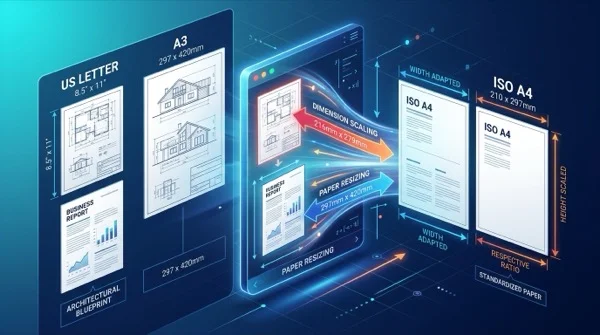
Learn how to scale PDF pages to standard paper sizes like A4, Letter, and A3 online for free. Fix printer margin cut-offs with 100% sharp vector typography.
How to print multiple PDF pages on one sheet (free N-Up tool)
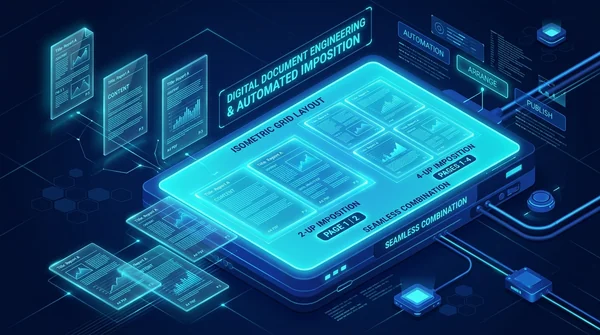
Learn how to combine 2, 4, or more PDF pages onto a single sheet for easy printing and handouts. Save paper, preserve vector quality, and process files 100% free and privately.
How to crop PDF margins and trim page borders online for free
Learn how to crop PDF margins and trim unwanted borders online for free. Adjust page boundaries for Kindle, shipping labels, and academic papers with zero quality loss.
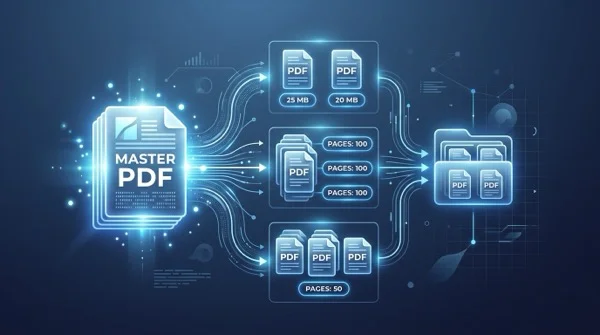
How to split PDF by size or page count online for free
Learn how to split large PDF files by MB file size limits or fixed page chunks online for free. Break oversized documents down for email and portal uploads.
How to rotate and save PDF pages permanently online for free
Learn how to rotate upside-down or landscape PDF pages and save the orientation permanently online for free. Fast in-browser processing with zero quality loss.
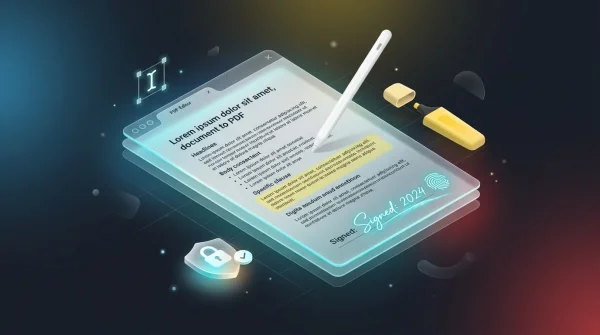
How to edit PDF online without Adobe Acrobat (free, secure and fast)
Learn how to edit PDF text, add signatures, annotate and redact sensitive data directly in your browser without expensive Adobe Acrobat subscriptions. 100% free.