How to make a PDF look scanned online for free (realistic paper effect)
Quick summary
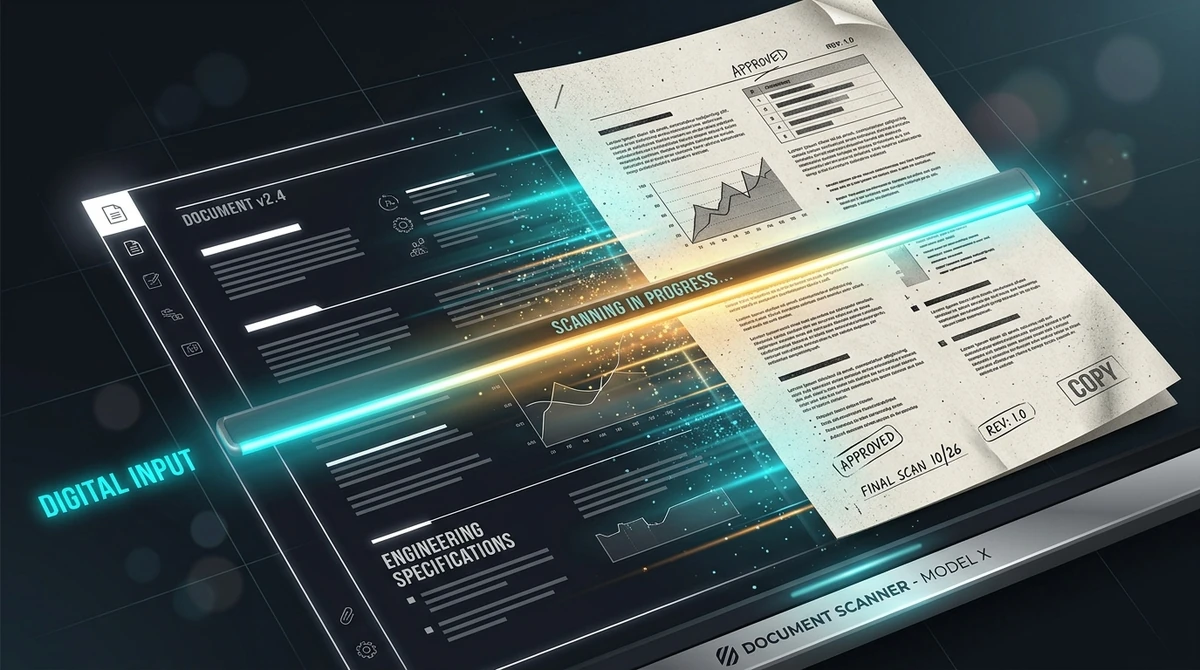
To make a PDF look scanned without a physical printer or scanner, you can use a free online scanner effect tool like AZ2PDF. It transforms crisp digital pages into authentic-looking photocopies by simulating subtle rotational skew, realistic paper grain, optical micro-blur, and high-contrast grayscale, completely free of charge and processed securely in ephemeral memory.
- Eliminates physical printing: No need to waste paper, expensive printer toner, or time looking for a bulky hardware scanner just to create a scanned copy.
- Authentic physical characteristics: Automatically simulates natural page tilt (0.3 to 1.2 degrees), paper fiber grain, optical lens softening, and photocopy contrast.
- 100 percent free and confidential: Process files directly through secure in-memory buffers with zero server retention, no hidden fees, and zero watermarks.
- Smart workflow tip: Flatten interactive forms and digital signatures first with AZ2PDF Flatten PDF before applying the scanner effect for an authentic, seamless document look.
Why digital documents sometimes need to look physically scanned
In our modern paperless workflows, almost every document begins its life as a clean digital file. We write contracts in Word, design invoices in specialized billing software, and export agreements directly as crisp vector PDFs. These native digital documents are mathematically flawless: text glyphs are sharp at any zoom level, margins are mathematically aligned, and backgrounds are pure, sterile white.
Yet in the real world of legal paperwork, government bureaucracy, and corporate administration, this digital perfection can unexpectedly become an obstacle. Many administrative departments, court electronic filing systems, banking institutions, and insurance underwriters still explicitly demand a scanned copy of an original paper document. When presented with an immaculate vector PDF containing digital typography, verification agents often question whether the agreement was genuinely printed, reviewed, and physically signed by hand.
Faced with these rigid compliance demands, professionals have historically been forced into a frustrating and wasteful routine known as the print and scan loop:
- Exporting the digital contract or form to an office workstation.
- Sending the document to a desktop laser printer, consuming physical paper sheets and expensive chemical toner cartridges.
- Walking to a standalone flatbed scanner or multifunction photocopier.
- Feeding the sheets through a mechanical document feeder to scan them back into digital format.
- Transferring the scanned file back to a computer for final submission.
This traditional loop is not only environmentally wasteful and time-consuming, but it is also nearly impossible when working remotely, traveling, or operating from a home office without access to bulky commercial hardware. Fortunately, modern document engineering allows you to bypass the physical printer entirely. By simulating the optical physics and mechanical imperfections of real-world photocopy hardware, you can give any digital document an authentic, convincing scanned appearance online in just a few clicks.
Simulate the organic texture of physical office paperwork with the AZ2PDF Scanner Effect tool. It introduces subtle paper grain, slight rotation jitter, and grayscale contrast to give digital files an authentic scanned look.
The physics of an authentic scan: What gives paper documents their real look
To understand why simulated scans look genuine while poor digital filters look obviously fake, it helps to examine what actually happens when a sheet of paper travels across a hardware scanner glass. Real photocopiers and desktop scanners do not produce pristine vector graphics. Instead, they capture a complex combination of mechanical friction, optical physics, and material surface textures.
A convincing scanner effect replicates four core physical phenomena:
1. Rotational micro-skew (Mechanical roller misalignment)
When an automatic document feeder (ADF) pulls a physical sheet of paper across a scanner lens, the rubber pickup rollers never pull the sheet with mathematical symmetry. One roller inevitably grips the paper fibers a fraction of a millisecond earlier than the other. This mechanical variance causes the paper to enter the scanning plane at a subtle rotational tilt, typically between 0.3 and 1.2 degrees. When a PDF displays text that is aligned at an exact, robotic 90-degree angle, human eyes immediately recognize it as a digital graphic. Introducing a subtle micro-skew instantly gives the page an organic, physically handled appearance.
2. Paper fiber texture and surface grain
Standard office copy paper is manufactured from compressed wood pulp and cellulose fibers. Under microscopic magnification, paper is far from a smooth, uniform plane. When a bright cold-cathode fluorescent lamp (CCFL) or LED light bar illuminates the sheet from an oblique angle, microscopic hills and valleys on the paper surface cast tiny shadows. Simulating this subtle surface grain transforms harsh digital white backgrounds into the natural, warm matte texture characteristic of real paper.
3. Optical sensor micro-blur (Aperture and lens softening)
Computer monitors render text using mathematical vector curves defined by PostScript or TrueType outline algorithms. These outlines possess infinitely sharp borders. By contrast, hardware scanners capture images through physical glass plates, mirrors, and optical lenses focused onto a Charge-Coupled Device (CCD) or Contact Image Sensor (CIS). Optical diffraction, slight focal depth variations, and glass surface reflections naturally soften the perimeter of every printed character. Applying a calibrated micro-blur removes artificial digital sharpness while keeping every word completely legible.
4. Dynamic contrast and photocopy grayscale shifts
When ink or toner binds to paper fibers, it bleeds slightly into the porous surface. Hardware scanner firmware automatically applies a high-contrast threshold to differentiate text from the background, often accentuating deep blacks while washing out very faint gray tones. Reproducing these distinctive grayscale curves replicates the nostalgic, high-contrast look of commercial photocopiers and legacy office fax machines.
How to make a PDF look scanned online in 3 simple steps
You do not need to install complex graphic design suites or pay for expensive imaging software to create an authentic scanned document. you can transform your digital files directly in your web browser. Here is the straightforward process:
Step 1: Select your digital PDF document
Navigate to the scanner effect tool in your desktop or mobile browser. Drag and drop your clean vector PDF file into the designated upload area, or click the file picker to choose the document from your local drive. There is no account registration required, and you can begin processing immediately.
Step 2: Automated scanner physics simulation
Once your file is loaded, the processing engine automatically analyzes your document layout. It converts vector page streams into high-resolution bitmaps, applies calibrated micro-rotational skew, layers authentic paper grain texture across the background, and adjusts optical contrast to mimic an authentic 150 to 300 DPI flatbed hardware scan.
Step 3: Download your authentic scanned PDF
Click the download button to save your realistic scanned-look PDF directly to your device. The generated document contains authentic paper aesthetics, ready for submission to administrative gateways, compliance portals, or archival records. The file is completely free of advertising watermarks and carries zero subscription fees.
If you need to perform additional document adjustments, you can explore the complete catalog of AZ2PDF free online PDF tools to merge, compress, or secure your files without recurring costs.
Practical use cases: When adding a scanner effect makes total sense
Simulating a physical hardware scan is more than an aesthetic trick; it is a practical problem-solving technique across numerous professional and personal situations:
1. Complying with strict administrative and legal intake portals
Many legacy public sector portals, insurance claims departments, and university registration offices operate under strict guidelines requiring scanned paperwork. When users upload pristine vector PDFs, intake systems or human auditors frequently flag the files for manual verification, suspecting that non-standard fonts or unverified digital layers might indicate altered figures. Transforming the document into a scanned appearance ensures your paperwork passes automated visual intake checks without administrative friction.
2. Harmonizing multi-source document binders and tender proposals
When assembling a comprehensive corporate proposal, commercial lease, or legal trial exhibit, you often need to combine pages from disparate sources. Some pages might be genuine flatbed scans of historic permits, while others are newly generated Excel financial models or Word contracts. Merging pristine digital sheets alongside aged physical scans creates an unsettling visual clash. Applying a uniform scanner effect across the entire binder produces a consistent, cohesive dossier that looks as though it was compiled and scanned together in a single professional review.
3. Solidifying digitally signed contracts
Electronic signatures are legally recognized under global frameworks like the US ESIGN Act and European eIDAS regulations. However, some traditional business partners or overseas entities still express skepticism when reviewing contracts signed with digital signature fonts. Applying a subtle scanner effect flattens the signature into the underlying paper fibers, giving the entire document the trusted look and feel of a physically signed, ink-on-paper agreement.
4. Vintage aesthetic design and creative mockups
Graphic artists, legal researchers, and game designers frequently need to create realistic historical artifacts, declassified government memos, vintage newspaper clippings, or retro laboratory notes. The scanner effect provides the authentic texture, slight page skew, and photocopy contrast necessary to evoke genuine mid-century office realism.
5. Flattening vector layers for basic copy-protection
Because the scanner effect converts scalable vector curves into a cohesive raster image, it permanently merges all underlying text, images, and form fields into a single graphical layer. This prevents casual viewers from highlighting, copying, or altering raw text strings with a simple copy and paste command, providing a basic visual safeguard for published brochures and price sheets.
To reinforce the photocopy appearance and strip unintended color fringing, you can also convert the file to pure monochrome grayscale to enhance contrast and simulate classic xerox printing.
Pro companion workflows: Optimizing and securing simulated scans
To achieve the highest degree of professionalism and ensure seamless distribution, combining the scanner effect with specialized companion tools creates a robust document preparation pipeline:
1. Flatten interactive forms and electronic signatures first
Before applying scanner simulation to contracts or fillable application forms, interactive form fields (AcroForms) and transparent vector signatures should be flattened into static graphic objects. If form fields remain dynamic, the rasterization engine might drop uncommitted form entries or create inconsistent text layering. Flattening fuses digital signatures and text inputs directly into the background canvas, ensuring the simulated paper grain and rotational skew affect the entire document uniformly.
2. Compress simulated scans for email and portal upload limits
Because the scanner effect converts lightweight vector text into high-resolution bitmap raster pages (typically 150 to 300 DPI), the resulting file size is naturally larger than the original digital PDF. For multi-page documents destined for government portals or email attachments with strict 10MB or 25MB limits, running the generated file through a PDF compression routine removes unneeded image overhead while preserving optical paper grain and high-contrast text legibility.
3. Apply optical character recognition (OCR) for searchable text
Rasterizing a document removes native selectable text. If you want the authentic visual appearance of a physical scan while maintaining the ability to search keywords (Ctrl+F) or highlight passages, submit your scanned-look PDF to the AZ2PDF OCR PDF tool. OCR synthesizes an invisible text layer underneath the raster image, delivering the best of both worlds: vintage paper appearance with full digital searchability.
To reinforce the photocopy appearance and strip unintended color fringing, you can also convert the file to pure monochrome grayscale to enhance contrast and simulate classic xerox printing.
Comparing methods: Free online tools vs. physical printing vs. mobile apps
When you need to make a digital file look scanned, you generally have three possible routes. Understanding their practical differences helps you choose the fastest and most cost-effective solution:
Option 1: Modern in-browser scanner simulation (AZ2PDF)
This is the fastest, cleanest, and most economical method. The conversion runs entirely in the cloud or browser memory using calibrated document engineering algorithms. It applies realistic tilt, grain, and contrast without physical hardware, costs nothing, preserves document boundaries perfectly, and leaves zero carbon footprint. It requires no software downloads, works on any device, and produces consistent results across every page.
Option 2: Physical printing and rescanning
The traditional method of printing the file on paper and scanning it with a flatbed scanner guarantees physical authenticity because the hardware is real. However, this process consumes valuable paper, wastes expensive toner, demands access to heavy equipment, and takes ten times longer. Furthermore, low-quality desktop scanners often introduce harsh roller marks, heavy optical banding, and dust streaks that degrade readability.
Option 3: Mobile phone camera scanner apps
Many smartphone applications allow you to photograph a paper sheet or display screen to create a scan. While convenient, mobile phone captures suffer from severe perspective distortion (keystone effect), uneven room lighting, glare hotspots, and camera shake blur. In addition, many popular mobile scanning apps lock high-resolution exports behind expensive recurring subscriptions or stamp ugly watermarks across your professional documents.
Privacy and security: Why ephemeral in-memory processing protects your data
The documents requiring a scanned appearance are often your most confidential personal or business assets: employment agreements, residential lease contracts, commercial nondisclosure agreements, banking loan records, and government identity forms. Uploading these sensitive files to random web converters presents significant privacy hazards if platforms harvest data or retain files on insecure servers.
AZ2PDF is built from the ground up around strict data isolation principles. When you process a document with the scanner effect, your file is loaded into an isolated, ephemeral memory buffer. The transformation algorithm runs within a secured execution sandbox, generates your authentic scanned PDF, and streams the finished file directly back to your device.
Your documents are never saved to permanent disk storage, never shared with third parties, and never analyzed for advertising data. As soon as your download session terminates, automated background cleanup routines permanently purge all temporary memory buffers. You receive an authentic scanned document with complete privacy and zero data leakage.
Create authentic document aesthetics on demand with the AZ2PDF document styling and prepress tools, maintaining complete security as all visual noise effects are rendered right in your browser.
Troubleshooting common simulated scan problems
If your simulated scan does not look quite right on your initial attempt, here are quick solutions to the most common document appearance issues:
1. The text looks slightly too blurry to read comfortable
Optical softening should enhance authenticity without sacrificing legibility. If fine print or footnotes appear excessively soft, your original document may have used very small font sizes (below 6 points). Ensure your original file has good baseline contrast, or select a higher DPI output profile to keep fine legal clauses sharp while retaining the paper grain effect.
2. The document file size is too large for an email attachment
Because a realistic scan is composed of rasterized bitmap pixels rather than vector font codes, multi-page files will naturally be larger in file size. To quickly bring the file under your email gateway limit, run the generated document through an online PDF compressor or convert it to a monochrome grayscale palette to eliminate redundant color channel data.
3. The rotation angle cut off marginal notes
If your original document had text printed right against the extreme physical edge of the page (with zero margins), applying a rotational micro-skew can occasionally clip the outer corners of characters. To prevent this, add a small 0.25-inch margin to your document before applying the scanner effect so the entire text block rotates safely within the visible canvas.
Create authentic document aesthetics on demand with the AZ2PDF document styling and prepress tools, maintaining complete security as all visual noise effects are rendered right in your browser.
❓ Frequently asked questions
Yes. The free AZ2PDF Scanner Effect tool allows you to convert any native digital PDF into a realistic scanned document directly in your browser. It automatically introduces authentic physical paper traits like micro-rotation skew, paper texture noise, optical edge softening, and photocopy grayscale contrast in seconds.
Related articles in this topic
Deep dive into related document organization and page manipulation workflows.
How to flatten a PDF form and annotations permanently
Learn how to flatten PDF form fields, checkmarks, signatures, and annotations into permanent print layers. Prevent tampering and ensure 100% print accuracy for free.
How to repair corrupted PDF files online (free and secure)
Learn how to fix damaged or unreadable PDF files online for free. Rebuild broken xref tables, recover truncated content streams, and restore document access securely.
How to detect and remove blank pages from scanned PDFs online
Learn how to automatically detect and remove blank pages from scanned PDFs online for free. Eliminate empty duplex scan pages without quality loss or manual editing.
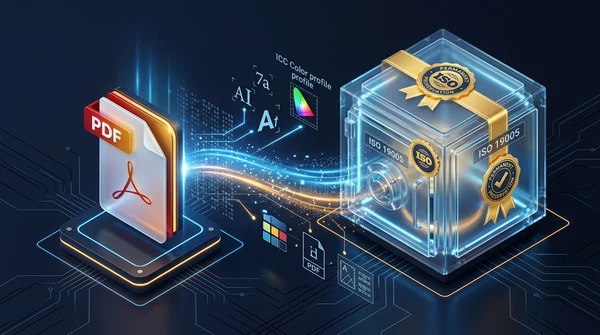
How to convert PDF to ISO-standard PDF/A for long-term archiving
Learn how to convert PDF documents to ISO 19005-compliant PDF/A format online for free. Embed fonts, standardize color spaces, and ensure permanent preservation.
How to compress a PDF without losing quality (free and fast)
Learn how to compress PDF file sizes by up to 85% for email and web uploads without blurry text or pixelated images. Fast, free, and 100% private in your browser.
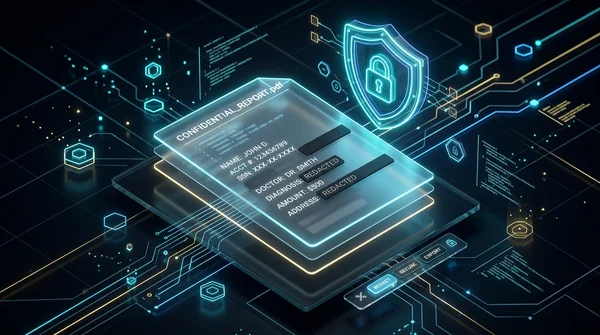
How to permanently redact sensitive information from a PDF for free
Learn how to permanently redact sensitive text, SSNs, and financial data from PDF files online for free. Expunge confidential bytes with zero traces and no Adobe Acrobat.