How to invert PDF colors for dark mode online (free and eye friendly)
Quick summary
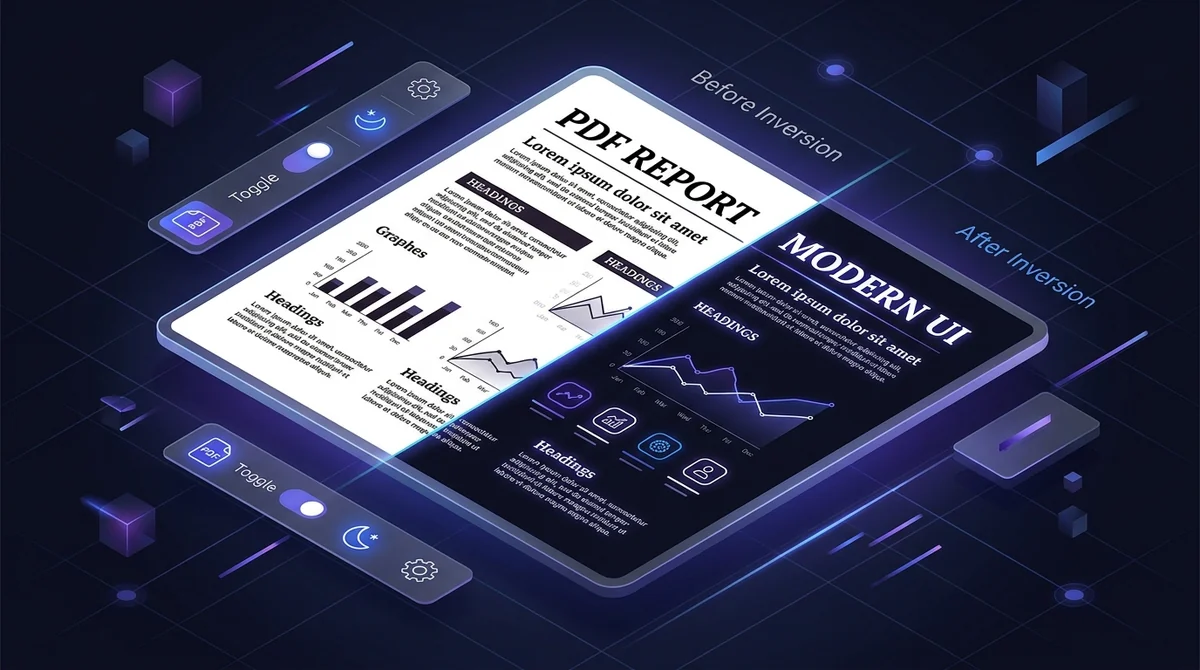
To invert PDF colors for dark mode without paying for expensive software, use a free online color inverter like AZ2PDF Invert Colors. It applies a mathematical transfer function to switch blinding white backgrounds into comfortable dark themes while keeping vector text razor-sharp, searchable, and 100% private in memory.
- Eliminates digital eye fatigue: Converts harsh white document pages into deep dark themes, reducing ocular strain during late-night reading and study sessions.
- Preserves vector sharpness: Text and line art remain mathematical vectors rather than blurry pixelated pictures, staying pin-sharp at any zoom level.
- 100 percent searchable: Preserves underlying Unicode text streams, so you can continue to search with Ctrl+F, highlight sentences, and copy text.
- Permanent document dark mode: Creates an inherent dark mode PDF that displays perfectly across Kindle, Kobo, iPad, Android, and desktop viewers.
- 100 percent free and private: Completely free with no registration or watermarks, processed in volatile RAM with automated 5-minute file deletion.
Why bright white PDFs cause severe eye strain (and why you need dark mode)
If you have ever spent hours reading a dense academic dissertation, legal brief, medical journal, or programming manual late in the evening, you know the discomfort all too well. Staring directly into an expanse of brilliant, unyielding white background for extended periods feels like looking straight into a miniature fluorescent lightbulb. Your eyelids grow heavy, your vision blurs, and a dull tension headache begins throbbing behind your temples.
This familiar sensation is known clinically as asthenopia or digital eye strain. Modern desktop monitors, laptop screens, and tablets emit high levels of short-wavelength blue light. When a PDF displays a pure white canvas (represented digitally as hexadecimal #FFFFFF, where red, green, and blue color channels blast at full 100% saturation), your display operates at maximum luminance. In a dimly lit home office or dark study room, the extreme contrast between the dark surrounding environment and the blinding white screen forces your pupils into constant micro-contractions, exhausting your ciliary muscles.
Beyond immediate ocular fatigue, reading bright white documents at night suppresses the natural production of melatonin, the neurochemical responsible for regulating healthy circadian rhythms and restorative sleep. Furthermore, on modern OLED and AMOLED displays (found in newer MacBooks, iPhones, iPads, and Android devices), illuminated white pixels draw maximum electric current. Converting pages into an obsidian dark theme allows individual OLED diodes to shut down entirely, drastically cutting battery drain while giving your eyes immediate, soothing relief.
That is why converting documents to a comfortable, high-contrast dark theme is one of the most effective upgrades you can make to your daily reading workflow. Reduce nighttime eye strain and save battery life on OLED displays using the AZ2PDF Dark Mode PDF tool. It intelligently inverts blinding white backgrounds into sleek dark canvas while keeping color illustrations readable.
How PDF color inversion works under the hood (without blurry text)
Many readers wonder why dark mode is so easy to activate on regular websites or word processors, yet notoriously difficult to apply to PDF files. The reason lies in the foundational architecture of the Portable Document Format (ISO 32000).
Unlike dynamic web pages constructed with fluid HTML and CSS rules, a PDF behaves like a digital printing plate. It records explicit drawing instructions: coordinates on a physical coordinate plane, embedded font programs, and color specifications. In standard documents, page content streams do not possess a simple dark mode toggle. Many inferior online conversion websites attempt to achieve dark mode through a destructive shortcut: they rasterize the entire document, turning each page into a giant low-resolution JPEG picture, inverting the image pixels, and packaging the pictures back into a PDF wrapper.
This crude raster approach introduces severe document flaws:
- Fuzzy, unreadable typography: Crisp vector letters become blurry bitmaps that pixelate aggressively whenever you zoom in.
- Destroyed text searchability: The underlying Unicode text layer is eliminated, making it impossible to search for key terms with Ctrl+F or copy text to your clipboard.
- Bloated file size: A compact 2MB vector PDF often balloons into a sluggish 40MB file filled with uncompressed image data.
By contrast, professional color inversion uses a mathematical transformation at the document rendering pipeline level. In AZ2PDF, the inversion engine leverages an optimized Ghostscript postscript processor within a high-speed Rust sidecar. The system evaluates the color transfer function this instruction takes any incoming color component value normalized between 0.0 and 1.0 and calculates its exact photographic negative (1.0 minus value). Pure white background coordinates (1.0, 1.0, 1.0) become pure obsidian black (0.0, 0.0, 0.0). Pure black text glyphs (0.0, 0.0, 0.0) become crisp, glowing white (1.0, 1.0, 1.0). Most importantly, this transformation modifies the transfer function without rasterizing the document: font outlines (TrueType and OpenType glyphs defined by Bézier curves), vector schematics, line thicknesses, and embedded /ToUnicode mapping dictionaries remain 100% intact. The result is an authentic, razor-sharp dark mode document that retains full interactive searchability.
How to invert PDF colors for dark mode in 3 simple steps
Transforming blinding white documents into comfortable dark mode files takes less than twenty seconds no software downloads, and no credit card. Here is the straightforward process:
Step 1: Upload your standard PDF document
Open the tool in any modern web browser on your computer, tablet, or smartphone. Drag and drop your target PDF file directly into the designated drop zone, or click the selection button to choose a file from your local storage.
Step 2: Process the document in secure memory
Click the Invert Colors button. The system immediately applies the negative luminance transfer function across all pages. The operation runs in high-speed RAM buffers without writing your document to permanent disk storage, finishing in just a few seconds.
Step 3: Download your eye-friendly dark mode PDF
Click Download to save your newly inverted file. Your document is now permanently formatted with a dark background and light text, ready for comfortable reading in any lighting condition, on any device, with zero watermarks added.
Permanent document dark mode vs. temporary screen filters
When searching for ways to read PDFs in dark mode, users frequently encounter three different methods. Understanding their structural differences explains why creating a permanently inverted PDF is often the only dependable solution:
Method 1: Inherent document color inversion (AZ2PDF)
This method embeds the dark color scheme directly into the internal streams of the PDF file itself. Once downloaded, the document remains dark mode regardless of how or where you open it. You can send it to your Kindle or Kobo e-reader, transfer it to an iPad or Android tablet, email it to a colleague, or open it in default viewers like Apple Preview, Google Chrome, or Microsoft Edge. It requires zero third-party extensions, zero viewer configuration, and functions reliably across every operating system.
Method 2: Web browser extension overlays (Dark Reader, Night Eye)
Browser extensions apply CSS filter masks (such as invert and hue-rotate) to web pages and locally opened PDFs within the browser window. While convenient for quick browsing, they operate strictly as a local visual filter on that specific computer. The underlying PDF file remains completely unchanged. If you send the file to another device, load it onto an e-reader, or open it inside a standalone PDF viewer, the document reverts instantly to blinding white.
Method 3: Native desktop reader preferences (Adobe Acrobat accessibility settings)
Desktop software like Adobe Acrobat Pro allows users to configure custom accessibility colors (replacing document colors with high-contrast color schemes). However, this setting applies globally to all files opened in that specific desktop application on that single machine. It does not export or save the dark theme into the file, requires navigating complex preference menus, and offers no help when transferring documents to mobile devices or e-ink readers.
If you prefer a clean monochrome nighttime aesthetic without distracting colored highlights, consider choosing to convert to grayscale before applying dark mode inversion for a balanced nocturnal reading experience.
Practical scenarios: Who benefits most from dark mode PDFs?
Inverting PDF colors is not just a stylistic preference; it provides vital functional benefits across diverse professional and personal workflows:
1. University students and researchers tackling long study sessions
Academic literature, scientific research published on arXiv and PubMed, and university textbooks are almost exclusively formatted as double-column black-and-white documents on bright white backgrounds. Students reviewing dozens of papers late at night can prevent severe visual burnout by inverting their reading stack into a soft dark theme.
2. Software engineers and developers working in dark environments
Software developers typically maintain dark mode setups across code editors, terminal windows, and operating system themes. Switching from an obsidian code editor to a blinding white 80-page API documentation PDF produces jarring visual shock. Inverting technical documentation keeps the developer workspace visually unified and comfortable.
3. Mobile professionals preserving OLED battery life during travel
When working on long flights, train commutes, or off-grid remote locations, laptop and tablet battery life is precious. On laptops with OLED panels (as well as mobile phones and iPads), reading white PDFs keeps screen backlights or organic diodes drawing peak power. A true dark mode PDF substantially decreases display power consumption, extending battery longevity by hours.
4. Readers with photophobia, visual migraines, and light sensitivity
For individuals dealing with photophobia, concussion recovery, keratoconus, or migraine triggers, high luminance white backgrounds can cause genuine physical pain. Inverted high-contrast documents allow individuals with light sensitivities to continue studying and working without debilitating discomfort.
5. Dedicated E-Ink and e-reader enthusiasts (Kindle and Kobo)
While standard EPUB books can easily toggle dark mode on modern e-readers, fixed-layout PDFs often lack this flexibility. Loading a pre-inverted PDF onto a Kindle or Kobo creates a soothing night reading experience on electronic ink screens without requiring complex device jailbreaking.
Pro companion workflows for optimal reading documents
To produce the cleanest, most efficient reading materials, combining color inversion with companion document tools unlocks outstanding results:
1. Convert color documents to grayscale first
If your source document contains multicolored charts, highlighted text boxes, or decorative colored borders, inverting those colors will produce vibrant inverted neon hues (such as neon magenta or bright cyan) that may still cause visual distraction in total darkness. Running the document through the AZ2PDF Grayscale PDF tool first collapses all chromatic RGB channels into standardized 8-bit luminance shades. When subsequently inverted, you obtain a velvety obsidian black canvas with soothing off-white and neutral gray typography, delivering the ultimate reading comfort.
2. Flatten interactive forms and digital annotations
Documents with interactive AcroForms, filled-in text boxes, highlights, or signature stamps store these elements in separate annotation dictionaries (/Annots). Some PDF viewers fail to invert annotation layers correctly, causing sticky notes or filled fields to remain blinding white on an inverted black page. Flattening the PDF bakes annotations and form fields directly into the page content stream, guaranteeing seamless, uniform color inversion across every graphical element.
3. Compress documents for effortless sharing
While mathematical color transfer inversion preserves vector text without adding raster image bloat, technical papers often carry duplicate embedded font subsets and redundant metadata streams. Running your inverted dark mode document through the AZ2PDF Compress PDF tool eliminates unneeded internal objects and compacts data streams, producing ultra-lightweight files perfect for fast emailing or cloud syncing.
4. Apply OCR to paper scans before inverting
If your document was scanned from physical paper rather than generated digitally, it may exist purely as a flat photograph. Running the file through the AZ2PDF OCR PDF tool first reconstructs an invisible vector text layer. When you subsequently invert colors, you gain both dark mode visual comfort and the ability to search text with Ctrl+F.
5. Unlock password-protected files
If an encrypted PDF has permissions restricting content modification, color inversion engines cannot rewrite the document internal graphics dictionaries. Use the AZ2PDF Unlock PDF tool with your authorized password to strip restrictions before inversion, ensuring effortless processing.
Enhance reading comfort across dense technical manuals with the AZ2PDF browser document reader and suite, running entirely client-side without storing your reading material anywhere online.
Quick fixes for common PDF dark mode challenges
While color inversion works seamlessly for the overwhelming majority of documents, here are practical tips for handling edge cases:
1. Color photographs look like film negatives
Because the transfer function mathematically inverts all color streams, full-color photographs of people or landscapes will appear as photographic negatives (blue skies become orange, skin tones invert). If your document consists primarily of text, tables, graphs, and line diagrams, this is rarely an issue. However, for photography-heavy portfolios, keeping the original document for image viewing and using dark mode strictly for text-heavy reading sections is recommended.
2. The document is password protected
If an error appears stating that the file cannot be processed, the document likely has an owner password that restricts content extraction. Ensure you have the right to modify the file, decrypt it with your password, and re-upload the unlocked version.
3. Avoid sending inverted dark mode PDFs to paper printers
Inverting a PDF turns the background into deep solid black. Sending a 50-page dark mode PDF to an office laser printer or inkjet printer will rapidly deplete expensive black toner cartridges and saturate the paper with ink. Keep your dark mode PDFs for screen reading on monitors, laptops, tablets, and phones, and use original white documents whenever physical printing is required.
❓ Frequently asked questions
No. When using AZ2PDF, the inversion is performed mathematically at the document rendering pipeline level. Fonts, vector lines, and geometric shapes remain crisp vector objects, ensuring text stays razor-sharp whether viewed at 100% or zoomed in to 800%.
Related articles in this topic
Deep dive into related document organization and page manipulation workflows.
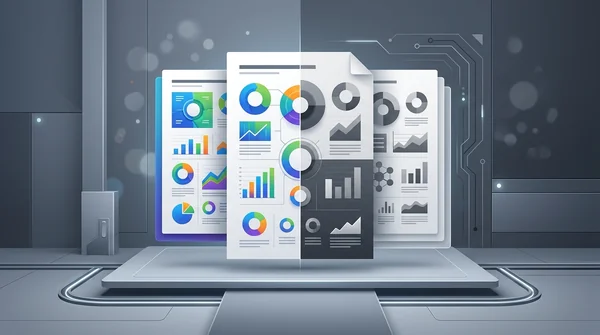
How to convert color PDF documents to grayscale black and white (free online)
Convert color PDF files to monochrome grayscale black and white online for free. Save printer ink, cut file size by up to 70%, and ensure compliance with zero cost.

How to compress a PDF without losing quality (free and fast)
Learn how to compress PDF file sizes by up to 85% for email and web uploads without blurry text or pixelated images. Fast, free, and 100% private in your browser.
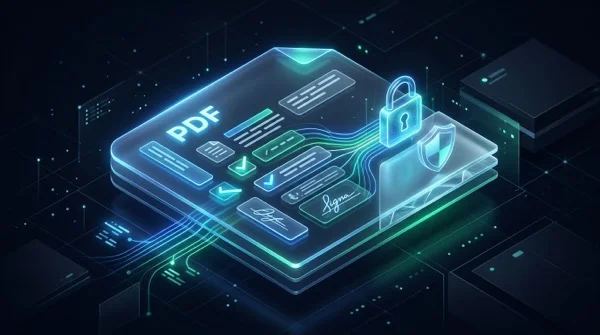
How to flatten a PDF form and annotations permanently
Learn how to flatten PDF form fields, checkmarks, signatures, and annotations into permanent print layers. Prevent tampering and ensure 100% print accuracy for free.
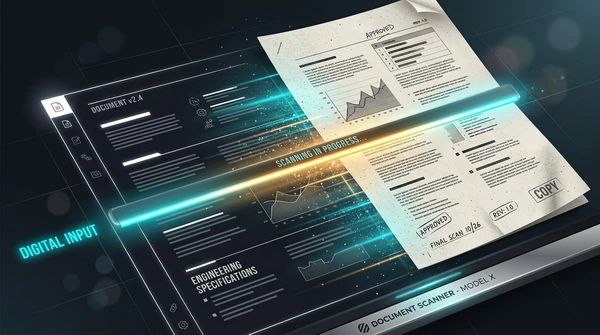
How to make a PDF look scanned online for free (realistic paper effect)
Learn how to make digital PDFs look like physically scanned paper documents online for free. Add subtle tilt, paper grain, and grayscale contrast without a printer.

How to repair corrupted PDF files online (free and secure)
Learn how to fix damaged or unreadable PDF files online for free. Rebuild broken xref tables, recover truncated content streams, and restore document access securely.
How to detect and remove blank pages from scanned PDFs online
Learn how to automatically detect and remove blank pages from scanned PDFs online for free. Eliminate empty duplex scan pages without quality loss or manual editing.