How to convert color PDF documents to grayscale black and white (free online)
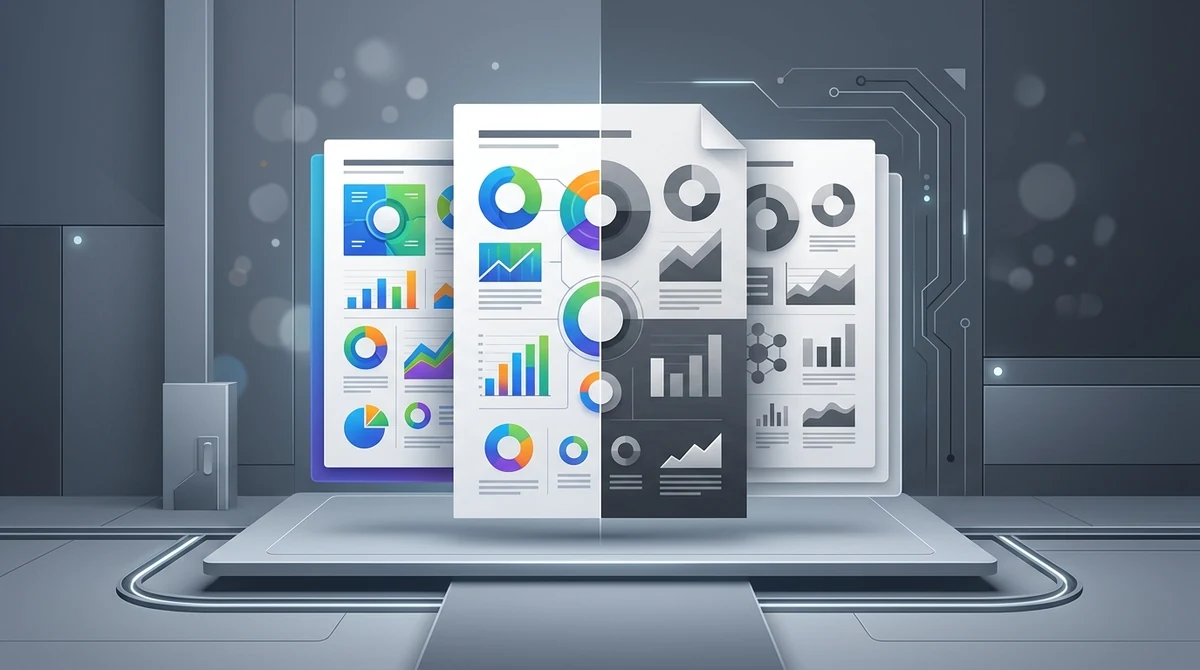
Quick summary
To convert a color PDF to grayscale black and white without Adobe Acrobat, use a dedicated browser-based utility like AZ2PDF. It transforms RGB and CMYK color spaces into 8-bit monochromatic DeviceGray, slashing color printer ink costs and shrinking image byte volume by up to 70% while keeping text vectors sharp.
- Massive ink and toner savings: Stripping color channels prevents office printers from using expensive cyan, magenta, and yellow cartridges to create composite black.
- Significant file size reduction: Converting 24-bit RGB raster scans to 8-bit monochrome eliminates up to two-thirds of raw image byte overhead.
- 100% vector text preservation: Fonts and geometric line art remain native Bézier vectors, guaranteeing razor-sharp readability at any zoom level.
- Zero cost and total privacy: The tool is 100% free with no registration, no file size traps, no watermarks, and automatic in-memory file deletion within 5 minutes.
Why convert color PDF documents to grayscale?
Most digital documents are created in full color. Marketing presentations feature vibrant charts, academic research papers include colorful diagrams, and smartphone scan apps capture everyday paper receipts in vivid 24-bit color. While color looks great on backlit computer screens and mobile displays, it quickly becomes an expensive and inefficient liability when documents need to be printed, archived, or shared across bandwidth-restricted networks.
The primary reason professionals and students convert color PDF files to grayscale is simple: cutting printer costs. Commercial office copiers and desktop laser printers treat color pages very differently from black and white pages. In fact, many enterprise printer contracts bill color impressions at four to eight times the price of a monochrome click. Even more frustrating, standard printer drivers often mix costly cyan, magenta, and yellow ink to print dark gray or near-black text, exhausting color cartridges even when you intended to print a simple monochrome report.
Beyond printing expenses, converting documents to grayscale provides substantial technical advantages for file distribution and compliance:
- Dramatic file size reduction: Full-color images and scanned pages store three separate color channels per pixel. Converting to a single grayscale channel strips up to two-thirds of the raw image data, producing lightweight files that easily clear email attachment limits.
- Legal and archival compliance: Government filing gateways, patent offices such as the USPTO, and state court electronic filing systems often enforce strict rules mandating monochrome submissions to guarantee uniform contrast and long-term readability.
- Visual cleanliness for scanned papers: Older paper documents scanned in full color often show unsightly yellowing, paper bleed-through, and digital color artifacts along folds. Converting to clean monochrome smooths out background discoloration and focuses the reader on the text.
- Optimized reading on E-Ink devices: Dedicated e-readers like Kindle, Kobo, and reMarkable tablets use electronic paper displays that only render 16 levels of gray. Pre-converting color PDFs to high-contrast grayscale improves page turn speeds and eliminates fuzzy color dithering.
Slash printing toner expenses and streamline office files with the AZ2PDF Grayscale PDF tool. It converts full-color RGB and CMYK gamuts into optimized 8-bit gray channels, reducing file weight significantly.
Understanding PDF color spaces: RGB vs. CMYK vs. DeviceGray
To understand why a grayscale conversion is so effective, it helps to examine how the Portable Document Format (ISO 32000 standard) handles color information. A PDF does not store color as a generic property; instead, it defines graphics, text, and photos within specific color spaces:
1. DeviceRGB (Red, Green, Blue)
This is the standard additive color model used by computer monitors, smartphones, and digital cameras. Every pixel is calculated by combining three color channels: Red, Green, and Blue. In standard 24-bit true color, each channel receives 8 bits of data (values from 0 to 255), allowing for over 16.7 million distinct colors. While ideal for screen displays, storing three color bytes for every single pixel in a 300 DPI scanned document generates massive file sizes.
2. DeviceCMYK (Cyan, Magenta, Yellow, Key/Black)
This is the subtractive color model used in commercial offset printing and professional four-color print presses. Rather than three channels, CMYK requires four separate color channels (32 bits per pixel), resulting in even heavier data payloads. If a document exported from graphic design software retains CMYK profiles, office printers often struggle to reproduce the colors accurately without dedicated PostScript RIP hardware.
3. DeviceGray (8-bit monochromatic luminance)
DeviceGray is a calibrated single-channel color space. Instead of tracking multiple color intensities, each pixel stores a single numeric value representing luminance (brightness). In 8-bit DeviceGray, values range from 0.0 (pure black) to 1.0 (pure white), offering 256 smooth shades of gray. Because each pixel requires only a single byte of memory instead of three or four, image stream sizes plummet by 50% to 75% without reducing resolution or sharpness.
When you convert a document the processing engine scans every element in the document object tree. It recalculates the luminance values of all RGB, CMYK, and ICCBased objects, mapping them cleanly into the standardized DeviceGray color space while preserving original vector resolution.
The printer ink trap: Rich black versus pure black
One of the most common complaints in modern office environments is discovering that color toner cartridges are completely empty, even though the team only printed everyday text documents and black-and-white reports. This phenomenon is known as the printer ink trap, and it happens because of how digital files define the color black.
In graphic design and digital publishing, there are two distinct types of black:
- Pure black (K only): Defined purely by the black color channel (0% Cyan, 0% Magenta, 0% Yellow, 100% Black, or DeviceGray value 0.0). When a printer receives this instruction, it activates only the black toner or black ink nozzle.
- Rich black (Composite black): Created by blending heavy amounts of cyan, magenta, and yellow underneath the black toner (for example, 60% Cyan, 40% Magenta, 40% Yellow, and 100% Black). On high-end glossy brochures, rich black creates a deeper, more luxurious appearance. But in regular office documents, it serves no useful purpose.
When you print a PDF created with RGB color values, the printer driver rarely translates RGB black (0, 0, 0) into pure black toner. Instead, the driver's color management module converts RGB into composite black, spraying a layer of expensive color ink beneath every letter. This wastes precious color cartridges and causes fine text to look fuzzy if the mechanical print heads are even slightly out of alignment.
Converting your PDF to native DeviceGray eliminates composite black entirely. Because all color channels are mathematically removed from the document stream, the printer driver has no choice but to route 100% of the print job through the dedicated black toner cartridge, saving substantial money over time.
How to convert color PDF to grayscale in 3 simple steps
Transforming your documents into clean, print-ready black and white takes only a few seconds register an account, or navigate confusing print dialogs. Here is the straightforward process:
Step 1: Select your color PDF document
Open the tool in any modern web browser on Mac, Windows, Linux, iOS, or Android. Drag and drop your color PDF file directly into the upload area, or click the file picker to browse your local device. The file loads immediately into our high-speed processing workspace.
Step 2: Automated color space transformation
Click the convert button. The high-performance processing engine inspects the document structure, recalculates pixel and vector luminance curves, and converts all RGB and CMYK color streams into single-channel DeviceGray. All processing runs in volatile system memory without altering your original file layout.
Step 3: Download your monochrome PDF
Click Download to save your optimized black and white PDF to your computer or phone. The resulting document is immediately ready for cost-effective printing or digital archiving, completely free of promotional watermarks or page limits.
Need to perform additional adjustments? You can explore the complete catalog of AZ2PDF free online PDF tools to compress, merge, or sign your documents with zero recurring costs.
Grayscale versus 1-bit monochrome: Key differences
When searching for ways to convert a document, people often use the terms grayscale and black and white interchangeably. However, in document engineering and computer graphics, there is a fundamental difference between grayscale and 1-bit monochrome (also called bilevel or binary black and white):
1. 8-bit grayscale (256 shades of gray)
Grayscale captures a continuous gradient from pure black to pure white through 256 distinct gray levels. Photographs, complex chart fills, subtle drop shadows, and soft pencil sketches look natural and recognizable. Fine details like facial features in corporate badges, nuanced pie chart slices, and subtle background watermarks remain clearly legible.
2. 1-bit monochrome (Binary black and white)
In a 1-bit monochrome document, every pixel must be either 100% black or 100% white, with absolutely no intermediate gray tones permitted. While this results in extremely small file sizes and is widely used for fax transmissions and pure line drawings, it destroys continuous-tone graphics. Photographs turn into harsh, blotchy black silhouettes, and light gray chart bars disappear completely into the white background.
The AZ2PDF engine uses high-precision 8-bit DeviceGray conversion. This ensures that while all color tinting is removed, every photograph, chart segment, and text gradient retains its full structural contrast and visual clarity.
Following grayscale conversion, you can easily apply additional compression to monochrome streams to maximize byte reduction and achieve the smallest possible file footprint for rapid archiving.
When should you convert your documents to grayscale?
Converting PDF documents to monochrome grayscale provides immediate benefits across a broad range of everyday scenarios:
1. High-volume classroom and office printing
Printing hundreds of pages of lecture slides, meeting packets, or company training manuals in full color wastes budget on non-essential decorative styling. Converting slides to grayscale before sending them to the copy center guarantees that the job is priced at the low monochrome rate, saving schools and businesses hundreds of dollars every month.
2. Submitting filings to courts and government portals
Legal authorities and patent registries such as the US Patent and Trademark Office (USPTO) require technical drawings, evidence exhibits, and formal petitions to be submitted in clean black and white. Documents containing unexpected color streams can be rejected during automated intake validation. Grayscale conversion ensures full technical compliance.
3. Slashing scanned document file size
When office scanners digitize paper documents, they often default to 300 DPI full color, creating 50MB files for basic 10-page contracts. Converting those color scans to grayscale eliminates unnecessary chromatic data, reducing file weight by 50% to 70% so the attachment effortlessly passes through restrictive email gateways.
4. Preparing digital books for E-Ink readers
E-reader displays rely on physical microcapsules containing black and white pigment chips. When an e-reader attempts to display an RGB color PDF, its processor must perform on-the-fly color dithering, which can slow down page turns and cause text edges to look grainy. Pre-converting documents to grayscale produces clean, high-contrast reading with instant page turns.
5. Cleaning up discolored vintage records
Historical documents, genealogical records, and vintage books scanned from paper archives often have yellowed parchment backgrounds and uneven ink fading. Grayscale conversion neutralizes distracting color casts, creating a uniform, professional monochrome appearance that is easier to read and transcribe.
Comparing conversion methods: AZ2PDF vs. Acrobat vs. Preview
Depending on your operating system and available software licenses, there are several methods for converting PDF files to grayscale. Understanding their advantages and limitations helps you choose the best workflow:
Option 1: Modern online conversion on AZ2PDF
This is the most balanced and convenient method for the vast majority of users. It works instantly across any web browser on Windows, Mac, Linux, Chromebook, iPhone, and Android without requiring software installation or account creation. It preserves native vector text streams, correctly maps color luminance to 8-bit DeviceGray, processes files in volatile memory for strict privacy, and is completely free of charge.
Option 2: Adobe Acrobat Pro (Preflight color conversion)
Adobe Acrobat Pro includes an advanced Print Production toolset capable of converting colors to various dot-gain grayscale profiles. While powerful for professional prepress operators who need specific commercial ink curves, Acrobat Pro requires a steep subscription exceeding $240 per year and a multi-gigabyte software installation. For everyday office and personal tasks, paying for Acrobat is unnecessary.
Option 3: macOS Preview (Quartz Black & White filter)
Mac users often attempt to use the built-in Preview application by exporting a document with the Quartz Black & White filter. However, Preview's default filter is notorious for aggressive rasterization: it frequently downsamples high-resolution images to a blurry 72 DPI and can inadvertently convert vector text into jagged bitmap images, making fine legal print difficult to read. Furthermore, this method is not available to Windows or mobile users.
Pro companion workflows for maximum document optimization
Converting to grayscale is often the first step in a comprehensive document optimization strategy. By combining grayscale conversion with companion tools on AZ2PDF, you can achieve optimal file compactness and security:
1. Apply intelligent PDF compression
After stripping heavy color channels, running your monochrome document through a PDF compression routine removes redundant font subsets and internal metadata streams. This compound workflow delivers maximum byte reduction, producing ultra-lightweight files that effortlessly bypass strict corporate email filters and file transfer quotas.
2. Flatten dynamic forms and annotations
If your document contains fillable AcroForm fields, digital signatures, or highlighted review notes, convert them into static graphical elements before grayscale transformation. Flattening locks interactive components into the underlying canvas, preventing field colors or transparency blending masks from shifting unexpectedly during color space conversion.
3. Recognize text with OCR
If your grayscale document was created from a paper scan or physical photograph, the letters are stored as image pixels rather than selectable text. Run your file through the AZ2PDF OCR PDF tool to generate a searchable, selectable text layer underneath the image, making it easy to search keywords (Ctrl+F) or copy excerpts.
Optimize document printing economics using the free PDF document utilities on AZ2PDF, featuring lightning-fast browser transformations that protect client confidentiality.
Troubleshooting common grayscale conversion issues
While converting to grayscale is usually straightforward, certain document designs require attention to maintain optimal contrast and legibility:
1. Light colored text looks faint or washed out
In full color, light yellow, pale lime green, or pastel orange text may be readable on a screen due to hue contrast against a white background. However, when these colors are converted to grayscale, their high luminance values map to very light gray tones, making them hard to read against white paper. If you are designing a document from scratch that might be printed in monochrome, always use darker accent colors like navy blue, deep crimson, or dark forest green.
2. Multi-colored chart lines blend together
In a financial presentation or scientific report, line graphs often use different colors (such as red, green, and blue) to distinguish between data series. In grayscale, colors with similar brightness levels will convert to nearly identical shades of gray. When preparing charts for monochrome distribution, incorporate varied line styles (solid, dashed, dotted) or distinctive data point markers (circles, triangles, squares) so the data remains easy to interpret without color.
3. The file fails to convert due to a password restriction
If a document has an owner password that restricts content modification or printing permissions, the conversion engine cannot rewrite internal color dictionaries. You will need to unlock the document permissions using the authorized password before running the grayscale conversion.
❓ Frequently asked questions
No. Unlike basic screenshot or image converters, the AZ2PDF Grayscale PDF tool preserves native vector fonts and typography outlines. Your letters and numbers remain mathematical Bézier curves that stay razor-sharp at any zoom level.
Related articles in this topic
Deep dive into related document organization and page manipulation workflows.

How to compress a PDF without losing quality (free and fast)
Learn how to compress PDF file sizes by up to 85% for email and web uploads without blurry text or pixelated images. Fast, free, and 100% private in your browser.
How to flatten a PDF form and annotations permanently
Learn how to flatten PDF form fields, checkmarks, signatures, and annotations into permanent print layers. Prevent tampering and ensure 100% print accuracy for free.

How to repair corrupted PDF files online (free and secure)
Learn how to fix damaged or unreadable PDF files online for free. Rebuild broken xref tables, recover truncated content streams, and restore document access securely.
How to detect and remove blank pages from scanned PDFs online
Learn how to automatically detect and remove blank pages from scanned PDFs online for free. Eliminate empty duplex scan pages without quality loss or manual editing.
How to convert PDF to ISO-standard PDF/A for long-term archiving
Learn how to convert PDF documents to ISO 19005-compliant PDF/A format online for free. Embed fonts, standardize color spaces, and ensure permanent preservation.
How to make a PDF look scanned online for free (realistic paper effect)
Learn how to make digital PDFs look like physically scanned paper documents online for free. Add subtle tilt, paper grain, and grayscale contrast without a printer.